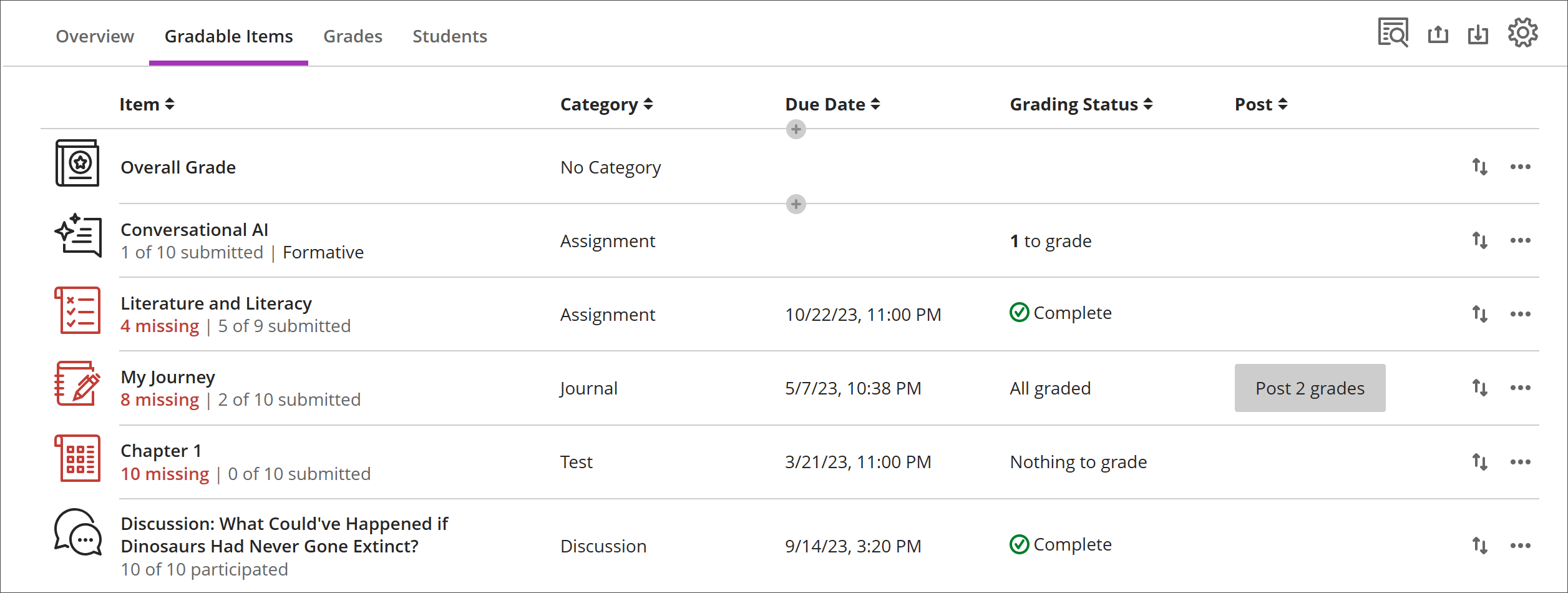
Registerkarte „Bewertbare Elemente‟ im Bewertungsbericht
Note
Diese Dokumentation wurde mithilfe einer KI-gestützten maschinellen Übersetzung übersetzt. Übersetzungen erfolgen unverbindlich und ohne Gewähr für ihre Richtigkeit oder Vollständigkeit. Die englische Version dieses Inhalts ist die offizielle und maßgebliche Quelle.
In der Ansicht „Benotbare Elemente“ werden alle bewertbaren Elemente in Ihrem Kurs angezeigt. Sie können Fälligkeitsdaten, den Bewertungsstatus und Elementkategorien anzeigen. Sie können auch Bewertungen veröffentlichen und die Berechnung der Gesamtbewertung für den Kurs anpassen.
Elemente mit fehlenden Einreichungen nach dem Fälligkeitsdatum werden in Rot angezeigt.
Verwenden Sie die Schaltfläche „Verschieben‟, um Elemente in einer neuen Reihenfolge zu ziehen und abzulegen.
Wählen Sie den Namen eines Elements aus, um zur Seite „Einreichungen“ oder „Bewertungen und Teilnahme“ zu gelangen.
Wählen Sie X bewerten , um direkt zur Seite „Einreichungen“ der Bewertung zu gelangen und mit der Bewertung zu beginnen.
Benutzerdefinierte, textbasierte Spalten
Um eine benutzerdefinierte, textbasierte Spalte zu erstellen, wählen Sie (+) Hinzufügen und anschließend Textelement hinzufügen. Für jede Spalte können Sie einen Spaltennamen und eine Beschreibung eingeben und die Sichtbarkeit der Spalte für die Teilnehmer steuern. Für jede Zeile können Sie bis zu 32 Zeichen eingeben.
Bewertbare Elemente im Bewertungsbericht navigieren
Die Registerkarte „Bewertbare Elemente“ verwendet ein tabellenbasiertes Layout, um die Benutzerfreundlichkeit bei der Bedienung über die Tastatur und mit Bildschirmleseprogrammen zu verbessern.
Navigieren in bewertbaren Elementen mit der Tastatur
Drücken Sie die Tabulatortaste, um zum Bewertungscenter zu gelangen.
Verwenden Sie die Pfeiltasten, um zur Registerkarte „Bewertbare Elemente“ zu wechseln.
Wählen Sie „Tab“, bis Sie in die Tabelle „Bewertbare Elemente“ gelangen.
Verwenden Sie die Pfeiltasten, um in der Tabelle zu navigieren.
Mit der Tabulatortaste verlassen Sie die Tabelle und gelangen zur Schaltfläche Blackboard-Hilfe. Mit Umschalt + Tabulatortaste kehren Sie zur Schaltfläche Einstellungen zurück.
Navigieren in bewertbaren Elementen mit Screenreader
Benutzer von Screenreadern können mithilfe der Tastaturanweisungen zur Registerkarte „Bewertbare Elemente“ navigieren. Sie können auch die spezielle Tastenkombination für Ihren Screenreader verwenden, um direkt zur Tabelle zu gelangen.
JAWS: Drücken Sie Einfg + Strg + T
NVDA: Drücken Sie T und dann STRG+Pfeil nach unten, um die Tabelle aufzurufen.
VoiceOver: Drücken Sie Strg + Option + Pfeil nach rechts, um die Tabellenoption auszuwählen
Sobald sie sich in der Tabelle befinden, können Screenreader die Tabellennavigation (Strg + Alt + Pfeiltasten) nutzen, um sich in der Tabelle zu bewegen.
Wenn Sie Inhalte hinzufügen möchten, navigieren Sie mit dem Abwärtspfeil zur Schaltfläche Weitere Optionen (...) am Ende der Zeile. Der nächste Abwärtspfeil ist die Schaltfläche Inhalt hinzufügen.
Hinweis für JAWS-Benutzer
JAWS-Benutzer können sich in jeder Zeile nach links oder rechts bewegen, indem sie die Navigationstasten der Tabelle verwenden.
Um zwischen den Aufgabenzeilen nach oben und unten zu wechseln, navigieren Sie zunächst zur Spalte „Element“.