Notenbucheinträge verwalten
Note
Diese Dokumentation wurde mithilfe einer KI-gestützten maschinellen Übersetzung übersetzt. Die Übersetzungen werden „wie besehen“ bereitgestellt, ohne Gewähr für ihre Richtigkeit. Die englische Version dieses Inhalts ist die offizielle und maßgebliche Quelle.
Sobald sich eine Aufgabe in Ihrem Notenbuch befindet, können Sie eine Erinnerung senden, sie bearbeiten, Statistiken anzeigen, sie löschen oder ihre Reihenfolge ändern.
Erinnerung senden
Senden Sie eine Erinnerung an Kursteilnehmer oder Gruppen, die noch keinen Beitrag eingereicht haben. Das Element muss ohne Freigabebedingungen sichtbar sein. Dies gilt nicht für manuell erstellte Spalten.
Erinnerungen werden als Kursnachricht im Blindkopie-Format (BCC) versendet, und Sie erhalten ebenfalls eine Kopie. Wenn Kursbenachrichtigungen deaktiviert sind, werden Erinnerungen per E-Mail versendet. Bei anonymer Bewertung werden Erinnerungen stets per E-Mail versendet, um die Anonymität zu wahren.
Wählen Sie in der Tabellenansicht den Titel des Elements (die Spaltenüberschrift) aus.
Wählen Sie im Bereich „Bewertungsdetails“ das Glockensymbol aus. Das Glockensymbol wird nicht angezeigt, wenn kein Schüler eine Aufgabe einreichen muss.
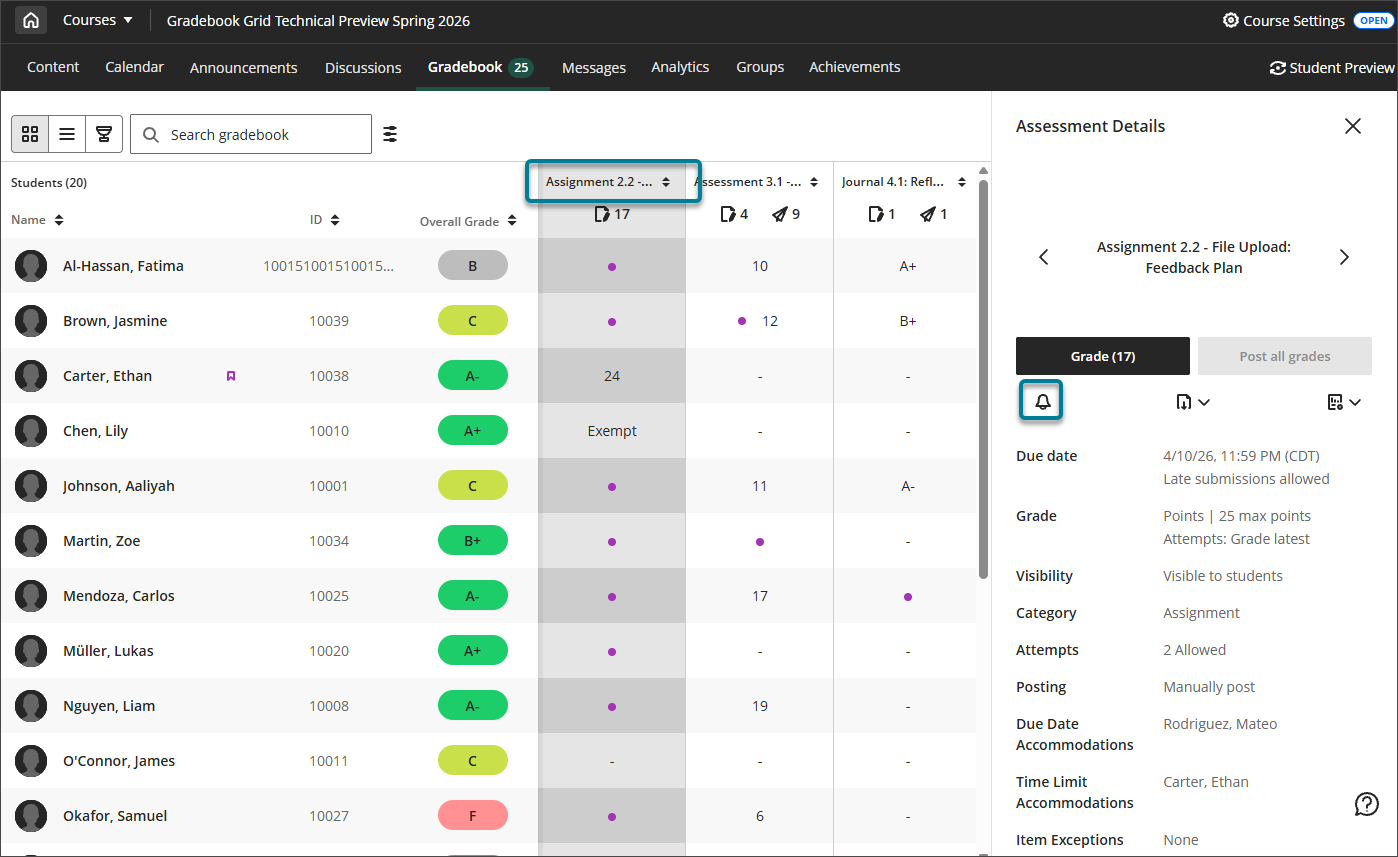
Wählen Sie im Bestätigungsdialogfeld Absenden aus.
Statistiken und Fragenanalyse anzeigen
Wählen Sie in der Tabellenansicht den Titel des Elements (die Spaltenüberschrift) aus.
Wählen Sie im Bereich „Bewertungsdetails“ das Symbol „Statistiken“ aus. Das Statistik-Symbol wird nicht angezeigt, wenn für diesen Eintrag keine Statistiken und keine Fragenanalyse verfügbar sind.
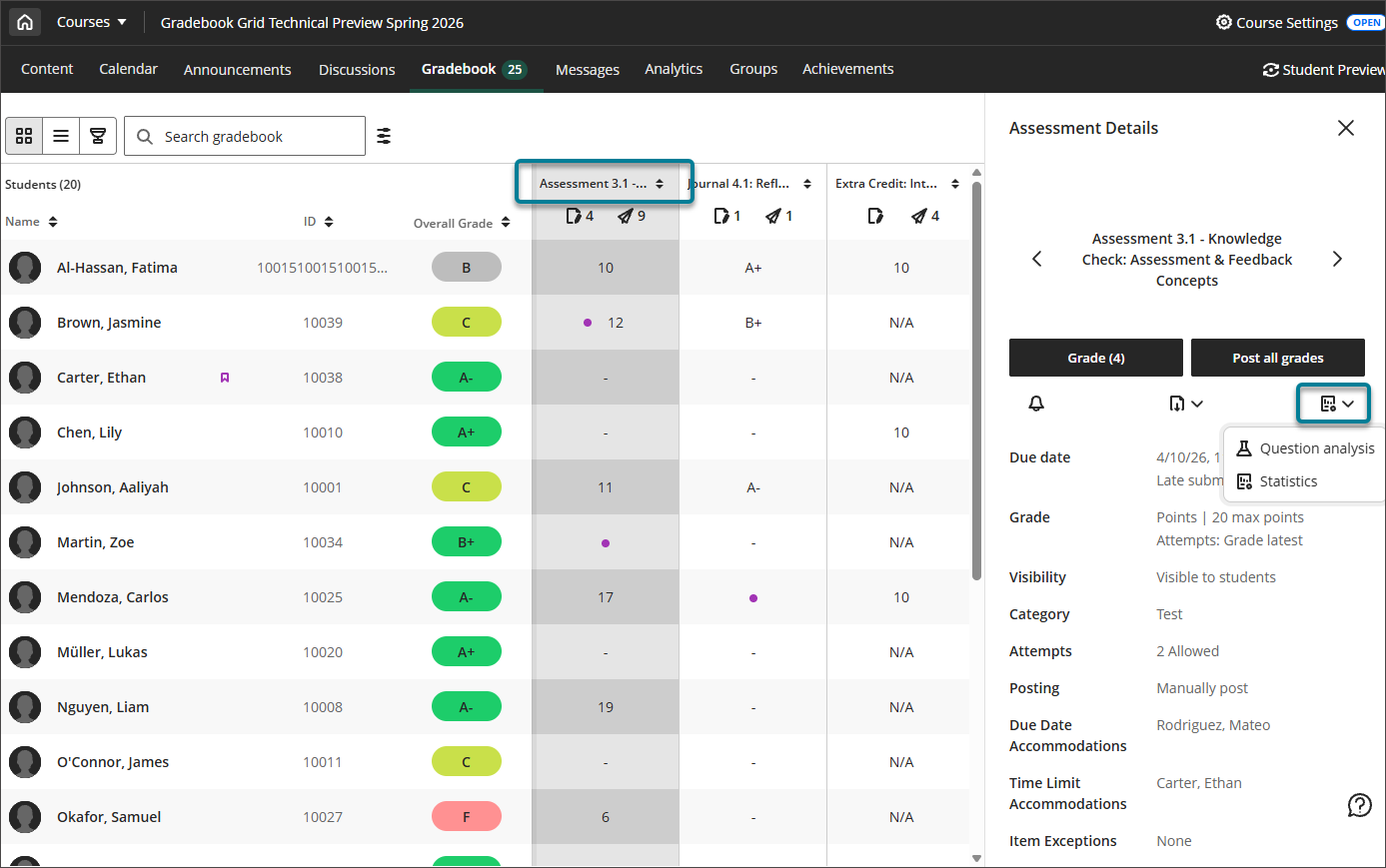
Wählen Sie Statistiken aus, um die zusammenfassenden Kennzahlen für das Element anzuzeigen: Minimal- und Maximalwert, Spannweite, Mittelwert, Median, Standardabweichung, Varianz.
Wählen Sie Fragenanalyse, um Details und Daten zu jeder Frage der Bewertung anzuzeigen.
Weitere Artikel bestellen
Wenn Sie Elemente in der Listenansicht neu anordnen, wird diese Reihenfolge in der Rasteransicht übernommen.
Legen Sie in der Listenansicht fest, in welcher Reihenfolge die Elemente angezeigt werden sollen.
Wählen Sie jeweils ein Element aus, klicken Sie auf das Symbol zum Neuanordnen und ziehen Sie die Zeile per Drag-and-drop zwischen die vorhandenen Zeilen.