تقرير تقييم المعيار
Note
تمت ترجمة هذه الوثيقة باستخدام الترجمة الآلية المدعومة بالذكاء الاصطناعي. تُقدَّم الترجمات «كما هي» على وضعها القائم دون أي ضمان بشأن دقتها. تُعد النسخة الإنجليزية من هذا المحتوى هي المصدر الرسمي والمعتمد.
يوفر لك «تقرير تقييم معايير التقييم» نظرة شاملة على أداء الطلاب وفقًا لكل معيار من معايير التقييم الخاصة بنشاط خاضع للتقييم. يمكنك استخدام التقرير لتحديد الأنماط السائدة في الفصل بأكمله، والاستفادة من هذه المعلومات لتعديل أسلوبك في التدريس أو تصميم المقرر الدراسي.
يتوفر التقرير لأي عنصر في سجل الدرجات مرتبط بمعيار تقييم ويحتوي على بيانات تقييم قابلة للاستخدام. يستند التقرير إلى رتب الوظائف فقط. يتم تحديث المعلومات ليلاً، كل 24 ساعة.
قم بتنزيل نموذج تقرير تقييم المعيار بصيغة PDF.
تشغيل تقرير تقييم نموذج التقييم
حدد عمود النشاط الذي تم تقييمه وتريد إعداد تقرير عنه.
اختر قائمة الأعمدة، ثم اختر تنزيل تقرير نموذج التقييم.
In the Assessment Details panel, select the download icon, then select Download rubric report.
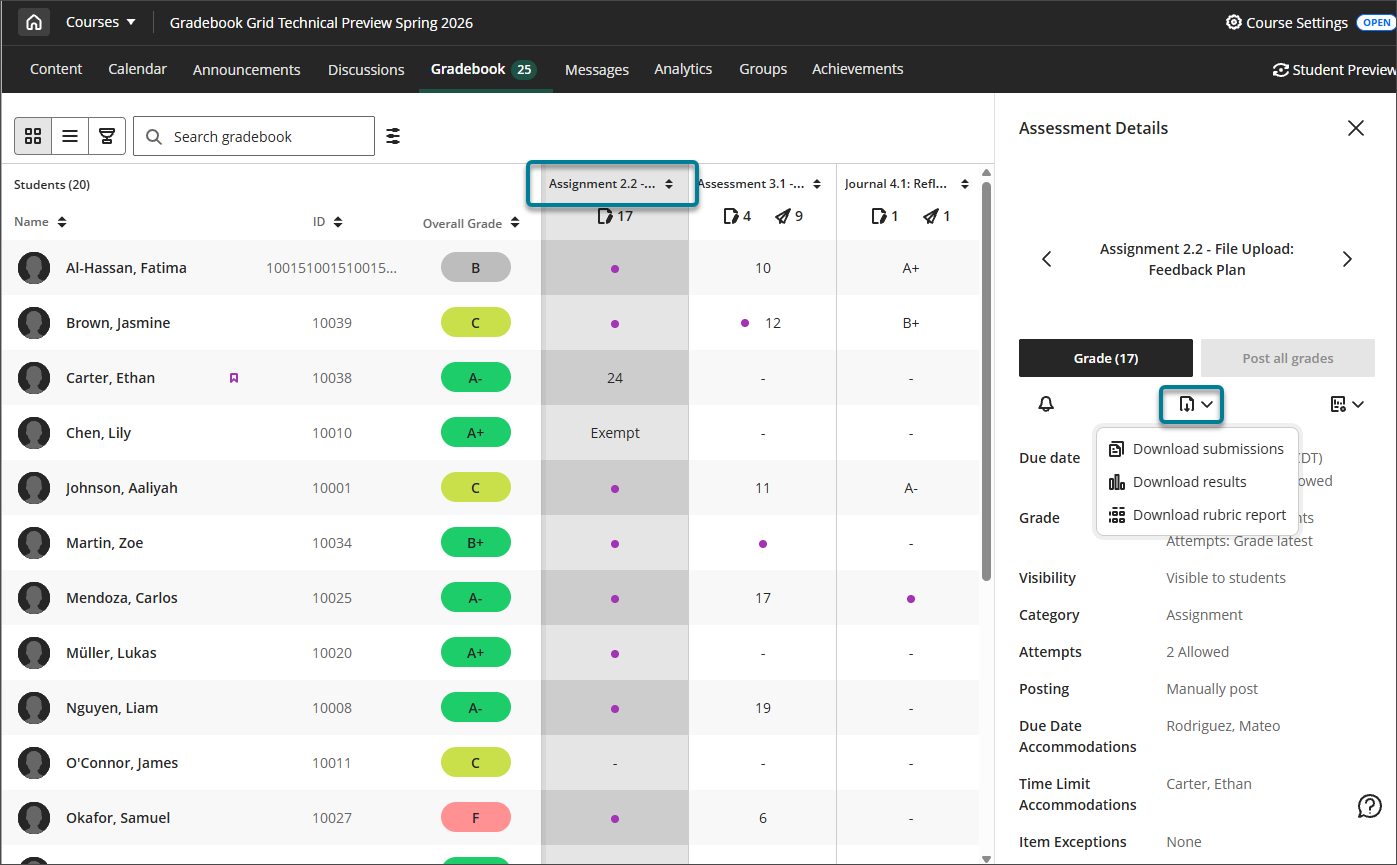
في صفحة تكوين التقرير، حدد تنسيق الإخراج الذي تفضله: PDF أو CSV.
حدد تشغيل التقرير.
في حالة عدم توفر بيانات تقييم كافية، تظهر رسالة في صفحة التكوين تُعلمك بأنه لا يمكن إنشاء التقرير في الوقت الحالي.
فهم التقرير
ينقسم التقرير إلى أربعة أقسام.
نظرة عامة: يحدد هذا القسم النشاط قيد القياس، ومعيار التقييم المستخدم، ونوع معيار التقييم، والعدد الإجمالي لتقييمات الطلاب المدرجة في التقرير.
معيار تقييم الأداء العام: يعرض هذا القسم متوسط الدرجات التي حققها طلابك مقارنةً بإجمالي النقاط الممكنة. استخدم هذا لتكوين فكرة سريعة عن الأداء العام للمقرر.
تحليل معايير التقييم: يعرض هذا القسم رسمًا بيانيًّا شريطيًّا يقارن النقاط الممكنة لكل معيار من معايير التقييم بمتوسط النقاط التي حصل عليها الطلاب في ذلك المعيار.
التوزيع التكراري: يعرض هذا الجدول النسبة المئوية للطلاب الذين بلغوا كل مستوى من مستويات التحصيل لكل معيار، إلى جانب القيم الإحصائية التي تشمل المتوسط والوسيط والمنوال والانحراف المعياري. استخدم هذا القسم للإجابة على أسئلة محددة تتعلق بتعلّم الطلاب.