البحث عن دعم المؤسسة
Note
تمت ترجمة هذه الوثيقة باستخدام الترجمة الآلية المدعومة بالذكاء الاصطناعي. تُقدَّم الترجمات «كما هي» على وضعها القائم دون أي ضمان بشأن دقتها. تُعد النسخة الإنجليزية من هذا المحتوى هي المصدر الرسمي والمعتمد.
لا يمكن الإجابة عن العديد من الأسئلة الشائعة Blackboard LMS بواسطة Blackboard. تقوم مؤسستك بتكوين بيئة Blackboard LMS الخاصة بها وإدارتها، مما يعني أن مكتب المساعدة الخاص بمؤسستك - وليس Blackboard - هو المكان المناسب للذهاب إليه في العديد من مشكلات الحساب والمحتوى وإمكانية الوصول.
توضح هذه الصفحة متى يجب الاتصال بمكتب المساعدة في مؤسستك وكيفية العثور عليه.
متى تتواصل مع مؤسستك؟
اتصل بمكتب المساعدة في مؤسستك عندما تواجه أيًا مما يلي.
تسجيل الدخول والوصول إلى الحساب
لا يمكنك تسجيل الدخول، ولا تؤدي إعادة تعيين كلمة المرور إلى حل المشكلة.
حسابك مقفل ومؤسستك لا تسمح بإلغاء القفل الذاتي.
لا يسمح لك موفر تسجيل الدخول الأحادي (SSO) بتسجيل الدخول.
قد تعتقد أنه لم يتم إنشاء حسابك أو تم إلغاء تنشيطه.
لمزيد من الإرشادات الخاصة بتسجيل الدخول، انتقل إلى تسجيل الدخول إلى المنتج: Blackboard LMS واستكشاف أخطاء تسجيل الدخول وإصلاحها.
حقول الملف الشخصي التي لا يمكنك تعديلها
قد تظهر بعض حقول الملف الشخصي - مثل عنوان بريدك الإلكتروني أو اسمك أو ضمائرك - مقفلة أو للقراءة فقط. يعني هذا عادةً أن مؤسستك قد قامت بتكوين Blackboard LMS بحيث لا يمكن تغيير هذه الحقول إلا من خلال أنظمة المؤسسة. يمكن لمكتب المساعدة لديك تحديثها لك أو إخبارك بالنظام الذي يمكنك استخدامه.
المحتوى المفقود أو الصفحات التي لا تُفتح
إذا اختفى محتوى المقرر الدراسي أو لم يتم فتح الصفحة، فغالبًا ما يكون السبب خارج Blackboard LMS نفسه. تتضمن الأمثلة الشائعة تغييرات تكوين المؤسسة أو مشاكل الشبكة أو المشاكل الخاصة بالأجهزة. يمكن لمكتب المساعدة لديك التحقق من ذلك من جانبهم. إذا تأكدوا من أن المشكلة هي خطأ في Blackboard LMS، يمكنهم فتح تذكرة دعم باستخدام Blackboard - وهو أمر لا يمكن للمدرسين والطلاب القيام به مباشرةً.
المعلومات الشخصية والدرجات والمقررات الدراسية
Blackboard لا يخزن معلوماتك الشخصية أو درجاتك أو واجباتك المرسلة في المقرر الدراسي. إذا كانت لديك أسئلة حول أي من هذه الأسئلة، فاتصل بالشخص المناسب في مؤسستك:
للحصول على الدرجات أو التعليقات أو إرسال الواجبات، اتصل بمدرّسك.
بالنسبة للسجلات أو التسجيل أو البيانات الشخصية، اتصل بمكتب المساعدة أو المسجل في مؤسستك.
كيفية العثور على مكتب المساعدة الخاص بمؤسستك
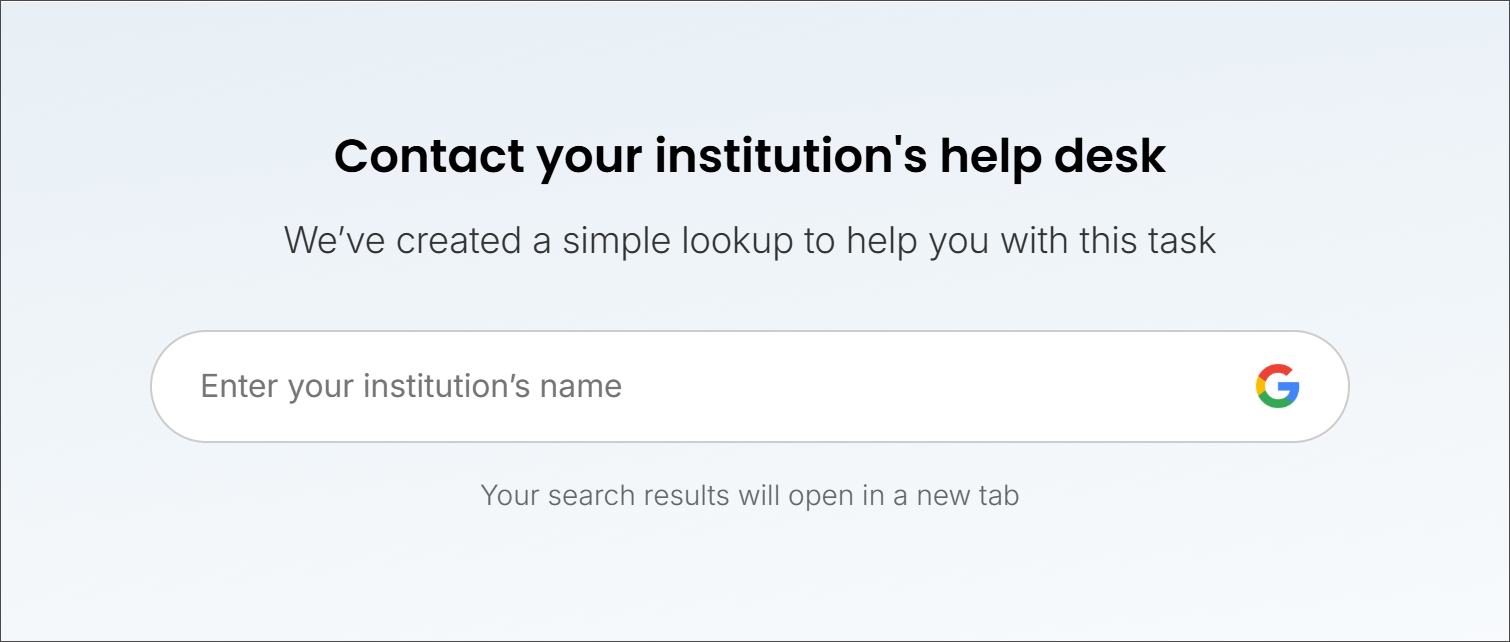
تتضمن الصفحة المقصودة Blackboard LMS الخاصة بك بحثًا مدمجًا يساعدك في العثور على مكتب المساعدة التابع لمؤسستك.
قم بالتمرير إلى أسفل الصفحة المستهدفة للمدرس أو الطالب.
ابحث عن القسم المعنون اتصل بمكتب المساعدة في مؤسستك.
في شريط بحث Google، أدخل اسم مؤسستك في الحقل المسمى أدخل اسم مؤسستك.
حدِّد "بحث Google". يتم فتح نتائج البحث في علامة تبويب جديدة.
من نتائج البحث، ابحث عن مكتب المساعدة المؤسسي الرسمي أو دعم تقنية المعلومات أو صفحة خدمات التقنية.
ما يجب تضمينه عند الاتصال بالدعم
لمساعدة مكتب المساعدة الخاص بمؤسستك على الاستجابة بسرعة، قم بتضمين أكبر قدر ممكن مما يلي:
اسمك واسم المستخدم أو المعرّف المؤسسي الخاص بك.
المقرر الدراسي أو الصفحة التي تحدث فيها المشكلة (إن أمكن).
وصف واضح لما توقعته وما حدث بدلاً من ذلك.
النص الدقيق لأي رسالة خطأ.
تاريخ ووقت حدوث المشكلة.
جهازك ونظام التشغيل والمتصفح (وإصداره، إن كنت تعرفه).
لقطات الشاشة، إن أمكن، أدرجها.