إدارة قواعد التقدير
Note
تمت ترجمة هذه الوثيقة باستخدام الترجمة الآلية المدعومة بالذكاء الاصطناعي. تُقدَّم الترجمات «كما هي» على وضعها القائم دون أي ضمان بشأن دقتها. تُعد النسخة الإنجليزية من هذا المحتوى هي المصدر الرسمي والمعتمد.
Access the Course Rubrics page
The Course Rubrics page displays all rubrics in your course in a sortable, searchable table. From this page, you can create, generate, copy, edit, delete, import, and export rubrics.
You can access the Course Rubrics page in two ways:
From Gradebook Settings, select Manage Course Rubrics in the Course Rubrics section.
From Assignment Settings, select Add Rubric in the Grading & Submissions section.
نسخ قاعدة تقدير
On the Course Rubrics page, select the ellipsis, then select Duplicate.
Edit the rubric as needed, including the titles.
Select Save.
بعد استخدامك لقاعدة تقدير من أجل وضع التقدير، لا يمكنك تحريرها، لكن يمكنك أخذ نسخة بإمكانك تحريرها وإعادة تسميتها.
ملاحظة
ملحوظة: إذا قمت بنسخ قاعدة مستندة إلى نسبة مئوية موجودة بالفعل وقمت بتغييرها إلى قاعدة خاصة بنطاق النسبة المئوية، سيتم مسح جميع الأوصاف.
إذا كنت قد استخدمت قاعدة التقدير بالفعل لتقدير أحد العناصر، يمكنك أيضًا نسخ قاعدة التقدير وتحرير الإصدار المكرر. من لوحة إعدادات العنصر، قم بفتح قاعدة التقدير. حدد إنشاء نسخة في أسفل الشاشة. عندما تقوم بإنشاء نسخة من القاعدة التي استخدمتها لتقدير اختبار أو واجب، سيتم ربط القاعدة الجديدة بالعنصر. ويتم الاحتفاظ بأي تقديرات محسوبة باستخدام القاعدة الأصلية، ولكن يتم تحويل هذه التقديرات إلى تجاوزات. ويمكنك إعادة تقدير هذه الواجبات المرسلة باستخدام القاعدة الجديدة.
When you create a copy of a rubric you used to grade a test or assignment, the new rubric is associated with the item. Any grades calculated with the original rubric are preserved, but these grades are converted to overrides. You can regrade these submissions with the new rubric.
هام
لا يمكنك نسخ القواعد على الأجهزة الصغيرة.
نسخ قواعد التقدير بين المقررات الدراسية
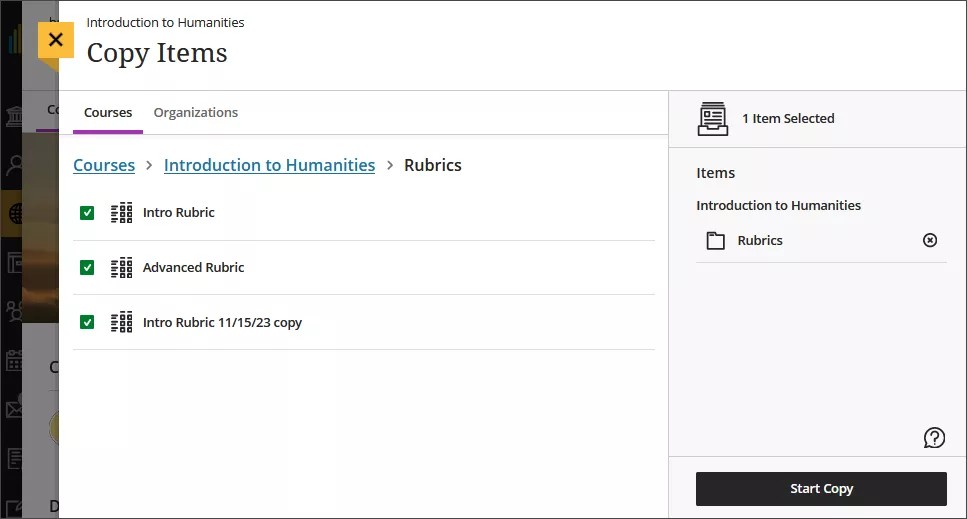
On the Course Content page, select the plus sign to open the menu and select Copy Content. Or, open the More options menu above the content list. Select Copy Items.
The Copy Items panel opens.
From the Copy Items panel, you can browse all the courses that you teach.
Select the Rubrics folder for the course you want to copy rubrics from and select the rubrics you’d like to copy.
When you’re done, select Start copy.
حذف قواعد التقدير
يمكنك حذف قاعدة من مقررك الدراسي بشكل دائم حتى لو استخدمتها في التقدير وستبقى التقديرات. لم تعد التقديرات مرتبطة بقاعدة التقدير، لكنها تظهر الآن كتقديرات أضفتها يدويًا.
To permanently delete a rubric, go to the Course Rubrics page. Select the ellipsis menu on the rubric, then select Delete.
Export a rubric
You can export a rubric from your course to reuse it in another course. The exported file is a zip file intended for importing into another course and is not a viewable document.
To export a rubric, select the ellipsis then select Export.
The rubric downloads automatically as a zip file named with the rubric name and course title. You can find it in your downloads folder.
Import a rubric
You can import a rubric that was previously exported from Blackboard LMS.
On the Course Rubrics page, select the import icon.
Select the zip file from your local. Only rubrics exported from Blackboard LMS can be imported.
After import, review your imported rubric,
The rubric imports automatically. If the same rubric already exists in the course, an error message appears to prevent duplicate rubrics from being created.