Tab Eitemau Graddadwy yn Llyfr Graddau
Note
Cyfieithwyd y ddogfennaeth hon gan ddefnyddio cyfieithu peirianyddol gyda chymorth AI. Darperir cyfieithiadau "fel y maent" heb unrhyw warant o'u cywirdeb. Y fersiwn Saesneg o'r cynnwys hwn yw'r ffynhonnell swyddogol ac awdurdodol.
Mae'r wedd Eitemau Graddadwy yn dangos yr holl eitemau graddadwy yn eich cwrs. Gallwch weld dyddiadau cyflwyno, statws graddio, a chategorïau eitemau. Gallwch hefyd gyhoeddi graddau ac addasu cyfrifiad y radd gyffredinol ar gyfer y cwrs.
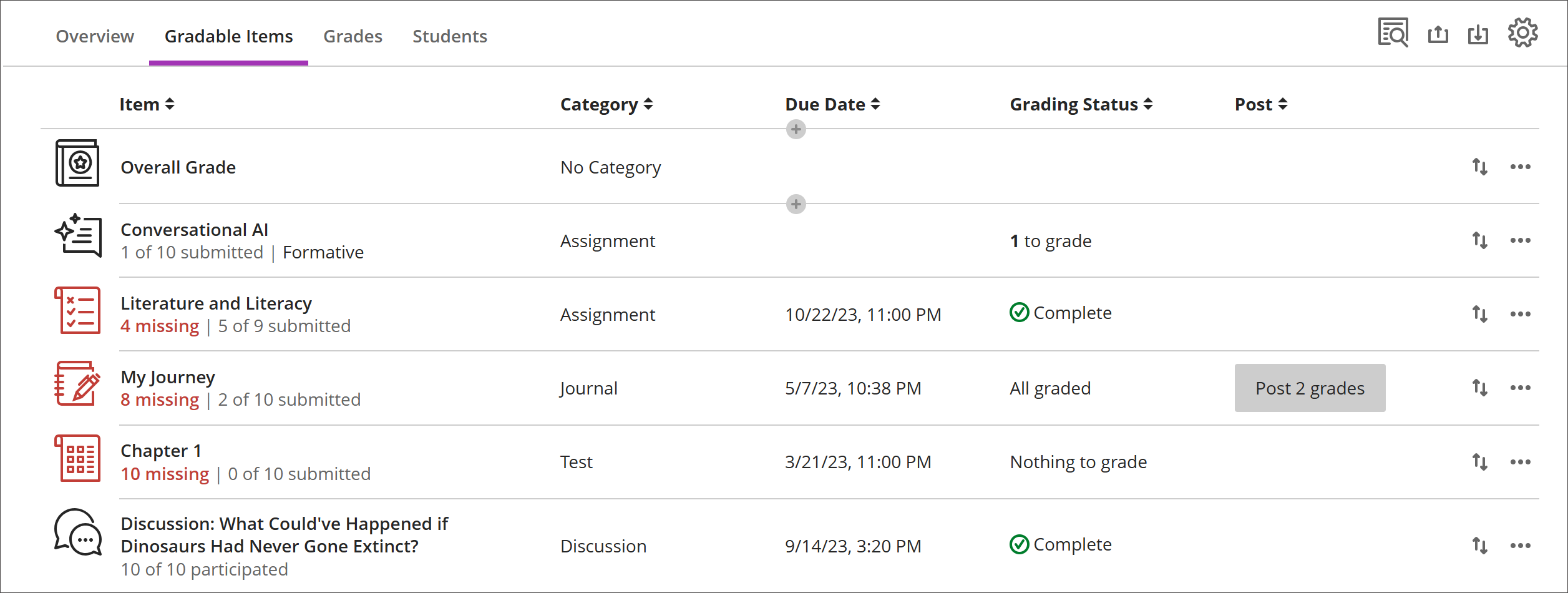
Mae eitemau heb gyflwyniadau ar ôl y dyddiad cyflwyno yn ymddangos yn goch.
Defnyddiwch y botwm symud i lusgo a gollwng eitemau mewn trefn newydd.
Dewiswch enw eitem i fynd i'w thudalen Cyflwyniadau neu Graddau a Chyfranogiad.
Dewiswch X i raddio i fynd yn uniongyrchol i dudalen Cyflwyniadau yr asesiad a dechrau graddio.
Colofnau addasedig yn seiliedig ar destun
I greu colofn arferol, sy'n seiliedig ar destun, dewiswch (+) ychwanegu, yna dewiswch Ychwanegu Eitem Testun. Ar gyfer pob colofn, gallwch nodi enw colofn a disgrifiad, a gallwch reoli gwelededd myfyrwyr ar gyfer y golofn. Ar gyfer pob rhes, gallwch nodi hyd at 32 cymeriad.
Llywio'r tab Eitemau Graddadwy yn y Llyfr Graddau
Mae'r tab Eitemau Graddadwy yn defnyddio cynllun ar ffurf tabl i wella'r defnyddioldeb ar gyfer bysellfyrddau a darllenwyr sgrin.
Llywiwch Eitemau Graddadwy â'r bysellfwrdd
Defnyddiwch yr allwedd Tab i fynd i'r Llyfr Graddau.
Defnyddiwch yr allweddi saeth i fynd i'r tab Eitemau Graddadwy.
Dewiswch Tab nes i chi gyrraedd y tabl Eitemau Graddadwy.
Defnyddiwch yr allweddi saeth i lywio'r tabl.
Bydd yr allwedd Tab yn mynd â chi allan o'r tabl i'r botwm Cymorth Blackboard. Mae Shift + Tab yn mynd â chi'n ôl i'r botwm Gosodiadau.
Llywio eitemau graddadwy gyda darllenwyr sgrin
Gall defnyddwyr darllenwyr sgrin lywio i'r tab Eitemau Graddadwy gan ddefnyddio'r cyfarwyddiadau bysellfwrdd. Gallwch hefyd ddefnyddio'r cyfuniad bysellau arbenigol ar gyfer eich darllenydd sgrin i fynd yn syth i'r tabl.
JAWS: Defnyddiwch Insert + Ctrl + T
NVDA: Defnyddiwch T, yna Ctrl + yr allwedd saeth i lawr i fynd i mewn i'r tabl
VoiceOver: Defnyddiwch Ctrl + Option + yr allwedd saeth i'r dde i ddewis yr opsiwn tabl
Unwaith yn y tabl, gall darllenwyr sgrin ddefnyddio llywio tablau (Ctrl + Alt + bysellau saeth) i lywio'r tabl.
Os ydych chi eisiau ychwanegu cynnwys, defnyddiwch y saeth i lawr i fynd i'r botwm Mwy o Ddewisiadau (...) ar ddiwedd y rhes. Y saeth i lawr nesaf fydd y botwm Ychwanegu Cynnwys.
Nodyn i ddefnyddwyr JAWS
Gall defnyddwyr JAWS symud i'r chwith neu i'r dde ym mhob rhes drwy ddefnyddio'r bysellau llywio tabl.
I symud i fyny ac i lawr rhwng rhesi'r aseiniadau, ewch i golofn yr eitem yn gyntaf.