Notas de la versión de agosto de 2026 (4000.21)
Note
Este documento se ha traducido mediante traducción automática asistida por IA. Las traducciones se proporcionan «tal cual», sin garantía alguna respecto a su exactitud. La versión en inglés de este contenido es la fuente oficial y con valor normativo.
Información sobre la versión
Sugerencia
Para números de compilación de versiones de mantenimiento y correcciones de errores, visite Versiones de Mantenimiento.
Para el estado de lanzamientos y retrasos, visita Estado de Blackboard.
Diseño instruccional
Acceso anticipado: Nuevo editor de contenido para Blackboard documentos
Un Editor de Contenido modernizado está disponible en Blackboard LMS a través de un programa de Acceso Temprano a partir de la versión de agosto. El nuevo editor mejora la coherencia y la eficiencia en la creación de contenidos gracias a las siguientes mejoras:
Una experiencia de creación simplificada: los menús reorganizados y una barra de herramientas optimizada facilitan encontrar y usar las herramientas de edición.
Funciones de formato de contenido más potentes: las mejoras en las listas y las tablas ofrecen un mayor control y una experiencia de creación más familiar.
Accesibilidad mejorada y una base preparada para el futuro: la mejora en la navegación por teclado y nuevos atajos facilitan la creación de contenido, mientras que una nueva arquitectura permite seguir innovando.
Los administradores pueden habilitar el nuevo editor para Blackboard Documentos a través de una bandera de función, disponible poco después del lanzamiento de agosto.
El nuevo editor seguirá mejorándose y recibirá actualizaciones durante el período beta, que se extenderá de agosto a noviembre. En diciembre, el nuevo editor se implementará para todos los usuarios en todo el producto y estará disponible en cualquier lugar donde se utilice el editor, no solo en «Documentos».
Profesores
Al trabajar con bloques de contenido en «Documentos», los profesores pueden elegir entre el nuevo editor y el editor actual. El editor actual seguirá teniendo soporte completo durante el periodo de acceso anticipado.
Imagen 1: El nuevo editor de contenido aparece junto al editor clásico al agregar bloques de documentos.
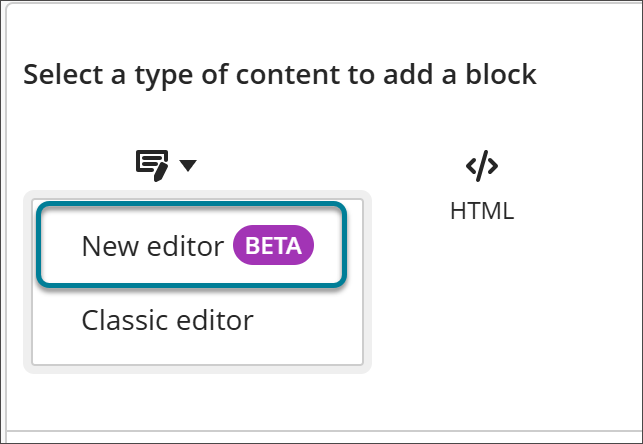
Imagen 2: El nuevo editor de contenido cuenta con una barra de herramientas y una estructura de menús rediseñadas.
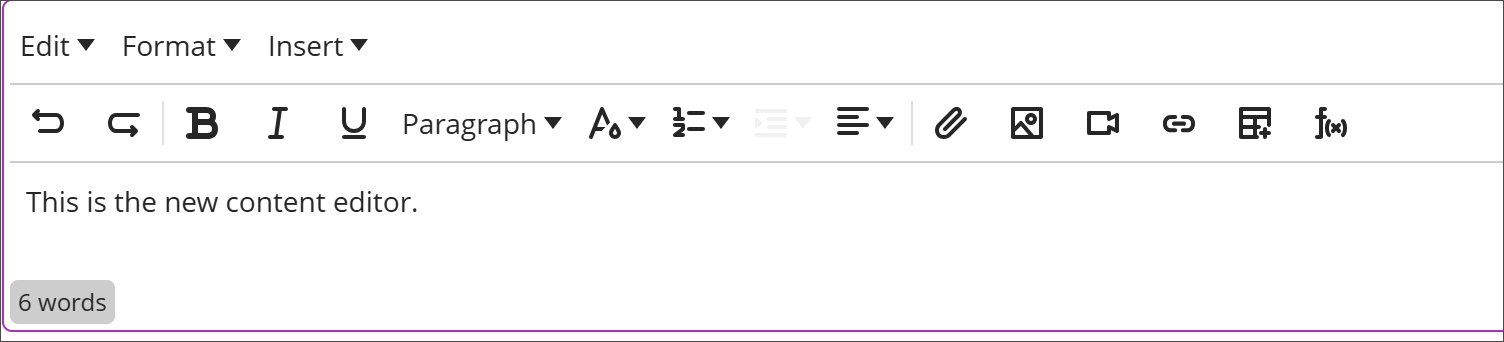
La guía «Nueva experiencia de usuario» presenta el nuevo editor y destaca algunos de los cambios que se observan al abrirlo por primera vez. Los profesores pueden enviar comentarios sobre errores o problemas de usabilidad directamente desde el editor. Las aportaciones de las instituciones participantes contribuirán al desarrollo del editor antes de su adopción generalizada.
Dado que se trata de una versión de acceso anticipado, es posible que los profesores encuentren errores, funcionalidades que aún no estén disponibles o flujos de trabajo que todavía estén en desarrollo. Consulte la Tabla comparativa de los editores de contenido para ver una comparación de las funciones de ambos editores en paralelo.
Administradores
Disponibilidad: Disponible para todos los cursos Ultra.
Activación: Desactivado por defecto. La opción de participar en el programa de acceso anticipado estará disponible poco después del lanzamiento de agosto.
Configuración: En el Panel de Administración, seleccione Configurar en el módulo La Experiencia Ultra está Aquí. Active el indicador de función Nuevo editor de contenido para Documentos de Blackboard (Beta).
Mostrar elementos anidados en el Repositorio de objetos de aprendizaje. Ir a la vista.
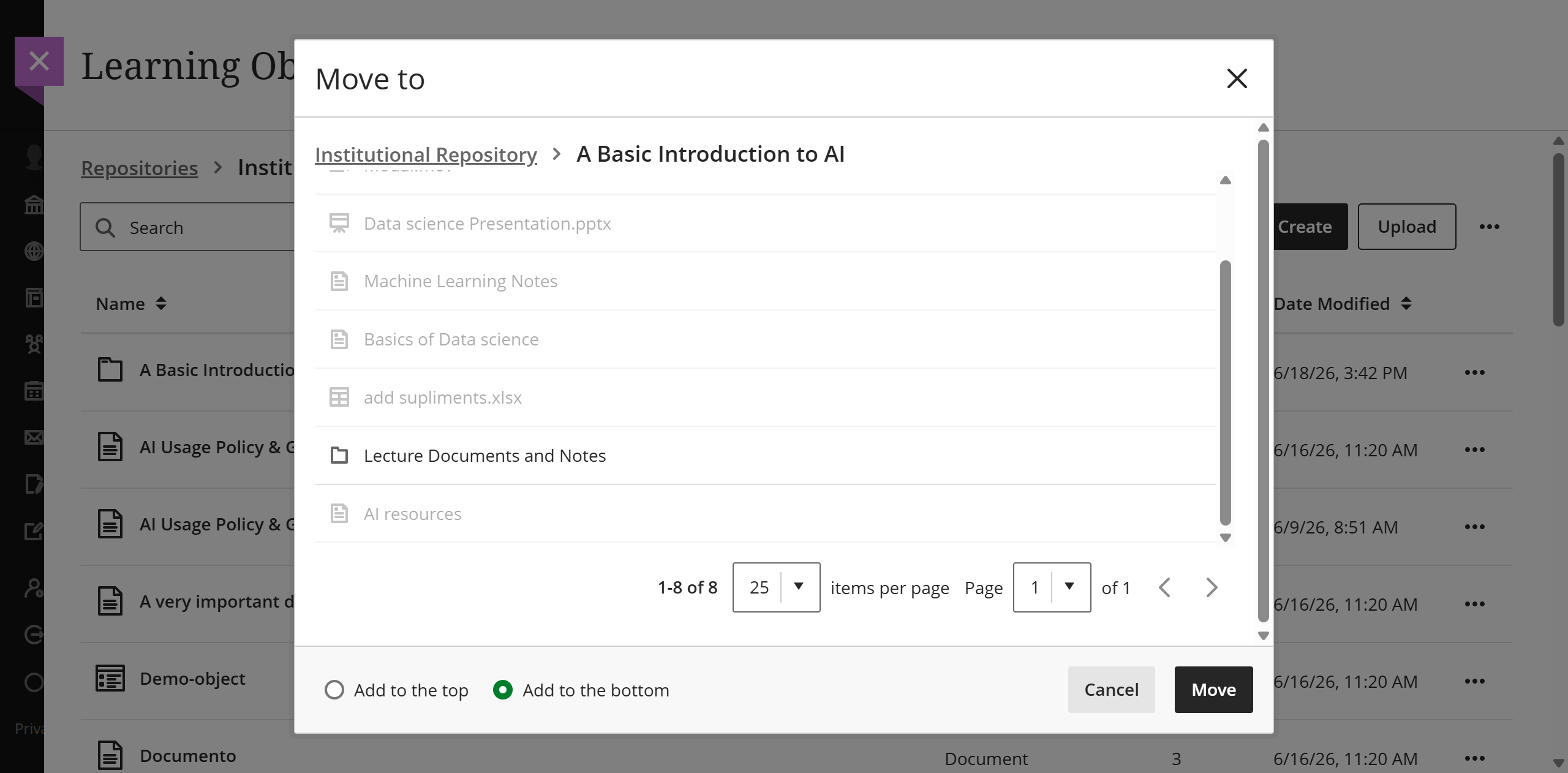
La vista Mover a ahora muestra el contenido de carpetas y módulos de aprendizaje junto con los contenedores cuando los administradores mueven elementos en el Repositorio de Objetos de Aprendizaje (LOR). Los administradores disponen de una mayor visibilidad del contenido de cada destino antes de completar una migración. Esto reduce el riesgo de que el contenido se coloque en el lugar equivocado y hace que la estructura del repositorio sea más fácil de entender.
Imagen 1: El contenido de la carpeta “Una Introducción Básica a la IA” aparece en la vista Mover a en el LOR.
Administradores
Disponibilidad: Disponible para todos los cursos Ultra.
Activación: No es necesaria.
Configuración: No es necesaria.
Comunicación y colaboración
Gestione la pertenencia a grupos arrastrando y soltando
Los profesores pueden utilizar la función de arrastrar y soltar para gestionar la pertenencia a los grupos en la interfaz de gestión de grupos. De este modo, resulta más rápido e intuitivo agregar y eliminar alumnos de los grupos sin tener que recurrir a menús ni listas de selección.
La gestión de la pertenencia a grupos mediante la función de arrastrar y soltar se suma a nuestro esfuerzo por rediseñar la experiencia de gestión de grupos.
Profesores
Desde la pantalla de gestión de grupos, los profesores pueden:
Arrastra a los alumnos desde la lista de no asignados directamente a un grupo.
Eliminar a estudiantes concretos de un grupo, en lugar de eliminarlos a todos a la vez
La función de arrastrar y soltar se utiliza junto con las opciones de asignación existentes, por lo que los profesores pueden elegir el método más rápido para la tarea en cuestión: completar un grupo cada vez, borrar un grupo o ajustar la composición de varios grupos.
Imagen 1: Los profesores pueden arrastrar y soltar a los alumnos para asignarlos a un grupo.
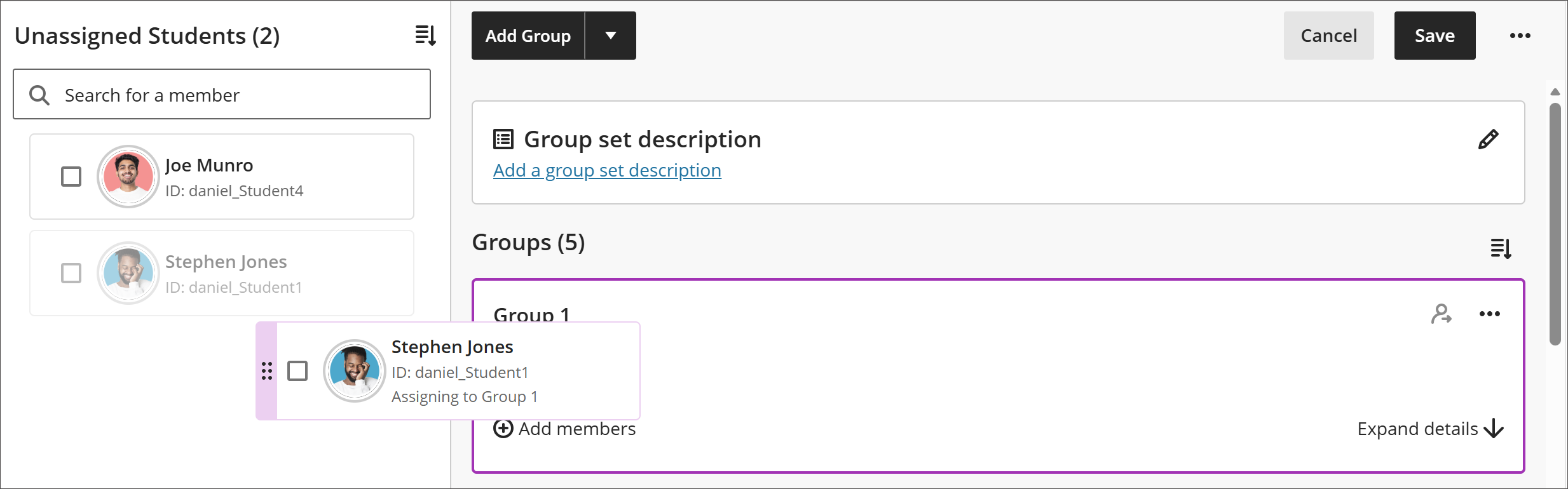
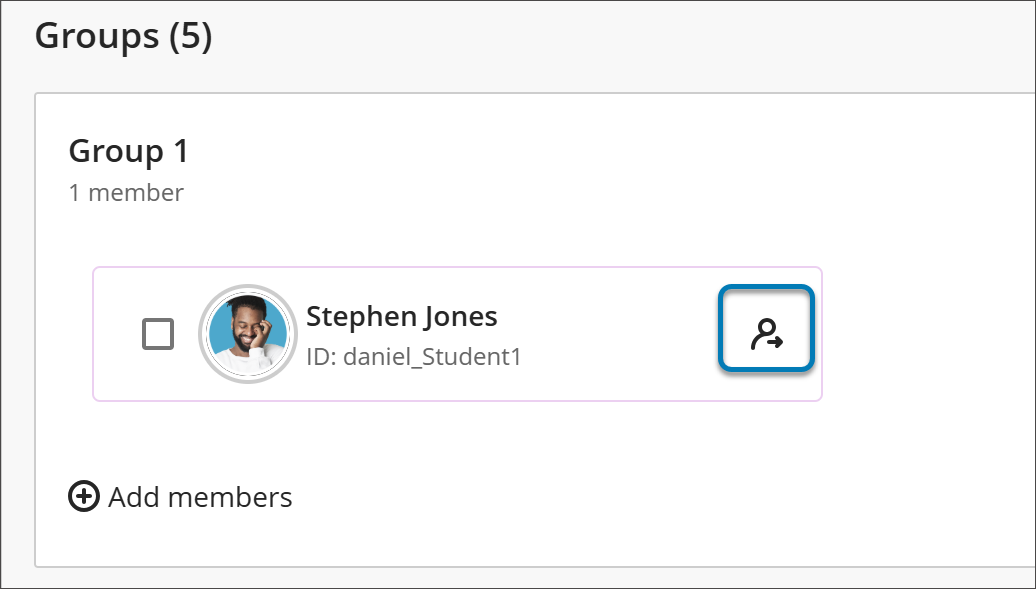
Imagen 2: Los profesores pueden eliminar alumnos concretos de un grupo, en lugar de eliminarlos a todos a la vez.
Administradores
Disponibilidad: Disponible para todos los cursos Ultra.
Activación: No es necesaria.
Configuración: No es necesaria.
Crear varios grupos a la vez
Los profesores pueden ahora crear varios grupos a la vez en la sección de gestión de grupos. En lugar de añadir grupos uno por uno, los profesores pueden crear varios grupos de una sola vez, lo que les permite ahorrar tiempo a la hora de organizar el trabajo en grupo, sobre todo en cursos con un gran número de alumnos.
La creación masiva de grupos forma parte de nuestro esfuerzo por rediseñar la experiencia de gestión de grupos.
Profesor
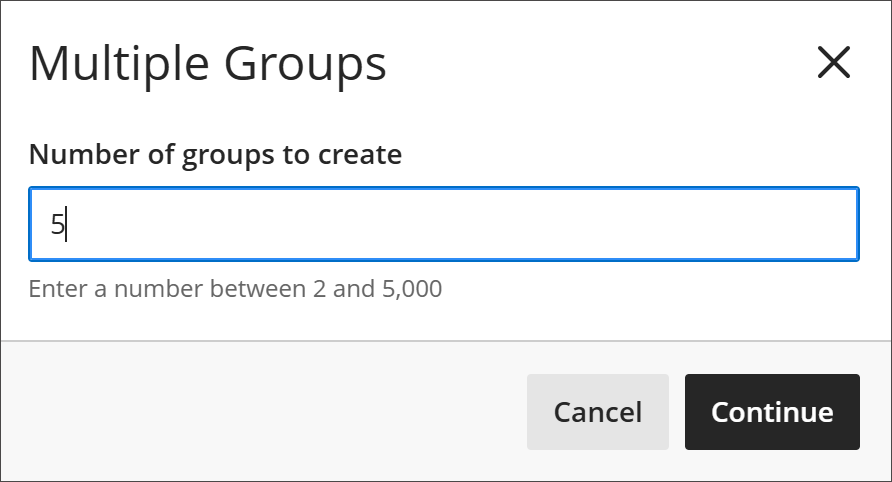
Desde la pantalla de administración de grupos, los profesores pueden crear entre dos y 5000 grupos de una sola vez, en lugar de tener que crearlos uno por uno. Esto reduce las configuraciones repetitivas y agiliza la creación de una estructura de grupo antes de asignar a los miembros.
Una vez creados los grupos, los profesores pueden completarlos mediante la asignación manual y la importación.
Si utiliza Asignar automáticamente, se crearán y llenarán el número correcto de grupos a través del flujo de trabajo de Asignar automáticamente cuando especifique el número de miembros por grupo.
Si utiliza Autoinscripción, se crean automáticamente tres grupos. Si Crear Grupos Múltiples es luego seleccionado, el número de grupos que crees se añade a los tres grupos existentes. Debe ingresar en su solicitud el texto traducido en español con la estructura de los espacios y marcadores exactamente igual al texto original. Aquí está la traducción correcta: Puede eliminar los tres grupos originales o ajustar la cantidad de grupos que solicita al ingresar Número de grupos a crear.
Imagen 1: Los profesores ya pueden crear varios grupos a la vez, en lugar de agregarlos uno por uno.
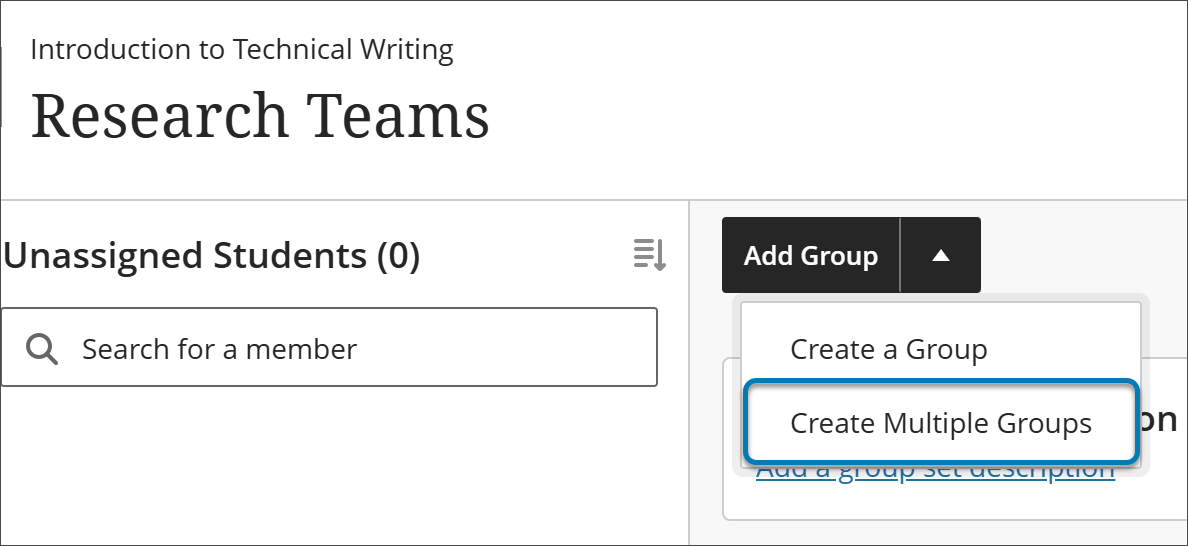
Imagen 2: Los profesores pueden indicar cuántos grupos se deben crear a la vez, con un mínimo de 2 y un máximo de 5000.
Administradores
Disponibilidad: Disponible para todos los cursos Ultra.
Activación: No es necesaria.
Configuración: No es necesaria.
Hacer que las notificaciones sean más precisas y confiables
Estamos mejorando la fiabilidad y la precisión de las notificaciones de Blackboard. Esta actualización soluciona una serie de problemas que provocaban que las notificaciones se duplicaran, no se recibieran o se enviaran en un momento inadecuado. Estos cambios reducen el exceso de notificaciones y ayudan a los usuarios a confiar en que las alertas que reciben reflejan lo que ocurre en sus cursos.
Se trata de una iniciativa en curso destinada a modernizar las notificaciones y resolver los problemas de entrega.
Profesores y estudiantes
Esta versión incluye las siguientes mejoras en las notificaciones:
Notificaciones correctas para los grupos asignados. Ahora los alumnos reciben notificaciones de «VENCIDO» y «ATRASADO» correspondientes al grupo que se les ha asignado, en lugar de para todos los grupos asignados en la asignatura.
No se enviarán notificaciones duplicadas para los foros de grupo copiados. Los alumnos ya no reciben notificaciones duplicadas de «FECHA DE ENTREGA» y «VENCIDO» para los debates en grupo en los cursos Original cuando se copia contenido entre cursos.
Notificaciones confiables después del intercambio de contenido. Los debates, blogs, diarios y wikis calificables de los cursos «Original» ahora generan correctamente notificaciones de «FECHA DE ENTREGA» y «VENCIDO» después de que se intercambie contenido entre cursos durante la copia de un curso.
Actualizaciones de calificaciones y cambios en los correos electrónicos de resumen. Los correos electrónicos con resúmenes incluyen ahora notificaciones cuando se actualiza o se elimina una nota.
Entrega fiable de los resúmenes por correo electrónico. Si no se puede enviar un correo electrónico de resumen, el remitente no recibirá una notificación errónea que indique que se ha entregado.
Correos electrónicos de anuncios enviados en el momento oportuno. Los correos electrónicos con anuncios ahora solo se envían una vez alcanzada la fecha de inicio del anuncio y no antes de que el contenido sea visible para los alumnos.
Administradores
Disponibilidad: Disponible para todos los cursos con Vista de curso Ultra y Original.
Activación: No se necesita.
Configuración: No es necesaria.
Añadir controles de ordenación para los usuarios en «Debates»
Ahora, los profesores y los alumnos pueden ordenar las publicaciones de los foros de debate para que aparezcan primero las más recientes o las más antiguas, lo que facilita la navegación por los debates largos, ya sea para calificar, moderar o ponerse al día tras un período de inactividad. La clasificación mejora la capacidad de revisar rápidamente los elementos y reduce el tiempo dedicado a la búsqueda, sin alterar la estructura del debate.
Profesores y estudiantes
Desde una conversación, los profesores y los alumnos pueden:
Ordena las entradas por «Más recientes primero» o «Más antiguas primero».
Vuelve más tarde a un hilo de debate y verás que sigue ordenado tal y como lo dejaste la última vez: el orden seleccionado se guarda para cada hilo de debate.
La ordenación se aplica a todo el hilo de conversación, incluidas las respuestas anidadas, y funciona de la misma manera en dispositivos móviles.
Administradores
Disponibilidad: Disponible para todos los cursos Ultra.
Activación: No se necesita.
Configuración: No es necesaria.
Libro de calificaciones
Vista de cuadrícula del boletín de calificaciones reestructurado
Se ha rediseñado la vista de cuadrícula del libro de calificaciones, lo que ofrece a los profesores un diseño renovado y una nueva forma de gestionar las tareas de calificación.
Sugerencia
Para obtener una visión detallada de lo que está cambiando, incluidas unas preguntas frecuentes, una comparación lado a lado de la vista de cuadrícula actual y nueva, y demostraciones en video, visita Comunidad. Las actualizaciones del sitio de ayuda para esta función se realizarán en el momento del lanzamiento de la versión final.
Cuando esta función se lance en el entorno de producción, todos los usuarios que no sean estudiantes verán una guía dentro de la aplicación que les dirigirá a la comunidad para consultar los recursos.
Profesores
La vista de cuadrícula incorpora un nuevo panel de «Detalles de calificación» y reorganiza la forma en que los profesores introducen las calificaciones, las publican y gestionan las excepciones y exenciones. La vista de lista no ha cambiado.
En la vista de cuadrícula se producirán los siguientes cambios:
Diseño y navegación, incluido un nuevo panel de «Detalles de la calificación» que reúne en un solo lugar la información y las acciones relacionadas con la calificación
Flujo de trabajo para introducir notas
Cómo se publican las calificaciones
Cómo se gestionan las excepciones y exenciones, ahora agrupadas bajo el epígrafe «Adaptaciones»
Lo siguiente no cambiará:
Calificaciones, cálculos y configuración general de calificaciones
Esquemas de calificación y configuraciones de calificación
Adaptaciones a nivel de curso
Vista de lista
Todas las calificaciones existentes y el historial de entregas
Administradores
Disponibilidad: Disponible para todos los cursos Ultra.
Activación: No es necesaria.
Configuración: No es necesaria.
Eliminar columnas de terceros no deseadas del Centro de calificaciones
Cuando un profesor convierte un curso Original con contenido de terceros a Ultra, todas las columnas se transfieren al libro de calificaciones de Ultra. Los profesores ya pueden eliminar las columnas de otros proveedores que no deseen.
Administradores
Disponibilidad: Disponible para todos los cursos Ultra.
Activación: No es necesaria.
Configuración: No es necesaria.
Tareas y exámenes
Exportar bancos de preguntas
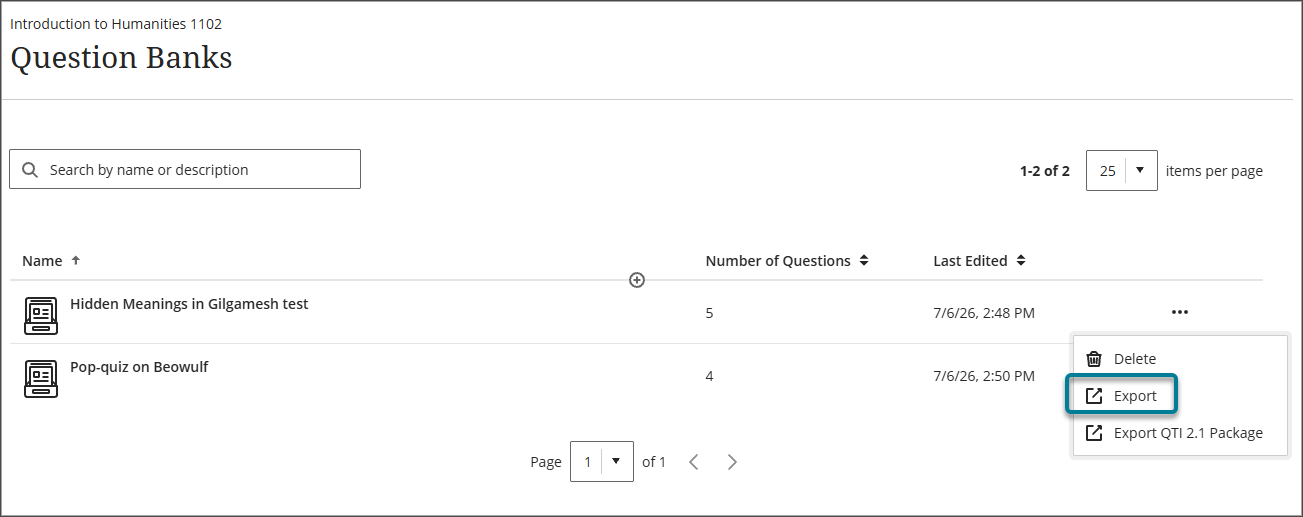
Los profesores ahora pueden exportar un banco de preguntas como archivo a su dispositivo local. Esto facilita la creación de copias de seguridad del contenido de las evaluaciones o su intercambio con otros profesores para reutilizarlo en distintos cursos.
Profesores
Desde la página Administrar bancos de preguntas, los profesores pueden seleccionar una opción de exportación para descargar el banco de preguntas en su sistema de archivos local. El archivo exportado puede guardarse como una copia de seguridad, compartirse con otros profesores o reutilizarse en otros cursos.
Administradores
Disponibilidad: Disponible para todos los cursos Ultra.
Activación: No es necesaria.
Configuración: No es necesaria.
Mostrar comentarios sobre las respuestas solo para las opciones seleccionadas
Ahora los alumnos reciben comentarios sobre las respuestas correctas únicamente para las opciones que hayan elegido en las preguntas de opción múltiple. Esto ofrece a los alumnos una visión más específica de sus respuestas sin revelar los comentarios correspondientes a las opciones que no han seleccionado.
Profesores
Los profesores siguen introduciendo comentarios sobre las opciones de respuesta al crear o editar una pregunta de opción múltiple, utilizando el mismo flujo de trabajo de «Comentarios sobre opciones».
Estudiantes
Tras enviar una respuesta, los alumnos reciben comentarios solo sobre la opción u opciones que han seleccionado, en lugar de comentarios sobre todas las opciones.
Administradores
Disponibilidad: Disponible para todos los cursos Ultra.
Activación: No es necesaria.
Configuración: No es necesaria.
Blackboard Core
Navega por los cursos más rápido gracias a una interfaz de usuario mejorada
Seguimos mejorando la interfaz de Blackboard para que la navegación sea más clara, más estable y más fácil de seguir. Esta actualización se basa en la interfaz renovada que se introdujo en la versión anterior, ampliando la navegación a página completa para profundizar en el contenido del curso y ofreciendo varias mejoras nuevas, entre las que se incluyen las rutas de navegación y una forma más clara de salir del contenido.
Estos cambios reflejan las opiniones que los profesores y los alumnos nos han transmitido, y tienen como objetivo:
Mejorar la orientación para que los usuarios se sientan menos perdidos en un curso
Reducir las salidas accidentales y otros errores de navegación
Mejorar el rendimiento, la coherencia y la previsibilidad
Ayude a los alumnos a concentrarse durante las evaluaciones
El contenido y la estructura del curso siguen siendo exactamente los mismos. Los profesores no tienen que rediseñar ni reconfigurar nada.
Profesores y estudiantes
Los cambios en la navegación son los siguientes:
Navegar por el contenido a pantalla completa
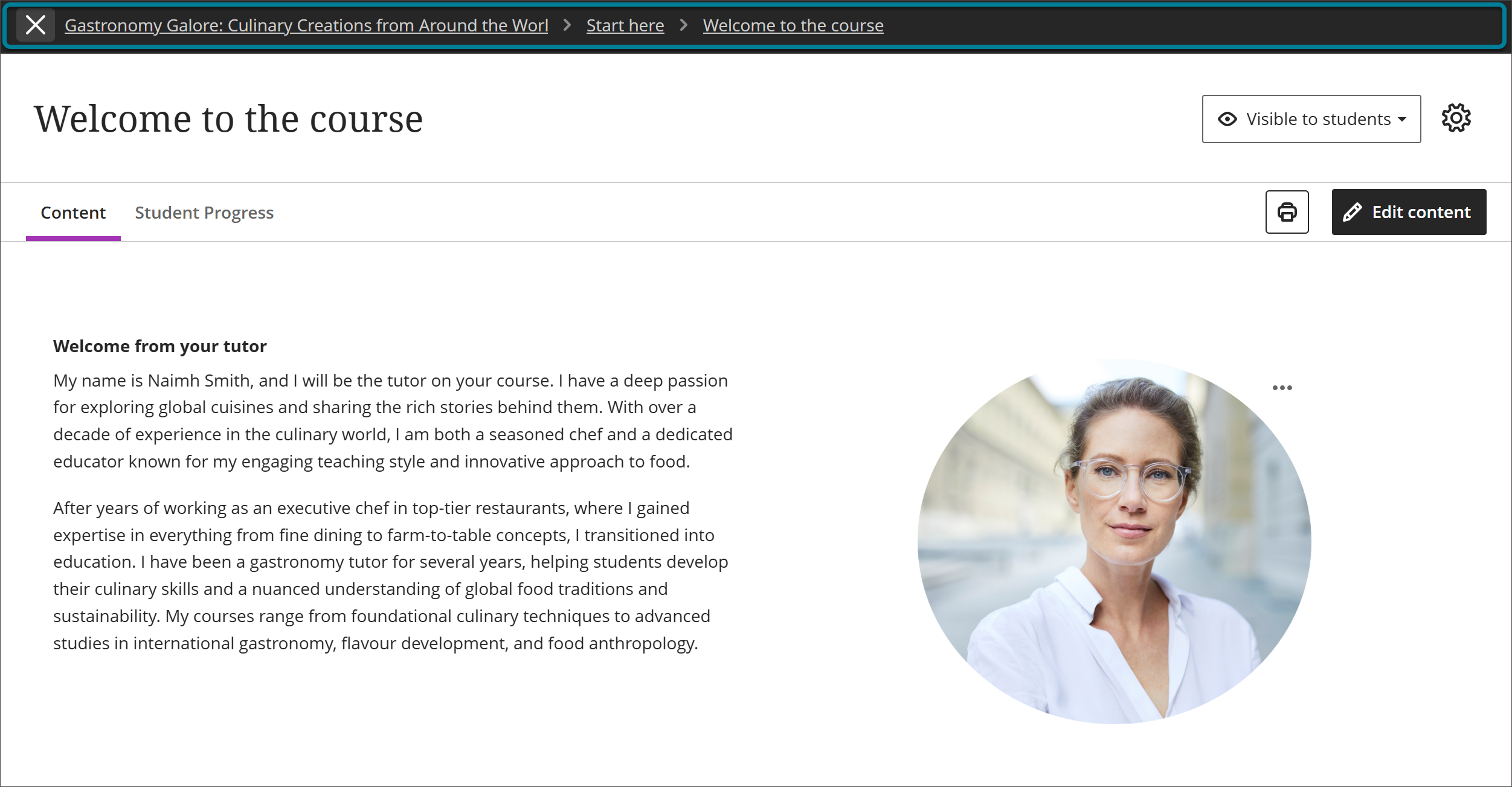
Los módulos de aprendizaje, las carpetas y los elementos de contenido individuales —como documentos, evaluaciones, enlaces y archivos multimedia— ahora se abren en páginas completas, en lugar de como paneles deslizantes superpuestos al esquema del curso. Esto amplía la medida anterior de pasar a pantalla completa las páginas del curso, de modo que el contenido de un curso se abra de la misma forma. Abrir el contenido en su propia página mejora la orientación, el rendimiento y la previsibilidad, y facilita volver al módulo sin perder el hilo.
Imagen 1: El contenido ahora se abre a pantalla completa, con encabezados y navegación uniformes, en lugar de aparecer como paneles superpuestos.
Ruta de navegación para una mayor claridad contextual
Ahora aparecen las rutas de navegación en las páginas de contenido, lo que te permite ver en qué parte de la estructura de módulos y carpetas de un curso te encuentras, para aportar mayor claridad contextual. Las rutas de navegación reflejan automáticamente la estructura del curso, no requieren ninguna configuración por parte del profesor y complementan la navegación existente en lugar de sustituirla.
Imagen 2: La ruta de navegación de una página de contenido muestra la ubicación del usuario y le permite desplazazarse rápidamente hacia atrás por los módulos y carpetas.

Una salida del contenido más clara y deliberada
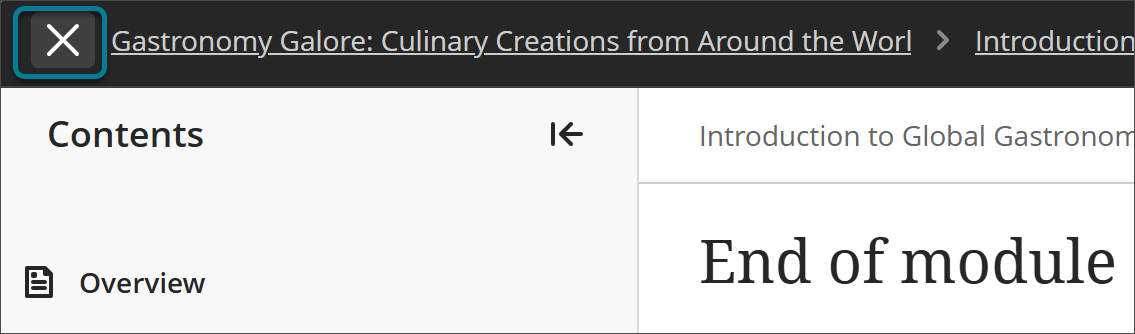
El botón morado con una «X», que antes se utilizaba para salir del contenido, se ha sustituido por una opción de salida claramente identificada en el banner de navegación. Dado que la acción de salir es ahora más deliberada y está más separada del resto de controles, es menos probable que los profesores y los alumnos cierren una página o pierdan el hilo por accidente.
Imagen 3: La opción de salida se encuentra ahora dentro del banner de navegación, lo que reduce las salidas accidentales.
Estado de concentración para exámenes y tareas (Estudiantes)
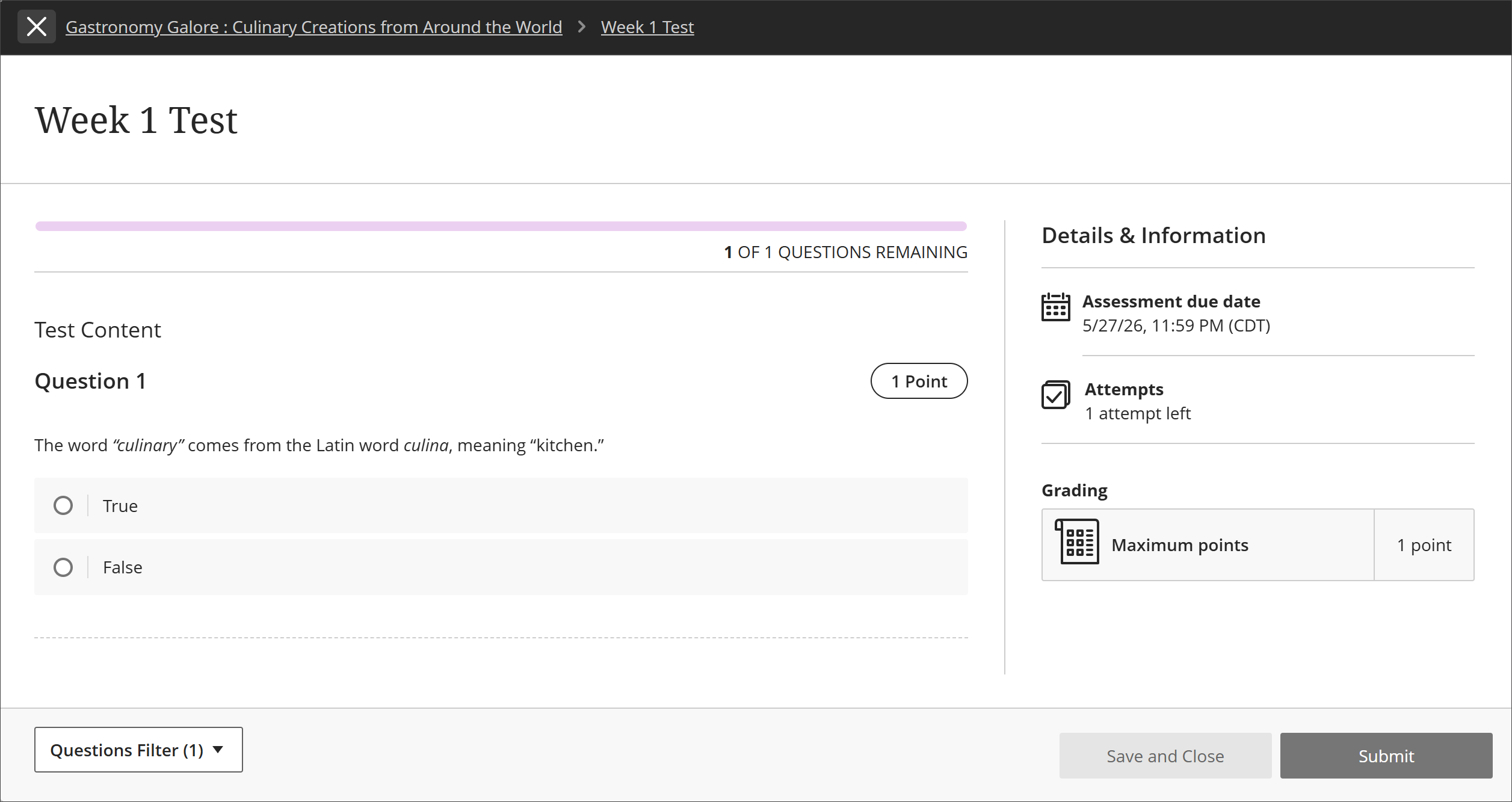
Cuando los alumnos comienzan un examen o un trabajo, entran automáticamente en un nuevo estado de concentración que minimiza los elementos de navegación y las distracciones visuales, mostrando una interfaz simplificada para realizar las evaluaciones. El modo de concentración no altera el funcionamiento ni la forma de calificar las evaluaciones, y los alumnos pueden seguir saliendo de la aplicación si lo necesitan; reduce las distracciones sin que se sientan atrapados. Los profesores no tienen que hacer nada. El modo «Enfoque» no se puede desactivar.
Imagen 4: En el modo «Enfoque», se minimizan los elementos de navegación no esenciales para que los alumnos puedan concentrarse en realizar una evaluación.
Administradores
Disponibilidad: Disponible para todos los cursos Ultra.
Activación: No es necesaria.
Configuración: No es necesaria.
Mantente al día con los plazos con «Tus tareas pendientes».
Nota
Esta función estará disponible mediante un indicador de función gestionado por el administrador desde la versión de agosto hasta la versión de producción de enero de 2027, momento en el que se eliminará el indicador y las actualizaciones se aplicarán automáticamente a todos los cursos. Te invitamos a que nos envíes tus comentarios durante este periodo; tus aportaciones nos ayudarán a mejorar la función antes de que se elimine la opción.
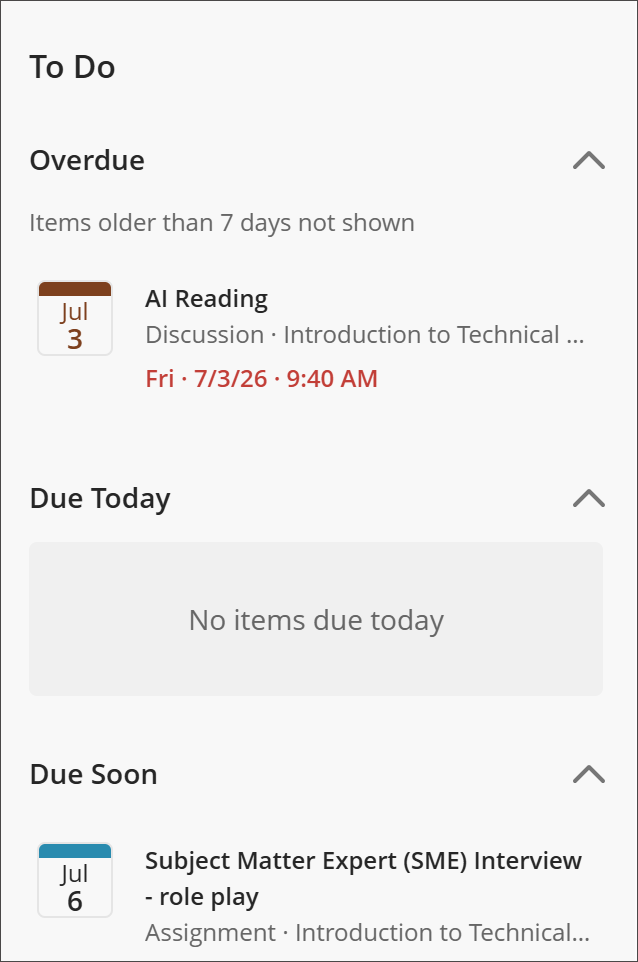
Hemos añadido un nuevo componente llamado «Tus tareas más importantes» a la página «Cursos» para ayudar a los estudiantes a mantenerse al día con las tareas que tienen fechas límite. Como parte de la página «Cursos» renovada, la lista muestra hasta cinco de tus tareas más urgentes y con plazos concretos de todos tus cursos activos, para que puedas ver qué requiere tu atención y ponerte con ello directamente.
En respuesta a la preocupación de los estudiantes por llevar un control de las tareas importantes y las fechas de entrega, «Tus principales tareas pendientes» se ha diseñado precisamente para eso. Esta función, que obtiene las fechas de entrega del libro de calificaciones, ofrece una visión única y fiable de qué hay que entregar y cuándo. Cada elemento enlaza directamente con el lugar donde se realiza, lo que reduce los pasos que hay que dar desde que se ve una tarea hasta que se termina.
Estudiantes
La lista «Tareas pendientes» muestra las tareas más urgentes del usuario – como trabajos, pruebas y exámenes, además de los comentarios que debe revisar cuando se publiquen – ordenadas por urgencia.
Los artículos con retraso aparecen en primer lugar, con la fecha de devolución más próxima en la parte superior, seguidos de los que vencen próximamente.
Cada elemento muestra el título de la tarea, el nombre del curso, la fecha y la hora de entrega adaptadas al país, y un indicador de estado («Vencida» o «Vence pronto»).
Al seleccionar un elemento, los usuarios acceden directamente a la página en la que se envía el trabajo o se revisan los comentarios.
Se excluyen las tareas completadas, las que no están disponibles y las duplicadas, de modo que la lista se centra únicamente en lo que importa.
Los artículos con más de siete días de antigüedad no aparecerán en la sección de artículos vencidos.
Al reunir las tareas más urgentes en una lista específica con enlaces directos a las acciones a realizar, «Tus principales tareas pendientes» te ayuda a evitar retrasos u omisiones en los plazos de entrega y a dedicar menos tiempo a buscar qué es lo que tienes que entregar.
Imagen 1: La lista «Tus tareas pendientes» de la página «Cursos» muestra las tareas más urgentes de un alumno, ordenadas por fecha de entrega, y cada una de ellas lleva directamente a la tarea correspondiente.
Administradores
Disponibilidad: Disponible para todos los cursos Ultra.
Activación: No es necesaria.
Configuración: Esta función está disponible detrás de una bandera de función gestionada por el administrador desde la versión de agosto hasta la versión de producción de enero de 2027, cuando se elimina la bandera y las actualizaciones se aplican automáticamente a todos los cursos.
Navega más rápido entre cursos con el botón «Inicio» actualizado
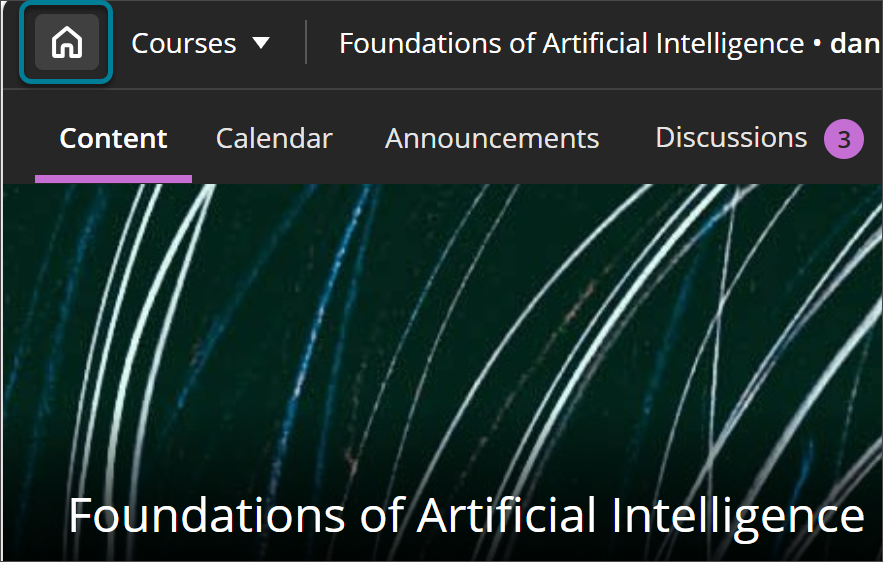
Teniendo en cuenta los comentarios de los usuarios sobre la navegación entre cursos, hemos actualizado el funcionamiento del botón «Inicio» al salir de un curso. Anteriormente, al seleccionar «Inicio» desde un curso, se volvía a la página de inicio definida por la institución. Ahora, al seleccionar «Inicio» desde un curso, se accede directamente a la página «Cursos» de la barra de navegación principal, lo que permite pasar de un curso a otro con mayor rapidez.
Este cambio complementa las mejoras recientes introducidas en el «Course Switcher», que reducen las dificultades de navegación entre cursos.
Esta actualización se refiere específicamente a la salida del curso. La página de inicio del LMS de Blackboard al iniciar sesión no ha cambiado, ya sea la página de la institución, los cursos o el flujo de actividades. Al seleccionar «Inicio» mientras estás en un curso, ahora volverás a la página «Cursos», independientemente de la configuración de la página de inicio de la institución.
Profesores y estudiantes
Cuando los usuarios seleccionan «Inicio» para salir de un curso, ahora vuelven a la página «Cursos» en la barra de navegación principal, en lugar de a la página de inicio definida por la institución.
Al seleccionar «Inicio» desde un curso, se abre directamente la página «Cursos».
La página de inicio que se muestra al iniciar sesión en el entorno (página de la institución, cursos o flujo de actividades) no ha cambiado.
La salida del curso funciona igual para todos, independientemente de la configuración de la página de inicio de la institución.
Al redirigir a los usuarios directamente a la página «Cursos», esta actualización hace que la navegación de un curso a otro sea más rápida y predecible.
Imagen 1: Al pulsar el botón «Inicio» mientras estás en un curso, ahora volverás a la página «Cursos».
Administradores
Disponibilidad: Disponible para todos los cursos Ultra.
Activación: No es necesaria.
Configuración: No es necesaria.
Rutas de aprendizaje y dominio
Establecer las condiciones de publicación en función de los artículos enviados a la revista
Los profesores ya pueden establecer condiciones de publicación en función del estado de envío de las entregas. Esto ofrece a los profesores una mayor flexibilidad para diseñar itinerarios de aprendizaje personalizados y garantiza que los alumnos completen las actividades previas antes de acceder a nuevos contenidos.
Profesores
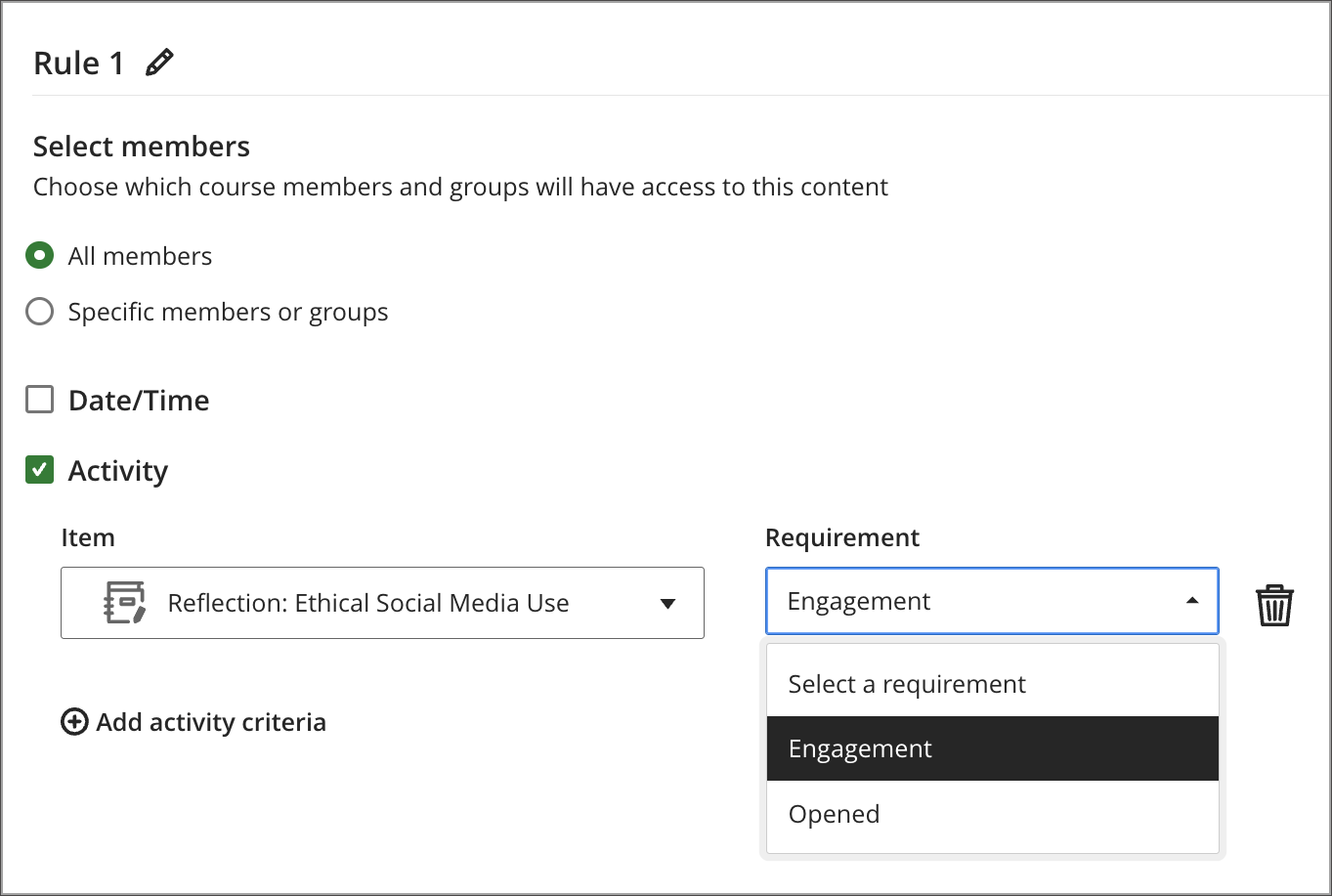
Al establecer las condiciones de publicación del contenido de un curso, los profesores ya pueden elegir el estado de envío al diario como una de las condiciones. El contenido se publica automáticamente en cuanto un alumno envía su trabajo, sin que sea necesario que el profesor lo califique primero. El estado de envío se registra como «completado» en el seguimiento del proceso.
Imagen 1: Los instructores seleccionan Compromiso como el requisito de actividad para un diario.
Estudiantes
El nuevo contenido del curso se activa automáticamente en cuanto un alumno envía una entrada en el diario del que depende una condición de desbloqueo. Los alumnos no tienen que esperar a que el profesor califique o corrija el trabajo enviado para poder avanzar a los materiales adicionales.
Administradores
Disponibilidad: Disponible para todos los cursos Ultra.
Activación: No es necesaria.
Configuración: No es necesaria.
Progreso del alumno y experiencia personalizada
Configurar el nombre del remitente de los mensajes de automatización
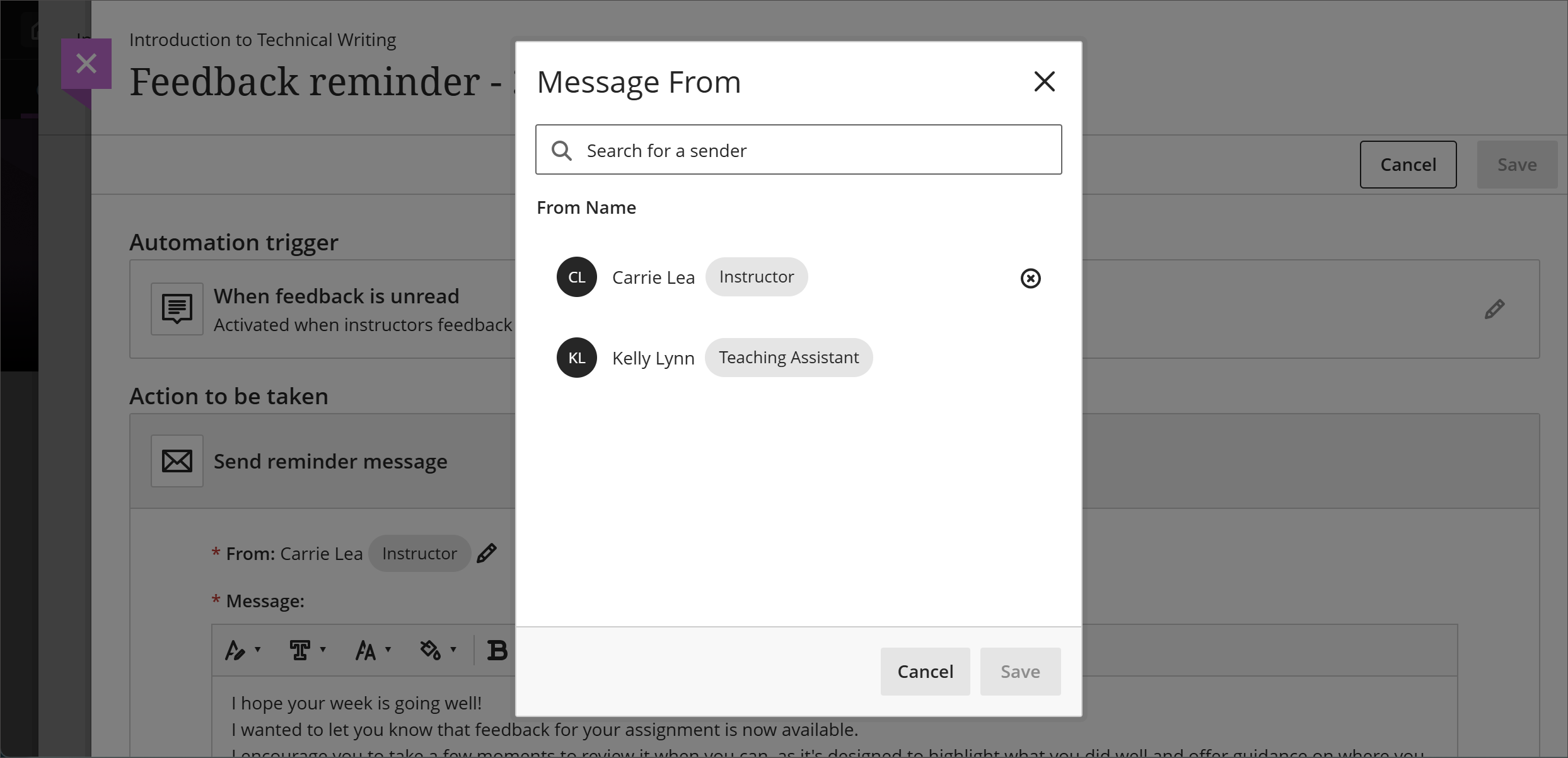
Los instructores, o cualquier usuario con permiso para editar la automatización, ahora pueden configurar de quién parece provenir la mensajería generada por automatización. Cada automatización tiene un autor, que es quien la ha creado, y un remitente, cuya identidad aparece en todos los mensajes que genera la automatización. El autor y el remitente pueden ser personas diferentes. Esto es importante cuando un creador de cursos o un administrador crea una automatización en nombre de un instructor. Puede configurar el remitente para que sea un profesor inscrito en el curso, de modo que los mensajes lleguen a los alumnos desde una fuente reconocible y de confianza. Los estudiantes tienden a interactuar más con los mensajes cuando pueden identificar claramente quién es el remitente.
De forma predeterminada, el remitente es el autor de la automatización. Cualquier usuario con permisos de edición puede cambiar el remitente a otro usuario que cumpla los requisitos dentro del curso. Cada automatización admite un remitente a la vez. Si el remitente asignado pierde acceso al curso o es eliminado del curso, la automatización se pausa hasta que se asigne un nuevo remitente. Blackboard LMS muestra una notificación cuando una automatización se vuelve inactiva debido a un remitente faltante o no válido, para que los instructores puedan identificar y resolver rápidamente el problema.
Profesores
Imagen 1: Los instructores seleccionan un usuario para el nombre De de un mensaje automatizado.
Administradores
Disponibilidad: Disponible para todos los cursos Ultra.
Activación: No es necesaria.
Configuración: No es necesaria.
Administrador de Blackboard
Restringir la actividad en los foros de debate, los diarios y los blogs de cursos «Original» ya finalizados
La participación en los foros de debate, los diarios y los blogs de los cursos completados en la «Vista original del curso» ahora es solo de lectura. Una vez que un curso se marca como completado, los usuarios ya no pueden crear nuevos foros de debate, hilos o respuestas; entradas de diario o comentarios; ni entradas de blog o comentarios. Esto contribuye a que los cursos completados sean coherentes y a que su contenido se conserve como parte del expediente académico oficial.
Anteriormente, en algunos casos todavía era posible crear estas contribuciones después de que un curso se hubiera marcado como completado, lo que daba lugar a posibles modificaciones en cursos que se suponían ya finalizados.
Este cambio se suma a las restricciones ya existentes en cuanto a las actividades de los estudiantes, las acciones de calificación de los profesores y las modificaciones del contenido en los cursos «Original» ya finalizados. Representa la siguiente fase de un esfuerzo continuo y gradual para reforzar la aplicación de las normas relativas a los cursos finalizados, con vistas al fin de la vida útil de la vista original del curso. A medida que avancen estos trabajos, podrían imponerse restricciones adicionales.
Profesores y estudiantes
Cuando un curso en la vista original se marca como completado, los usuarios ya no pueden:
Crear foros de discusión, hilos o respuestas
Añadir entradas del diario o comentarios
Agregar entradas de blog o comentarios
Los usuarios pueden seguir consultando los debates, los diarios y los blogs existentes en los cursos finalizados, pero el sistema impide cualquier intento de añadir nuevas aportaciones. No necesita realizar ninguna acción: estas restricciones se aplican automáticamente cuando se marca un curso como completado.
Administradores
Disponibilidad: Disponible para todos los cursos en la Vista de curso original.
Activación: No es necesaria.
Configuración: No es necesaria.
Integraciones
Experiencia mejorada con documentos en la nube de Microsoft
Para mejorar la claridad y alinearse con la experiencia unificada LTI de Microsoft 365, Blackboard LMS ha actualizado los nombres de las herramientas de documentos en la nube de Microsoft disponibles al crear elementos de contenido del curso.
Han cambiado los nombres siguientes:
El Documento en la Nube Integrado ahora es Documento en la Nube Integrado de Microsoft.
La colaboración en la nube ahora es Colaboración en la nube de Microsoft.
Estos cambios son solamente para los nombres. Los flujos de trabajo actuales para incrustar, crear y colaborar en documentos de Microsoft no cambian y son compatibles con la herramienta LTI de Microsoft 365.
Esta actualización también ayuda a reducir la confusión al seleccionar la herramienta adecuada y ofrece una experiencia más coherente y optimizada al añadir contenido de Microsoft a los cursos.
Administradores
Disponibilidad: Disponible para cursos Ultra.
Activación: No se requiere.
Configuración: Ninguna requerida.
Cambiar a Ultra
Elementos duplicados en la página «Contenido del curso»
Los profesores ahora pueden copiar elementos en la página «Contenido del curso». La copia conserva todo el contenido y la configuración del original. Los elementos LTI no admiten duplicación. Esta función ayuda a ahorrar tiempo al crear estructuras de cursos coherentes y repetitivas.
Profesores
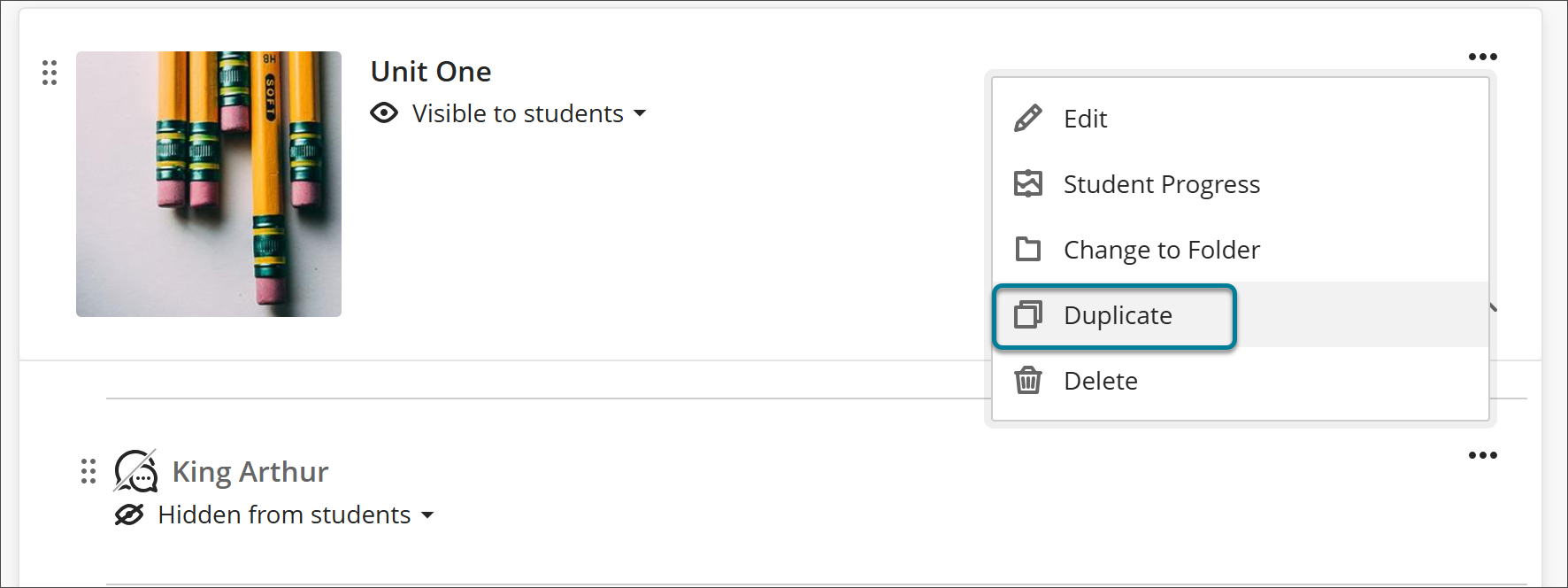
Una nueva Duplicar opción aparece en el menú Más opciones (…) para cada elemento. Seleccionar Duplicar crea una copia del elemento con "Copia" añadida al nombre. De forma predeterminada, el texto está oculto para los alumnos. Los profesores pueden cambiar el nombre y editar el texto antes de hacerlo visible para los alumnos.
Imagen 1: Los instructores seleccionan la opción Duplicar del menú Más opciones (...).
Administradores
Disponibilidad: Disponible para todos los cursos Ultra.
Activación: No es necesaria.
Configuración: No es necesaria.
Mostrar un banner de advertencia en los cursos de Original
Blackboard LMS Ahora se muestra un banner de advertencia en los cursos «Original» para todos los roles que no sean de estudiante. El banner informa a los profesores, administradores y demás personal de que la asistencia técnica para la «Vista original del curso» finalizará el 31 de diciembre de 2026. A partir del 1 de enero de 2027, ya no estará disponible para la enseñanza y el aprendizaje.
Imagen 1: Aparece un banner de advertencia en todos los cursos «Original» para todos los roles que no sean estudiantes.

Administradores
Disponibilidad: Disponible para todos los cursos Original.
Activación: No es necesaria.
Configuración: No es necesaria.
Importar paquetes de cursos externos como cursos Ultra
Cuando los administradores importan paquetes de cursos desde Canvas LMS, D2L Brightspace o Moodle utilizando el Panel de Administrador o la Importación Masiva, Blackboard LMS ahora entrega esos cursos directamente en la Vista de Curso Ultra. Los cursos importados están listos para su uso inmediato, sin que sea necesario realizar ningún paso adicional de conversión. Los administradores ahorran tiempo y reducen el trabajo manual al eliminar por completo el proceso de conversión posterior a la importación.
Administradores
Disponibilidad: Disponible para todos los cursos Ultra.
Activación: No es necesaria.
Configuración: No es necesaria.
Restringir la copia en los cursos completados
Blackboard LMS Ahora se impide que se copie contenido en cualquier curso marcado como completado. Los cursos finalizados son de solo lectura y están destinados a la consulta, como referencia, para la revisión de la acreditación y para la verificación de las calificaciones. El contenido de los cursos completados se puede seguir copiando a los cursos activos. Esta protección garantiza la exactitud de los registros institucionales y evita que se produzcan modificaciones involuntarias.
Profesores
Los profesores no pueden copiar materiales en cursos ya finalizados mediante el procedimiento estándar de copia de cursos. Cuando intentan hacerlo, Blackboard LMS muestra un mensaje indicando que el curso es solo de lectura. Los profesores pueden seguir copiando contenido de un curso completado a un curso activo para facilitar el desarrollo y la reutilización de los cursos.
Administradores
Los administradores no pueden copiar materiales en cursos ya finalizados mediante herramientas de copia masiva, herramientas de copia administrativa, procesos de copia iniciados por el SIS ni puntos finales de la API REST. Cuando se intenta cualquiera de estos métodos, Blackboard LMS bloquea la acción y devuelve un mensaje apropiado. Los administradores aún pueden copiar contenido de cursos finalizados a cursos activos.
Disponibilidad: Disponible para todos los cursos Original y Ultra.
Activación: No es necesaria.
Configuración: No es necesaria.
Premium
Video Studio: Personalice el fondo de su grabación
Ahora los usuarios pueden personalizar el fondo cuando graban en Video Studio. Antes de grabar, los presentadores pueden difuminar el fondo o reemplazarlo por una imagen de su elección, lo que les ayuda a proteger su privacidad, reducir las distracciones visuales y mantener la atención centrada en ellos mismos y en su contenido.
Las grabaciones suelen realizarse en viviendas, espacios compartidos o zonas públicas. Desenfocar el fondo o utilizar una imagen de fondo ofrece a los profesores y a los alumnos una forma sencilla de ocultar entornos personales o delicados, presentar el contenido de forma más profesional y mantener un aspecto coherente y acorde con la imagen de marca en todas las grabaciones, al tiempo que ayuda al público a mantenerse centrado en el contenido mientras lo ve.
Profesores y estudiantes
Al configurar una grabación, abra las opciones de la cámara para elegir cómo se ve el fondo. Puede:
Desenfoque el fondo. Activa el interruptor de desenfoque de fondo para difuminar el entorno, de forma similar al desenfoque de fondo de otras herramientas de vídeo.
Utilice una imagen de fondo. Carga una imagen desde tu dispositivo (por ejemplo, en formato JPEG o PNG). Una vista previa en tiempo real te muestra cómo quedará antes de comenzar a grabar.
Puedes utilizar el efecto de desenfoque o una imagen de fondo, pero no ambos a la vez: al seleccionar uno, se sustituye el otro. Seleccione Ninguno para volver a su transmisión de cámara sin modificaciones. Puedes cambiar el fondo en cualquier momento antes de que comience la grabación.
Imagen 1: Antes de grabar, los usuarios pueden desenfocar el fondo o sustituirlo por una imagen desde las opciones de la cámara.
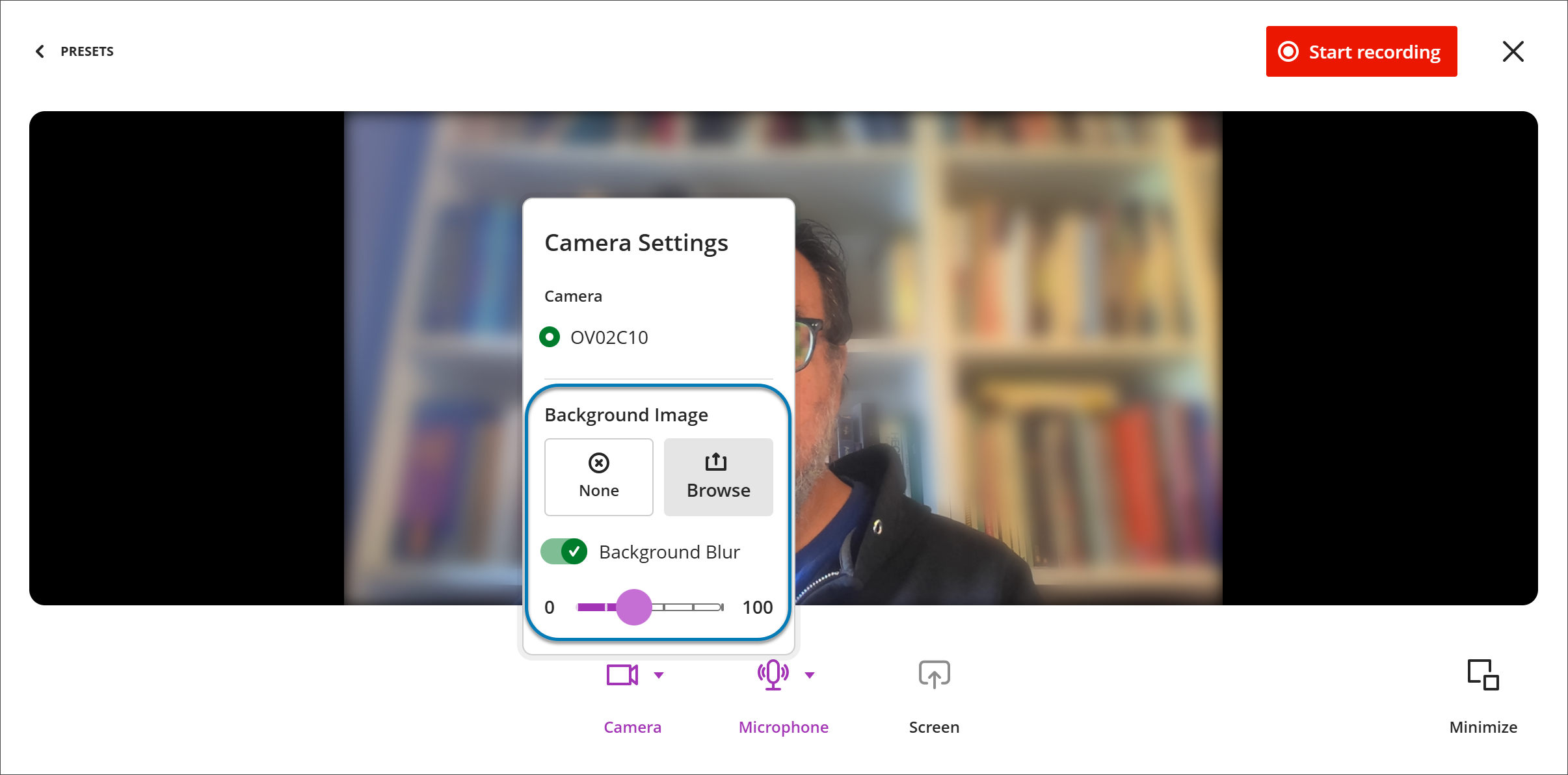
Video Studio recuerda la imagen de fondo más reciente, por lo que no es necesario volver a cargarla. Guarda una imagen de fondo por usuario, y al cargar una nueva imagen, esta sustituye a la guardada. Si no se puede utilizar una imagen, Video Studio muestra un mensaje para que puedas elegir otra y seguir grabando.
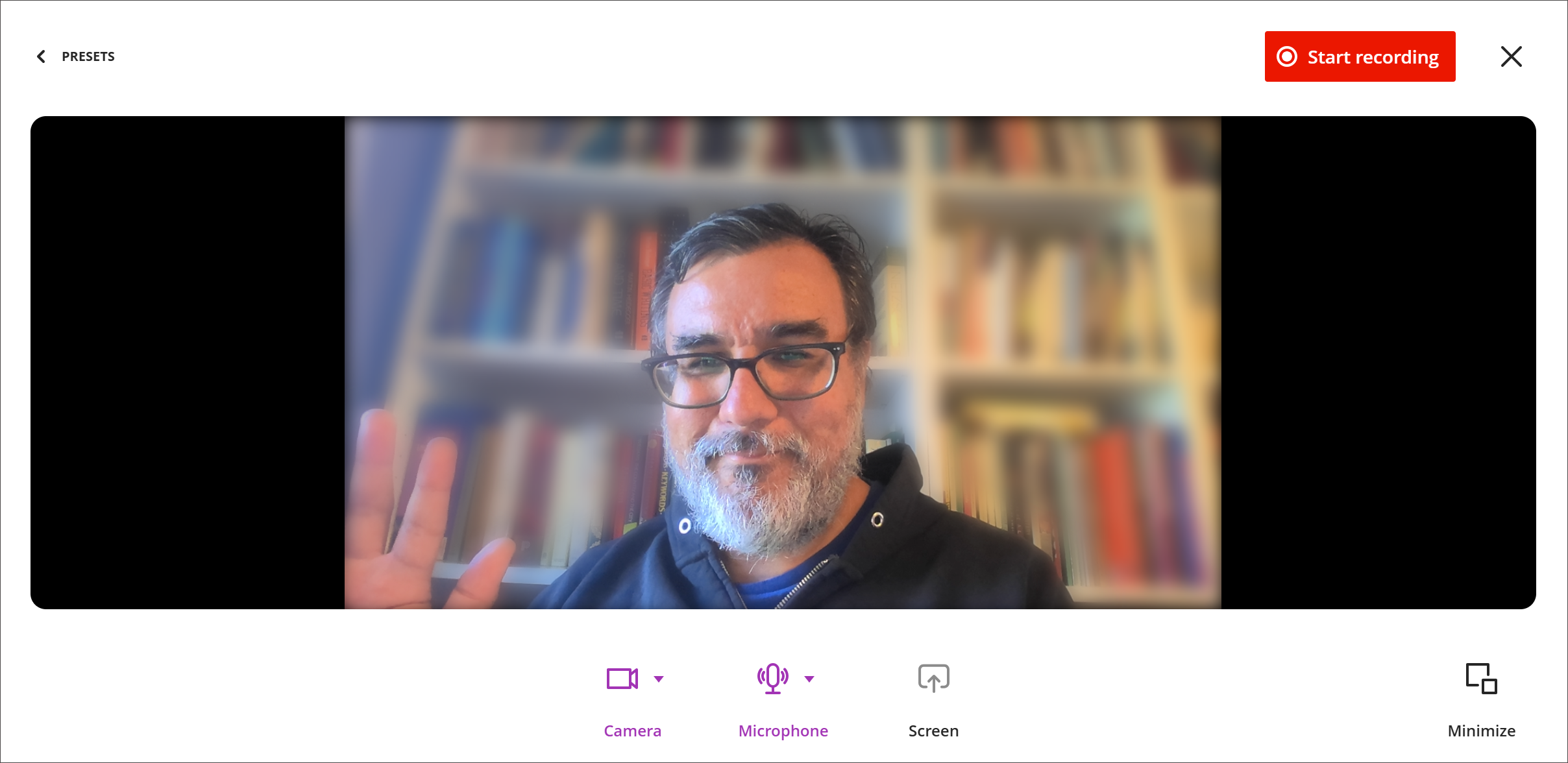
Esta configuración se realiza antes de que comience la grabación. El efecto de desenfoque se aplica tanto a las nuevas grabaciones como a las grabaciones en directo, y cualquier persona que haga una grabación en Video Studio puede usar estas opciones.
Imagen 2: Una vez que los usuarios hayan realizado su selección, pueden empezar a grabar con su fondo personalizado.
Administradores
Disponibilidad: Esta función requiere una licencia de Video Studio.
Activación: No es necesaria.
Configuración: No es necesaria.
Studio de vídeo: reanudar la reproducción del vídeo
Ahora, Video Studio recuerda en qué punto los usuarios dejan de ver el vídeo y reanuda la reproducción desde ese punto cuando vuelven al vídeo. Los usuarios ya no tienen que buscar en un vídeo para encontrar el punto en el que se quedaron, lo que facilita el visionado de vídeos didácticos y de tareas en varias sesiones.
La función Reanudar reproducción funciona en todas las sesiones y dispositivos, por lo que un usuario puede empezar a ver un vídeo en un dispositivo y continuar desde donde lo dejó en otro.
Profesores y estudiantes
Cuando un usuario deja de ver un vídeo y lo vuelve a abrir más tarde, la reproducción se reanuda automáticamente desde el punto en el que se había quedado.
El progreso se guarda entre sesiones y en diferentes dispositivos.
Administradores
Disponibilidad: Función incluida en las ubicaciones de Video Studio en Blackboard LMS y en la oferta premium de Video Studio.
Activación: No es necesaria.
Configuración: No es necesaria.
Course Catalog: Use Mercado Pago para pagar los cursos
Hemos agregado a Mercado Pago como proveedor de servicios de pago. Esto les da a los estudiantes la opción de usar Mercado Pago para comprar cursos de Course Catalog. A medida que seguimos incorporando nuevos proveedores de servicios de pago, los estudiantes disfrutan de mayor flexibilidad y más opciones a la hora de pagar sus cursos.
Estudiantes
Cuando los estudiantes seleccionan Comprar para un curso, ahora pueden acceder a Mercado Pago como una de las opciones de pago si es implementado por su institución.
Administradores
Disponibilidad: Disponible para todos los Course Catalog cursos.
Activación: No es necesaria.
Configuración: Consulte el tema de ayuda Pasarela de Pago v2 para obtener información sobre cómo configurar el proveedor de servicios de pago Mercado Pago.