Asistente de diseño de IA y configuración de Unsplash
Note
Este documento se ha traducido mediante traducción automática asistida por IA. Las traducciones se proporcionan «tal cual», sin garantía alguna respecto a su exactitud. La versión en inglés de este contenido es la fuente oficial y con valor normativo.
Asistente de diseño de IA y configuración de Unsplash
El Asistente de diseño de IA ayuda a los profesores con la creación y el diseño de nuevos cursos. Su objetivo es inspirar a los profesores y hacer que la creación de cursos sea más eficiente. Anthology se ha asociado con Microsoft para proporcionar esta funcionalidad.
El Asistente de diseño de IA proporciona las siguientes funcionalidades generativas facilitadas por IA en Ultra:
Genere palabras clave para el servicio de imágenes libres de regalías en Ultra powered by Unsplash – Sugiere palabras clave para la búsqueda de Unsplash para mayor eficiencia.
Generar módulos de aprendizaje – Ayuda a los profesores sugiriendo una estructura de curso.
Generar imágenes del módulo de aprendizaje – Crea y sugiere imágenes para cada módulo de aprendizaje.
Generar preguntas de examen y bancos de preguntas – Inspira a los profesores sugiriendo una variedad de preguntas en un examen o creando un banco de preguntas a partir de un documento de Learn.
Generar actividades – Ayuda a generar actividades que fomentan el pensamiento de orden superior.
Generar una rúbrica – Sugiere una rúbrica de calificación con estructura y criterios en función de una evaluación determinada, lo que crea eficiencia del profesor y proporciona transparencia de calificación a los estudiantes.
Generar una conversación de IA - Crea una conversación entre un estudiante y una persona de IA en un ejercicio de interrogatorio socrático o un escenario de juego de roles.
Generar imágenes de documento – Genera imágenes para usar dentro de un documento, lo que hace que los documentos sean más atractivos visualmente para los estudiantes.
Sugerir diseño de documento - Crea diseños atractivos para documentos, incluidas imágenes, comprobaciones de conocimientos y encabezados.
Importante
Estas funcionalidades están sujetas a cambios, así como a las limitaciones y la disponibilidad de Azure OpenAI Service. Para obtener más información, consulte las notas de la versión relevantes.
Habilitar funciones del Asistente de diseño de IA y Unsplash
Vaya al Panel del administrador. En la sección Integraciones en la categoría Bloques de creación seleccione Herramientas instaladas. Seleccione Asistente de diseño de IA y Unsplash. Ahora, tiene acceso a todas las opciones en la página de configuración de la IA.
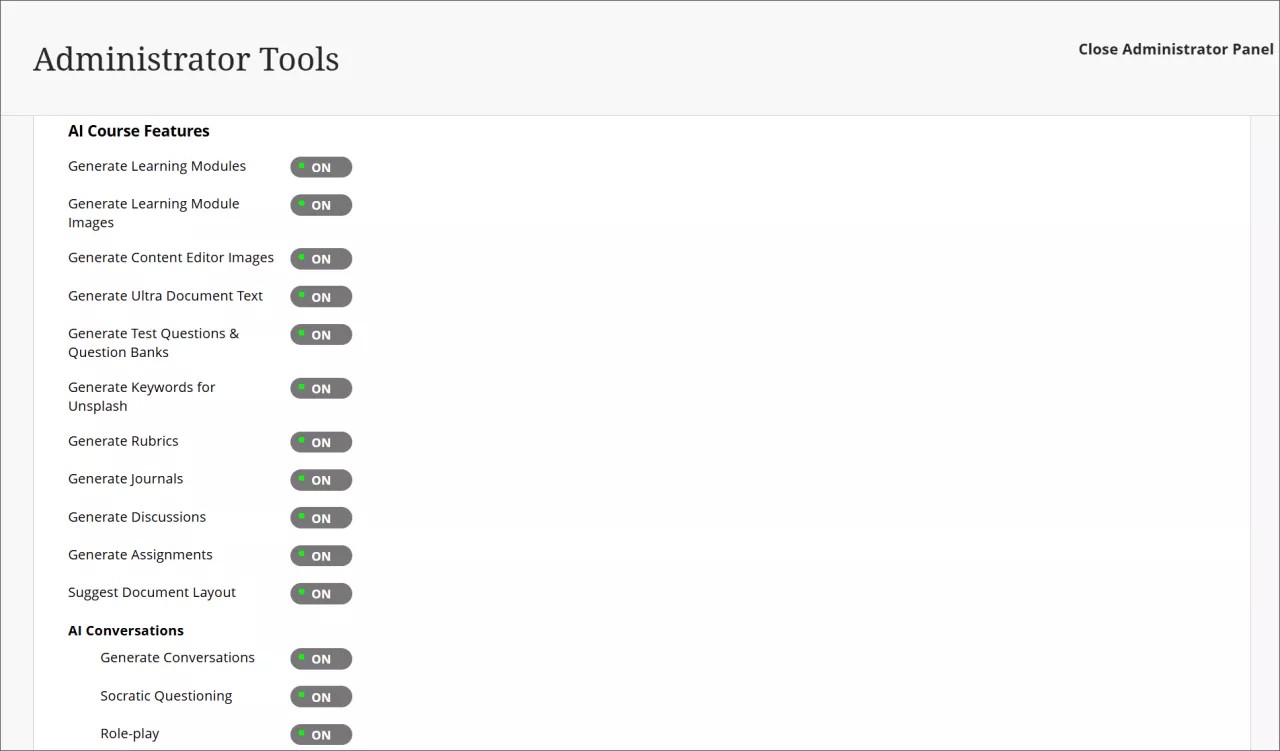
Puede controlar la disponibilidad de todas las funciones del AI Design Assistant. Puedes seleccionar todas, algunas o ninguna de las funciones para activarlas cuando lo desee.
Unsplash es una función independiente a la que también se puede acceder desde la página del Asistente de diseño de IA. Si la habilita, los profesores podrán acceder a la galería de fotos de Unsplash para usarlas como imágenes en los módulos de aprendizaje y en los banners del curso.
También debe activar los privilegios. Asigne el privilegio Utilizar AI Design Assistant a los roles de curso apropiados (por ejemplo, profesor). Visite el tema "Roles del curso y de la organización" para obtener más información sobre cómo asignar y administrar privilegios.
AVA – AI Virtual Assistant Configuration
AVA – AI Virtual Assistant helps instructors and students by providing intelligent, AI-powered features within Blackboard LMS. Blackboardhas partnered with Microsoft and AWS to provide this functionality.
Visit our Blackboard AVA – AI Virtual Assistant page to learn more about AVA's AI-facilitated functionalities, key facts, and Trustworthy AI principles.
AVA provides the following generative AI-facilitated functionalities in Blackboard LMS:
AI Playground – AVA AI Playground provides a dedicated, institutionally managed space within Blackboard LMS, allowing instructors and students to experiment and innovate with teaching and learning.
Responses to Student Messages – AVA scans the course from the student's perspective to provide automated, relevant replies to common student questions sent to instructors.
Generate Attempt Feedback Summaries from Rubrics – Generates high-quality overall feedback for student submissions evaluated using a rubric, based on rubric criteria, performance levels, and any criterion-level feedback.
Revise Submission Feedback – Rewrites instructor-authored comments into more polished, student-friendly language to help instructors deliver clearer, more impactful feedback.
Importante
These functionalities are subject to the limitations and availability of the Azure OpenAI Service and AWS Bedrock and subject to change. Please check the relevant release notes for details.
Availability and licensing
AVA features are included in your Blackboard LMSlicense until 30 June 2026. After that date, a specific AVA license will be required to continue using these features.
AVA and Existing AI Design Assistant Settings
AVA settings are managed within the same building block as the AI Design Assistant (AI Design Assistant and Unsplash). Turning on or off AVA features does not affect AI Design Assistant settings, and vice versa. Each feature can be controlled independently.
Turn on AVA features
To access AVA settings, go to the Administrator Panel. In the Integrations section, under the Building Blocks category, select Installed Tools. Find and select the AI Design Assistant and Unsplash building block, then select Settings. The AVA configuration options are located under the AVA section of this page.
You can control the availability of each AVA feature individually. You can select all, some, or none of the features to turn on at any time.
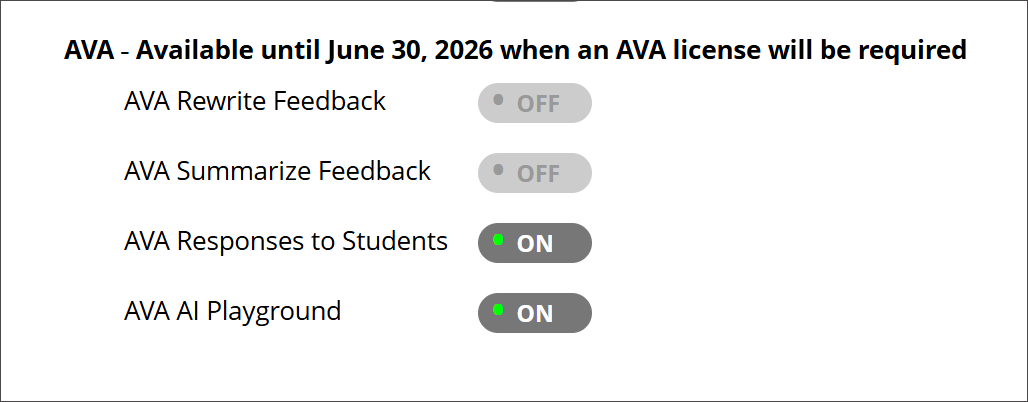
AI Playground
In the building block settings under AI Design Assistant and Unsplash, the option AVA AI Playground is available under the AVA heading. The default state is off.
Once AI Playground is enabled at system level, it is accessible through the Tools option in the Base Navigation menu for all Blackboard users.
Responses to Student Messages
To turn on this feature, navigate to the AVA section within the AI Design Assistant and Unsplash settings and select AVA Responses to Students. The default state is off.
Administrators can:
Turn the feature on globally for the entire institution, or
Enable it at the course level through Course Settings. Instructors can also turn it on or off with Course Settings.
When enabled at the administrator level, the feature is available to instructors but remains off by default. Instructors can turn on AVA autoreplies in their individual Course Settings at any time. For more information about the functionality, navigate to the Messages topic for instructors.
Generate Attempt Feedback Summaries from Rubrics
In the building block settings under AI Design Assistant and Unsplash, the option AI Summarization is available. The default state is off.
When this feature is turned on, the privilege must be assigned to course roles. The required privilege is:
Generate AI Feedback Changes in Course/Organization Control Panel
Assign this privilege to the appropriate course roles, such as Instructor, to allow access.
For more information about the functionality, navigate to the Grade Assignments with Flexible Grading topic for instructors.
Revise Submission Feedback
In the building block settings under AI Design Assistant and Unsplash, the option AI Summarization is available. The default state is off. The default state is off.
When this feature is turned on, the privilege must be assigned to course roles. The required privilege is:
Generate AI Feedback Changes in Course/Organization Control Panel
Assign this privilege to the appropriate course roles, such as Instructor, to allow access.
For more information about the functionality, navigate to the Grade Assignments with Flexible Grading topic for instructors.