Configurar los ajustes de notificación
Note
Este documento se ha traducido mediante traducción automática asistida por IA. Las traducciones se proporcionan «tal cual», sin garantía alguna respecto a su exactitud. La versión en inglés de este contenido es la fuente oficial y con valor normativo.
Las notificaciones se pueden enviar como parte de los procesos de extracción y aprovisionamiento de columnas.
Configurar los ajustes de notificación para la exportación de calificaciones
Inicie sesión en Blackboard con una cuenta de usuario con privilegios de administrador del sistema.
Acceda al panel de administración.
Seleccione Extensiones de plataforma en Gestión en la nube.
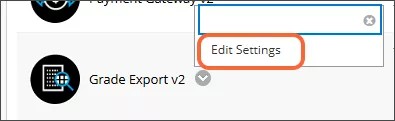
Elija Editar configuración en el menú de Grade Export v2.
Asegúrese de que la opción Disponibilidad de exportación de calificaciones esté seleccionada. Aparecerá un conmutador de Funciones de Grades Journey que no podrá seleccionar; el texto contiene más información sobre la extensión Grades Journey, que está disponible con un contrato de pago. Para obtener más información sobre las funciones adicionales disponibles con Grades Journey, póngase en contacto con su representante de cuenta.
Seleccione la pestaña Configuración de notificaciones
Rellene los campos para cada tipo de notificación.

Nota
/n no es necesario para establecer una nueva línea. Puede agregar devoluciones o nuevas líneas en la plantilla.
Columnas de Actividad y Calificaciones
Estas notificaciones por correo electrónico se envían cuando se ha completado el proceso de aprovisionamiento de la columna de calificaciones y de actividades.
Introduzca las direcciones de correo electrónico que deberían recibir el correo en el campo Dirección para. A menudo es un correo de administración o una lista de distribución.
Introduce la dirección de correo electrónico de la que parecerá provenir el correo (por ejemplo, noreply@domain) en el campo Dirección de Origen.
Ingrese la línea de asunto del correo electrónico en el campo Asunto.
Ingrese la plantilla para el texto del correo electrónico en el campo Plantilla del cuerpo del mensaje.
Extracción de calificaciones
Estas notificaciones por correo electrónico se envían cuando se ha completado el proceso de extracción de calificaciones.
Introduzca las direcciones de correo electrónico que deberían recibir el correo en el campo Dirección para. A menudo es un correo de administrador, una lista de distribución o el token de $INSTRUCTORS$. Las personas en este campo recibirán un correo electrónico por cada curso que se incluya en un extracto. Los profesores solo recibirán correos electrónicos para sus propios cursos.
Introduzca las direcciones de correo electrónico de los administradores en el campo Dirección del administrador destinatario. Los administradores listados en este campo recibirán un correo electrónico cuando finalice el proceso de extracción de calificaciones, con un archivo de texto adjunto que incluye los IDs de los cursos incluidos en el extracto.
Introduce la dirección de correo electrónico de la que parecerá provenir el correo (por ejemplo, noreply@domain) en el campo Dirección de Origen.
Ingrese la línea de asunto del correo electrónico en el campo Asunto.
Ingrese la plantilla para el texto del correo electrónico en el campo Plantilla del cuerpo del mensaje.
Notificación de Evento de Calificación
Estas notificaciones se envían cuando se realizan cambios en las columnas de calificaciones añadidas por la integración Grades Journey. Por ejemplo, si un profesor borraba accidentalmente una columna de calificaciones provisionadas, se enviaba una notificación a la dirección de correo electrónico especificada informando al administrador de esta situación para que pudiera corregirla.
Elige el Tipo de notificación en el menú.
Ninguna: no se envían notificaciones
Correo electrónico: las notificaciones se envían por correo electrónico
Introduzca las direcciones de correo electrónico que deberían recibir el correo en el campo Dirección para. A menudo es un correo de administración o una lista de distribución.
Introduce la dirección de correo electrónico de la que parecerá provenir el correo (por ejemplo, noreply@domain) en el campo Dirección de Origen.
Ingrese la línea de asunto del correo electrónico en el campo Asunto.
Ingrese la plantilla para el texto del correo electrónico en el campo Plantilla del cuerpo del mensaje.
Seleccione Enviar para guardar la configuración.