Payment Gateway v2
The Payment Gateway application allows Course Catalog learners to purchase premium content through a configured Payment Service Provider (PSP) by going through the Course Catalog interface. A Blackboard LMS system administrator must configure the Payment Gateway application.
General Configuration
Sign in to Blackboard LMS.
Access the Administrator Panel.
Select Platform Extensions Manager in the Tools and Utilities section.
Select Configuration on the Payment Gateway v2 tile to access the Payment Gateway v2 Settings.
Choose the roles you want to have access to the Payment Administrator area of the extension. This will grant access to the Notifications settings inside Payment Gateway. These roles can be a combination of system and institutional roles.
The From Email is the email address from which system notifications will be sent. To change it, please put in the desired address and validate it (click the Confirm button, then follow the instructions). Once the email is validated, create a ticket to have the change finalized.
Enter an optional message in the Payment Information box that will appear on the payment page.
Choose all desired Available Languages from the menu.
Choose the Default Language from the menu.
Choose the Available metadata fields. These are fields from the user, item, or payment data that are available to be sent as metadata to the PSP when a learner makes a purchase.
Select Save.
Payment Service Providers
Access the Payment Gateway v2 Settings.
Select the Lock icon.
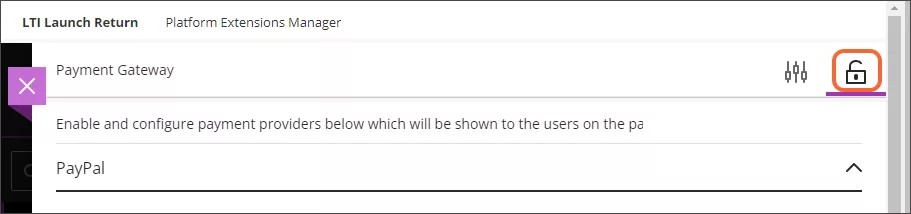
Turn on the toggle for each PSP you want to enable.
Enter the required information for those PSPs.
Select Save.
Flywire
Note
Student email receipts for Course Catalog purchase include the transaction ID for payments processed by Flywire.
To set up the Flywire integration, you will need to access support through a support case, engaging Anthology Professional Services along with the Flywire Account Executive and Implementation Manager. Only the following two settings can be changed through the Payment Gateway v2 interface.
Merchant ID | Any text you want to name the integration. |
Merchant Email | An email address that will receive all emails from learner purchases. |
PayPal
Merchant ID | Any text you want to name the integration. |
Merchant Email | An email address that will receive all emails from learner purchases. |
Token | Base 64 encoded format combination of the PayPal Client ID and Secret Key in the format ClientID:SecretKey. |
PayPal with Card | Show the PayPal with Card logo on the payment page. |
Mercado Pago
Merchant ID | Any text you want to name the integration. |
Merchant Email | An email address that will receive all emails from learner purchases. |
Token | The Mercado Pago Access Token. |
Cybersource
Merchant ID | ProfileID |
Merchant Email | An email address that will receive all emails from learner purchases. |
Access Key | The Cybersource Access Key. |
Token | The Cybersource Security Key. |
TouchNet
Merchant ID | Any text you want to name the integration. |
Merchant Email | An email address that will receive all emails from learner purchases. |
Token | Leave this box blank. |
Integration Site ID | A value obtained from your TouchNet executive. |
Integration URL | A value obtained from your TouchNet executive. |
Converge
Merchant ID | Any text you want to name the integration. |
Merchant Email | An email address that will receive all emails from learner purchases. |
User ID | Registered API User ID |
Pin | sslpin provided by Elavon Converge provider |
WPM (Flywire)
Merchant ID | Any text you want to name the integration. |
Merchant Email | An email address that will receive all emails from learner purchases. |
Client ID | Unique Client ID provided by Flywire/WPM |
Action URL | Unique Pathway URL for this income provided by Flywire/WPM |
Payment Option | To be agreed up with Flywire/WPM |
Path ID | Unique Pathway ID provided by Flywire/WPM |
Department | Unique Department ID provided by Flywire/WPM |
VAT Code | Defined by the institution |
Customer ID | Defined by the institution |
Shared Secret | Integration API shared secret provided by Flywire/WPM |
If you use WPM as a payment provider, an additional field is available when you create an offering. After assigning a cost to an offering, you can enter a finance code to indicate where the funds should be directed.