October 2026 (4001.2)
Release Information
Nota
For maintenance release build numbers and bug fixes, visit Maintenance Releases.
For release status and delays, visit Blackboard Status.
Instructional Design
Improvements to the beta Content Editor in Blackboard Documents
We've made a number of improvements to the beta Content Editor that make it faster, more predictable, and more accessible to use. These updates span keyboard navigation, list behavior, file and image handling, and new math authoring support, giving instructors a more reliable and intuitive editing experience.
Instructors
Toolbar and menu updates
Toolbar menus with dropdown options now clearly indicate the currently selected item, making active formatting and settings easier to identify. For example, selecting a bulleted or numbered list updates the toolbar icon to reflect that choice.
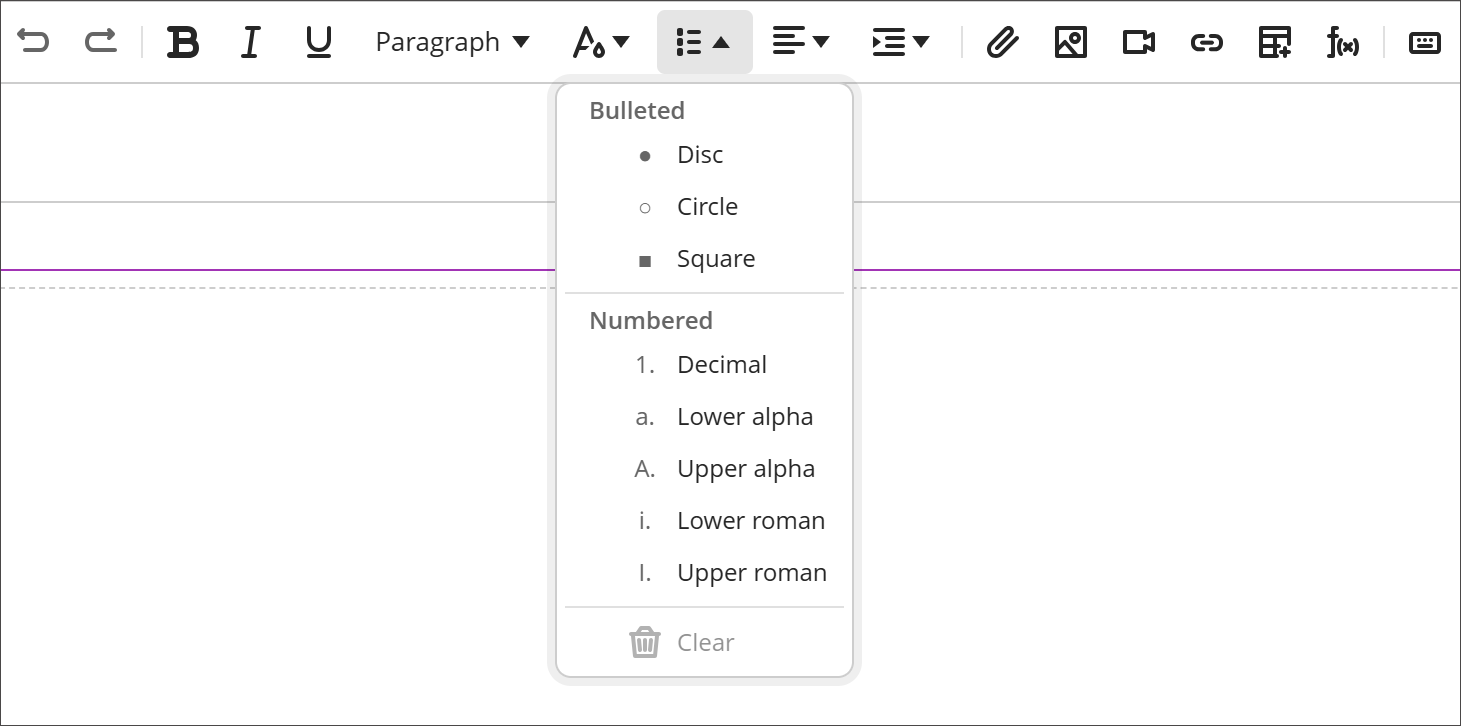
The List menu now includes section headers, making list style options easier to find.
Image 1: The List menu includes the section headers Bulleted and Numbered.
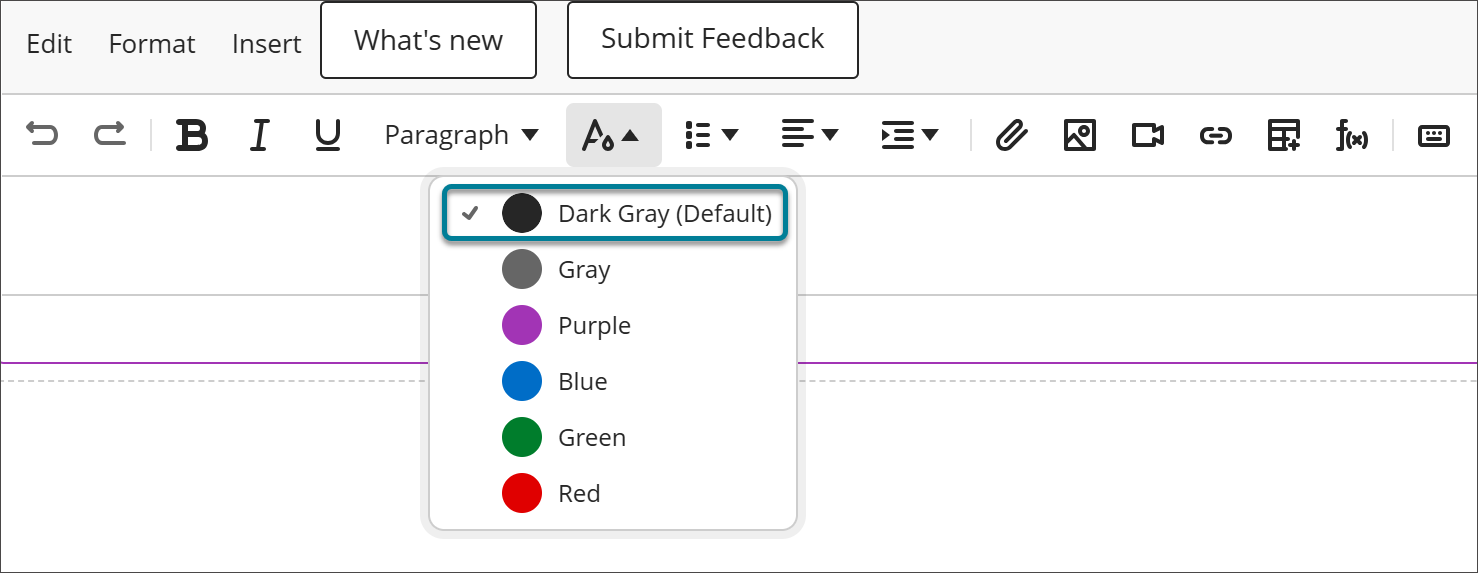
The default font color is now labeled Dark Gray (Default) instead of Black to accurately reflect the shade being applied; the color itself is unchanged.
Image 2: The default color is labeled Dark Gray (Default).
List behavior
Deleting a list item now merges it with the previous item, keeping remaining items together in a single continuous list rather than splitting it in two.
In the list style menu, section headers (Bulleted and Numbered) are now informational only and can no longer be selected, so only actual list style options receive focus.
Image and file handling
Resized images now retain their dimensions during content conversion, and extra space above and below converted images has been removed.
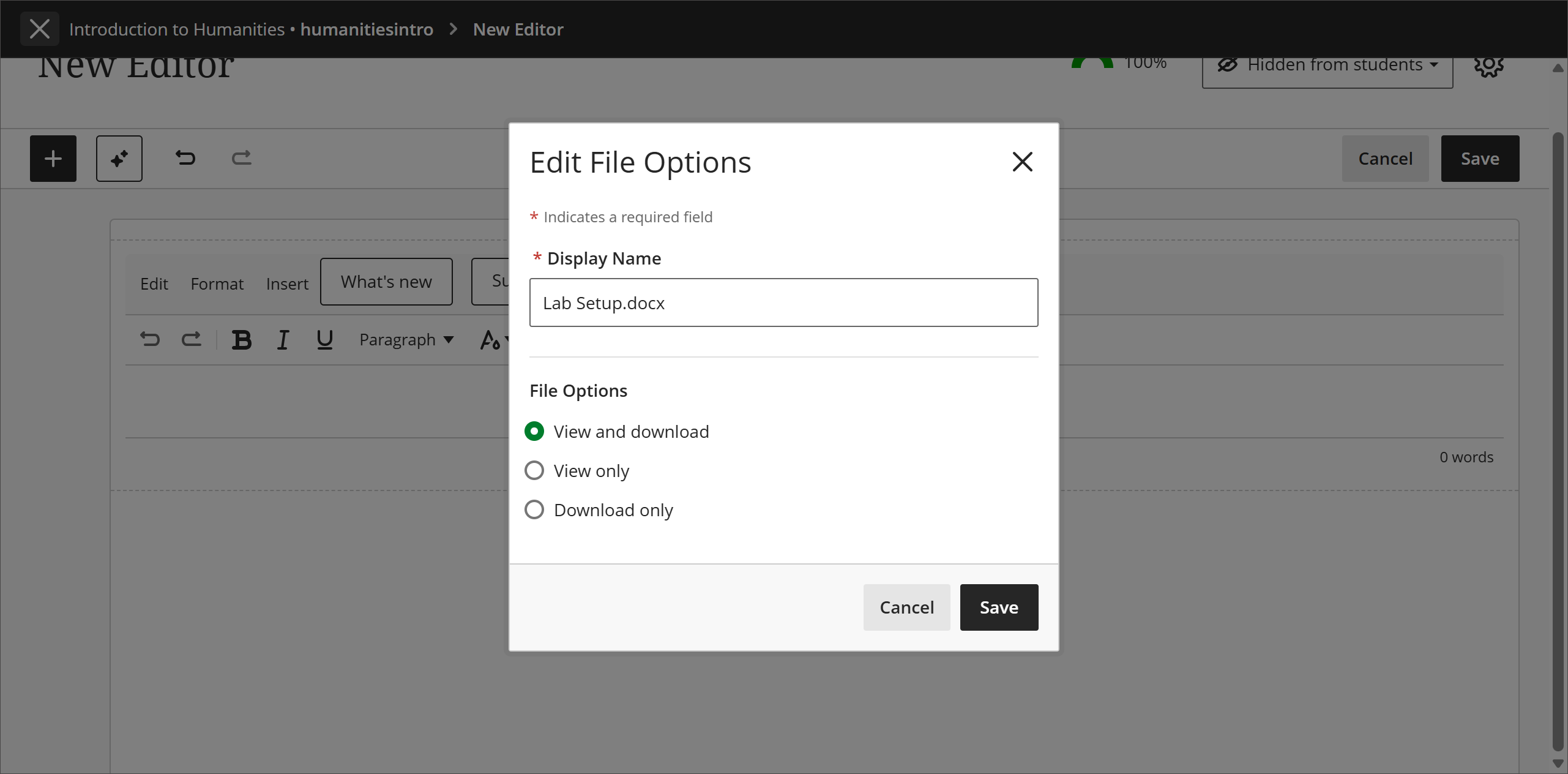
File properties now display when uploading file attachments. This gives instructors the opportunity to review and configure settings, including alternative text, before the file is inserted.
Image 3: The Edit File Options window appears when a file is attached.
File attachments are now preserved when converting content from the old editor to the new editor for a more reliable migration experience. Previously, attachments could be lost during conversion.
Copying and pasting files directly from one editor to another is now blocked to prevent file permission and access issues. Instructors receive a notification explaining that the file must be uploaded instead. This is a temporary change while a long-term solution is developed to support file permissions across editors.
Code formatting
Formatting multiple selected lines as a code block now creates one combined code block, rather than converting each line into its own separate block.
Math authoring
The Content Editor now renders LaTeX and MathJax for inline and display equations. Instructors can paste LaTeX directly into the editor, where it renders automatically as formatted mathematical notation. This is the foundation for an expanded math authoring experience in future releases.
Administrators
Availability: Available to all Ultra courses.
Activation: Off by default.
Configuration: In the Admin Panel, select Configure in the The Ultra Experience is Here module. Turn on the New Content Editor for Blackboard Documents (Beta) feature flag.
Configure editing permissions for Learning Object Repository objects
Administrators can now control which attributes of a Learning Object Repository (LOR) object instructors are allowed to change after it's added to a course or organization. Previously, all attributes for a LOR-inserted object were locked to editing by instructors. This update gives institutions a way to standardize content that must stay consistent while giving instructors room to adapt the rest.
Administrators can allow editing for attributes such as title, description, content, and visibility and release condiitons on Documents, File Uploads, Folders, and Learning Modules in the LOR. When an attribute is open for editing, users with editing privileges can update it directly in a course or organization, and the change persists through future syncs instead of being overwritten.
Image 1: The ellipsis (...) menu for a LOR object now has a Permissions option.
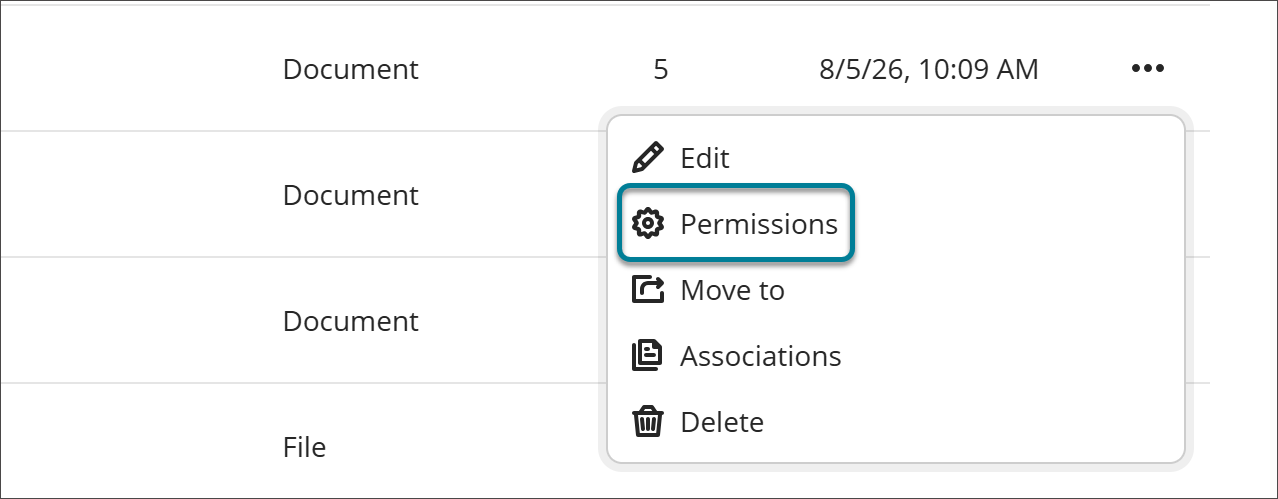
Image 2: The Settings panel for a LOR object has a Permissions tab with toggles for each attribute that administrators can turn on or off to allow editing for that attribute.
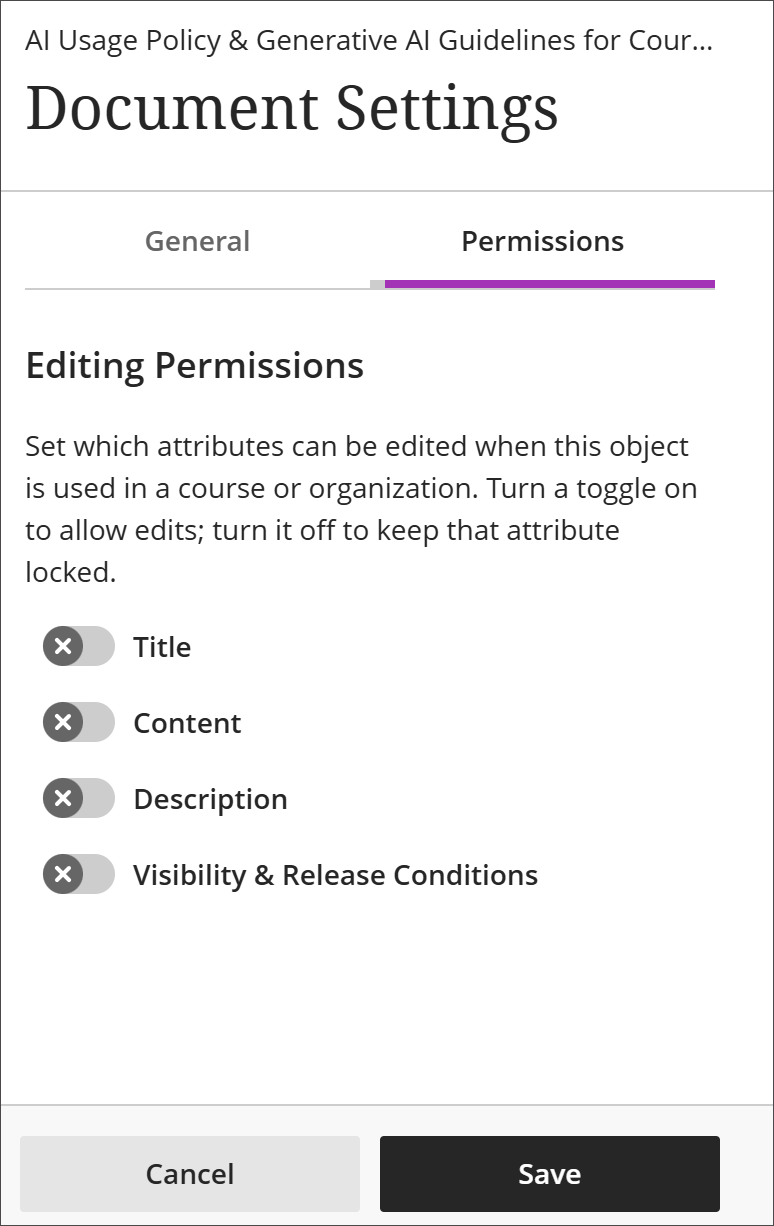
Two new privileges control who can configure object permissions.
Base Navigation > Tools > Learning Object Repository > Institutional Repository > Object > ... > Permissions lets a user configure permissions at the institutional repository level.
Base Navigation > Tools > Learning Object Repository > Node Repositories > Object > ... > Permissions lets a user configure permissions at the node repository level.
Administrators will only have access to the new permissions options if they have the appropriate privilege.
Instructors
When an object from the LOR is added to a course or organization, instructors can edit only the attributes allowed by the object’s permissions, such as title, description, content, or visibility and release conditions. Attributes whose permissions are locked down will still display the message that editing is disabled.
Administrators
Availability: Available to all Ultra courses.
Activation: None needed.
Configuration: None needed.
Communications and Collaboration
Start AI Conversations in a new immersive experience
AI Conversations now open in a dedicated, focused view for students across the three conversation roles. Students begin from an explicit Start conversation button, and the conversation fills a larger area that hides settings and assessment details from view. This gives students more room to work and removes information they do not need while they are in the middle of a conversation.
Image 1: The new AI Conversation immersive experience fills a larger area to help students stay focused on their conversation.
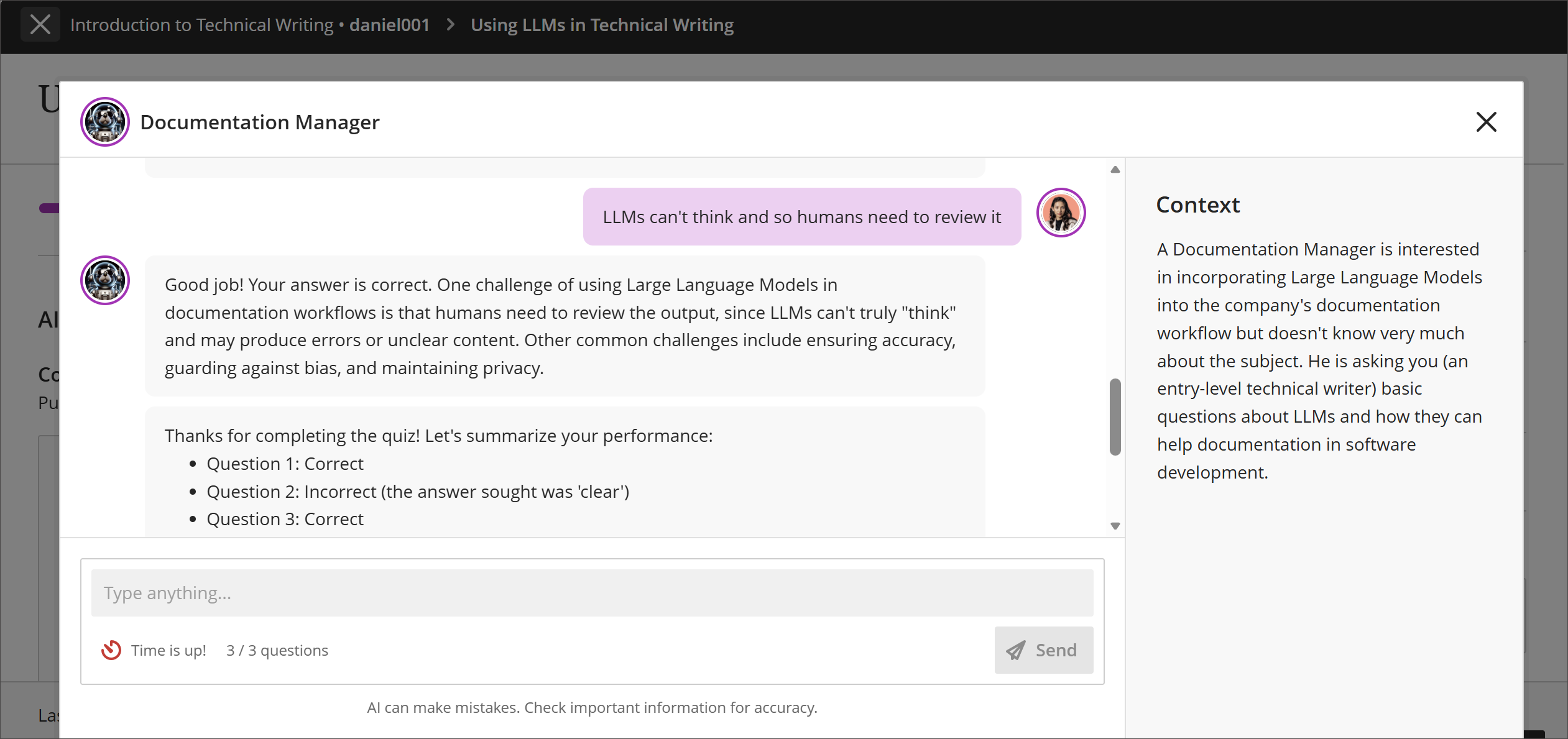
The previous experience surrounded the conversation with configuration and assessment detail that was relevant to setting up the activity but not to participating in it. Clearing that away keeps students focused on the exchange itself.
Image 2: The previous student experience of AI conversation included a view of assignment details that were irrelevant to a student's active participation in a conversation.
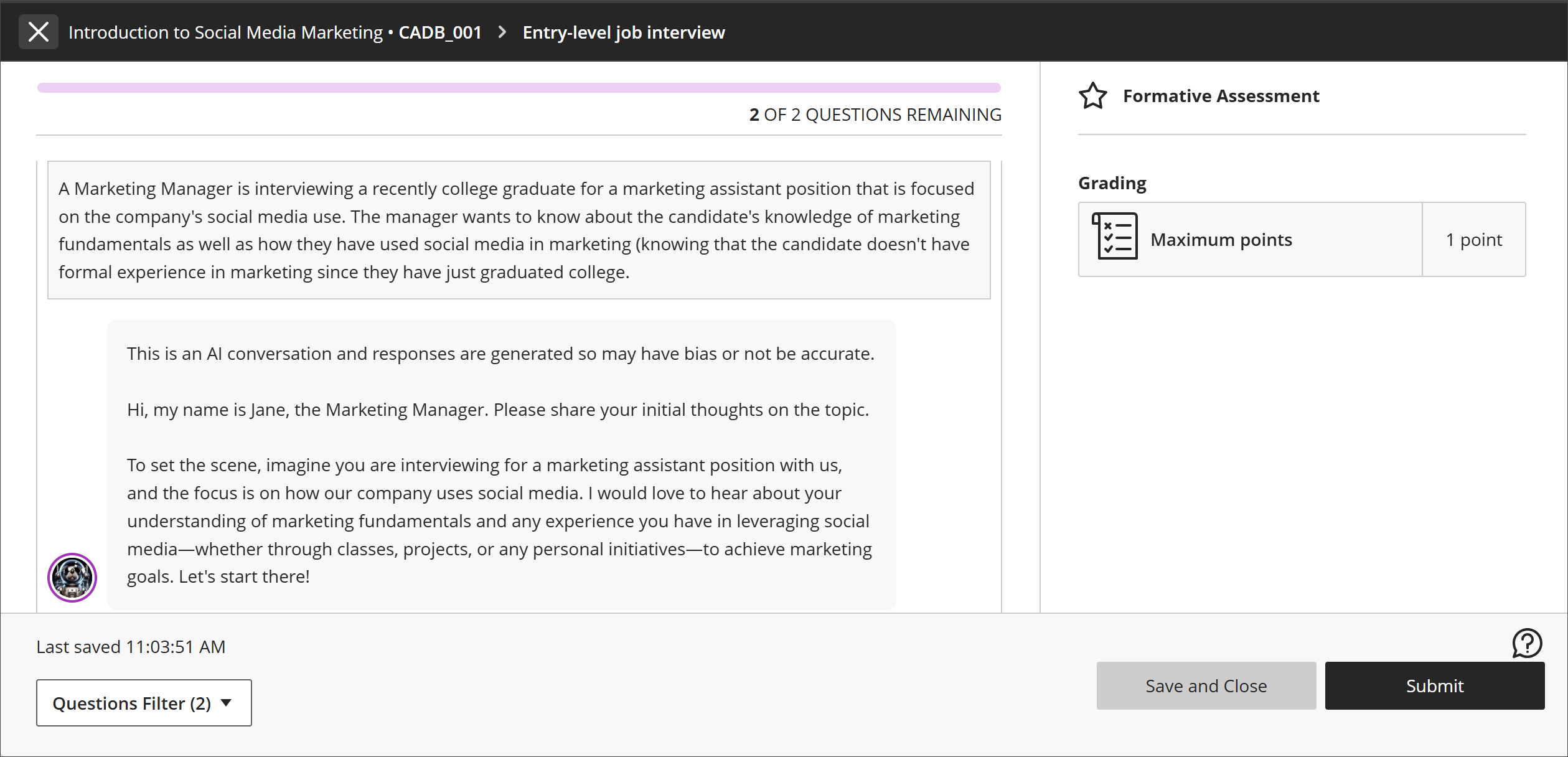
Students
After selecting Start attempt, students select a new Start conversation button to begin. The conversation no longer begins as soon as the assessment opens.
The conversation opens into its own view with more space for the exchange, and the settings and supporting details that previously surrounded it are hidden.
Students leave the conversation and submit their attempt, including the reflection question, the same way they did previously.
The notice explaining that responses are AI-generated and may be inaccurate or contain bias remains visible in the new view.
This experience applies to every AI Conversation type, including Socratic, Roleplay, and the new AVA Pulse Quiz. Instructors set up conversations exactly as they did before — nothing about the authoring experience changes.
Administrators
Availability: Ultra Course View courses
Activation: None needed, applied automatically to all AI Conversations.
Configuration: None needed
Lock an AI Conversation to a specific language
Instructors can now set the language an AI Conversation is conducted in. When a language is enforced, the AI responds in that language for the entire conversation and will not switch, even if a student asks it to. This gives instructors a reliable way to keep language-practice activities in the target language, so students cannot opt out of the challenge partway through.
Previously, the language of a conversation depended on how the student engaged with it, which meant an activity intended as immersion practice could drift into another language. Enforcing the language keeps the activity doing what it was designed to do.
Image 1: Instructors can now select the option to enforce a conversation language in AI Conversation.
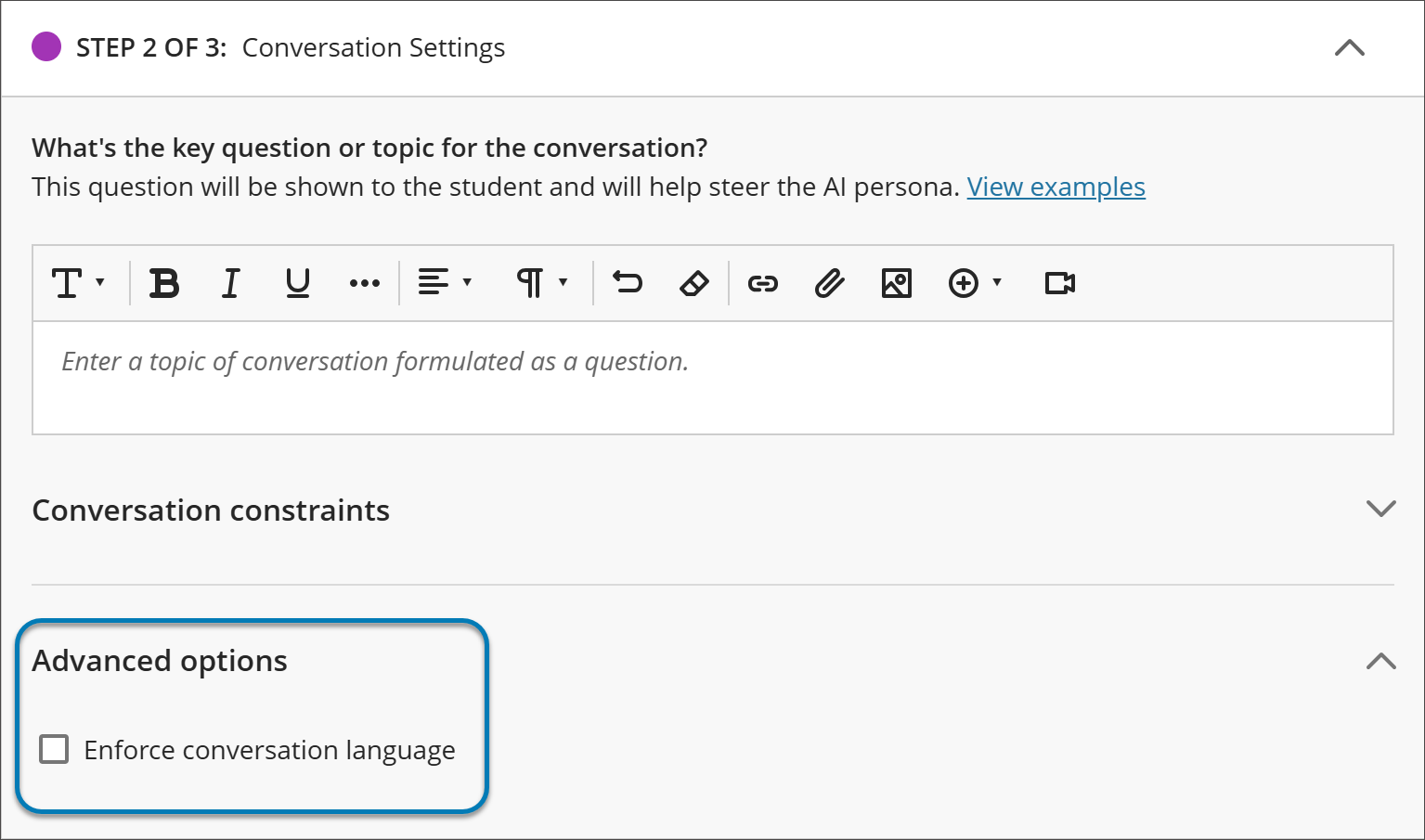
Instructors
When creating or editing an AI Conversation, open Advanced options and select the language to enforce. The setting applies to the whole conversation, including the AI's opening message, its questions, its responses to the student, and the closing summary.
The language setting is saved with the conversation and persists when the conversation is reopened for editing.
The setting is available across AI Conversation types, including Socratic, Roleplay, and AVA Pulse Quiz.
When a conversation is grounded in course content, the AI generates its questions and responses in the enforced language regardless of the language of the source material.
This is particularly useful for language courses, where the point of the activity is sustained practice in the target language rather than a conversation about it.
Students
When an instructor has enforced a language, the entire conversation is conducted in that language from the first message onward.
Students cannot change the language mid-conversation. If a student asks the AI to continue in a different language, the AI declines and continues in the language the instructor set. This is intentional — it keeps every student working in the same language for the duration of the activity.
Administrators
Availability: Available for all Ultra courses.
Activation: None needed.
Configuration: None needed.
Mastery and Learning Pathways
Specific members rule no longer blocks other release conditions
Release conditions now work together as intended. When you add a Specific members or groups rule alongside other rules, such as date-based access, students who meet any rule can see the item. These students also show up correctly in the gradebook and grading views.
Instructors
Instructors can add a Specific members or groups rule to an item's release conditions along with other rules, such as a date-based rule. Each rule applies independently, so students who meet the criteria of any rule can see the item.
For example, an instructor sets up release conditions for a test with two rules:
Rule 1: Specific members or groups, with one student selected
Rule 2: A date-based rule with an access date that has already passed
The selected student can see the test because they meet Rule 1. All other students in the course can also see the test because they meet Rule 2.
Students who gain access through any rule appear in the gradebook and grading views, so instructors can grade their submissions as usual.
Students
Students who meet the criteria of any release condition rule on an item can see and access that item.
Administrators
Availability: Available to all Ultra courses.
Activation: None needed.
Configuration: None needed.
Assignments and Tests
Export and import rubrics
Instructors can now export rubrics from their course and import them into other courses. This makes it easier to reuse rubrics across courses. The options available to instructors depend on their rubric privileges.
Instructors
The Course Rubrics page is a dedicated page for managing all rubrics in a course. To access it, select Manage Course Rubrics in the Course Rubrics section of Gradebook Settings. From the Course Rubrics page, instructors can export and import rubrics.
Exporting a rubric
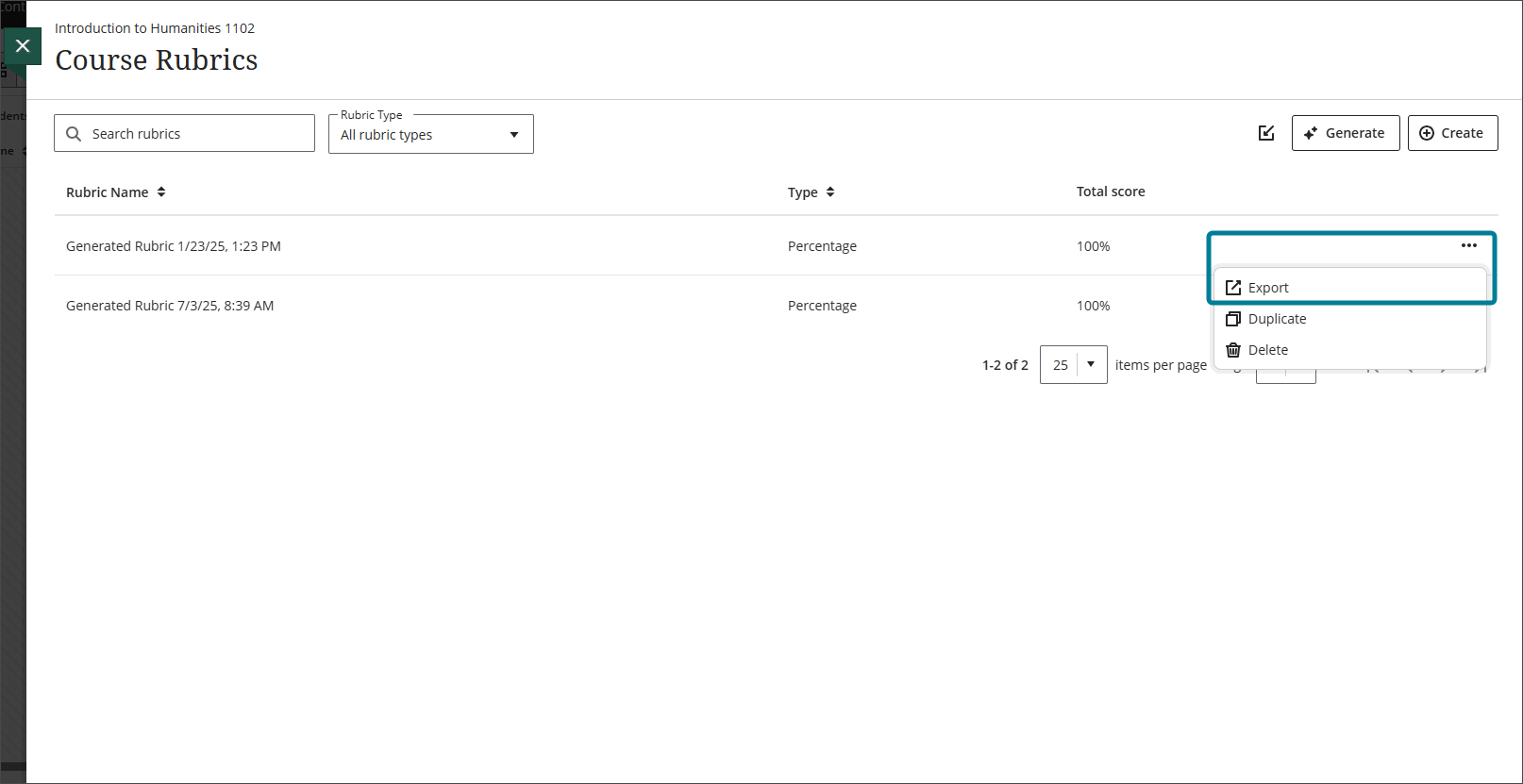
Select the ellipsis menu on the rubric and select Export. The rubric downloads automatically as a zip file. The zip file is named with the rubric name and course title and can be found in the instructor's downloads folder. The zip file is intended for importing into another course and is not a viewable document.
Image 1: The ellipsis menu on a rubric shows the Export option.
Importing a rubric
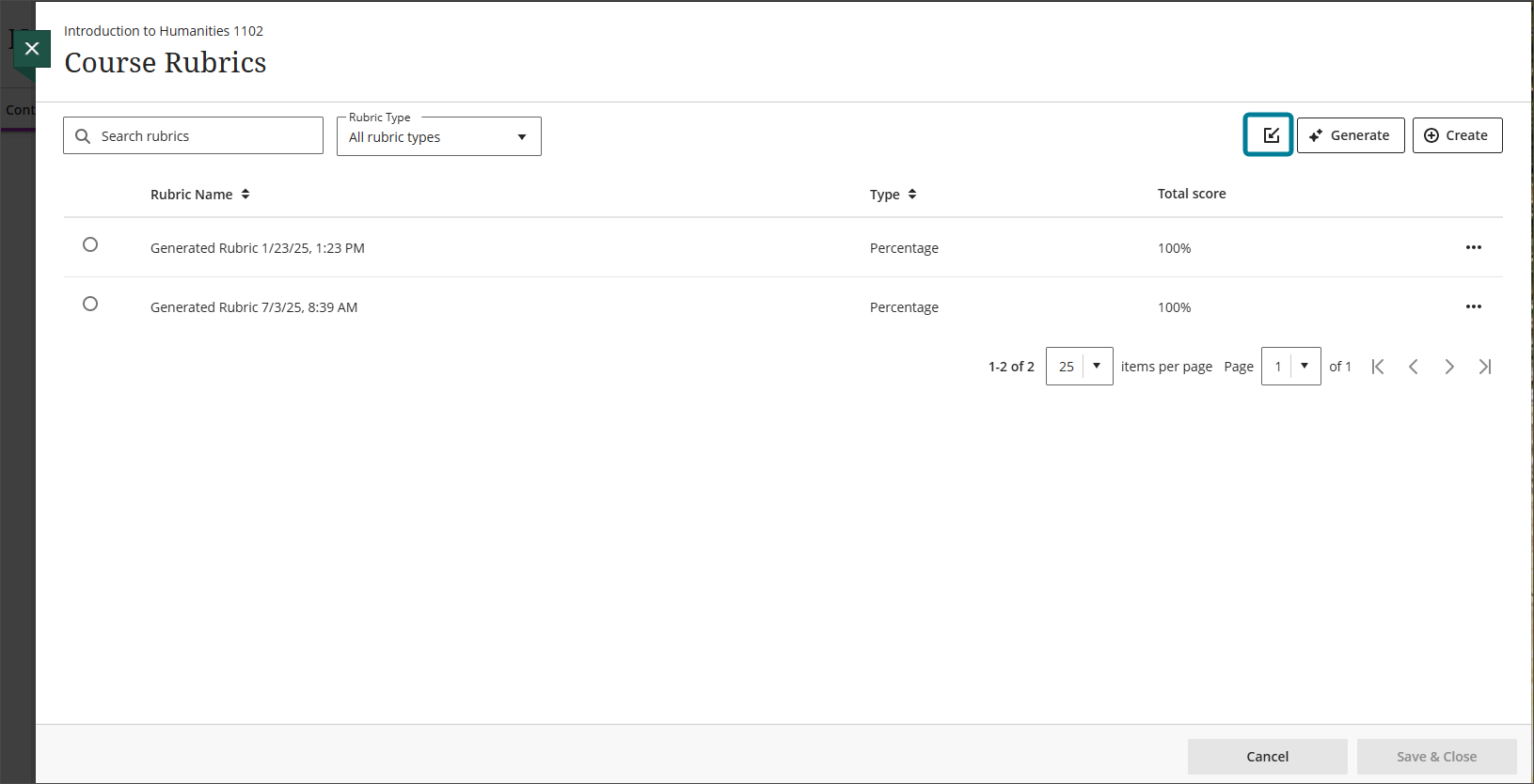
Select the Import icon on the Course Rubrics page, then select the zip file to import. Only rubrics exported from Blackboard LMS can be imported. The rubric imports automatically. If the same rubric already exists in the course, an error message appears to prevent duplicate rubrics from being created.
Image 2: The Import icon on the Course Rubrics page.
Administrators
Availability: Available to all Ultra courses.
Activation: None needed.
Configuration: None needed.
Manage rubrics from a dedicated course rubrics page
Rubrics now have a dedicated management page in the course, replacing the previous workflow of managing rubrics directly within the Gradebook Settings and Assignment Settings panels. The options available to instructors depend on their rubric privileges.
Instructors
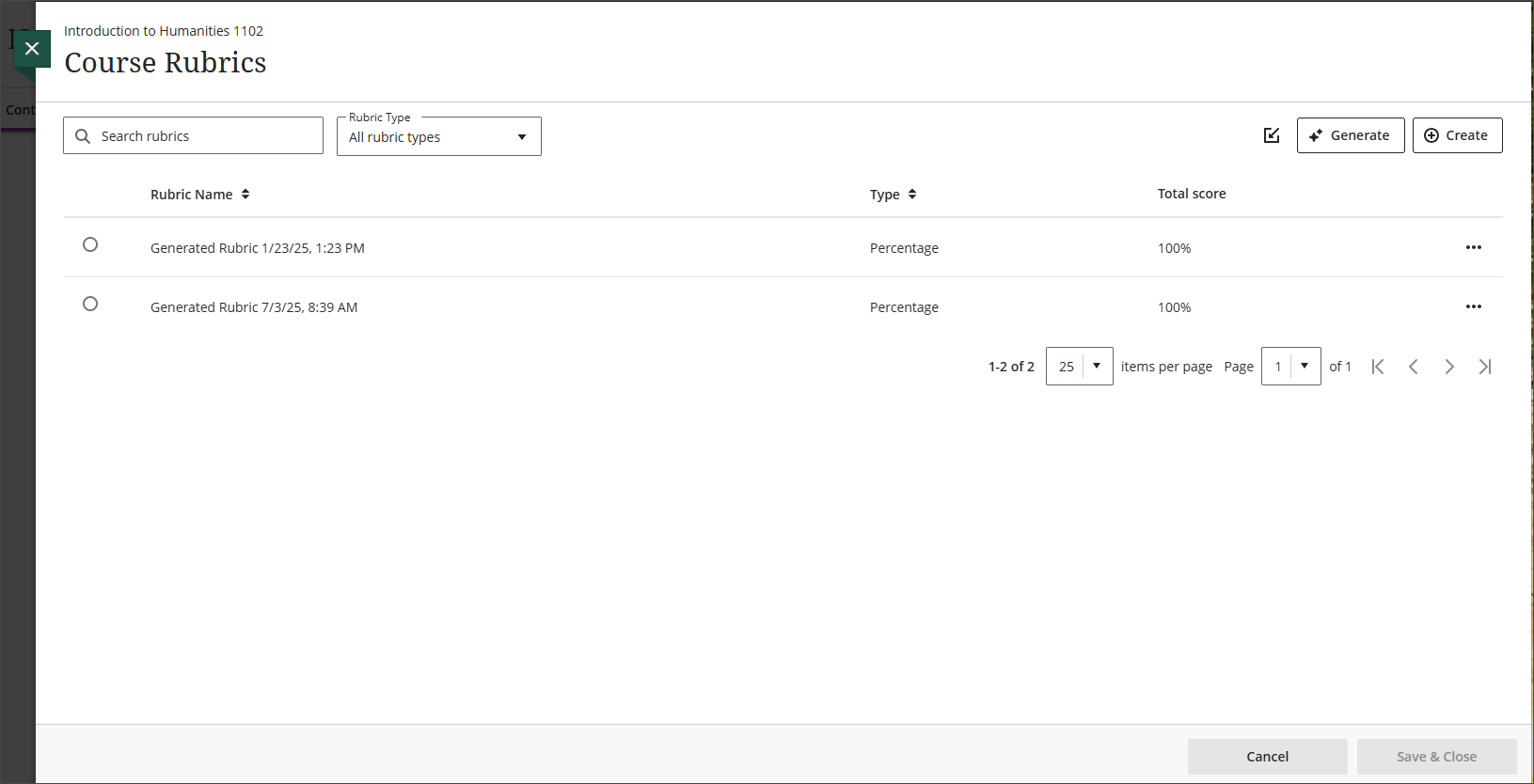
The Course Rubrics page displays all rubrics in the course in a sortable, searchable table. Instructors can filter rubrics by type and use the ellipsis menu on any rubric to access additional options. Options to Create, Generate, Import, and Export rubrics are also available from the page.
Image 1: The Course Rubrics page displays all rubrics in a sortable, searchable table.
Instructors can access the Course Rubrics page in two ways:
From Gradebook Settings, select Manage Course Rubrics in the Course Rubrics section.
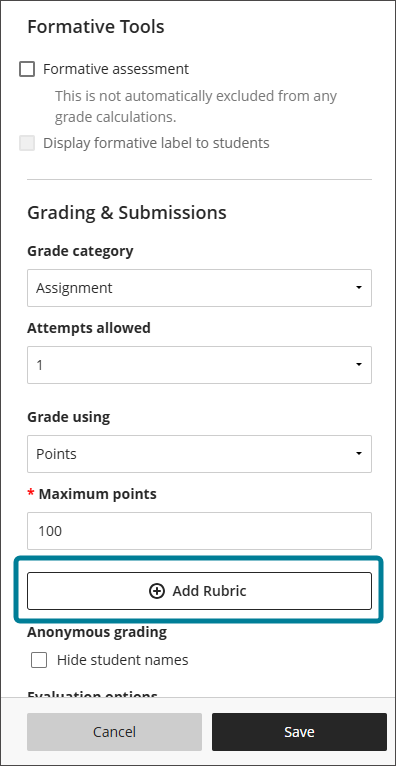
From Assignment Settings, select Add Rubric in the Grading & Submissions section.
When accessing the Course Rubrics page from Assignment Settings, instructors can select the radio button next to a rubric and select Save & Close to add it to the assignment. Once a rubric is added to an assignment, instructors can select the trash can icon to remove it.
Image 2: Instructors select Add Rubric in Assignment Settings to open the Course Rubrics page.
Administrators
Availability: Available to all Ultra courses.
Activation: None needed.
Configuration: None needed.
Gradebook
Display username and last access date in the gradebook grid view
Instructors can now display username and last access date as optional columns in the gradebook grid view.
Instructors
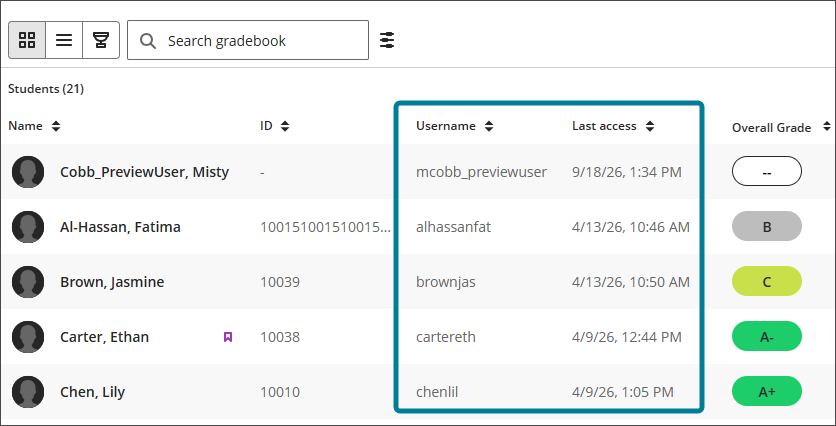
Two new toggles are available in the Student options section of the Gradebook Settings panel: Username and Last access. Both toggles are off by default. When enabled, each toggle displays a sortable column to the right of the Name column in the grid view.
Image 1: The Student options section in Gradebook Settings shows toggles for Student ID, Username, and Last access.
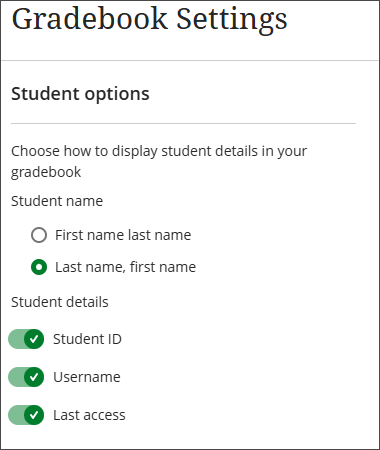
Image 2: The gradebook grid view, including the Username and Last access columns.
Administrators
Availability: Available to all Ultra courses.
Activation: None needed.
Configuration: None needed.
Display points possible in the gradebook list view
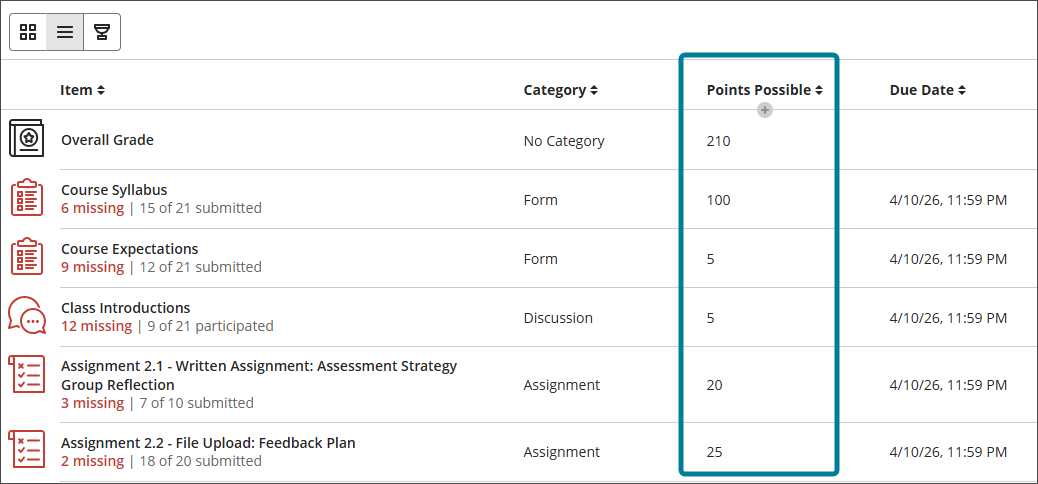
Points possible is now displayed as a sortable column in the gradebook list view, giving instructors an at-a-glance view of point values for each gradable item.
Instructors
The Points Possible column automatically populates based on the points configured for each gradable item. Items without a points value are blank.
Image 1: The list view displays a sortable Points Possible column.
Administrators
Availability: Available to all Ultra courses.
Activation: None needed.
Configuration: None needed.
Restore submission receipt search for anonymously graded assignments
Instructors can now search by submission receipt number in the gradebook to locate submissions for anonymously graded assignments.
Instructors
To protect student anonymity before grades are posted, submission receipt information is not displayed in the Grade Details panel. Instructors can locate a submission by entering the receipt number in the gradebook search bar. A matching result appears in a dropdown. Select the result to open the Anonymous File Submission Receipt.
The receipt displays the assessment name, receipt number, attempts, file size, and submitted date. If a grade has been entered, the grade displays. Select Grade to open the submission in Flexible Grading.
Administrators
Availability: Available to all Ultra courses.
Activation: None needed.
Configuration: None needed.
View exception indicators in the gradebook grid view
Instructors can now identify at a glance when a student has an exception on a gradable item directly from the gradebook grid view.
Instructors
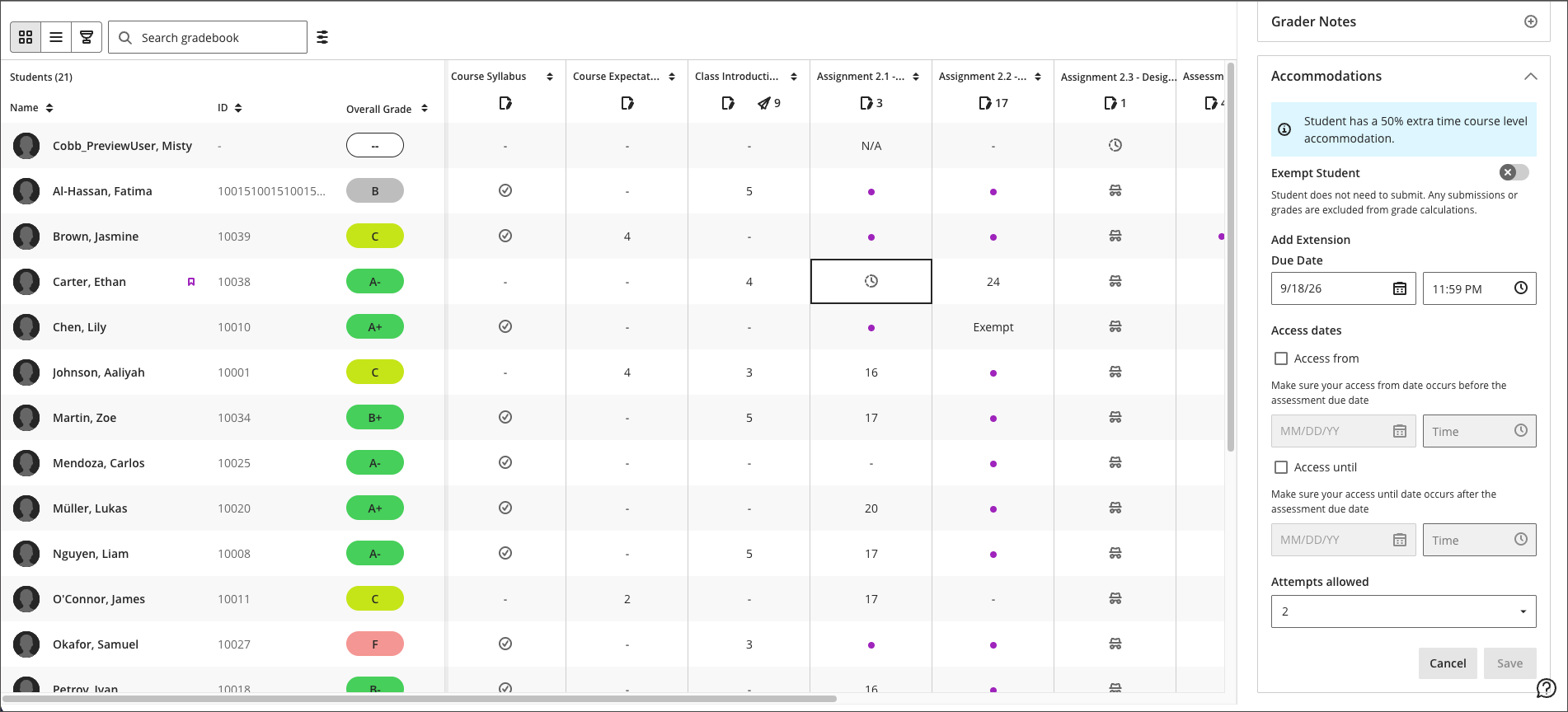
A clock icon now displays in a student's cell when they have an exception on a gradable item. Exceptions include differences in due date, access dates, or attempts allowed. The clock icon displays from the time the exception is set until the item is graded.
To view or manage the exception details, select the cell to open the Grade Details panel, then navigate to the Accommodation section.
Image 1: A clock icon in a student's cell indicates an exception on that gradable item.
Administrators
Availability: Available to all Ultra courses.
Activation: None needed.
Configuration: None needed.
Reveal student identity for anonymous assessments
Authorized users can now temporarily reveal a student's identity for a specific submission on an anonymously graded assessment. Anonymity remains the default and is not weakened for other students or submissions. Every action is logged, providing a clear audit trail.
Instructors
In Flexible Grading, authorized users have a new menu option on anonymously graded assessments: Reveal student name or Hide student name. Revealing a student's name displays their profile card, including their name, ID, and avatar, in both the Student and Question views.
Image 1: The ellipsis menu in Flexible Grading shows the Reveal student identity option.
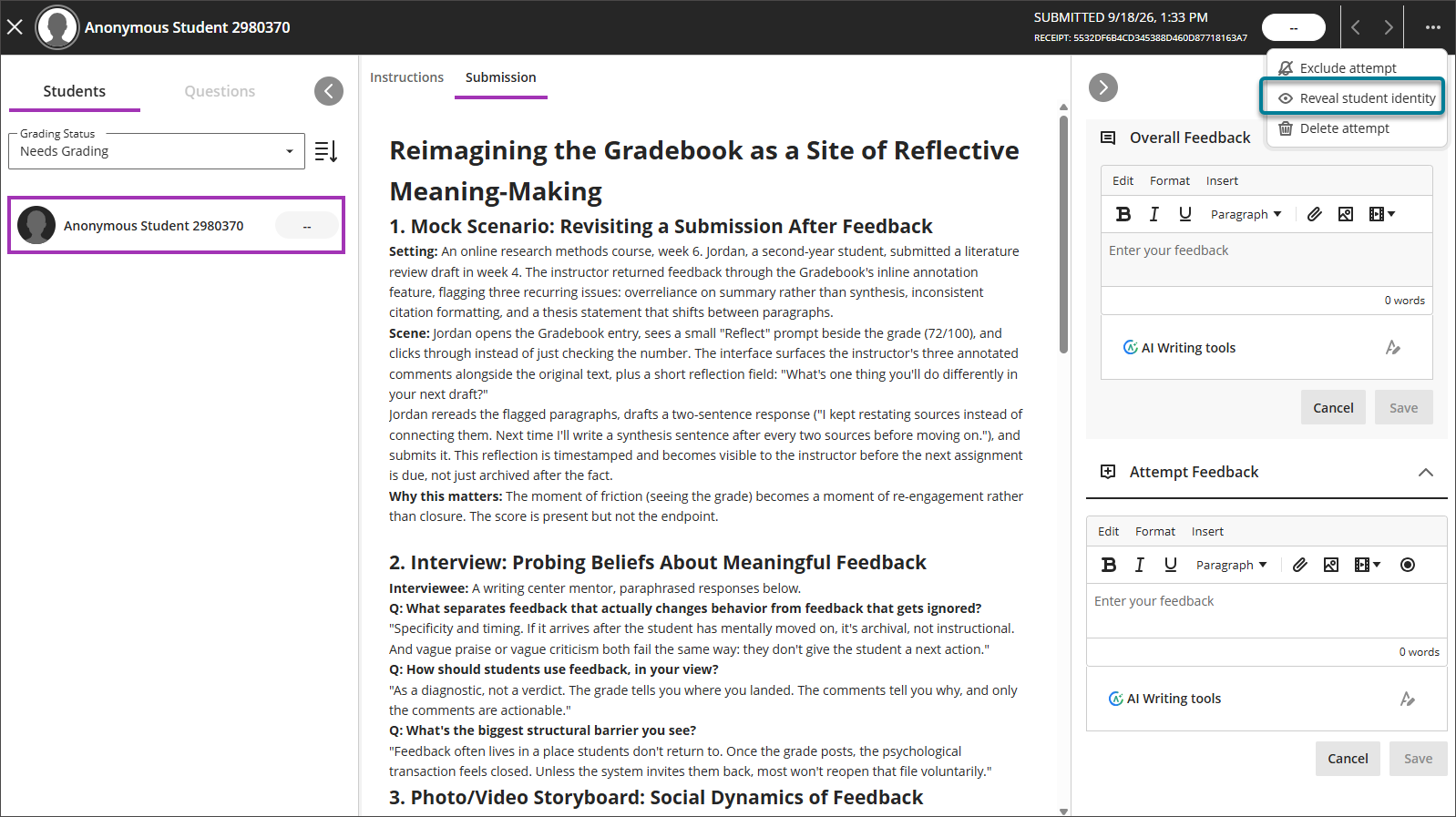
Revealed identities are per user and per session. A student's identity is automatically re-anonymized if the user logs out, closes the browser, times out, or refreshes the page. If the user remains in the interface without doing any of the above, revealed names stay visible when they return to the page.
If a grader can view a student's name while grading any part of a submission, that submission is marked as graded not anonymously.
Administrators
To enable this feature, go to Admin Panel > Tools and Utilities > Tools. Under the Grading section, turn on Reveal student identity for anonymous assessment.
Once enabled, System Administrators can reveal student identities by default. To allow other users to do the same, assign the Reveal student identity for anonymous assessment privilege to the relevant course or organization role.
Both the tool and the privilege must be enabled for a user to reveal student identity.
Every time a student's identity is revealed, the system records:
Who viewed the identity
Which submission attempt was viewed
When it happened
The reason provided by the user
Any grade changes made while the name was visible
A new event type, Anonymous Identity Revealed, is added to Grade History. The Grading Note column captures the reason entered by the user when they reveal a student's identity. When grades are posted, each student whose anonymity was lifted receives their own individual Grade History entry.
Availability: Available to all Ultra courses.
Activation: Off by default. A system administrator must enable Reveal student identity for anonymous assessment in Tools and Utilities.
Configuration: The Reveal student identity for anonymous assessment privilege can be assigned to course or organization roles. It is assigned to the system administrator role by default.
Blackboard Core
Extend Your Top To Dos feature flag to August 2027
In the August release, we introduced the Your Top To Dos feature to the Courses page, giving students a single, focused list of their most urgent, deadline-driven tasks with direct links to complete them.
This feature was originally announced behind an administrator-managed feature flag until the January 2027 release. That date has now moved to the August 2027 release, giving you more time to explore the feature and share your feedback before the flag is removed and Your Top To Dos applies for all students automatically.
Administrators
Availability: Available for all Ultra courses.
Activation: None needed.
Configuration: This feature is available behind an administrator-managed feature flag from the August 2026 release until the August 2027 production release, when the flag is removed and the updates apply to all courses automatically.
Security
Prepare for the retirement of LTI 1.0 and 1.1 support
Blackboard LMS will end support for LTI 1.0 and LTI 1.1 tools on September 30, 2027. After that date, any tool still using these versions will be turned off and will stop working. Administrators should review their LTI tool inventory now and work with tool providers to move to LTI 1.3 (LTI Advantage) well ahead of the deadline, so integrations continue without interruption for instructors and students.
LTI 1.0 and LTI 1.1 are the oldest versions of the Learning Tools Interoperability standard, built on weaker security with known, documented vulnerabilities. 1EdTech, the standards body responsible for LTI, deprecated these versions in 2019 and no longer certifies tools on them. LTI 1.3 uses OAuth 2.0 and OpenID Connect, a substantially stronger foundation that protects institutional data, keeps tool providers eligible for certification, and enables richer integrations. Because the retirement is phased over more than a year, institutions have time to plan, test, and complete the transition.
What is changing and when
Now through the end of 2026 — no functional change. Existing tools continue to work. Use this time to review your inventory, identify tools on older versions, and start conversations with providers about their LTI 1.3 plans.
January 2027 — new registrations restricted. Registering or adding new tools on LTI 1.0 or 1.1 will no longer be allowed. Tools already registered continue to work normally, including creating and launching links. This restriction also blocks the capability for instructors to authorize and register their own tools without administrator help.
September 30, 2027 — LTI 1.0 and 1.1 turned off. Any tool still on these versions stops functioning in Blackboard LMS.
Recommended actions for administrators
Review your inventory and engage providers early. The LTI integration list in the Administrator Panel already shows each tool's version. Starting with the September release, tools on unsupported versions are flagged directly in that list so they are easy to find. Identify every tool on LTI 1.0 or 1.1 and find out each provider's plans. If a provider does not intend to support the upgrade, start planning for recreated links as early as possible.
Test in-place upgrades in a non-production environment first. An in-place upgrade is a one-way change with no rollback. In cases where a tool did not actually support the upgrade, all links were broken with no way to recover them. Always validate the upgrade in a test environment before running it in production.
Communicate with your users. Whatever transition path a tool requires, plan how and when you will let instructors and students know, so the change does not disrupt their wo
Administrators
Availability: Applies to all Blackboard LMS courses.
Activation: No action is required to receive these changes; the timeline applies automatically. Administrators are strongly encouraged to act ahead of the deadlines rather than wait.
Configuration: Review your LTI tool inventory in the Administrator Panel's LTI integration list, where each tool's version (1.0, 1.1, or 1.3) is shown. For each tool on an older version, contact the provider to confirm their transition approach — whether they support an in-place upgrade, whether the old and new versions can run side by side, or whether links must be recreated.
Upgrade to Ultra
Preserve activity data for Tests, Discussions, and Journals
The Include Activity Data option in the Bulk Copy and Convert conversion process now includes activity data for Tests, Discussions, and Journals. This enhancement helps institutions retain historical records while continuing their transition to Ultra.
Retained activity data for students includes:
Tests
Supported submissions
Grades
Feedback
Attempt history
Discussions
Posts
Replies
Author information
Date/Time stamps
Grades
Feedback
Journals
Supported journal entries
Comments
Grades
Feedback
Participation history
Nota
There are instances where some types of data cannot be preserved, such as unsupported question types. This can affect grades that are brought over.
Administrators
Availability: Available to all Original courses.
Activation: None needed.
Configuration: None needed.
Premium
Quiz students with the new AI Conversation type Pulse Quiz
Pulse Quiz is a new AI Conversation type that delivers quickfire questions to students, which are generated during a conversation and grounded in course content the instructor selects. A persona defined by the instructor hosts the quiz, asks each question in turn, responds to the student's answer, and summarizes the results at the end. This gives students an informal, fast-paced way to check what they have retained without the weight of a formal test.
Because questions are generated during the conversation, each student receives a slightly different set of questions. Instructors don’t review the questions before students see them. This is deliberate: Pulse Quiz is designed for informal, low-pressure practice. Instructors who need to curate and verify specific questions in advance should use a test instead, which gives them full control over what is asked and how it is scored.
Pulse Quiz requires an AVA license. Institutions that license AVA must turn Pulse Quiz on before instructors can use it.
Instructors
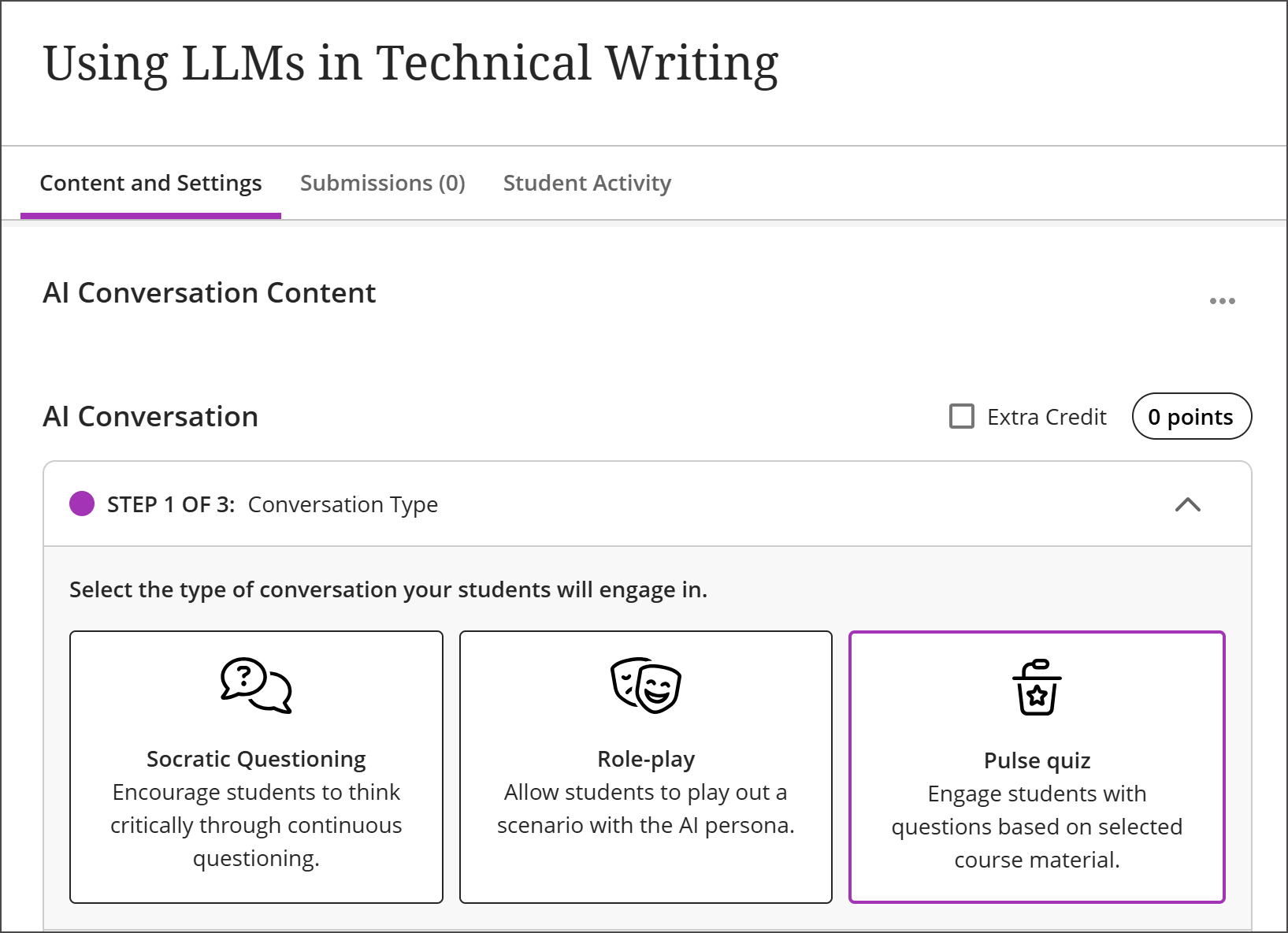
To create a Pulse Quiz, open the plus menu in the course, select Create, then select AI Conversation. When Pulse Quiz is enabled, it appears alongside Socratic and Roleplay as a third conversation type.
Image 1: AI Conversation now includes Pulse Quiz, a new conversation type that asks students questions based on your description of the activity and your own course content.
Pulse Quiz submissions are not automatically graded. Even though the quiz reports how many questions the student answered correctly, the result is not passed to the gradebook. Instructors open the submission to review the full conversation transcript along with the student's response to the reflection question, then provide feedback and a grade. This keeps the instructor in control of how an informal, AI-generated activity is assessed.
Students
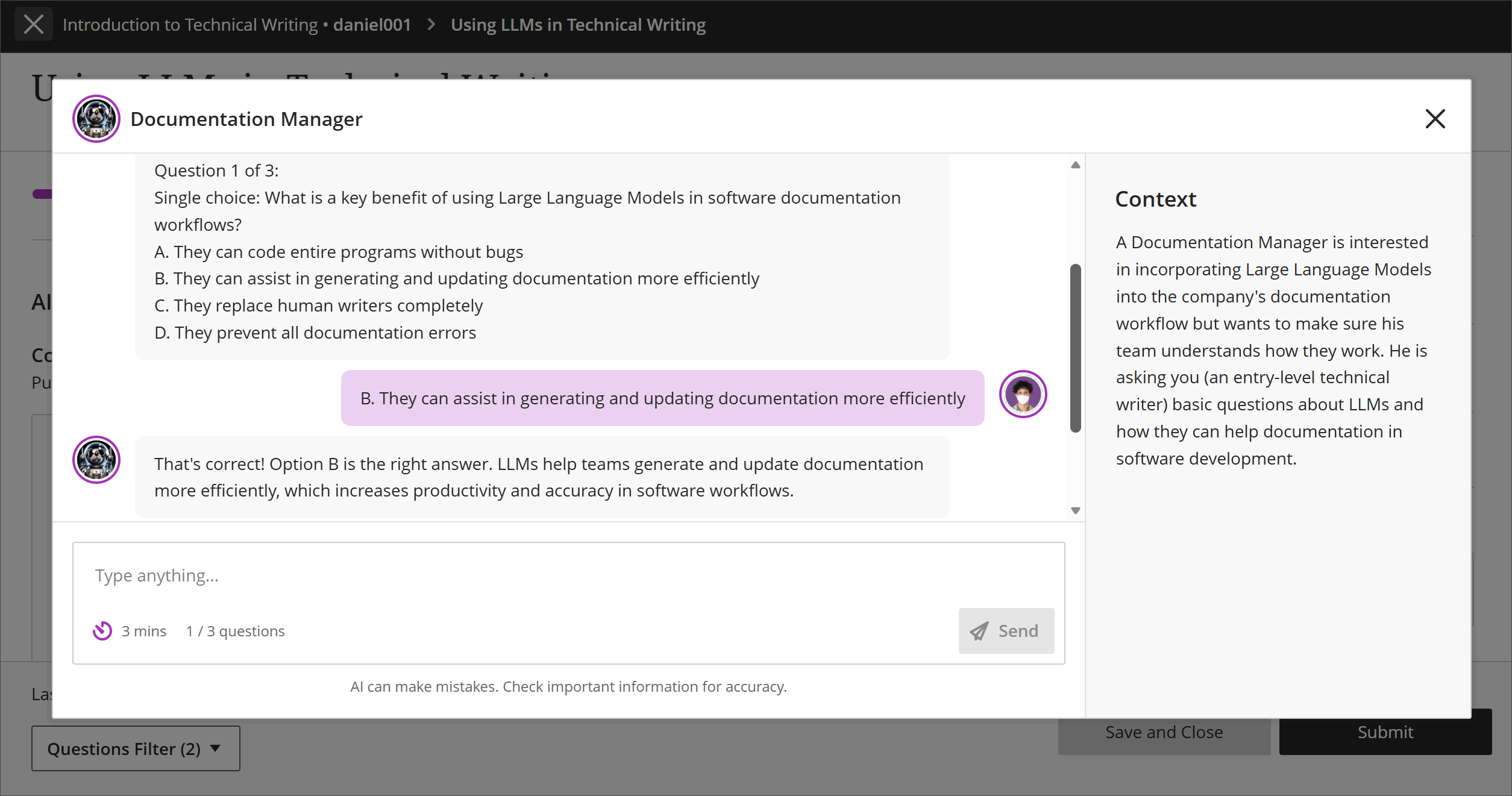
Students open the Pulse Quiz from the course, select Start attempt, then select Start conversation to open the immersive conversation experience.
The host introduces the quiz, greeting the student, setting the scene using the activity description, and stating how many questions the quiz contains.
Questions come one at a time. Students answer in the conversation and receive a response before moving to the next question.
A summary closes the quiz. After the final question, the host summarizes how the student performed overall.
Image 2: Pulse Quiz allows students to test their knowledge with automatically generated questions based on an instructor's input about the context and what subject matter to use.
Students then submit the attempt, including a response to the reflection question. Because each student's questions are generated independently, two students working on the same Pulse Quiz will not receive identical questions.
Administrators
Availability: Pulse Quiz requires an AVA license.
Activation: Pulse Quiz is turned off by default. To turn it on, go to the Administrator Panel, select Building Blocks, then Installed Tools, then AI Design Assistant and Unsplash, and turn on Pulse Quiz. Institutions that do not license AVA will not be able to use Pulse Quiz even if the setting is turned on.
Configuration: None needed beyond activation. Instructors configure content grounding, question count, persona, and language for each Pulse Quiz they create.