Repositorio de objetos de aprendizaje
Note
Este documento se ha traducido mediante traducción automática asistida por IA. Las traducciones se proporcionan «tal cual», sin garantía alguna respecto a su exactitud. La versión en inglés de este contenido es la fuente oficial y con valor normativo.
Utilice la vista de gestión del Repositorio de Objetos de Aprendizaje (LOR) para organizar, editar, mover y eliminar objetos del repositorio. También puede realizar un seguimiento de dónde se utiliza cada objeto en los distintos cursos y organizaciones.
El LOR admite los siguientes tipos de objetos:
Documentos
Módulos de aprendizaje
Carpetas
Archivos
Gestión de objetos y tipos de objetos compatibles
Seleccione Herramientas y seleccione Repositorio de Objetos de Aprendizaje.
Seleccione el botón elipsis (...) para el repositorio de objetos de aprendizaje.
Una vez abierto el menú, dispone de las siguientes opciones:
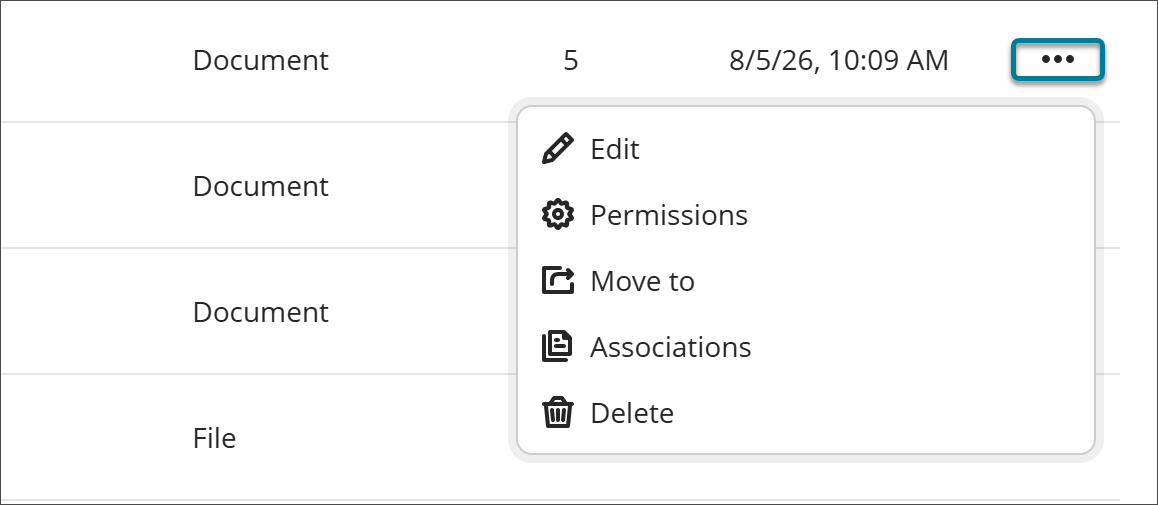
Editar
Seleccione Editar para realizar cambios en el objeto. Las modificaciones realizadas en los objetos de la LOR se aplican a todos los objetos asociados en cursos y organizaciones.
Nota
Los cambios no se aplican si un curso está marcado como completado o tiene una fecha de finalización en el pasado.
Permissions
You can control which attribute of an object instructors can edit after it's added to a course or organization. When an attribute is open for editing, users with editing privileges can update it directly in the course or organization, and the change persists through future syncs.
Select Permissions.
Turn on the toggle for any attribute you want to allow editing for.
Select Save.
If you turn off the permission to edit an attribute after the object already has associations, any changes that users have made to individual objects will be reverted to the version that is in the LOR.
Mover a:
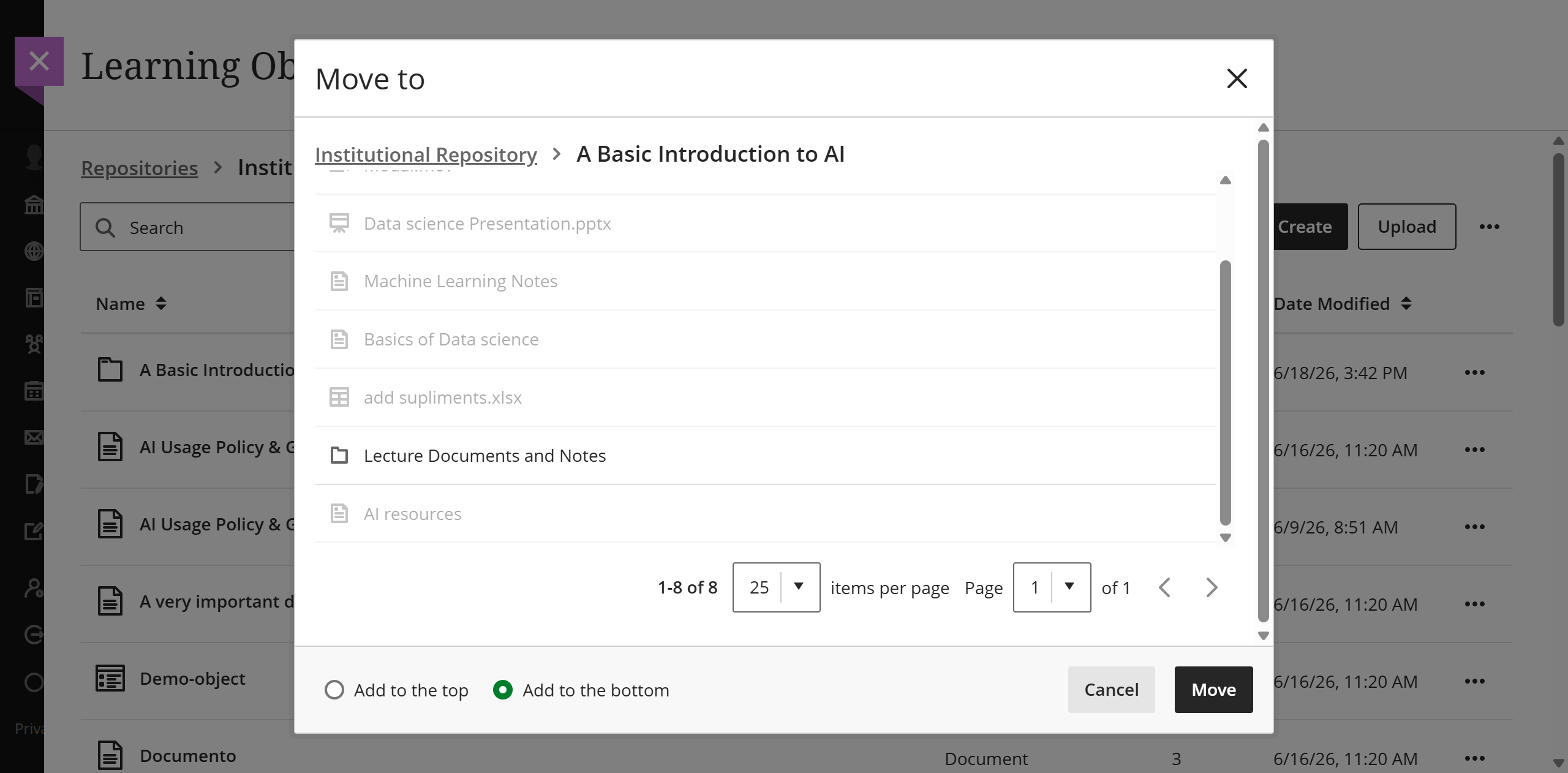
Puede mover elementos entre módulos de aprendizaje y carpetas.
Seleccione Mover a.
Vaya al módulo de aprendizaje o a la carpeta donde desee colocar el objeto.
Seleccione el botón de opción para colocar el elemento en la parte superior o inferior del módulo de aprendizaje o carpeta de destino.
Seleccione el botón Mover.
Nota
If moving a folder with nested items into another folder would violate the depth restrictions for courses and organizations, the folder can't be moved. In this case, a banner displays stating this is not possible in the LOR and the Move feature is disabled.
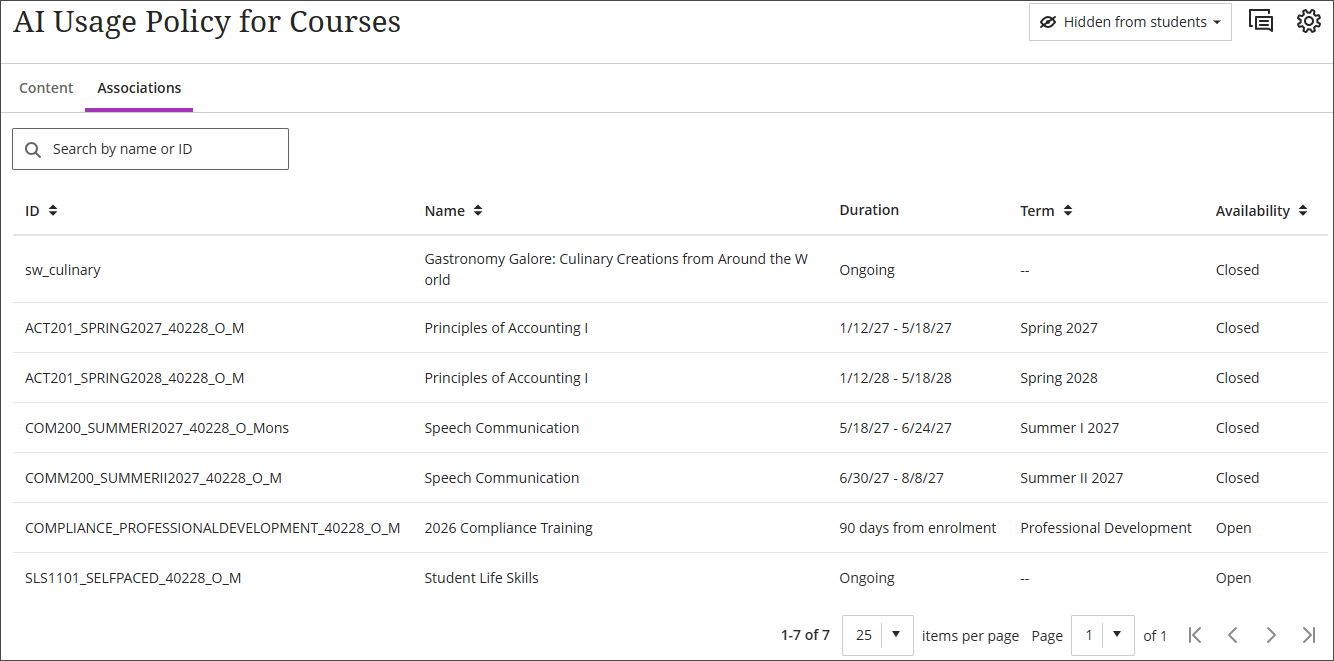
Asociaciones
Puede acceder a una lista de las asociaciones de un objeto a través del menú Más opciones. La página de asociaciones tiene opciones de clasificación y se puede buscar por nombre o ID del curso o de la organización.
Borrar
Cuando selecciona Eliminar, tiene dos opciones.
Eliminar este objeto: Seleccione esta opción para eliminar el objeto del LOR, pero permanecerá en todos los cursos y organizaciones asociados. El objeto que permanece en el curso u organización pierde su vínculo con el LOR y se vuelve totalmente editable.
Eliminar este objeto y todos los objetos asociados: Seleccione esta opción para eliminar el objeto de la LOR y de todos los cursos y organizaciones activos a los que está asociado. Los objetos no se eliminan de los cursos que se han marcado como completados o cuya fecha de finalización ha pasado.
View object source information
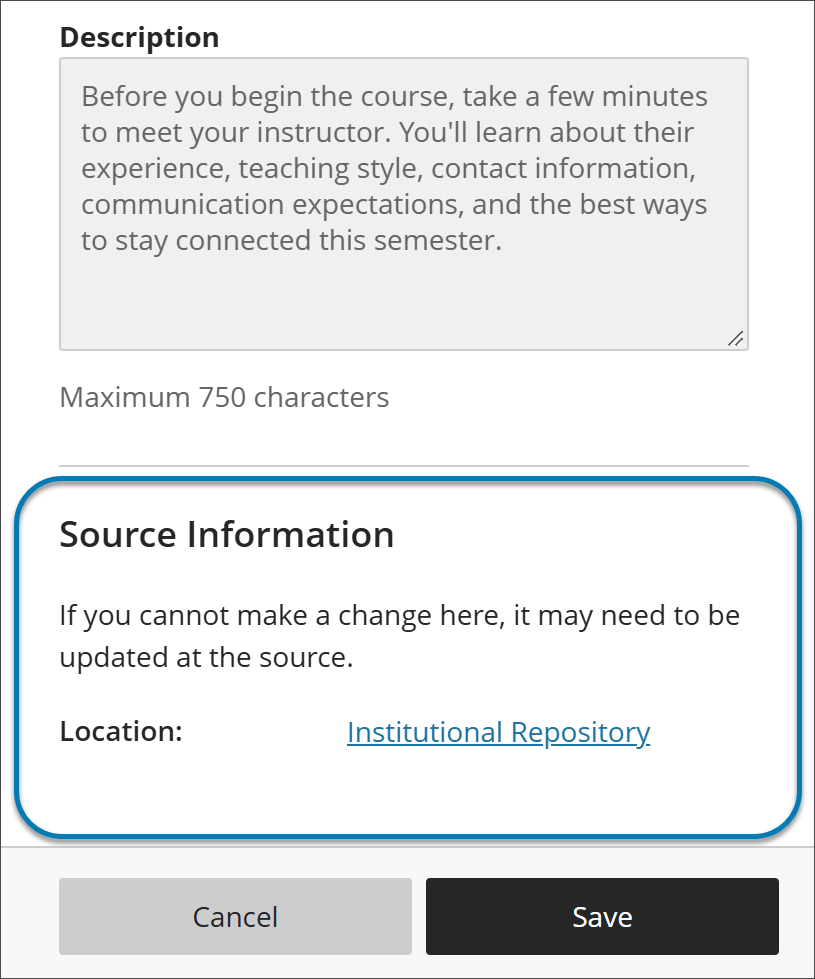
When an LOR object is used in a course or organization, its settings panel includes a Source Information section at the bottom. Use it to identify where the object is stored in the institutional hierarchy without leaving the course or organization.
Source Information lists the object’s location as a selectable link. It also notes that if you can’t change something about the object where you are, the change may need to be made at the source in the LOR.
Buscar elementos
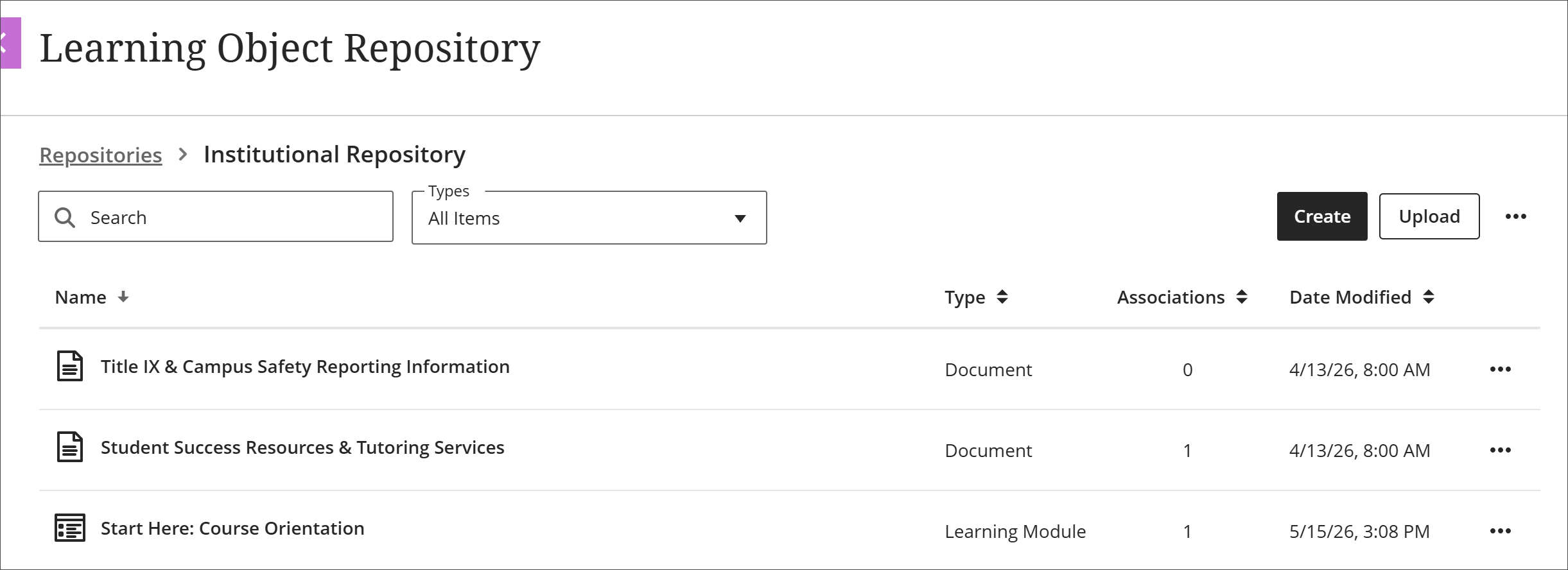
En la vista de gestión de LOR, puede ordenar los objetos por nombre, tipo, número de asociaciones o fecha de modificación. También puede filtrar por tipo de objeto o buscar por nombre.
Editar el orden de los elementos en módulos de aprendizaje y carpetas
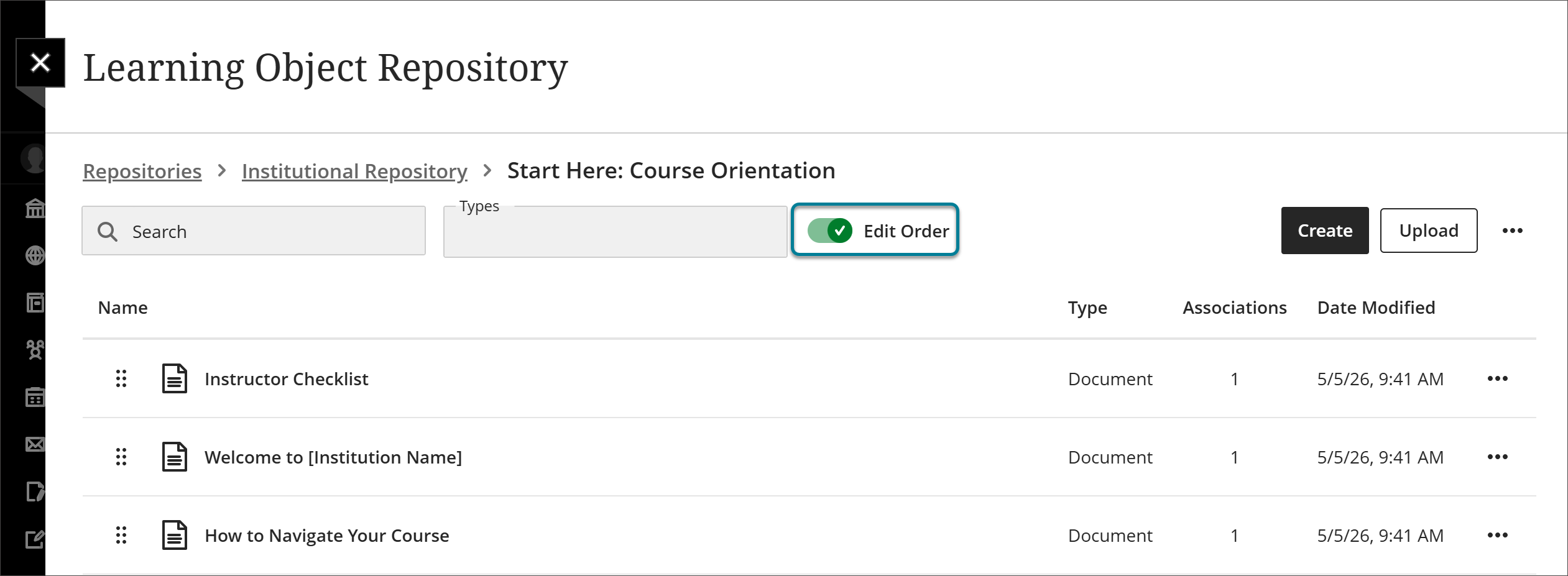
Cuando acceda a los objetos en la vista de gestión de LOR, podrá ordenarlos, buscarlos y filtrarlos para personalizar su vista. Sin embargo, cuando se inserta un módulo de aprendizaje o una carpeta en un curso u organización, puede que quiera que los elementos que contiene estén en un orden determinado.
Seleccione Herramientas y seleccione Repositorio de Objetos de Aprendizaje.
Vaya al módulo o a la carpeta de aprendizaje.
Active el conmutador Editar el orden.
Coloque los objetos en el orden que desee.
Use the reorder button to drag and drop objects.
Select the reorder button to open a menu with options to Move to top of page, Move up, Move down, or Move to bottom of page.
Desactive el conmutador Editar orden.
Ahora los objetos están bloqueados en el orden establecido. Cuando el módulo de aprendizaje o la carpeta se insertan en un curso u organización, los elementos aparecen en ese orden. Esto es así independientemente de cómo se ordenen, se busquen o se filtren en la vista de gestión.