Content Release Conditions
Use visibility settings and release conditions to define when students can view and access course content.
With release conditions, you can set a combination of these rules:
Which course members or groups have access.
When the course content is accessible, visible, and hidden.
What student activity is required, such as submitting an assignment or scoring above a threshold on a test.
Access content release conditions
From the Course Content screen, select the student visibility setting and choose Release conditions.
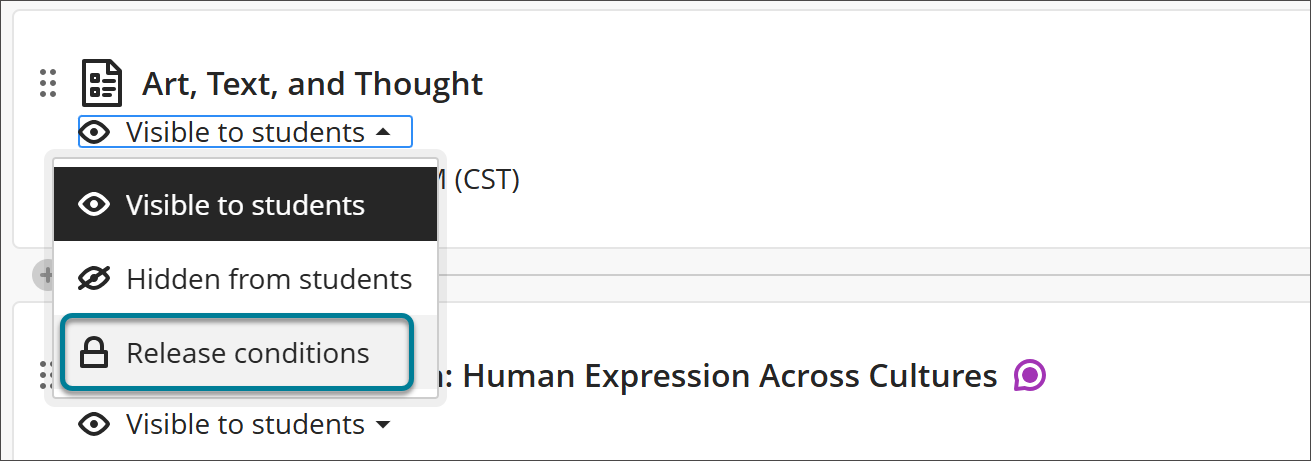
Release content by course members or groups
Under Select members, choose which course members or groups have access to the course content. With this option, you can create remedial paths for certain students and provide different content to undergraduate and postgraduate students in a course.
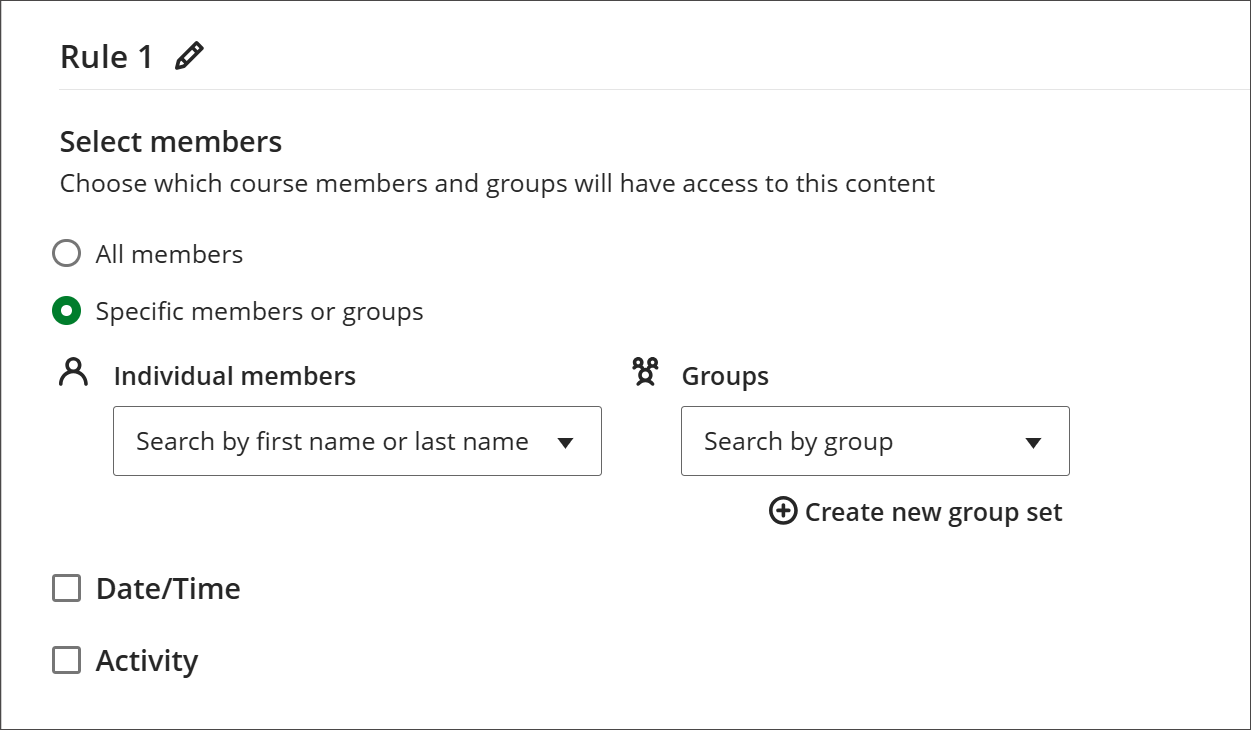
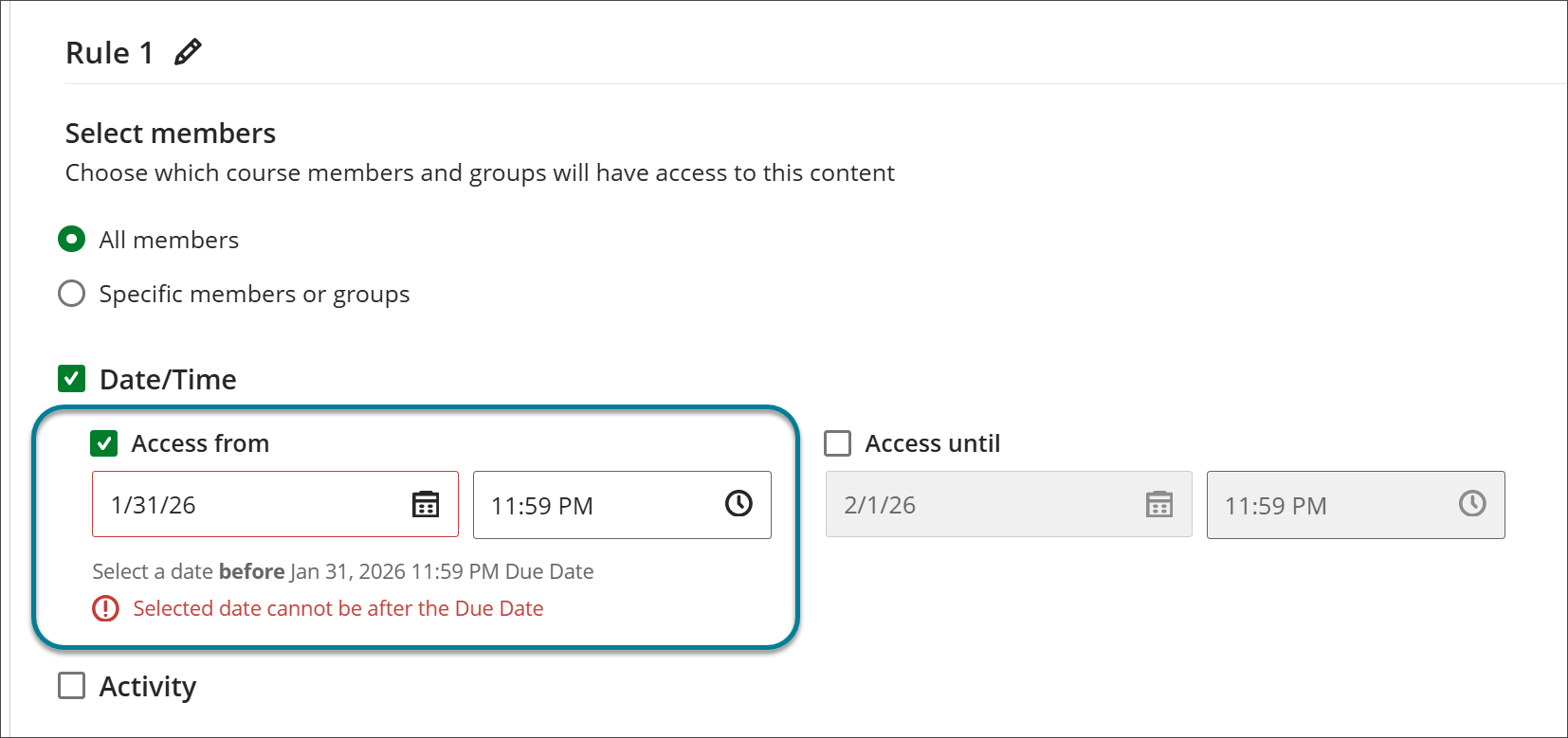
Release content by date
Select Date/Time to define the time period in which students can access content. Blackboard LMS will check any dates you set against the due date of the item to ensure that you don't release an item after its due date.
Example: Content is covered in a specific order. You want students to access content only after you've discussed it in class. You don't want students to work ahead.
Example: Release your final test during your institution's scheduled final tests week.
Release content based on activity
Select Activity to release an item or folder when a student completes a certain activity in your course such as opening a document or submitting an assignment.
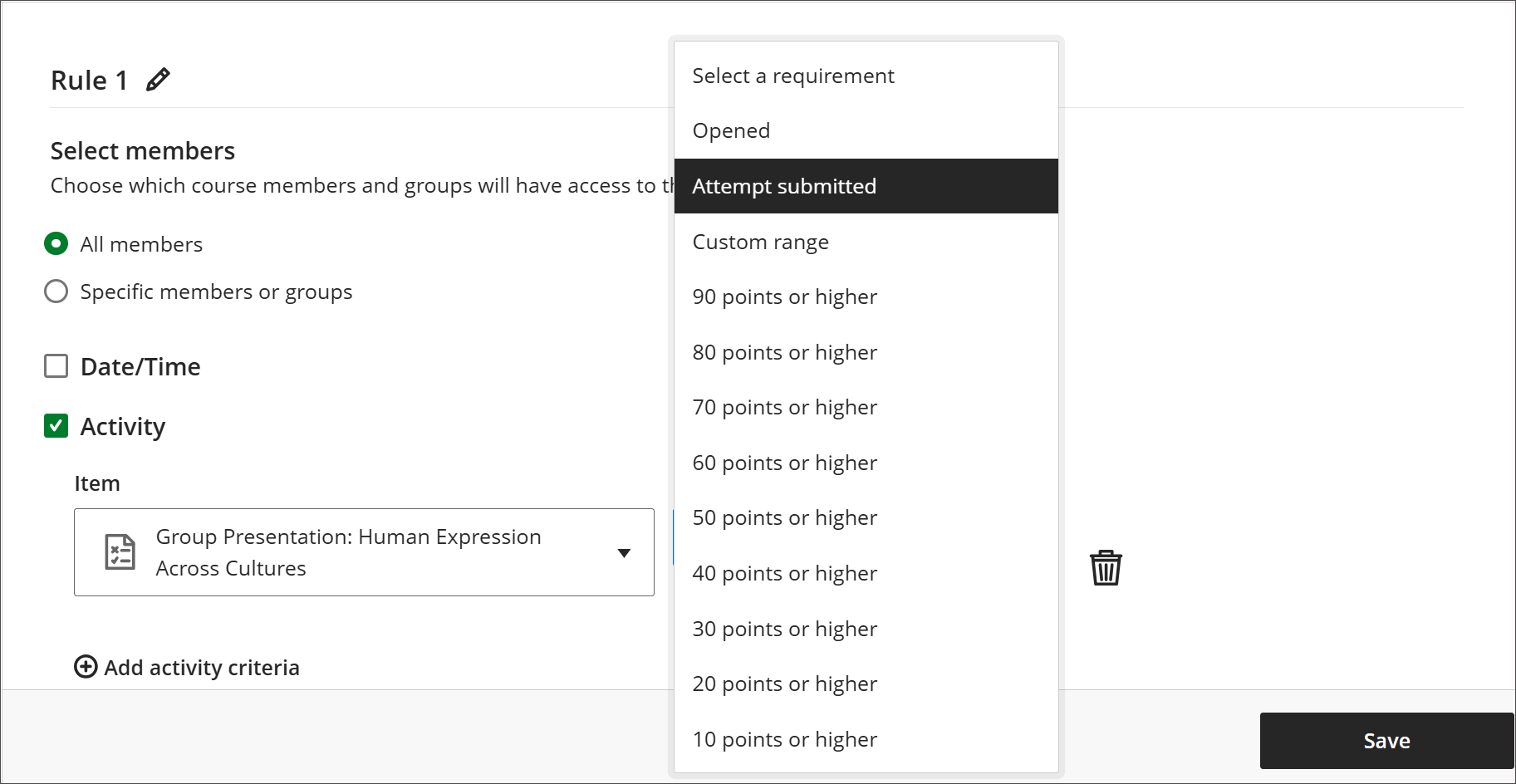
To define the activity required, choose the item and requirement.
Example: Students must complete coursework in a specific order. You want students to open a discussion only after they have read a document. Select Opened as a release condition.
Example: Students must score 70 points or higher on a quiz to access the Chapter 1 Test. Select 70 points or higher as a release condition.
Example: Students must take quizzes in a specific order. Select Attempt submitted as a release condition.
Example: Students must engage in a journal. Select the journal a the Item and Engagement as the Requirement.
To set additional activity criteria, such as a second threshold the student must meet, select Add activity criteria. When you add activity criteria within the same rule, a student must meet all the criteria in that rule before they can access the content.
Add a second content release rule
You may want content released when students have met one condition or another, rather than when they have met all conditions. In this case, you must set up two rules.
Select Add new rule.
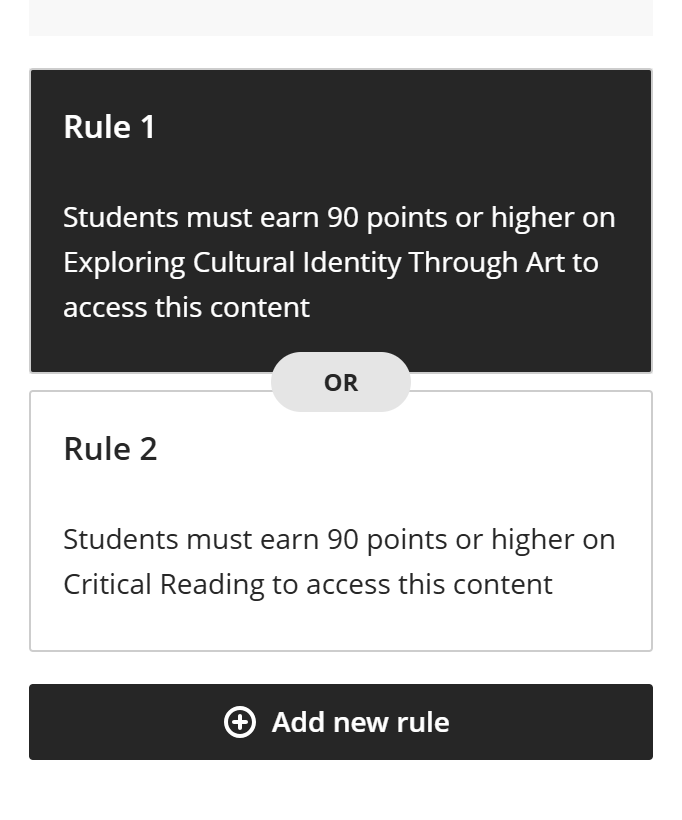
Set up the conditions for your new rule.
The conditions from Rule 1 or Rule 2 must apply for for students to access the content.
Example: Students must prove mastery of the Chapter 1 material before accessing the Chapter 2 module. They can prove mastery by scoring 90 points or higher on either a Chapter 1 writing assignment or a Chapter 1 test. Set up Rule 1 with an activity criteria based on the Chapter 1 writing assignment. Set up Rule 2 with an activity criteria based on the Chapter 1 test.
Visibility settings
Important
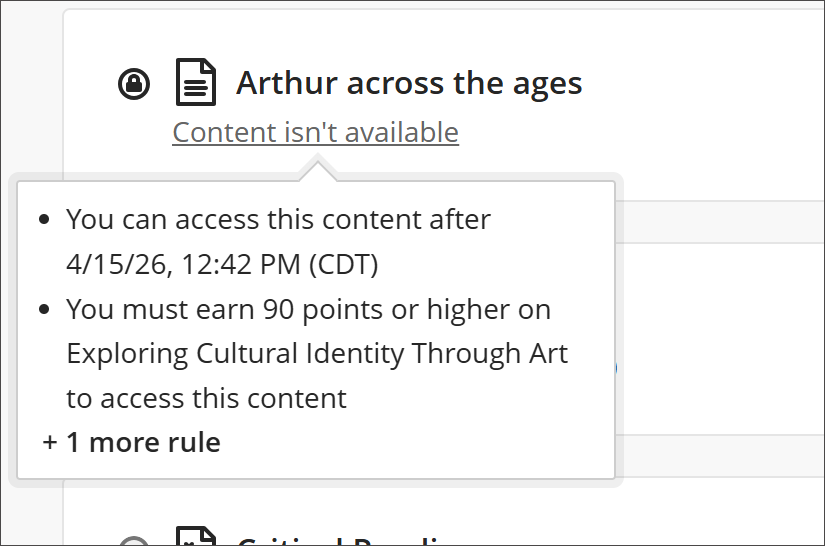
If you have more than one rule for releasing content, students will see the criteria for the first rule and a note that there are more rules. Make sure that students understand all release conditions.
When you set date/time or activity release conditions, under When will content appear?, you can also choose whether you want content to be visible to course members before or after they meet the requirements for access.
Show: Students can view the date and time the content will be released, the conditions they need to meet, and when they can no longer access it. Items appear on the course calendar and the Grades page, but not in student activity streams. After access ends, content is still visible, but students can't access it.
Hide: Content is visible to students within the dates and times you’ve set to access the content. Once the date and time criteria have passed, the content is no longer visible to students on their Course Content page. Any grades or comments for hidden content will still be available to students in the gradebook.
Note
If you set a folder for release on a specific date, students can't expand or view the contents in the folder until that date, even if you make the folder visible before students have access. After the release date, if all the contents have no date restrictions, students can view content in the folder.
Warning
Release conditions won't work if you delete the content a condition is based on. You will receive an alert on the Course Content page that students are unable to access content. Open the Release Conditions panel to update your settings.
Release learning modules content in forced sequence
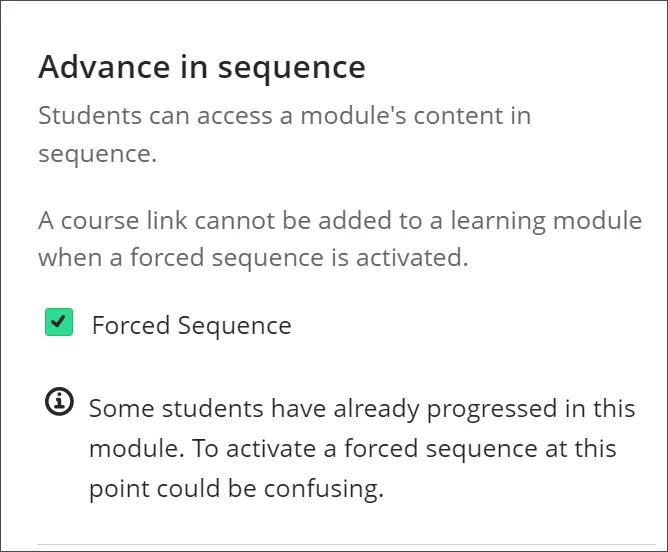
Learning modules let students navigate from one content item to the next without distractions or extra clicks. You can set a forced sequence to a module to make sure students know which content to access and in what order.
From the add or edit learning module screen, under Advance in sequence, select Forced Sequence .
Video: Release Conditions
The following narrated video provides a visual and auditory representation of some of the information included on this page. For a detailed description of what is portrayed in the video, open the video on Vimeo.