AI Conversation
You can create AI Conversations around a topic or scenario to engage your students. AI Conversations include Socratic questioning, role-play exercises, and Pulse Quiz. Students can explore and reflect on their own thoughts, role-play a situation related to their learning or career path, or answer quickfire questions about material they have covered. We'll include other conversation types as we gather feedback and insights from users.
There are two elements to the AI Conversation activity:
AI Conversation: This asks students to think critically about the topic that the instructor designs.
Reflection question: This asks students to share their thoughts on the activity. Students can also flag any bias or errors from the AI as part of our Trustworthy AI Approach. Reflection helps students understand the responsible use of AI services.
Visit the AI Conversation Transparency Note administrator page to learn more about how Blackboard's Trustworthy AI program applies to AI Conversation.
Conversation types
AI Conversation has three conversation types. Choose the type that fits what you want students to do, then set up the rest of the conversation.
Socratic Questioning conversations encourage students to think critically through continuous questioning.
Role-play conversations allow students to act out a scenario with the AI persona.
Pulse Quiz conversations ask students quickfire questions that are generated during the conversation and grounded in course content you select. A persona you define hosts the quiz, responds to each answer, and summarizes the results at the end.
Pulse Quiz questions are generated as the conversation happens, so each student receives a slightly different set and you don’t review the questions before students see them. This suits informal, low-pressure practice. If you need to verify specific questions in advance, use a test instead.
Important
Pulse Quiz requires an AVA license and is turned off by default. If Pulse Quiz doesn’t appear as a conversation type, ask your Blackboard LMS administrator to turn it on.
Access AI Conversation
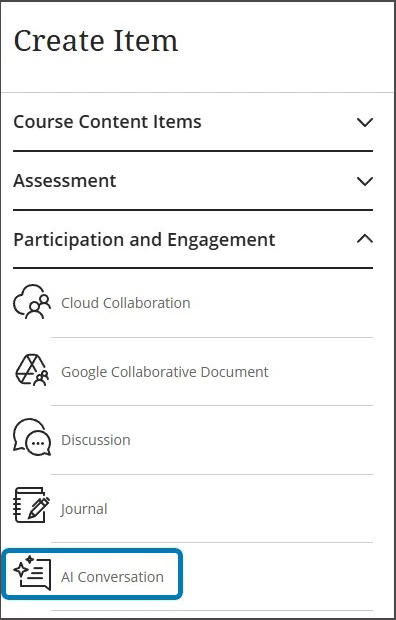
Select the plus, then Create on the Course Content page.
Select AI Conversation within the Participation and Engagement section of the Create Item menu.
Customize an AI Conversation
Select the conversation type. You can choose between Socratic Questioning, Role-play, and Pulse Quiz.
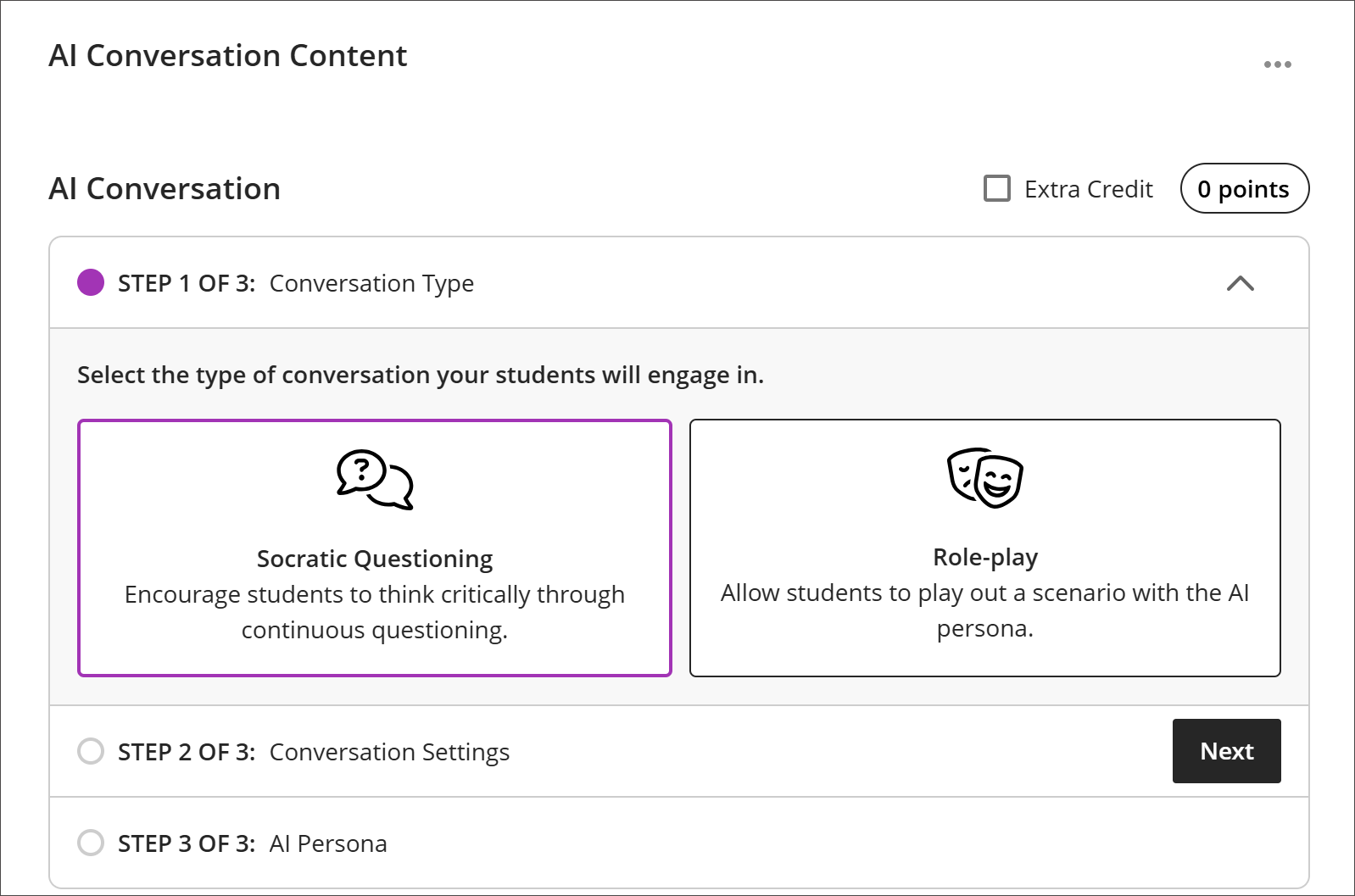
For Socratic Questioning, enter a topic of conversation in the content field. Make sure that your topic is open-ended and doesn't have a right or wrong answer.
For Role-play, include a scenario, roles for the student and persona, and the goal for the scenario.
For Pulse Quiz, describe the activity in the content field. You select the course content the questions are based on and the number of questions in the conversation settings.
Select Next to move on to the next step.
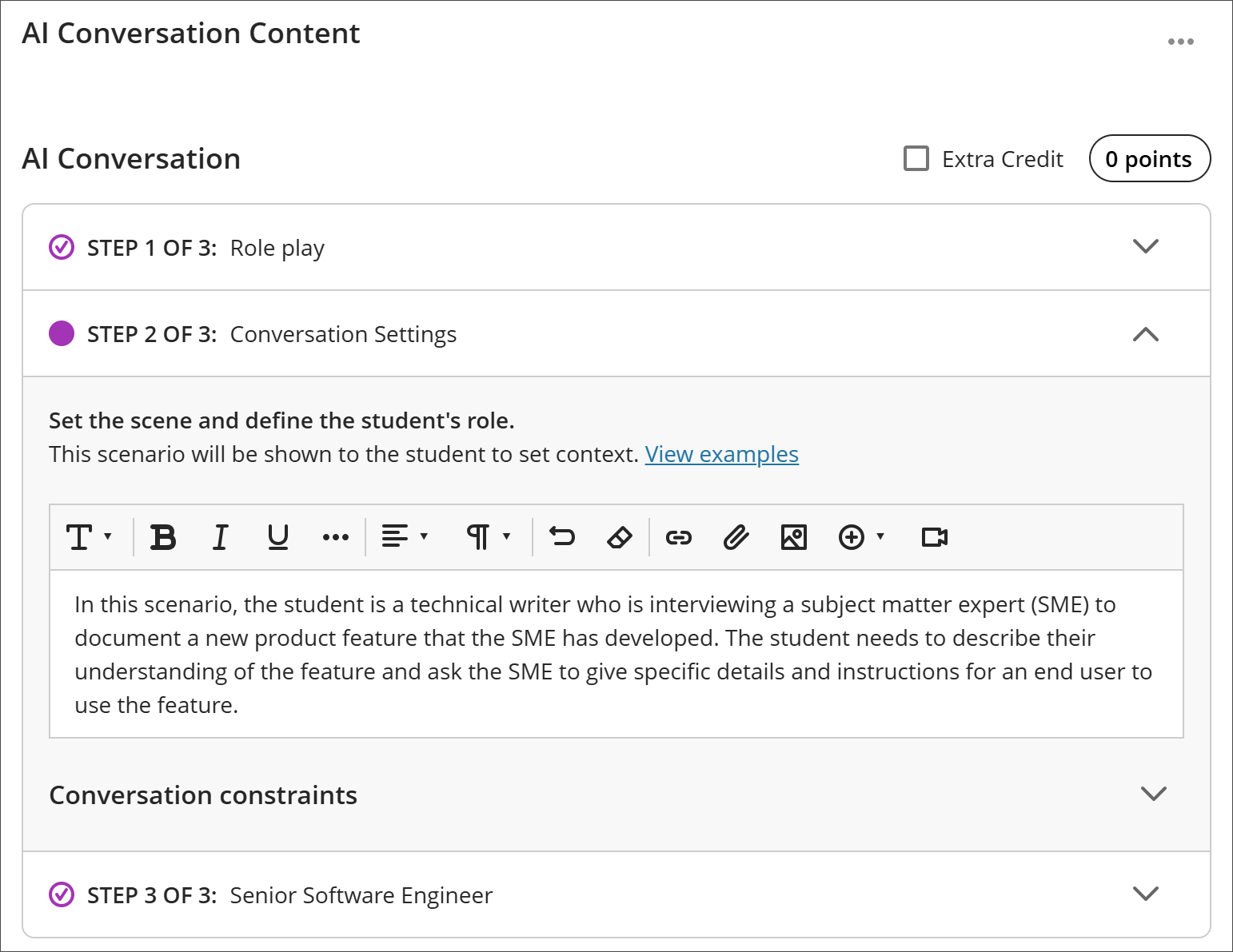
Select your Conversation Settings. Here is where you set the scene and define the student's role. This scenario will be shown to the student to set context.
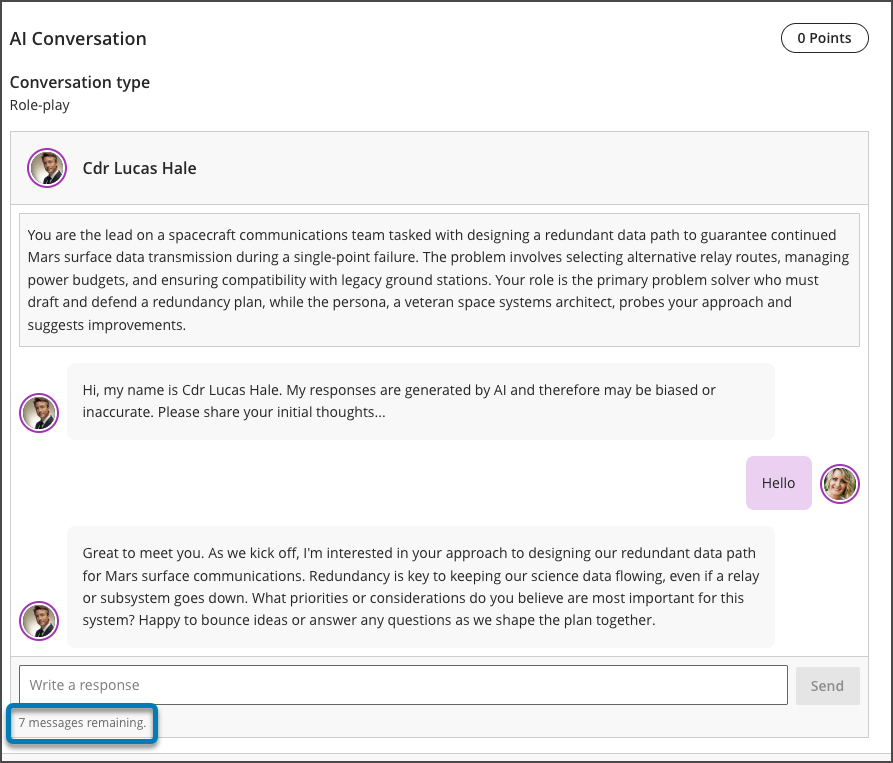
You can also set a time limit or maximum message cap to shape the conversation duration. Once a student reaches cap, they can't add more messages to the conversation. In addition, you can set a time limit for the student reflection after a conversation. The text limit for the entire conversation is 10,000 characters
To keep a conversation in one language, select Advanced options and choose the language to enforce. The AI uses that language for its opening message, its questions, its responses to the student, and the closing summary, and won’t switch even if a student asks it to. The setting is saved with the conversation and is available for every conversation type.
Select a persona for the AI Conversation. You can provide your own image, use Unsplash, or generate an image for the persona's avatar. Enter a name for the persona and briefly describe the persona's occupation, personality, or mood. You can also adjust the complexity of the persona's responses.
Note
The personality traits significantly shape the interactions. Choose traits carefully and preview the conversation to avoid bias or otherwise inappropriate content.
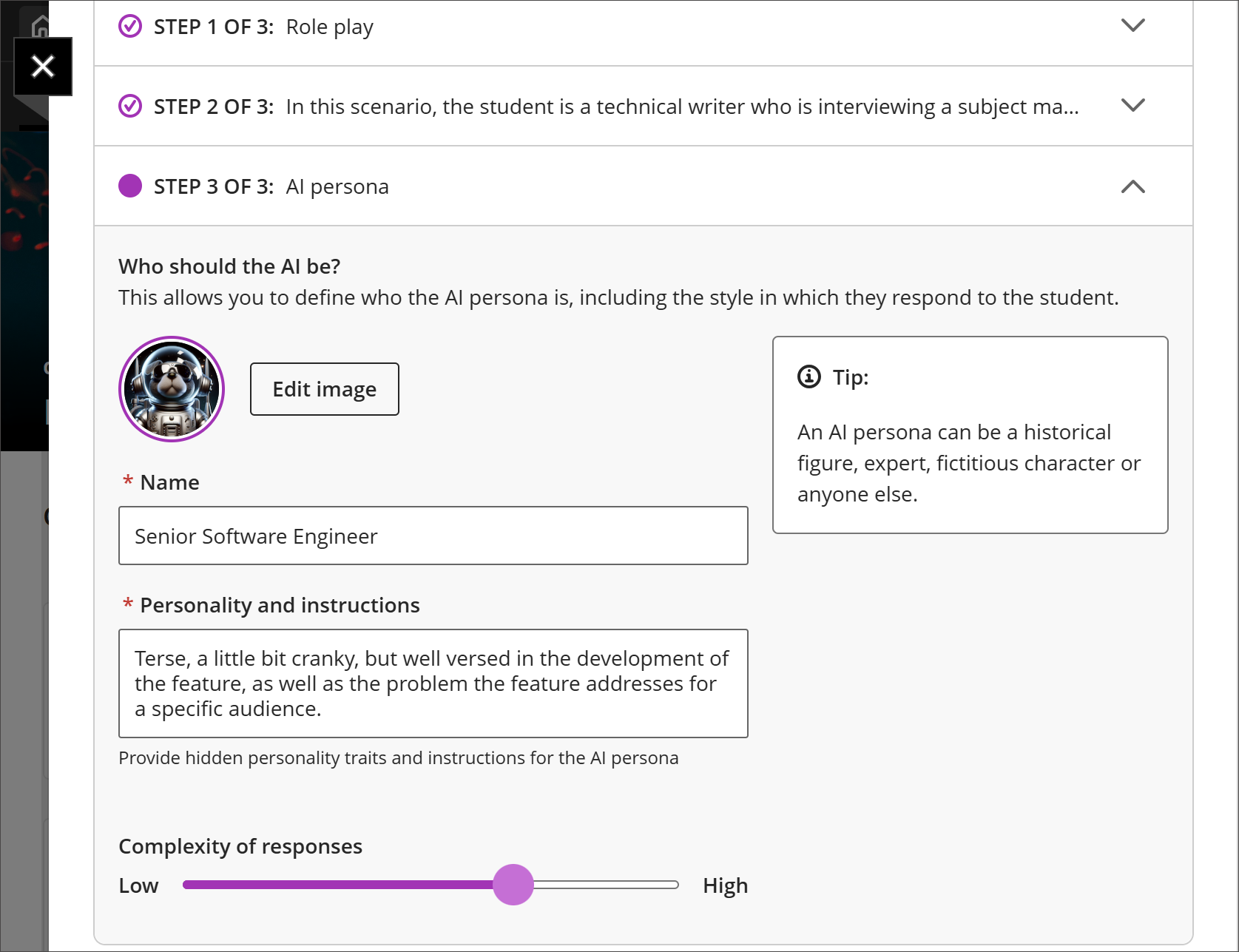
Select Save when you're finished.
Preview the AI Conversation as a student and interact with the AI persona by selecting Preview chat. You can edit the reflection question to guide your students on how best to reflect on the activity.
Important
You should always preview an AI conversation before releasing the activity to students. AI tools can hallucinate and introduce bias. It's important to make sure that your instructions are clear and that the AI persona responds in an expected and appropriate way.
Generate AI Conversations
Select Auto-generate conversation when you first create a conversation.
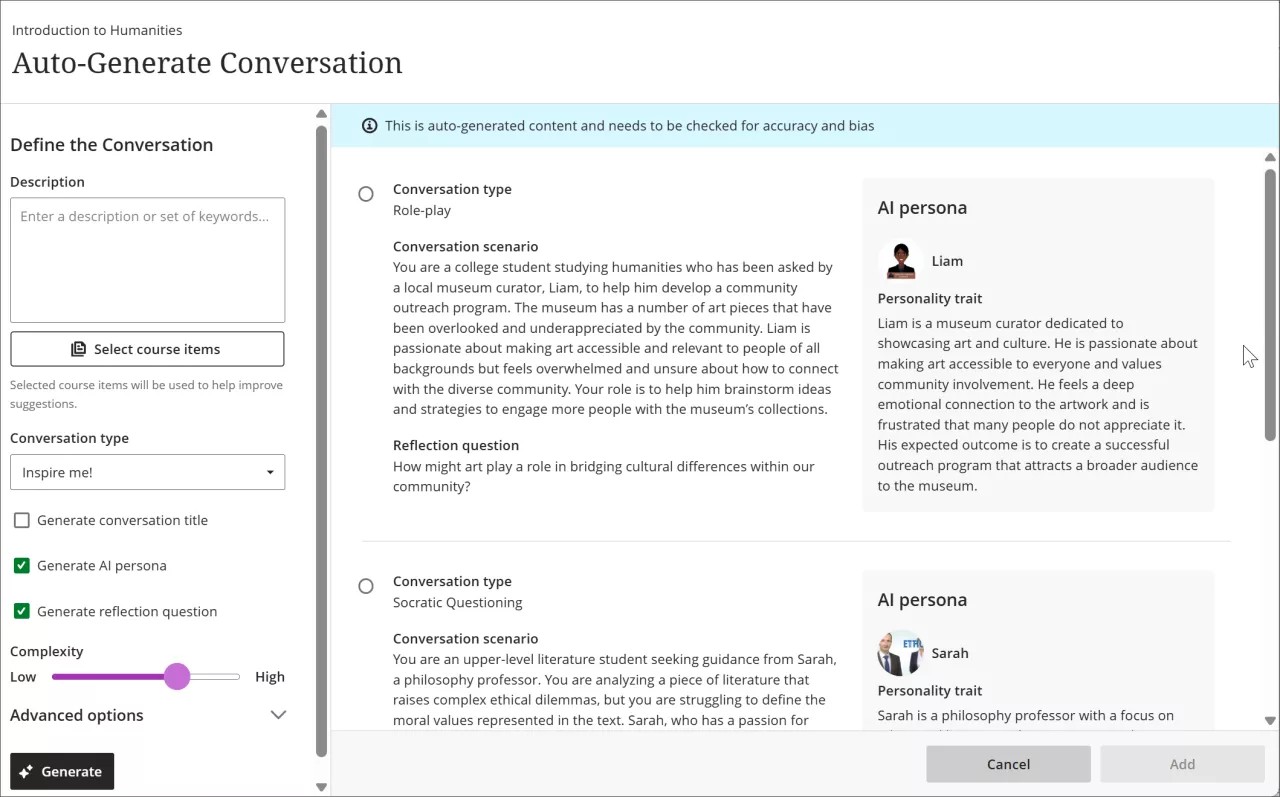
If applicable, customize the AI Conversations that the AI Design Assistant generates.
Enter a description (limited to 2000 characters) to narrow the focus of the conversation
Select the conversation type
Socratic questioning
Role-play
Inspire me! provides conversations of both types
Select or deselect the creation of AI Conversation titles, AI personas, and reflection questions
Adjust the complexity of the AI Conversation
Select whether or not you want to generate a title
Select Advanced options to change the output language
Optionally, you can select which course items you’d like the AI Design Assistant to provide context for AI Conversations. Select Select course items to start.
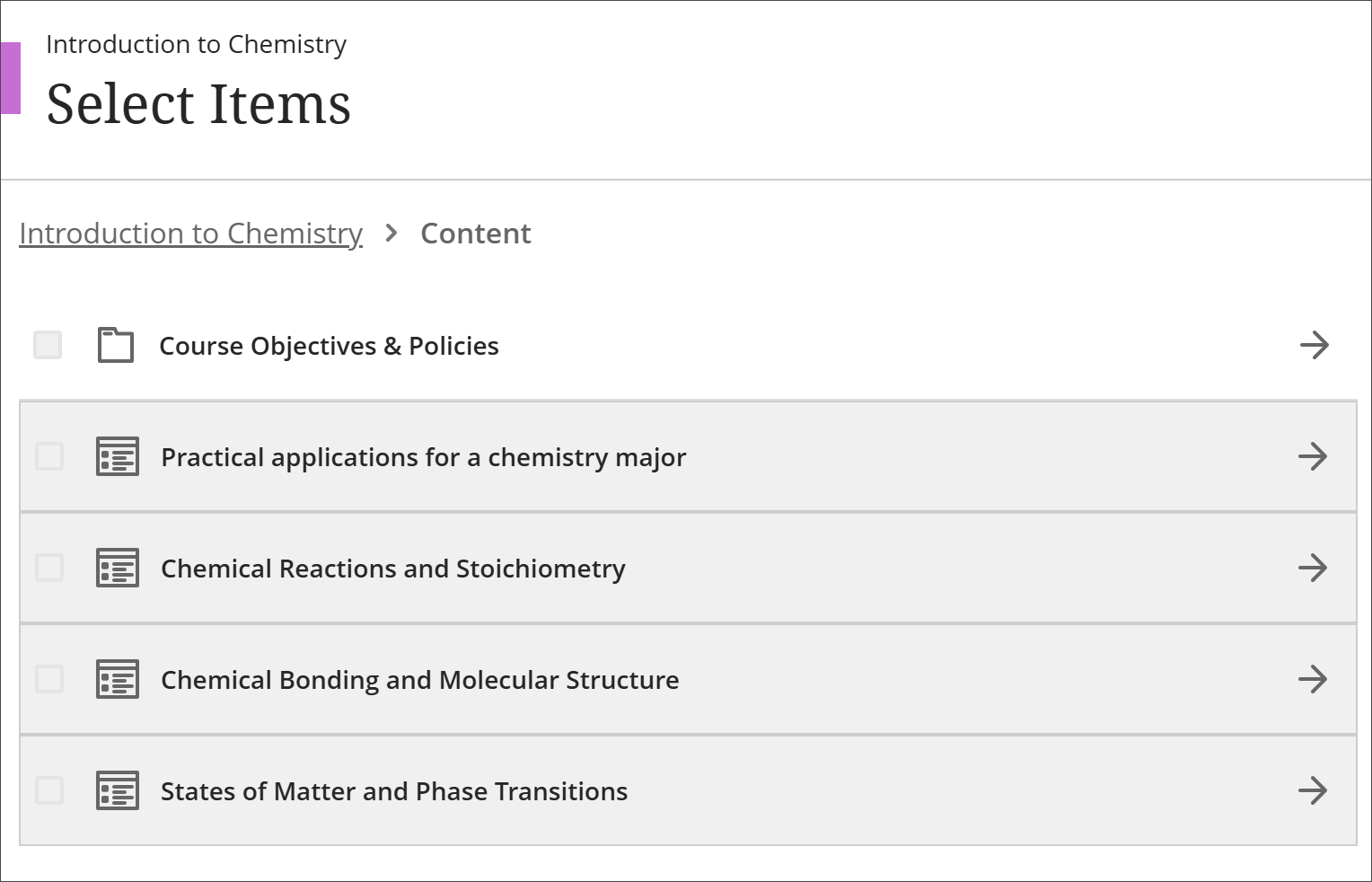
Select any course content item to include it in the context for your discussion.
You can select a folder or learning module to include items from them. When you’ve finished choosing items for context, select Select items to return to question generation.
Once you’ve finalized your settings, select Generate.
Review each AI Conversation for accuracy and bias. Above the generated conversation, a banner says This is auto-generated content and needs to be checked for accuracy and bias.
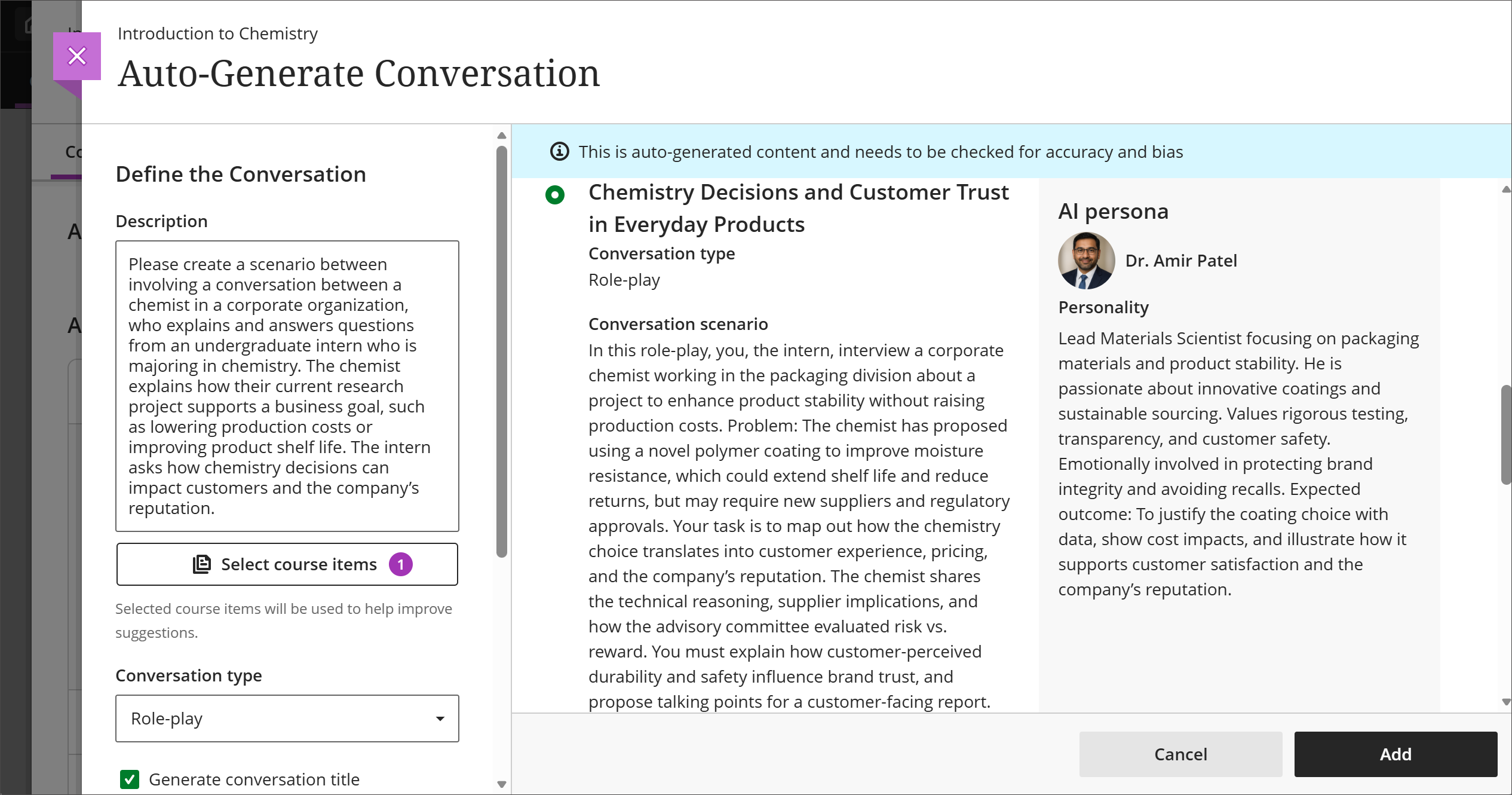
Choose the AI Conversation you’d like to add to your course, then select Add.
Note
File types supported by the context picker include PDF, Word, PowerPoint, text, RTF, and HTML.
Explore AI persona examples
Review these examples to see how a well-defined prompt produces a complete AI Conversation scenario and persona. Each example shows the prompt used to define the conversation, the resulting scenario, and the generated persona. Use these examples as a reference when you build your own AI Conversation prompts.
Example 1
Define the conversation: Create a scenario between a chemist at a corporate organization who explains and answers questions from an undergraduate intern majoring in chemistry. The chemist explains how their current research project supports a business goal, such as lowering production costs or improving product shelf life. The intern asks how chemistry decisions can impact customers and the company's reputation.
Conversation type: Role-play
AI-generated conversation scenario: Chemistry Decisions and Customer Trust in Everyday Products: The intern interviews a corporate chemist in the packaging division about a project to improve product stability without raising production costs. The chemist has proposed a novel polymer coating that improves moisture resistance, extends shelf life, and reduces returns, but requires new suppliers and regulatory approvals. The intern maps out how the chemistry choice affects customer experience, pricing, and the company's reputation. The chemist explains the technical reasoning, the supplier implications, and how the advisory committee weighed risk against reward. The intern explains how customer-perceived durability and safety influence brand trust and proposes talking points for a customer-facing report.
AI persona: Lead Materials Scientist focusing on packaging materials and product stability. He values rigorous testing, transparency, and customer safety, and feels emotionally invested in protecting brand integrity and avoiding recalls. His expected outcome is to justify the coating choice with data, show cost impacts, and illustrate how the decision supports customer satisfaction and reputation.
Example 2
Define the conversation: Create a scenario between a technical writer and a subject matter expert (SME) who has developed a new product feature. The writer describes their understanding of the feature and asks the SME for specific details and instructions that an end user needs to use the feature. Personality and instructions for persona: Terse, a little bit cranky, but well-versed in the development of the feature, as well as the problem the feature addresses for a specific audience.
Conversation type: Role-play
AI-generated conversation scenario: Documenting a New Feature Through a Developer Interview. The technical writer interviews a senior software engineer about a feature he just finished building. The engineer assumes a level of familiarity that end users won't have, so the documentation risks missing steps that seem obvious to him but aren't. The writer draws out a clear, step-by-step explanation of how the feature works, why the team built it, and what a user needs to know to use it successfully. The engineer answers directly but skips details unless the writer asks specific questions. The writer confirms their understanding of the feature's purpose and translates the engineer's explanation into instructions a non-technical user can follow.
AI persona: Sam Okafor is a Senior Software Engineer who led development of the new feature. He is knowledgeable and efficient but has little patience for vague or repeated questions. He values precision and correctness over documentation, so he expects sharp, specific questions rather than open-ended ones. His expected outcome is to confirm the feature is documented accurately so he doesn't field support questions later.
Example 3
Define the conversation: Create a scenario between a museum curator and a college student volunteer who helps him brainstorm ways to engage the local community with the museum's underappreciated art collection. The curator explains his passion for the collection and his frustration with low community engagement. The student asks questions to understand the audience and proposes outreach ideas the curator can consider.
Conversation type: Role-play
AI-generated conversation scenario: The student, a humanities major, helps museum curator Liam develop a community outreach program. The museum owns a number of artworks that the community has overlooked and underappreciated. Liam wants to make the collection accessible and relevant to people of all backgrounds but feels overwhelmed and unsure how to reach a diverse audience. The student helps Liam brainstorm ideas and strategies to engage more visitors with the collection.
AI persona: Liam is a museum curator dedicated to showcasing art and culture. He values community involvement and feels a deep emotional connection to the artwork, and he feels frustrated that many people don't appreciate it. His expected outcome is to build a successful outreach program that attracts a broader audience to the museum.
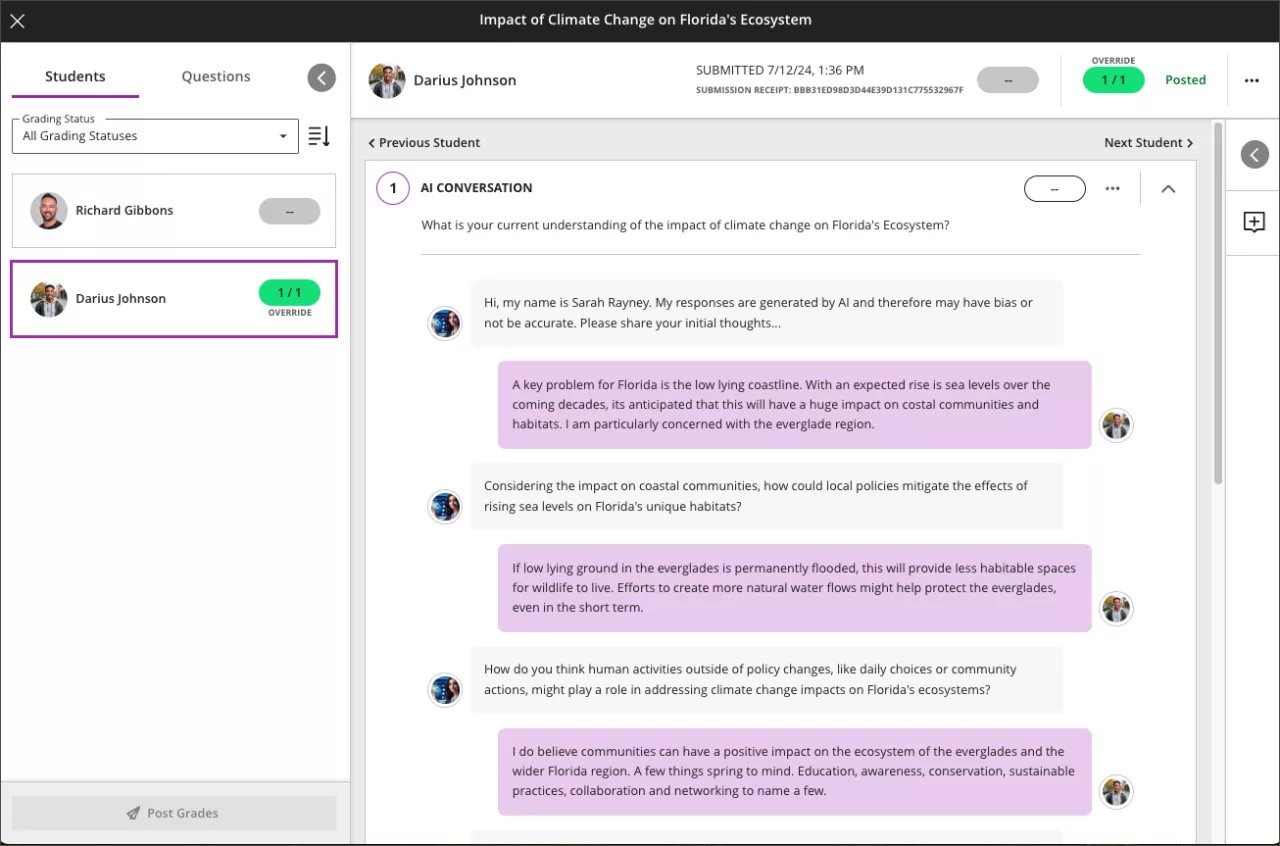
Review student interactions
On submission, you can review the AI conversation transcript and your students' reflections. The AI Conversation is a formative assessment by default, but you’re not restricted to this option.
Pulse Quiz submissions aren’t graded automatically. The quiz reports how many questions a student answered correctly, but that result isn’t passed to the gradebook. Open the submission to review the conversation transcript and the student’s reflection, then provide feedback and a grade.
You have the option of reviewing general student activity for the assessment by selecting the Student Activity tab.