Learning Object Repository
The Learning Object Repository (LOR) is an institutional repository used to centralize institutional resources across courses and organizations. Administrators can upload objects to the LOR for you to download into your courses. Updates to objects stored in the LOR apply changes to all courses and organizations using that object. Every course using that object has the same version.
Changes to an object are not applied only when a course has ended or has been marked completed. We determine if a course has ended by checking its course end date or term end date, if it's part of a term.
Documents, learning modules, files, and folders can be stored in the LOR.
Inserted objects have some locked down attributes
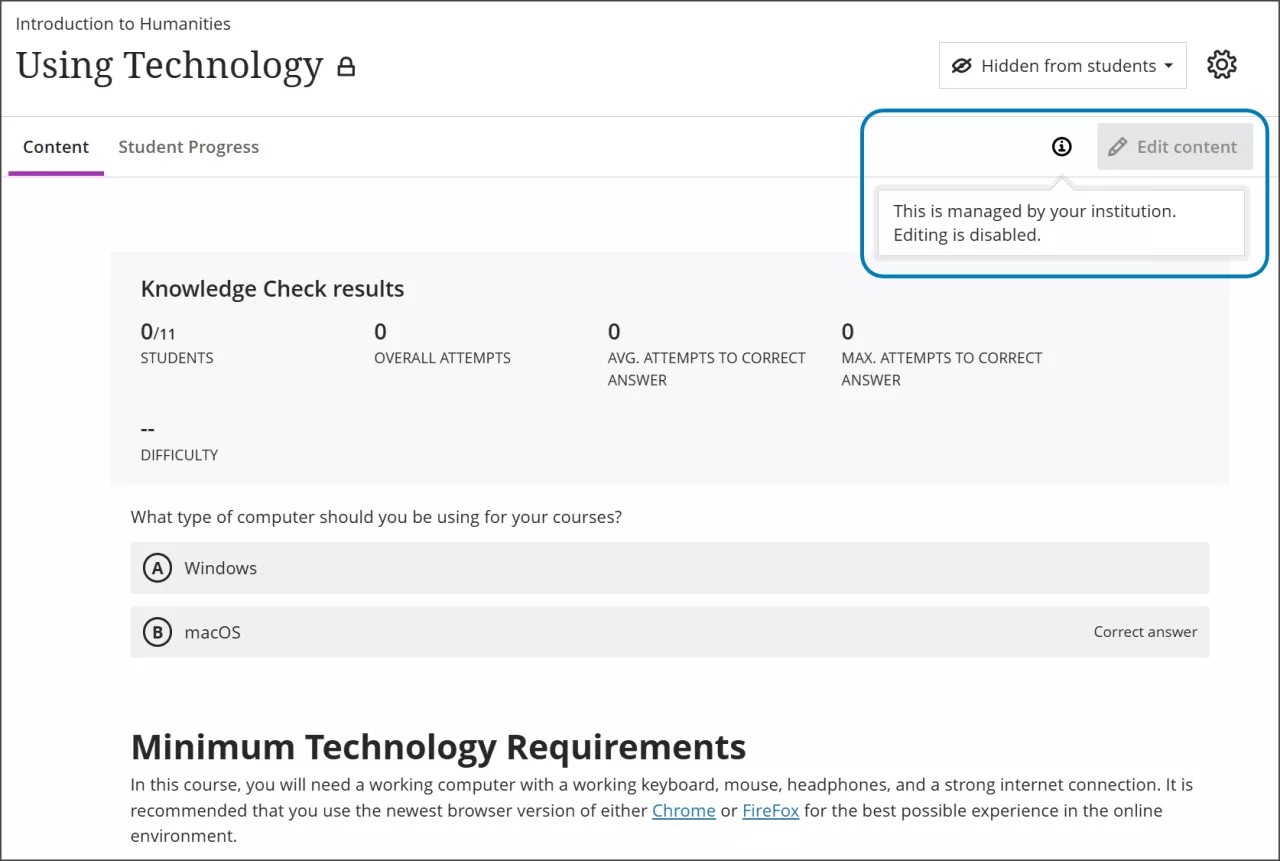
Objects from the LOR are managed by your institution. Therefore, you may be locked out of editing certain attributes of an object. For example, you may be unable to edit the title, description, body, or visibility and release conditions of a Document inserted from the LOR. Attributes that are locked will have a visual indicator that they are locked. The owner of each object in the LOR decides which attributes are locked and which can be edited.
Insert a learning object into the Course Content page
Create a new item on the Course Content page by hovering over the plus button where you want to add content and select the plus button to open the menu of options.
Select Learning Object Repository.
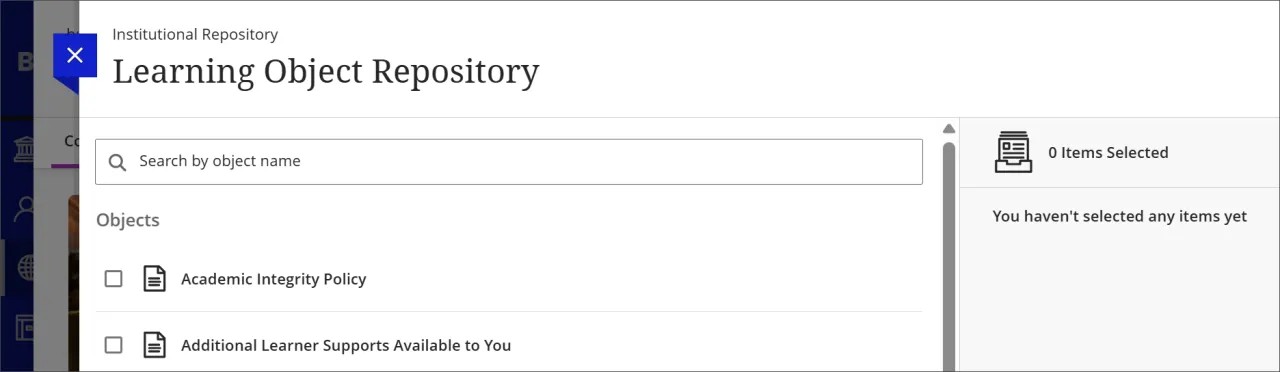
Select one or more objects stored in the Learning Object Repository. You can select an object from a page listing all the objects stored in the Learning Object Repository or use the search field.
Note
If you have access to more than one repository, a list of repositories appears. Select the repository you want to choose items from and then select your items.
Select Insert Object(s).
Add items to learning modules and folders inserted from the Learning Object Repository
You can add items to a learning module or folder that you've inserted from the LOR. Items you add are always placed at the bottom of the list. The order of LOR-owned items remains locked. Any items you add are fully editable and behave like standard course content.
Add a learning module or folder from the LOR.
Expand the learning module or folder.
Select the plus sign to open the content menu. If you hover between LOR-owned items and select the plus sign there, your new item will still be added to the bottom.
Add the desired content to the learning module or folder.