Grant Item-Level Accommodations and Exemptions
Sometimes students face situations or events that make it difficult or impossible for them to complete an assessment, such as submitting coursework or taking a test on a certain date/time. Depending on the circumstances, you may need to extend a due date, grant an additional attempt, or exempt a student from an assessment altogether.
These item-level accommodations are available at two levels:
Course-level accommodations apply across all of a student's assessments in the course, such as due date where a student's work is never marked as late.
Item-level accommodations apply to a specific test or assignment, such as extra attempts or adjusted access dates for just that item.
If a course-level accommodation is applied, you can view it and manage item-level accommodations for a student in one place from the Grade Details panel.
Clearing a test attempt
If you need to remove a test attempt rather than grant an additional attempt, you can clear the attempt. When you clear an attempt, the submission is removed from the gradebook and the student can retake the test.
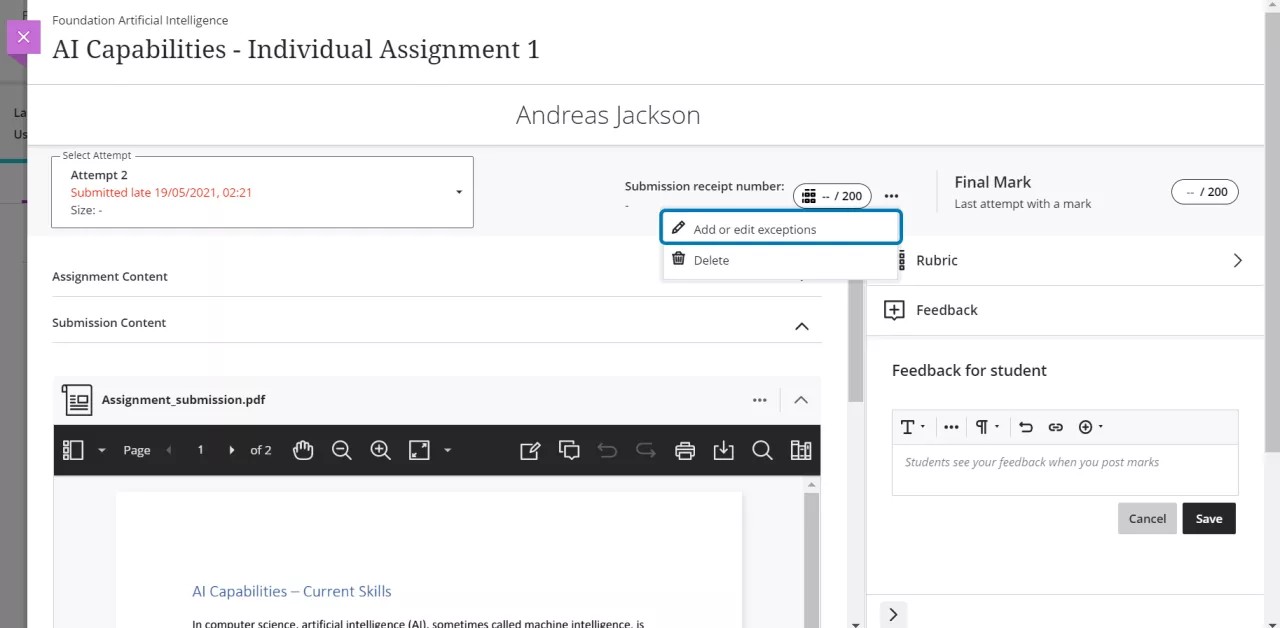
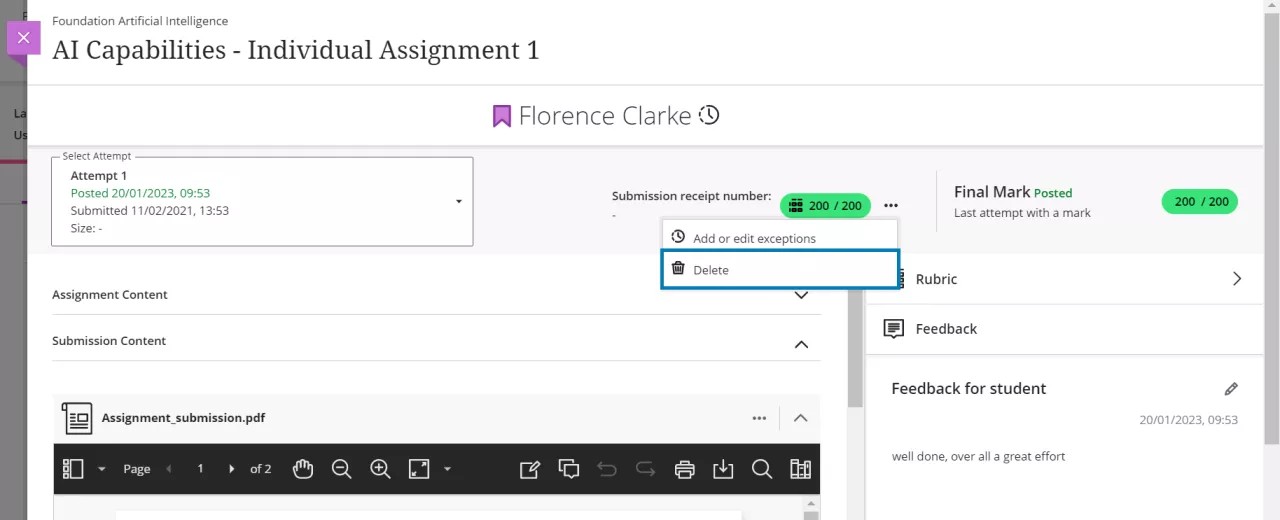
To clear an attempt, select the ellipsis menu on the attempt, then select Delete.
About item-level accommodations
You can give an individual student an accommodation on a specific test or assignment. An item-level accommodation can include additional attempts, an extended due date, or adjusted access dates, even if the assessment is hidden from other students.
Important
Access date accommodations only apply if you've set conditional availability — show on and hide after dates — on the assessment.
Test with one attempt: Allow more attempts for a student who is blind and wants to use screen reader technology for the first time.
New assessment due date: Set a new due date for a student in a regional competition, so they can submit the assessment after coming back.
Assignment with the conditional availability of Hide after date and time: Extend the access to an assignment for a student with internet issues. If the due date and time are the same as the originals, the submission is still marked late in the gradebook. To avoid this, you can set a new Hide after date and time.
If you've hidden content after a certain date and time, you can extend the access for an individual student. For example, "Test 1" is hidden today after 10 AM. A student has internet issues, so you extend the access for just that student to 6 PM. However, if the due date is also at 10 AM, the submission is still marked late in the gradebook.
In the activity stream, the student is notified about the available test, but the extended access period isn't listed in the stream or with the test. You'll need to inform the student about the length of the extended access period. You'll also need to notify students individually when you allow additional attempts.
Due date accommodation and automatic zeros
If you grant a due date accommodation and there is already an automatic zero, the automatic zero will be removed. It will only appear if the student doesn't make a submission by the new, extended due date.
Add an item-level accommodation after a grade is posted
You can offer a student an item-level accommodation for an assessment you've already graded and posted. For example, if you want a student to redo an automatically graded test that has no more attempts, you can add an additional attempt.
Important
You'll need to inform the student of the additional attempt, as the system doesn't send a notification.
Course versus item-level accommodations
Item-level accommodations are different from course-level accommodations you set in the course roster or student drill-down. A course-level accommodation applies to all due dates or time limits in your course for an individual student. Item-level accommodations let you exempt a student, extend the due date, modify the access dates (access from and/or access until), or change the number of attempts allowed on a specific assessment.
If a student has a course-level accommodation, you'll see a purple flag icon next to their name. Course-level accommodations also display in a blue banner in the Accommodations section of the Grade Details panel.
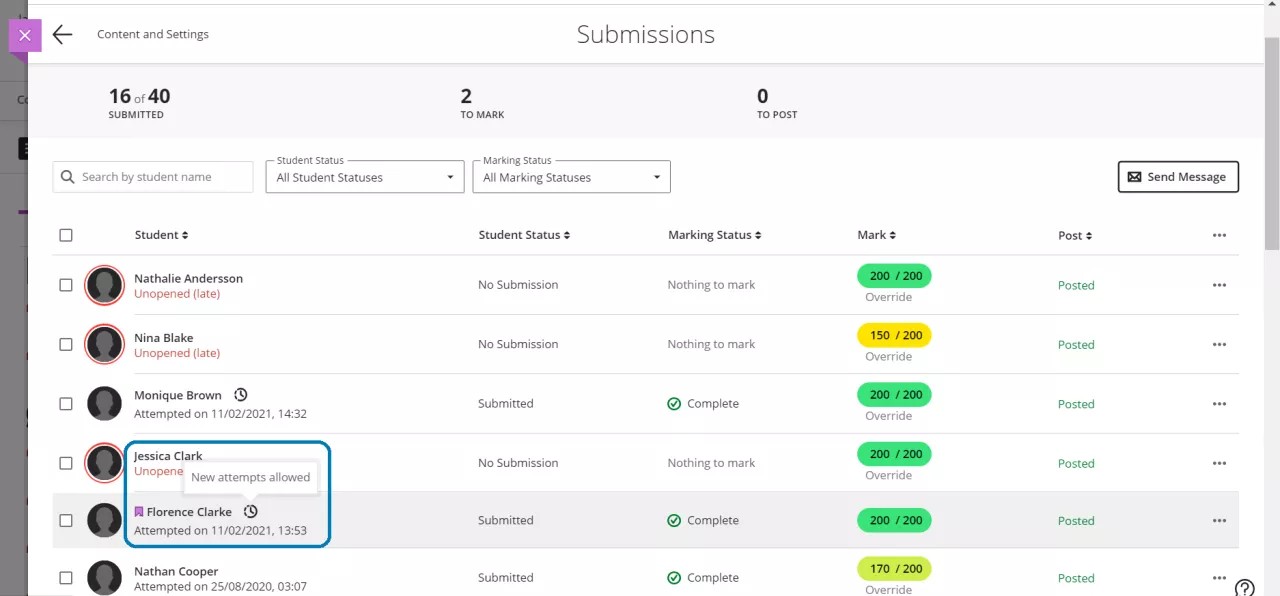
In the student list, if a student has an accommodation and an exception for an assessment only the accommodation icon appears. In the submission page both icons will be visible.
Create an assessment exception
You can add an exception to an individual student or to a group from the assessment's Submissions page. You can also add exceptions from the grading page when grading a student's submission.
From an assessment's Submissions page: open the menu in a student's row and select Add or edit exceptions. The Exceptions panel opens. To help you ensure the accuracy of an exception, the Exceptions panel features relevant information such as the course, assessment and student’s name. You can change the Show on and Hide after dates and times and allow additional attempts. You can also select a new due date.
From the grading page: When grading an individual student submission, open the menu next to the grade pill and select Exceptions. The Edit Submission settings panel opens.
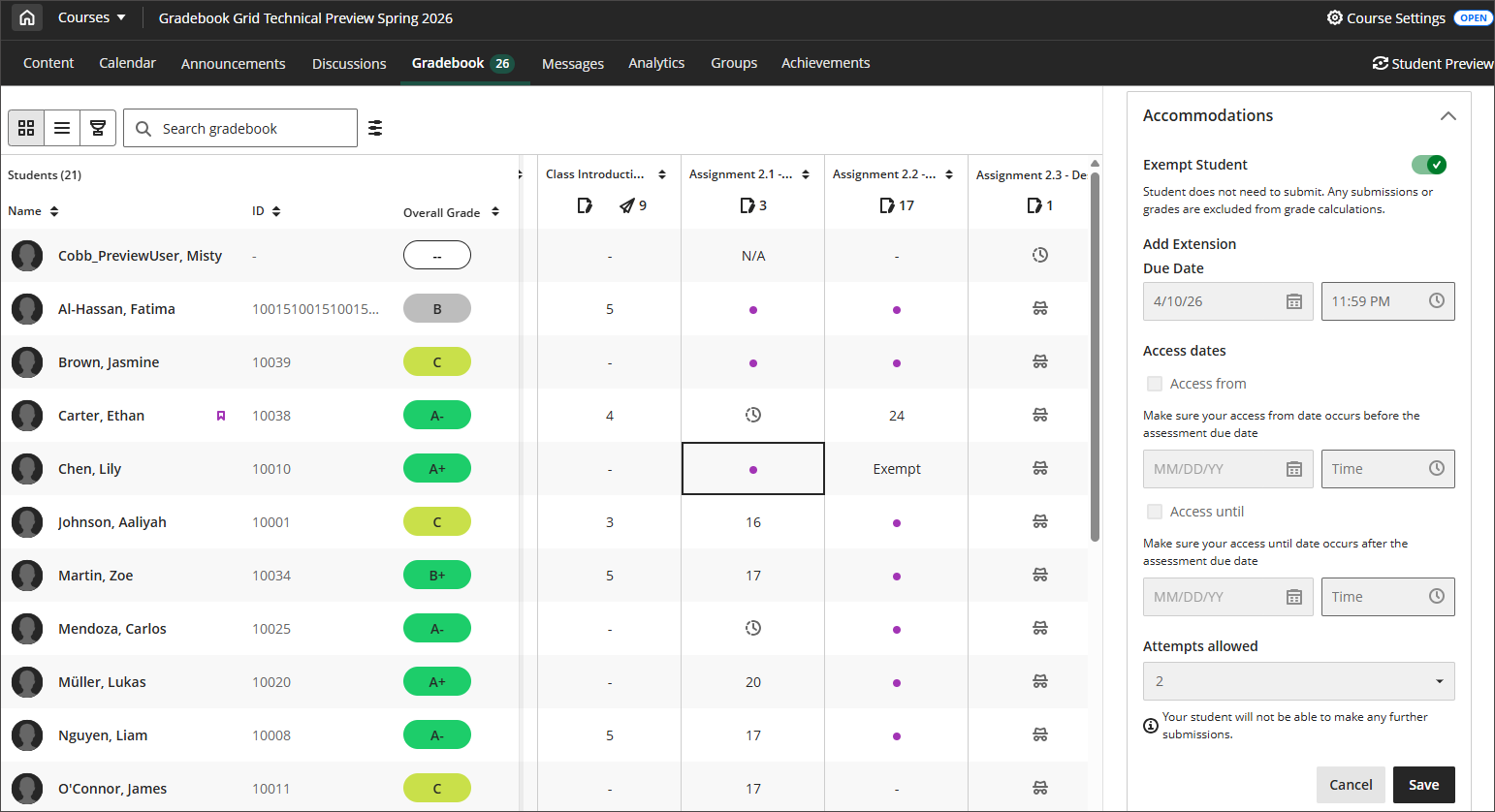
From the gradebook: Select the student's assessment cell to open the Grade Details panel. Under Accommodations, configure your exception, such as access dates, extensions, and number of attempts allowed.
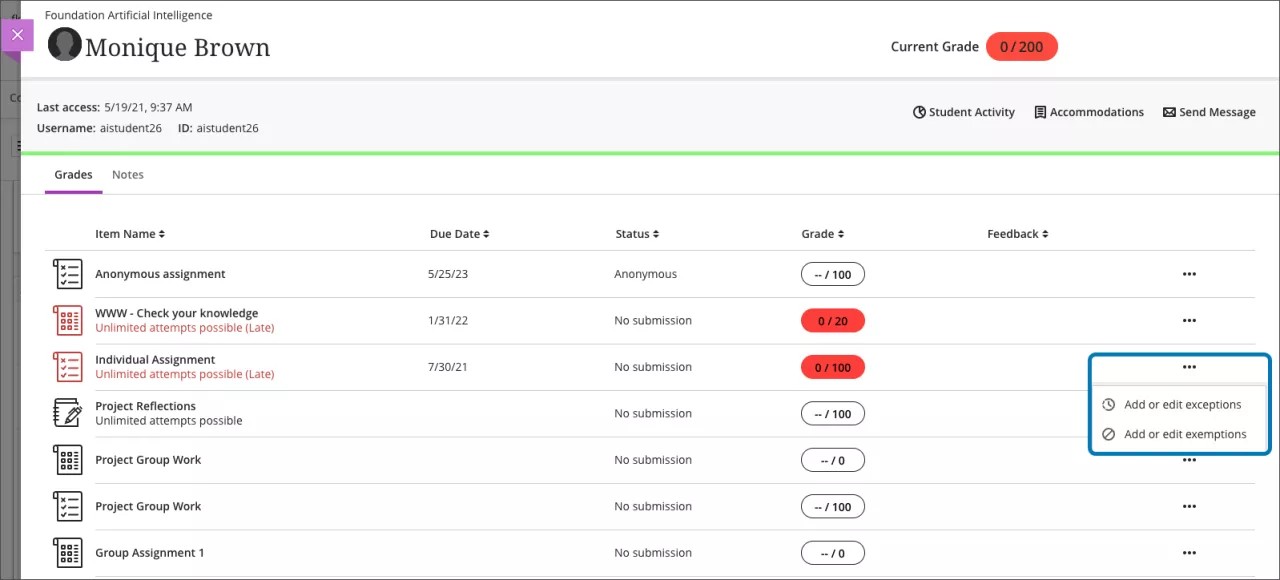
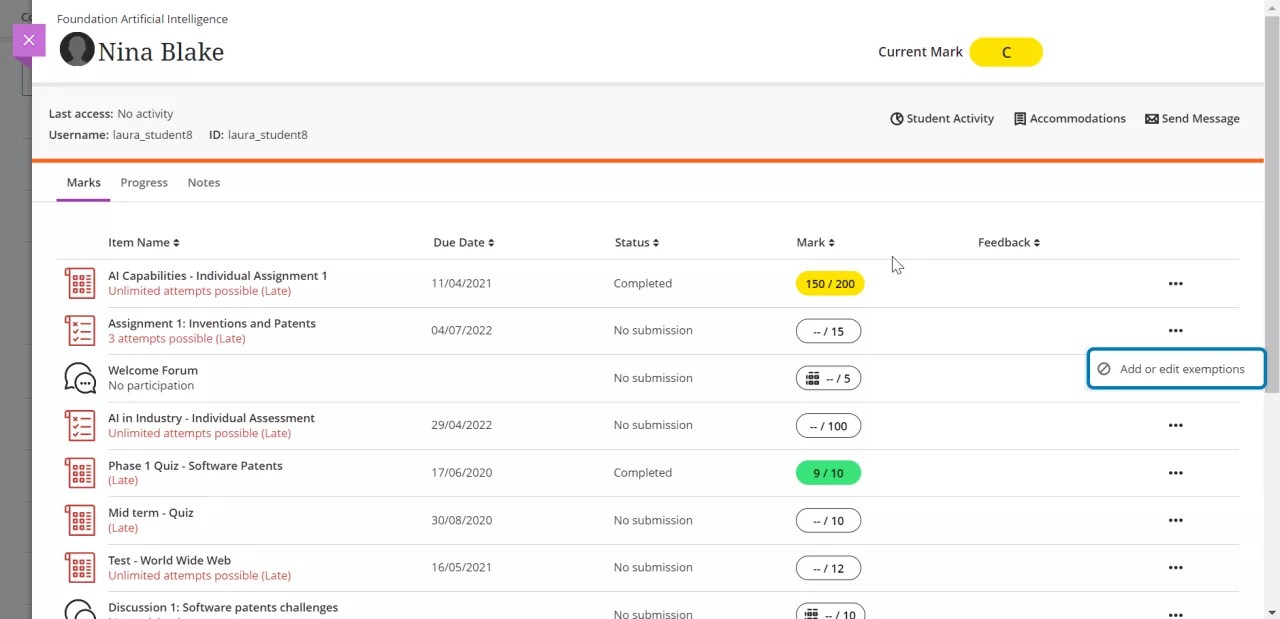
From the student drill-down view: Select the menu of the relevant assessment and choose Add or edit exceptions to open the Exceptions panel.
Important
If you copy an assessment from one course to another, the exceptions don't carry over. Content is set to Hidden from students if you copy individual items into your course. If you copy one course into another course, student-specific data isn't copied.
Exemptions
There are times where you may need to exempt a student from an assessment or course activity due to life circumstances beyond the student’s control.
You can excuse a student from an assessed activity by giving them an exemption. When exempted, the student’s overall calculation will adjust to ensure they are not put at a disadvantage versus their peers.
You can exempt a student from a given task in three ways:
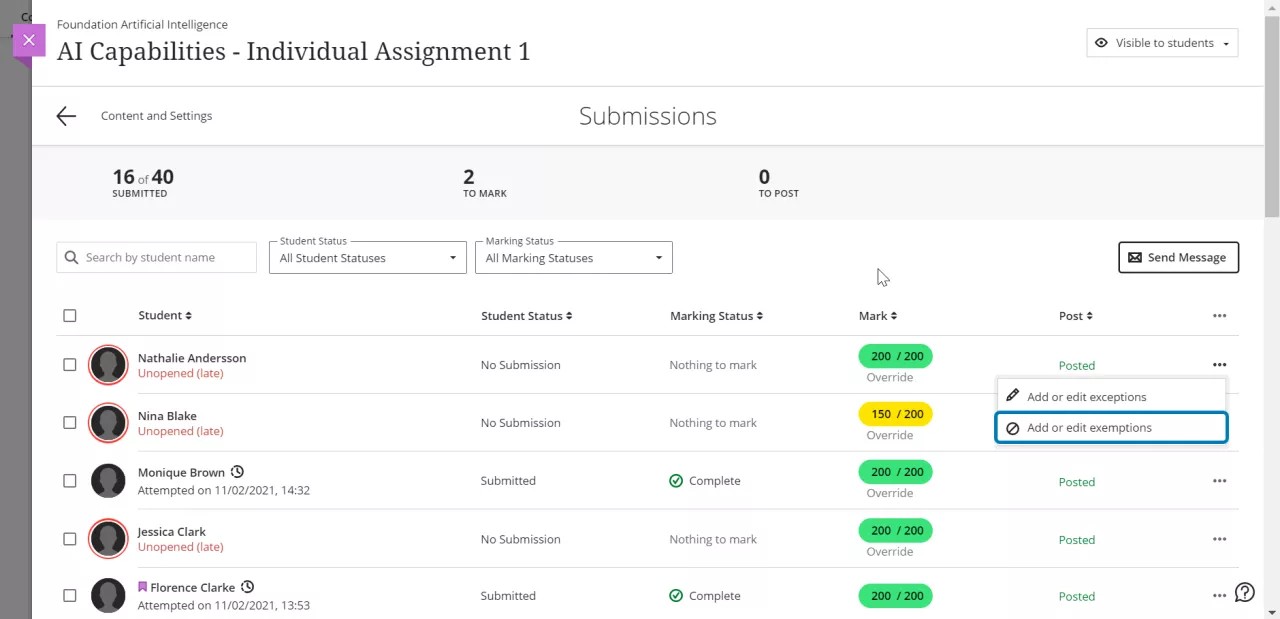
From an assessment's Submissions page: Open the menu in a student's row and select Add or edit exemptions. This will open the exemptions panel.
From the student drill-down view: Select the menu of the relevant assessment and choose Add or edit exemptions.
From the gradebook: Select the student's assessment cell to open the Grade Details panel. Under Accommodations, toggle on Exempt Student, then select Save.
When exempting an item, the item won't be:
Included in the overall grade calculation,
Marked late for students who don't make a submission,
Assigned an automatic zero.
Students can view when they're exempted in the assessment and in the gradebook.
Note
The overall points possible or weighting for a student with one or more exemptions may change compared to other students. This happens because an exemption will remove the corresponding max number of points the assessment is worth from the max possible points in the course for that student.
Students can still make submissions for exempted items. You can grade and provide feedback for these submissions. However, these submissions will still be excluded from the student’s overall grade calculation. You have to remove the exemption for the grade to count toward the student’s overall grade.
Exemptions and exceptions in anonymous assessments
Anonymous grading helps to reduce grading bias. You can add exemptions for anonymous tests and assignments.
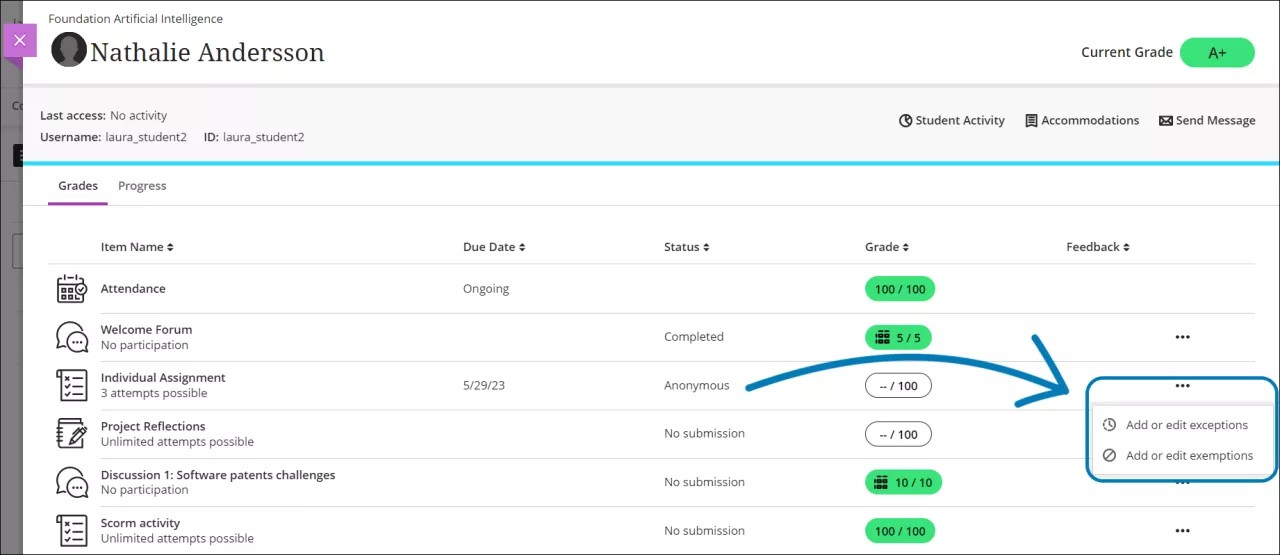
From the student drill-down view, select the menu of the anonymous assessment and choose either Add or edit exceptions or Add or edit exemptions to open the corresponding panel.
To keep students details anonymous, the accommodations, exemptions and exceptions indicators are displayed only in the student drill-down and Gradebook.
Deleting attempts
Occasionally students may submit the incorrect file for an assessment, or the submission may be otherwise corrupted. In those cases, you may wish to delete the attempt or grant the student an additional one.
While the best practice is to grant the student an additional attempt if needed, you can delete incorrect submissions from the assessment grading section. Open the menu next to the grade pill and select Delete.
Verifying student submissions
Occasionally students may ask you to verify their submission or claim to have made a submission you may not have seen. To find a submission, you can ask the student for the submission confirmation number and look it up in the gradebook. This number is available in the submission receipt.
Watch a video about grant assessment exceptions
The following narrated video provides a visual and auditory representation of some of the information included on this page. For a detailed description of what is portrayed in the video, open the video on Vimeo.