Submission Receipts
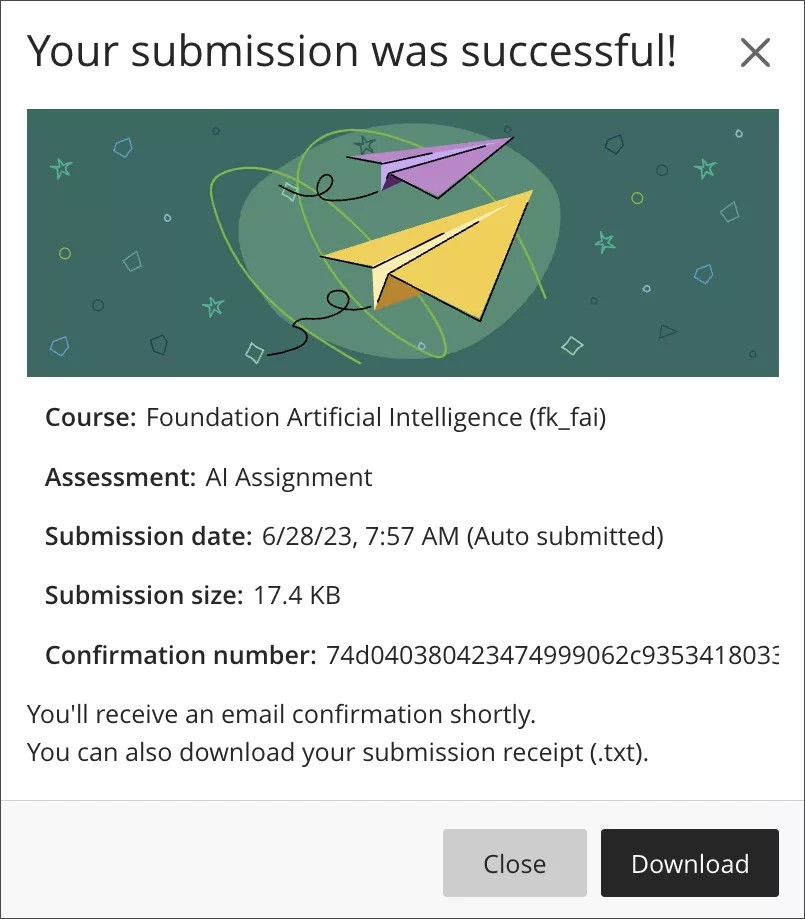
When a student submits an assignment or test, a window appears with a submission confirmation number. Students can download a copy of the receipt directly from the window. They also receive a copy of their submission receipt via an automatic email confirmation. Students are encouraged to save their submission receipts to verify they submitted their work.
You can look up and view the receipt confirmation number for each attempt a student makes.
Receipts display the following information:
Course name and ID
Assessment name
Assessment grade
Number of attempts for an assessment
The student who submitted the assessment
Size of any file included with the submission, which gives you an idea of what the student attached
Submission date and time stamp. If the assessment was submitted late, it's indicated here.
Auto submit indicator appears when the assessment is automatically submitted by Blackboard LMS as part of a timed assessment or the Prevent Late Submission assessment setting
Instructor submission details appear when an instructor submits a draft attempt on a student’s behalf. These details include the instructor’s name, the reason provided, and the date.
To find a submission with the receipt number, enter the receipt number in the gradebook search bar. A matching result appears in a dropdown. Select the result to open the grading page for the submission.
If a submission is found, select it to open the grading page for the submission. The receipt number also appears on the grading page.
If no submission is found, you will see the message “Sorry! No submission receipt was found for that number. Check the receipt number and try again.”
Anonymous submissions
For anonymously graded assignments, submission receipt information is not displayed in the Grade Details panel before grades are posted. To locate an anonymous submission by receipt number, enter the receipt number in the gradebook search bar. A matching result appears in a dropdown. Select the result to open the Anonymous File Submission Receipt dialog, which shows the assessment name, receipt number, attempts, file size, and submitted date. Select Grade to open the submission in Flexible Grading.