Rheoli Cyfarwyddiadau
Note
Cafodd y ddogfennaeth hon ei chyfieithu gan ddefnyddio cyfieithu peirianyddol gyda chymorth AI. Darperir cyfieithiadau 'fel y maent' heb unrhyw warant o'u cywirdeb. Fersiwn Saesneg y cynnwys hwn yw'r ffynhonnell swyddogol a thrylwyr.
Access the Course Rubrics page
The Course Rubrics page displays all rubrics in your course in a sortable, searchable table. From this page, you can create, generate, copy, edit, delete, import, and export rubrics.
You can access the Course Rubrics page in two ways:
From Gradebook Settings, select Manage Course Rubrics in the Course Rubrics section.
From Assignment Settings, select Add Rubric in the Grading & Submissions section.
Copïo cyfarwyddyd
On the Course Rubrics page, select the ellipsis, then select Duplicate.
Edit the rubric as needed, including the titles.
Select Save.
Ar ôl i chi ddefnyddio cyfarwyddyd ar gyfer graddio, ni allwch ei olygu, ond gallwch wneud copi y gallwch ei olygu a’i ailenwi.
Nodyn
Os byddwch yn copïo cyfarwyddyd sydd eisoes yn bodoli sy'n seiliedig ar ganran ac yn ei newid i gyfarwyddyd amrediad canran, caiff yr holl ddisgrifiadau eu clirio.
Os ydych chi eisoes wedi defnyddio cyfarwyddyd i raddio eitem, gallwch hefyd gopïo’r cyfarwyddyd a golygu’r fersiwn ddyblyg. O banel Gosodiadau eitem, agorwch y cyfarwyddyd. Dewiswch Creu Copi ar waelod y sgrîn. Pan fyddwch yn creu copi o gyfarwyddyd sydd wedi cael ei ddefnyddio i raddio prawf neu aseiniad, mae’r cyfarwyddyd newydd wedi’i gysylltu â’r eitem. Caiff unrhyw raddau a gyfrifir â’r cyfarwyddyd gwreiddiol eu cadw, ond caiff y graddau hyn eu trosi’n raddau gwrth-wneud. Gellir ailraddio’r cyflwyniadau hyn gan ddefnyddio’r cyfarwyddyd newydd.
When you create a copy of a rubric you used to grade a test or assignment, the new rubric is associated with the item. Any grades calculated with the original rubric are preserved, but these grades are converted to overrides. You can regrade these submissions with the new rubric.
Pwysig
Ni allwch gopïo cyfarwyddiadau ar ddyfeisiau bach.
Copïo cyfarwyddiadau rhwng cyrsiau
On the Course Content page, select the plus sign to open the menu and select Copy Content. Or, open the More options menu above the content list. Select Copy Items.
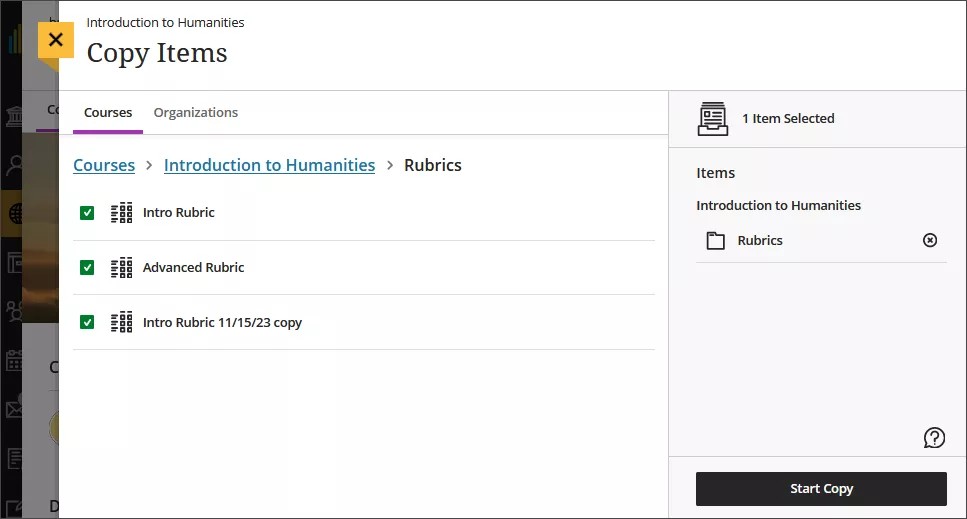
The Copy Items panel opens.
From the Copy Items panel, you can browse all the courses that you teach.
Select the Rubrics folder for the course you want to copy rubrics from and select the rubrics you’d like to copy.
When you’re done, select Start copy.
Dileu cyfarwyddiadau
Gallwch ddileu cyfarwyddyd yn barhaol o’ch cwrs hyd yn oed os defnyddioch chi ef wrth raddio a bydd y graddau’n aros. Nid yw’r graddau wedi’u cysylltu â’r cyfarwyddyd mwyach, ond maen nhw bellach yn ymddangos fel graddau a ychwanegoch â llaw.
To permanently delete a rubric, go to the Course Rubrics page. Select the ellipsis menu on the rubric, then select Delete.
Export a rubric
You can export a rubric from your course to reuse it in another course. The exported file is a zip file intended for importing into another course and is not a viewable document.
To export a rubric, select the ellipsis then select Export.
The rubric downloads automatically as a zip file named with the rubric name and course title. You can find it in your downloads folder.
Import a rubric
You can import a rubric that was previously exported from Blackboard LMS.
On the Course Rubrics page, select the import icon.
Select the zip file from your local. Only rubrics exported from Blackboard LMS can be imported.
After import, review your imported rubric,
The rubric imports automatically. If the same rubric already exists in the course, an error message appears to prevent duplicate rubrics from being created.