Rheoli Eitemau Llyfr Graddau
Note
Cafodd y ddogfennaeth hon ei chyfieithu gan ddefnyddio cyfieithu peirianyddol gyda chymorth AI. Darperir cyfieithiadau 'fel y maent' heb unrhyw warant o'u cywirdeb. Fersiwn Saesneg y cynnwys hwn yw'r ffynhonnell swyddogol a thrylwyr.
Unwaith y bydd eitem yn eich llyfr graddau, gallwch anfon nodyn atgoffa, ei golygu, gweld ystadegau, ei dileu, neu ei haildrefnu.
Anfon atgoffa
Anfonwch atgof i fyfyrwyr neu grwpiau nad ydynt wedi cyflwyno eitem eto. Rhaid i'r eitem fod yn weladwy heb unrhyw amodau rhyddhau, ac ni ellir defnyddio hyn ar gyfer colofnau a grëwyd â llaw.
Anfonir nodiadau atgoffa fel neges cwrs copi carbon dall (BCC), ac rydych chi'n derbyn copi hefyd. Os yw negeseuon y cwrs wedi'u diffodd, anfonir atgofion fel e-bost. Ar gyfer graddio dienw, anfonir atgofion bob amser drwy e-bost er mwyn diogelu'r ddienwdra.
Yn y golwg grid, dewiswch deitl yr eitem (pennyn y golofn).
Yn y panel Manylion yr Asesiad, dewiswch yr eicon cloch. Ni fydd eicon y gloch yn cael ei arddangos os nad oes myfyrwyr sydd angen cyflwyno gwaith.
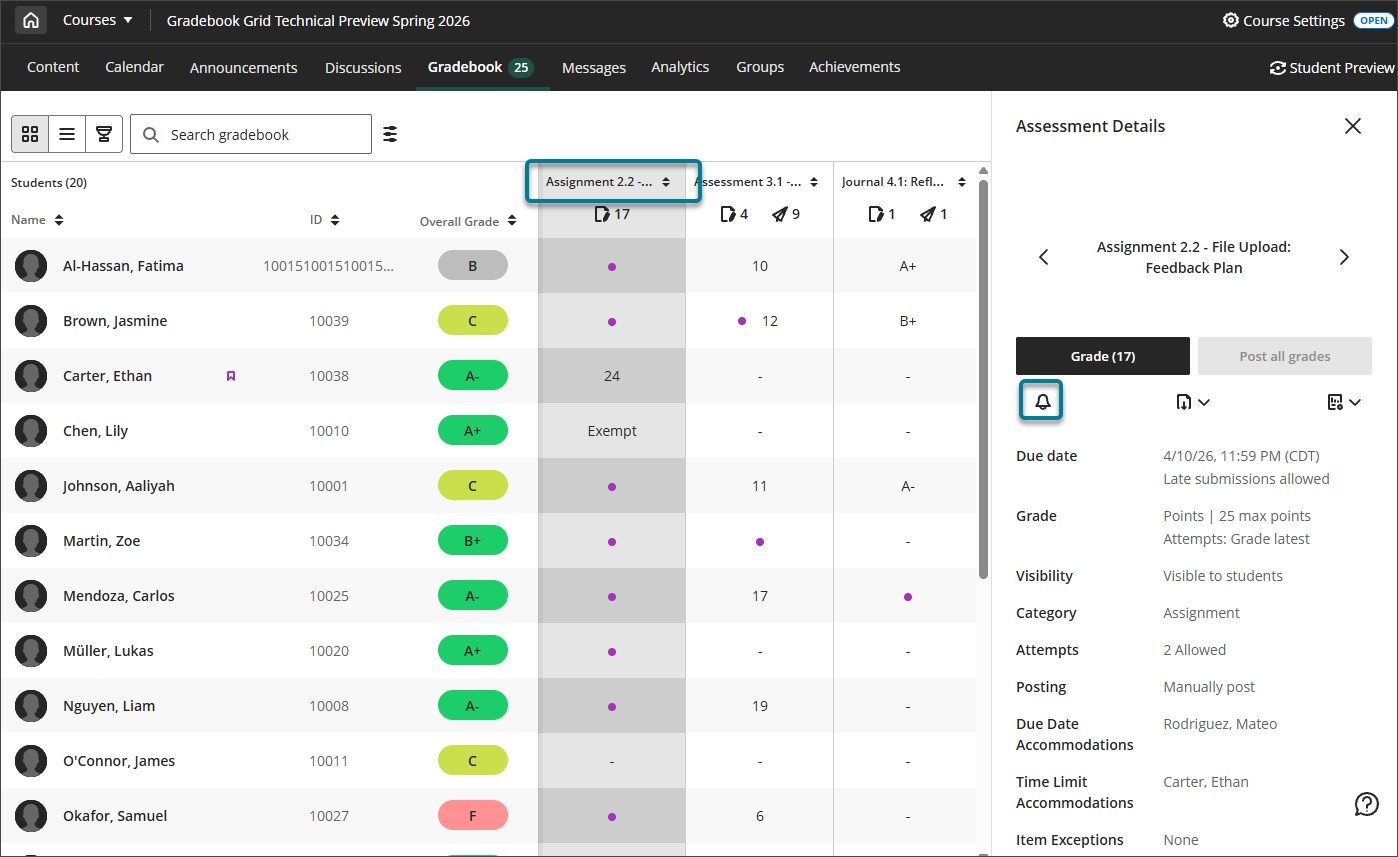
Yn y blwch deialog cadarnhau, dewiswch Cyflwyno.
Gweld ystadegau a dadansoddiad o'r cwestiynau
Yn y golwg grid, dewiswch deitl yr eitem (pennyn y golofn).
Yn y panel Manylion yr Asesiad, dewiswch yr eicon ystadegau. Ni fydd eicon yr ystadegau yn cael ei arddangos os nad yw ystadegau a dadansoddiad cwestiynau ar gael ar gyfer yr eitem honno.
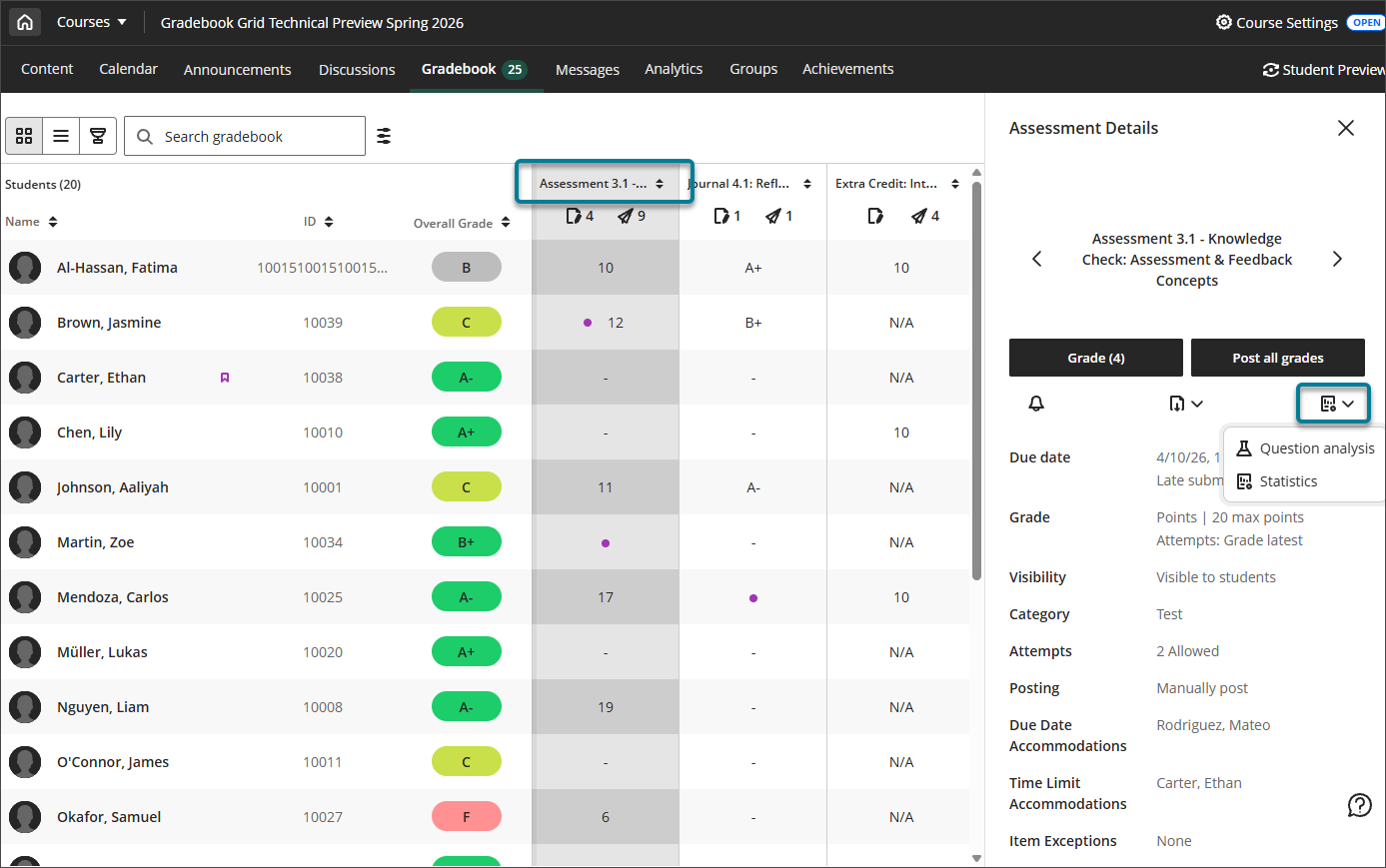
Dewiswch Ystadegau i weld metrigau cryno ar gyfer yr eitem: isafswm a mwyafswm, amrediad, cyfartaledd, canolrif, gwyriad safonol, amrywiant.
Dewiswch Dadansoddi cwestiynau i weld manylion a data ar gyfer pob cwestiwn yn yr asesiad.
Ail-archebu eitemau
Pan fyddwch chi'n ail-drefnu eitemau yn y golwg rhestr, caiff y drefn hon ei hadlewyrchu yn y golwg grid.
Yn y golwg rhestr, penderfynwch ar y drefn yr hoffech i’ch eitemau fod ynddi.
Un eitem ar y tro, cliciwch ar yr eicon aildrefnu, yna llusgwch a gollwng y rhes rhwng y rhesi presennol.