Eitemau gweithredu i'w graddio
Note
Cafodd y ddogfennaeth hon ei chyfieithu gan ddefnyddio cyfieithu peirianyddol gyda chymorth AI. Darperir cyfieithiadau 'fel y maent' heb unrhyw warant o'u cywirdeb. Fersiwn Saesneg y cynnwys hwn yw'r ffynhonnell swyddogol a thrylwyr.
Mae tri thasg graddio i'w rheoli:
Angen graddio: cyflwyniadau sydd heb eu graddio eto, yr hynaf yn gyntaf.
Angen ei bostio: graddau rydych chi wedi'u cofnodi ond heb eu rhyddhau i fyfyrwyr eto.
Angen cysoni: graddau o raddio dirprwyedig neu gyfochrog sy'n barod ar gyfer penderfyniad terfynol. Dim ond os yw eich cwrs yn defnyddio un o'r dulliau graddio hynny y mae hwn yn ymddangos.
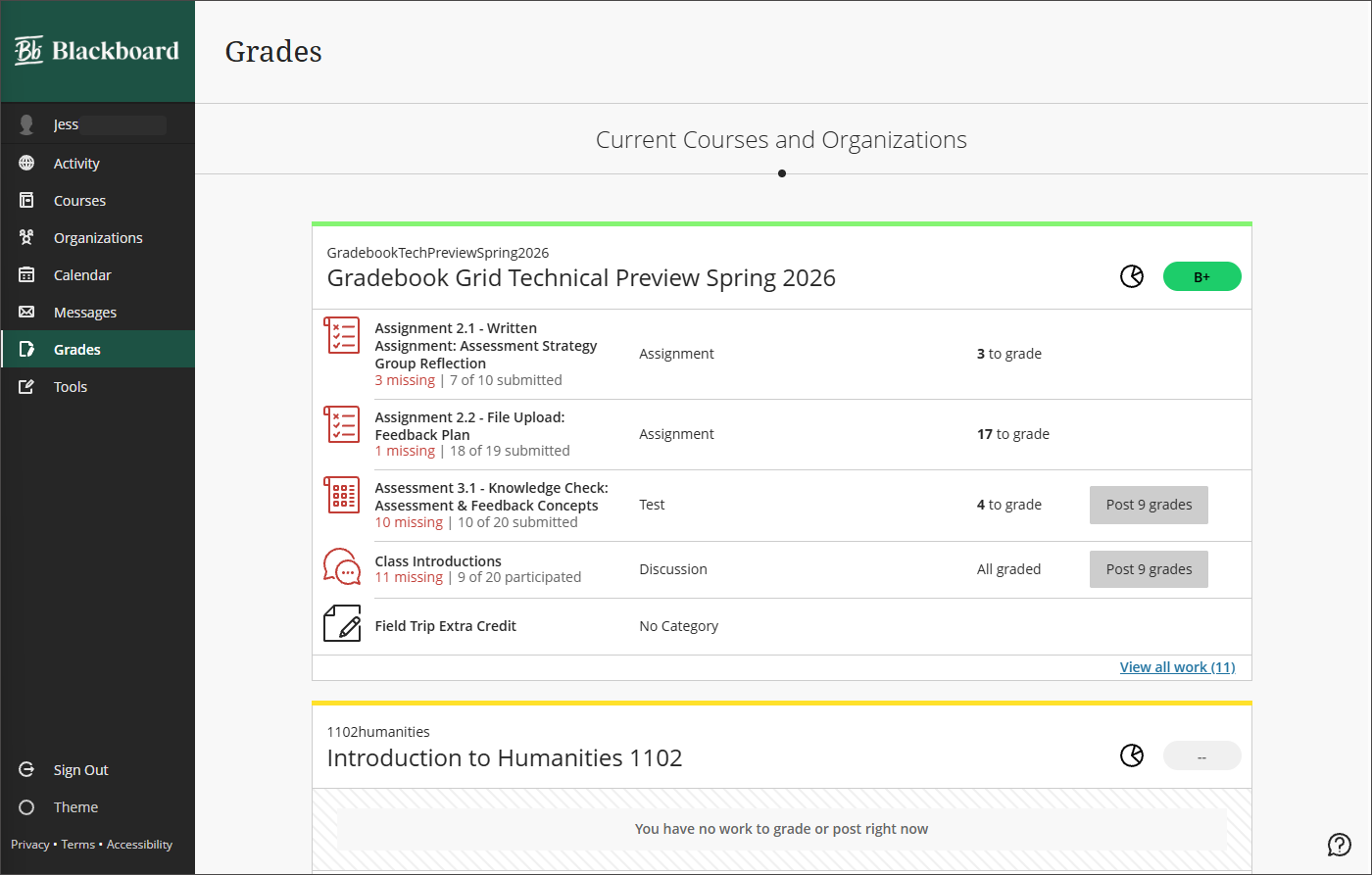
Ar draws pob un o fy nghyrsiau
I weld eich eitemau gweithredu graddio ar draws eich holl gyrsiau, dewiswch y tab Graddau o'r ddewislen llywio sylfaenol.
Tua un cwrs
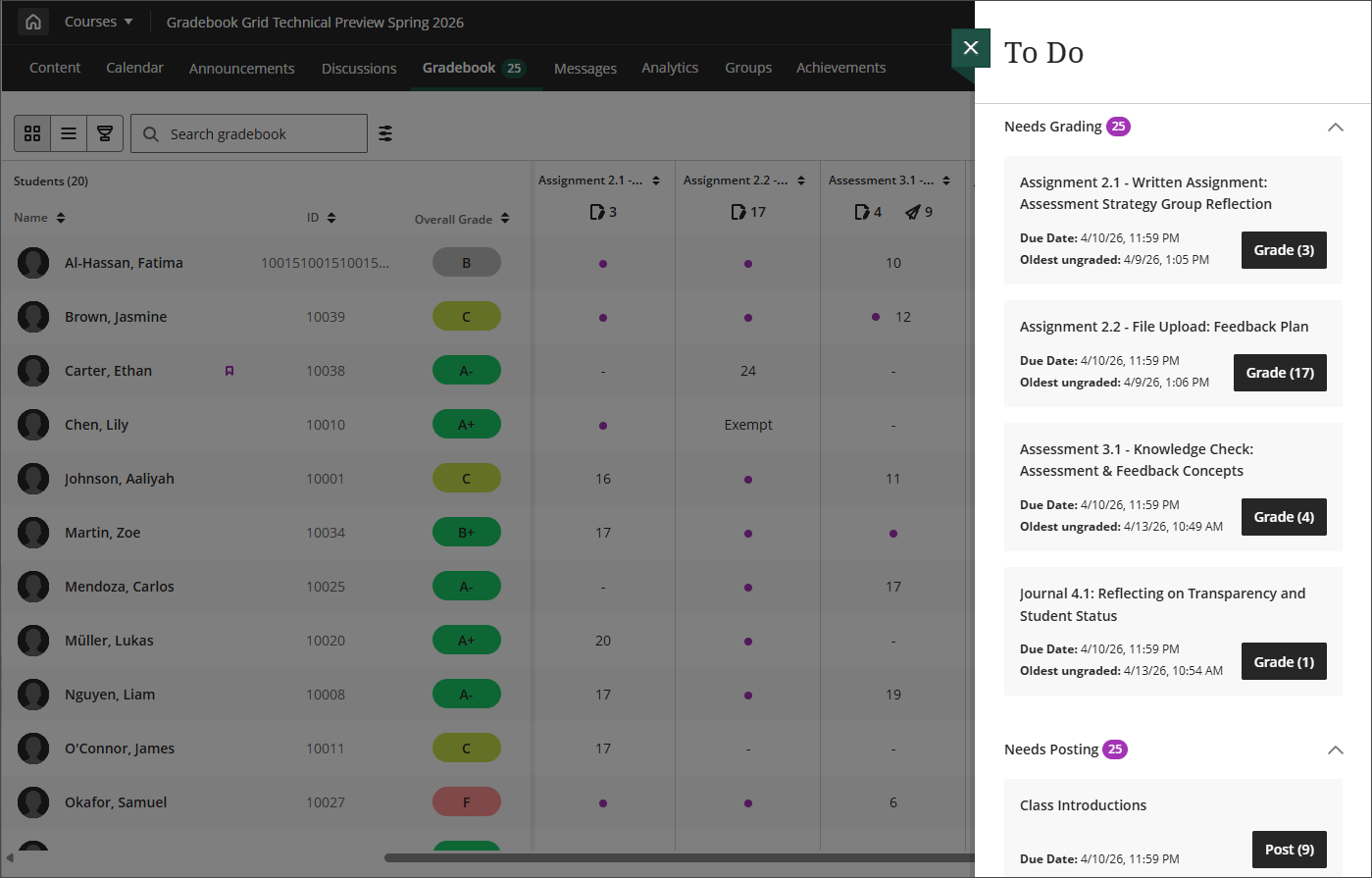
Y panel Pethau i'w Gwneud
Yn y llyfr graddau, dewiswch I'w wneud i agor panel o dasgau graddio dros y llyfr graddau.
Angen eu graddio: yn rhestru'r cyflwyniadau sy'n barod i'w graddio, gan ddechrau gyda'r cyflwyniadau heb eu graddio hynaf, fel y gallwch flaenoriaethu. Dewiswch eitem i agor y cyflwyniad a dechrau graddio. Nid yw aseiniadau cymheiriaid wedi'u rhestru yma.
Mae I'w postio: yn rhestru asesiadau sydd wedi'u graddio sy'n barod i'w postio.
Angen cysoni: yn rhestru'r graddau y mae angen eu cysoni.
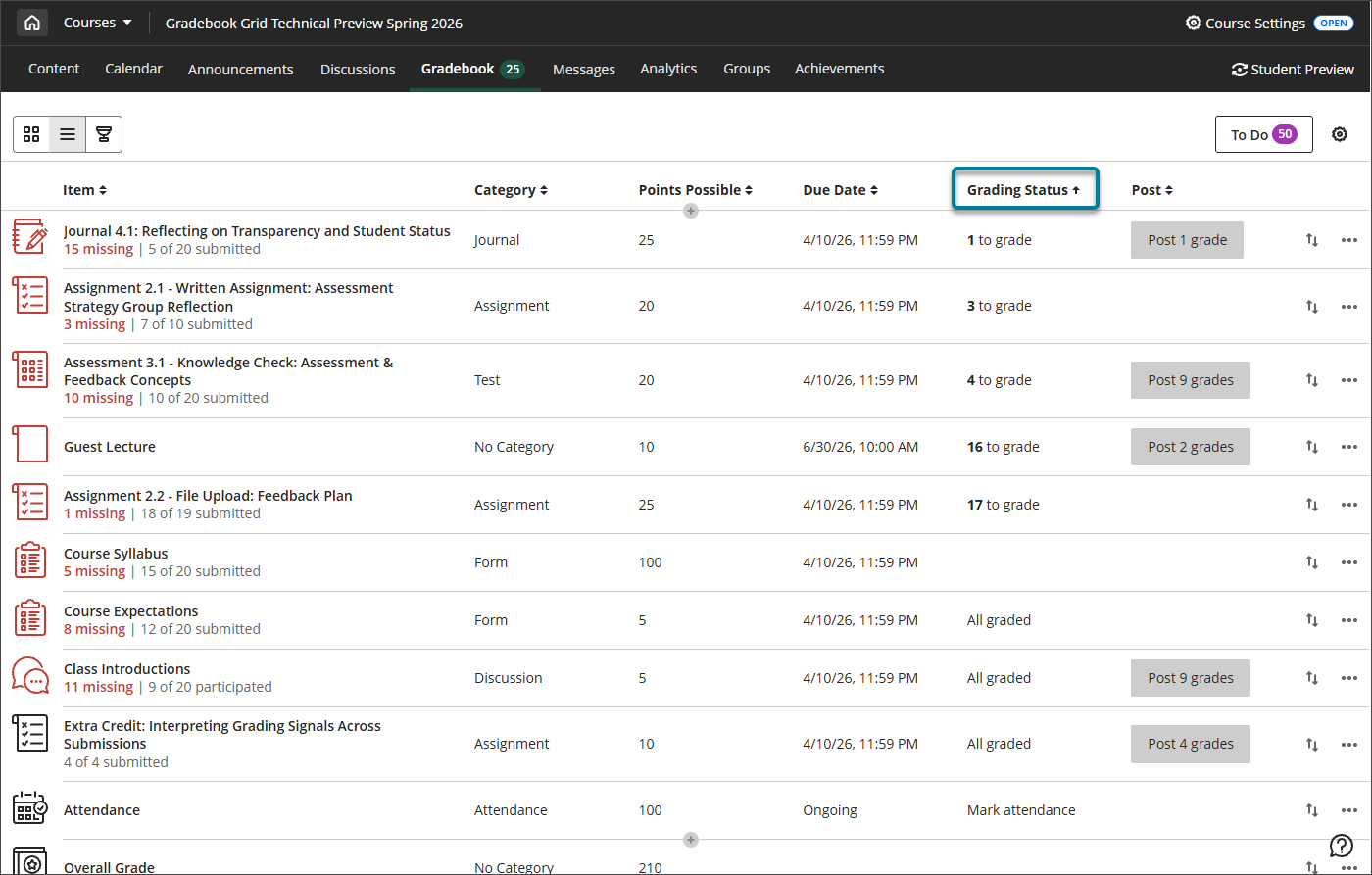
Trefnu i ddod o hyd i'r hyn sydd angen sylw
Yn y golwg rhestr o'r llyfr graddau, trefnwch yn ôl y golofn Statws graddio i ddangos yn gyflym bopeth sydd angen ei raddio o hyd, neu trefnwch yn ôl y golofn Postio i ddangos graddau sydd angen eu postio.
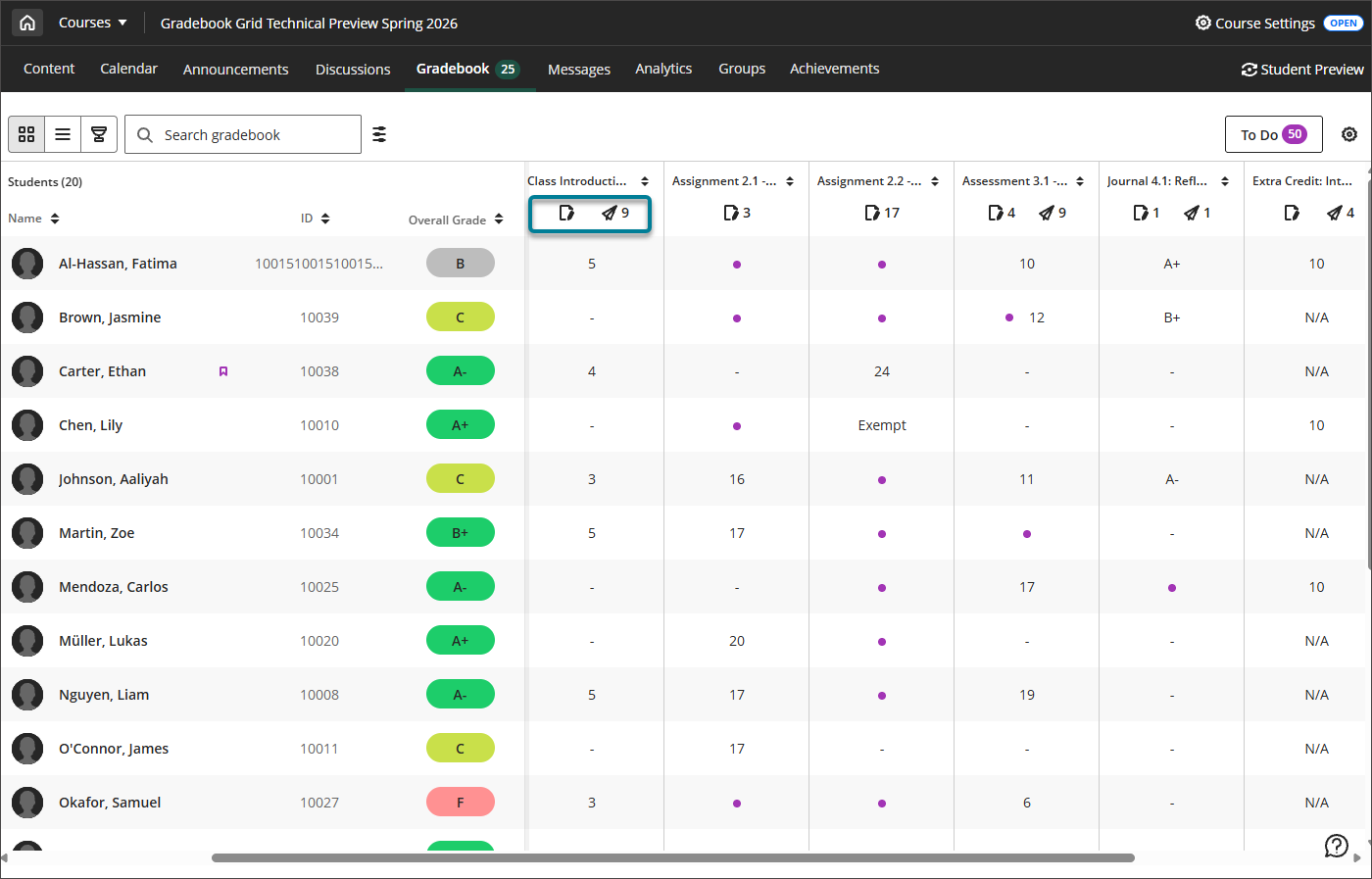
Eiconau Anghenion Graddio a Phostio Anghenion
O dan benawdau'r golofn, yn y golwg grid, mae'r eicon papur a phensil yn dynodi bod angen graddio a'r eicon awyren bapur yn dynodi bod angen ei bostio.