Gweld Graddau Myfyrwyr
Note
Cafodd y ddogfennaeth hon ei chyfieithu gan ddefnyddio cyfieithu peirianyddol gyda chymorth AI. Darperir cyfieithiadau 'fel y maent' heb unrhyw warant o'u cywirdeb. Fersiwn Saesneg y cynnwys hwn yw'r ffynhonnell swyddogol a thrylwyr.
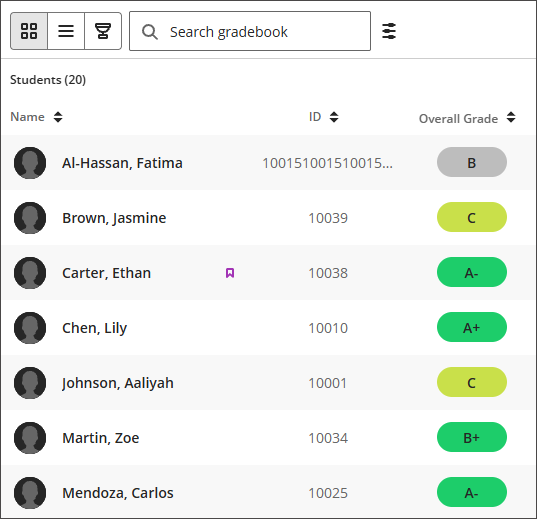
Mae'r golwg grid yn dangos pob myfyriwr sydd wedi'i gofrestru mewn rhes, gyda'u Gradd Gyffredinol a graddau eitemau unigol mewn colofnau, fel y gallwch sganio perfformiad ar draws eich dosbarth cyfan ar un olwg.
Darllen y gridyn
Mae colofnau'r eitemau: yn dangos gradd y myfyriwr ar gyfer pob eitem raddadwy, gydag un golofn i bob eitem.
Dewiswch y saethau didoli ar golofn Name, colofn ID, colofn Overall Grade, neu unrhyw golofn eitem i ddidoli'n gynyddol neu'n ddisgynnol. Caiff y drefn arddangos enwau (Enw Cyntaf Cyfenw neu Cyfenw, Enw Cyntaf) a'r penderfyniad a ddangosir colofn ID y myfyriwr eu rheoli yn Gosodiadau'r Llyfr Graddau.
Mae eicon y faner fioled yn dangos bod gan y myfyriwr ddarpariaeth.
Gweld manylion y myfyriwr
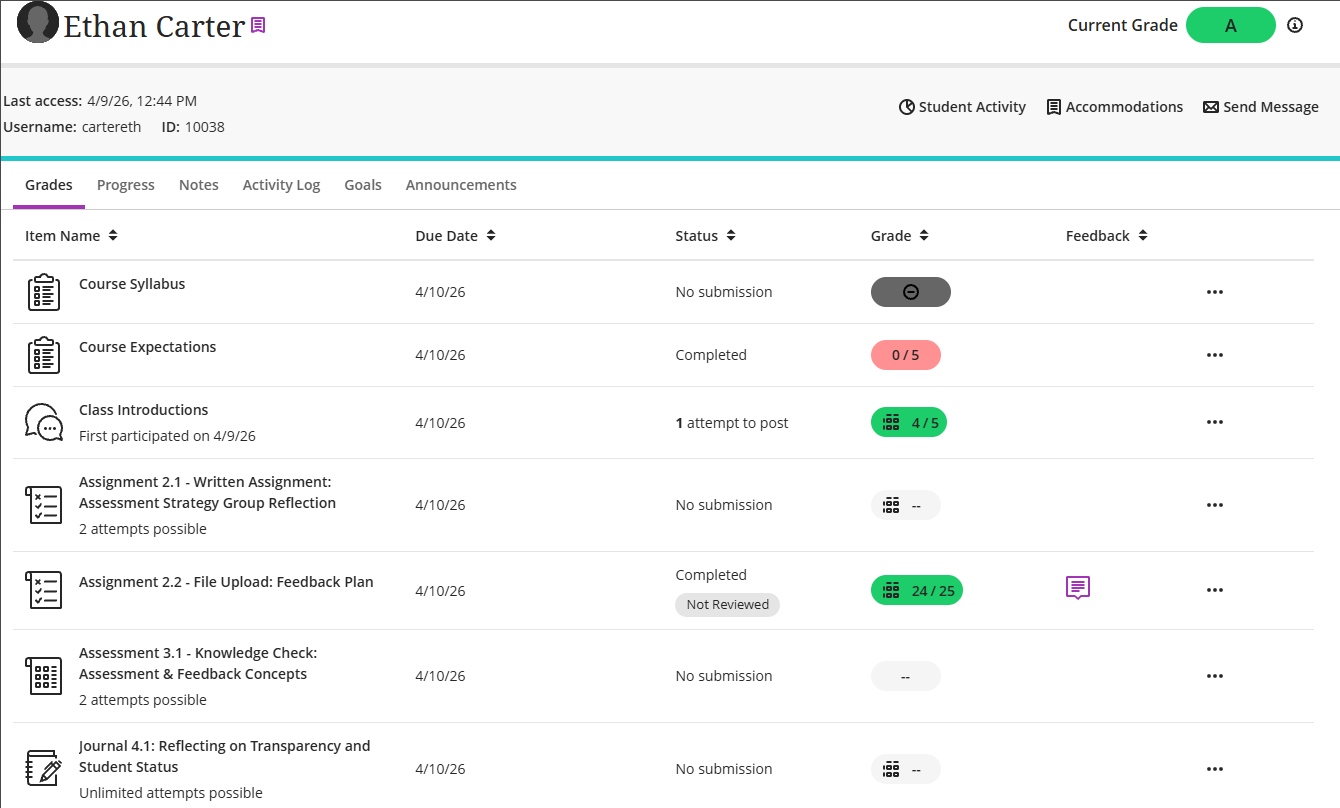
Dewiswch enw myfyriwr i agor eu manylion. Oddi yno gallwch chi:
Canfod dyddiad mynediad diwethaf y myfyriwr i'r cwrs.
Canfyddwch eu gradd gyffredinol.
Anfonwch neges yn uniongyrchol at y myfyriwr.
Ychwanegu neu reoli addasiadau ar gyfer y myfyriwr, fel y disgrifir yn yr adran Addasiadau.
Mae myfyrwyr sydd â llety yn dangos baner i'r dde o'u henw. Os ydych chi'n graddio gydag enwau myfyrwyr wedi'u cuddio (graddio dienw), mae dangosyddion addasiad, eithriad a hepgoriad hefyd wedi'u cuddio.