ルーブリックの管理
Note
このドキュメントは、AIを活用した機械翻訳によって翻訳されました。翻訳内容は「現状のまま」提供されており、その正確性については一切保証いたしません。このコンテンツの英語版が公式かつ権威ある情報源となります。
Access the Course Rubrics page
The Course Rubrics page displays all rubrics in your course in a sortable, searchable table. From this page, you can create, generate, copy, edit, delete, import, and export rubrics.
You can access the Course Rubrics page in two ways:
From Gradebook Settings, select Manage Course Rubrics in the Course Rubrics section.
From Assignment Settings, select Add Rubric in the Grading & Submissions section.
ルーブリックのコピー
On the Course Rubrics page, select the ellipsis, then select Duplicate.
Edit the rubric as needed, including the titles.
Select Save.
採点にルーブリックを使用した後は、ルーブリックを編集できませんが、編集や名前の変更が可能なコピーを作成できます。
注記
注 : 既存のパーセンテージベースのルーブリックをコピーしてパーセンテージ範囲のルーブリックに変更すると、すべての説明が消去されます。
この項目の採点にルーブリックがすでに使用されている場合、ルーブリックをコピーし、複製バージョンを編集することもできます。項目の[設定]パネルから、ルーブリックを開きます。画面下部の[コピーを作成]を選択します。テストや課題の採点に使用したルーブリックのコピーを作成すると、新しいルーブリックが項目に関連付けられます。元のルーブリックを使用して計算された成績が保存されますが、それらの成績は上書きに変換されません。新しいルーブリックを使用して、そうした提出物を再採点できます。
When you create a copy of a rubric you used to grade a test or assignment, the new rubric is associated with the item. Any grades calculated with the original rubric are preserved, but these grades are converted to overrides. You can regrade these submissions with the new rubric.
重要
小さなデバイスでは、ルーブリックをコピーできません。
コース間でルーブリックをコピーする
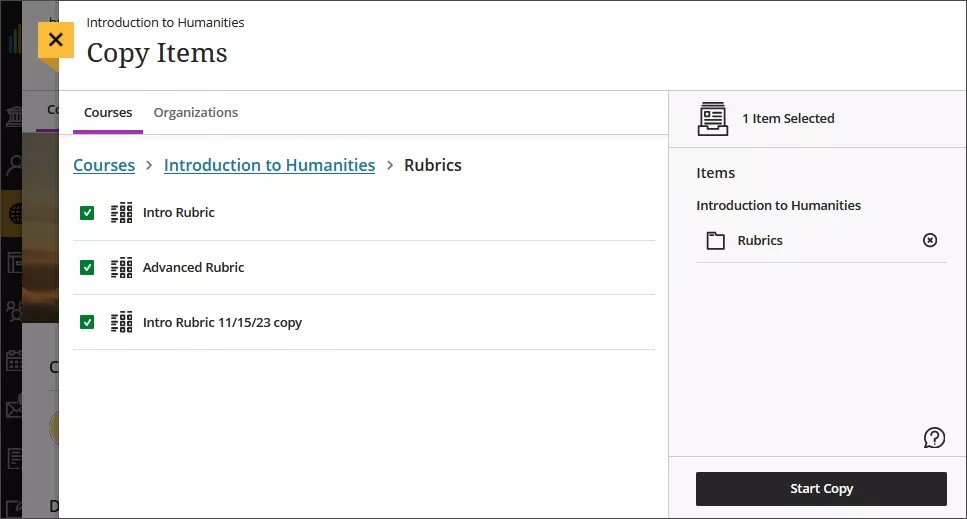
On the Course Content page, select the plus sign to open the menu and select Copy Content. Or, open the More options menu above the content list. Select Copy Items.
The Copy Items panel opens.
From the Copy Items panel, you can browse all the courses that you teach.
Select the Rubrics folder for the course you want to copy rubrics from and select the rubrics you’d like to copy.
When you’re done, select Start copy.
ルーブリックの削除
ルーブリックを採点に使用していても、コースからルーブリックを永久に削除することができ、成績はそのまま残ります。成績とルーブリックの関連付けはなくなりますが、手動で追加した成績として表示されるようになります。
To permanently delete a rubric, go to the Course Rubrics page. Select the ellipsis menu on the rubric, then select Delete.
Export a rubric
You can export a rubric from your course to reuse it in another course. The exported file is a zip file intended for importing into another course and is not a viewable document.
To export a rubric, select the ellipsis then select Export.
The rubric downloads automatically as a zip file named with the rubric name and course title. You can find it in your downloads folder.
Import a rubric
You can import a rubric that was previously exported from Blackboard LMS.
On the Course Rubrics page, select the import icon.
Select the zip file from your local. Only rubrics exported from Blackboard LMS can be imported.
After import, review your imported rubric,
The rubric imports automatically. If the same rubric already exists in the course, an error message appears to prevent duplicate rubrics from being created.