グループ課題の作成と割り当て
Note
このドキュメントは、AIを活用した機械翻訳によって翻訳されました。翻訳内容は「現状のまま」提供されており、その正確性については一切保証いたしません。このコンテンツの英語版が公式かつ権威ある情報源となります。
グループ課題の作成と割り当て
[新しい課題]ページで、[設定]アイコンを選択し、[課題の設定]パネルを開きます。
期限日を入力し、グループ課題に適用する設定を選択します:
グループ課題のクラスの会話を許可できます。学生はクラス全体での会話か、グループメンバのみの会話かを選ぶことができます。
グループが提出物をアップロードする必要がないオフラインでの提出物収集も選択できます。手順、ファイル、ルーブリック、およびゴールを追加して、グループがオフラインでの作業を準備できるようにします。オフライン作業での会話を有効にすることもできます。
グループ課題の提出可能な時期を管理するために、アクセスコードを発行できます。現時点では、アクセスコードはシステムによってランダムに生成されます。アクセスコードはカスタマイズできません。
重要
現時点では、複数の答案、時間制限、名前の非表示、並行採点に対応したグループ課題は作成できません。
[グループに割り当てる]を選択します。
How you assign groups is based on which version of Groups your institution has configured. Read more in next section.
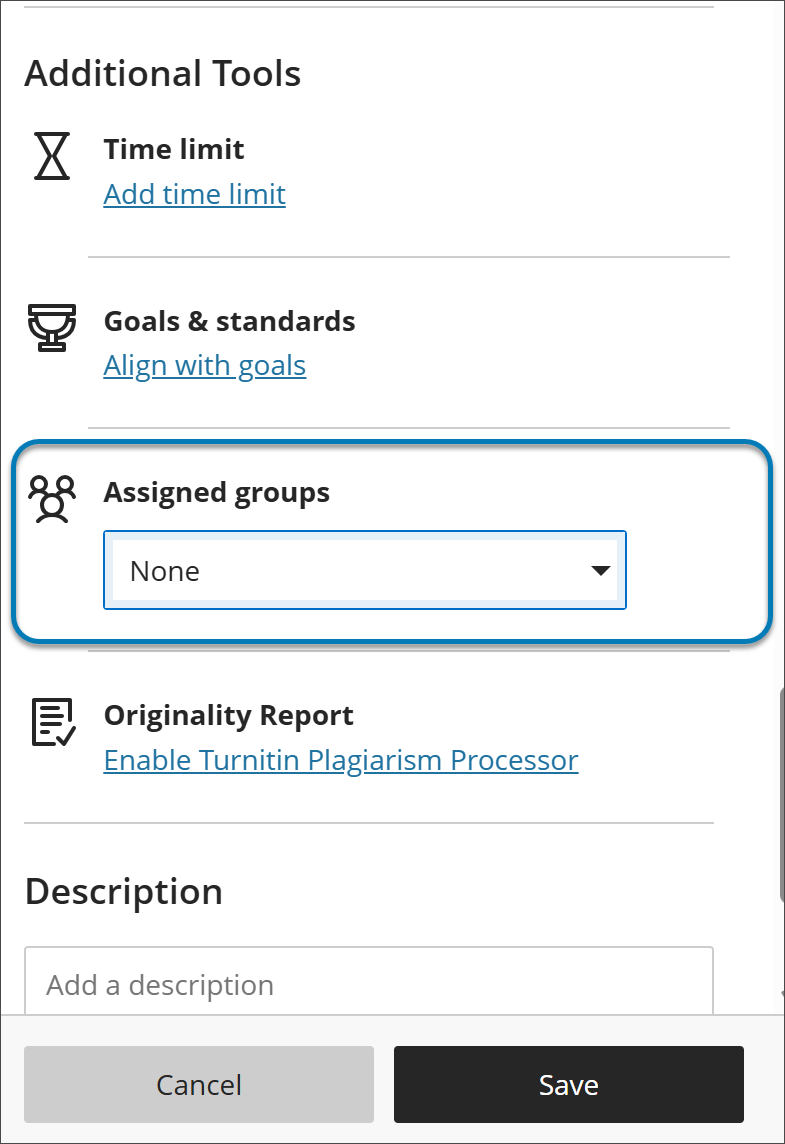
Assign groups to an assignment
重要
The reimagined Groups experience is available if your institution's Blackboard LMS administrators have turned it on. It becomes the default experience for all courses in January 2027. Until then, what you see after you select Assign to groups depends on which experience your course uses.
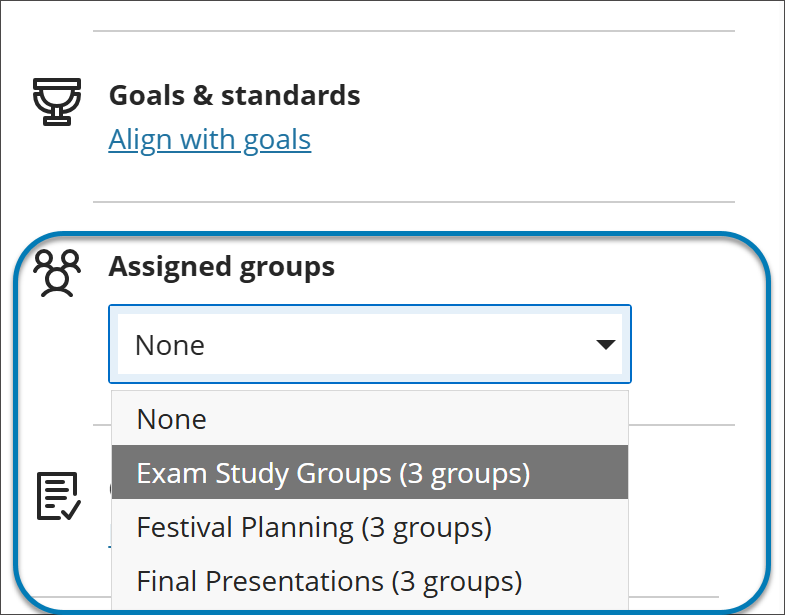
Assign groups in the new Groups experience
Select a group set that already exists in your course. You can't create groups from the assignment settings.
To use a new group set, create it first on the Groups tab of the Course Content page, then return to the assignment and select it.
Assign groups in the previous Groups experience
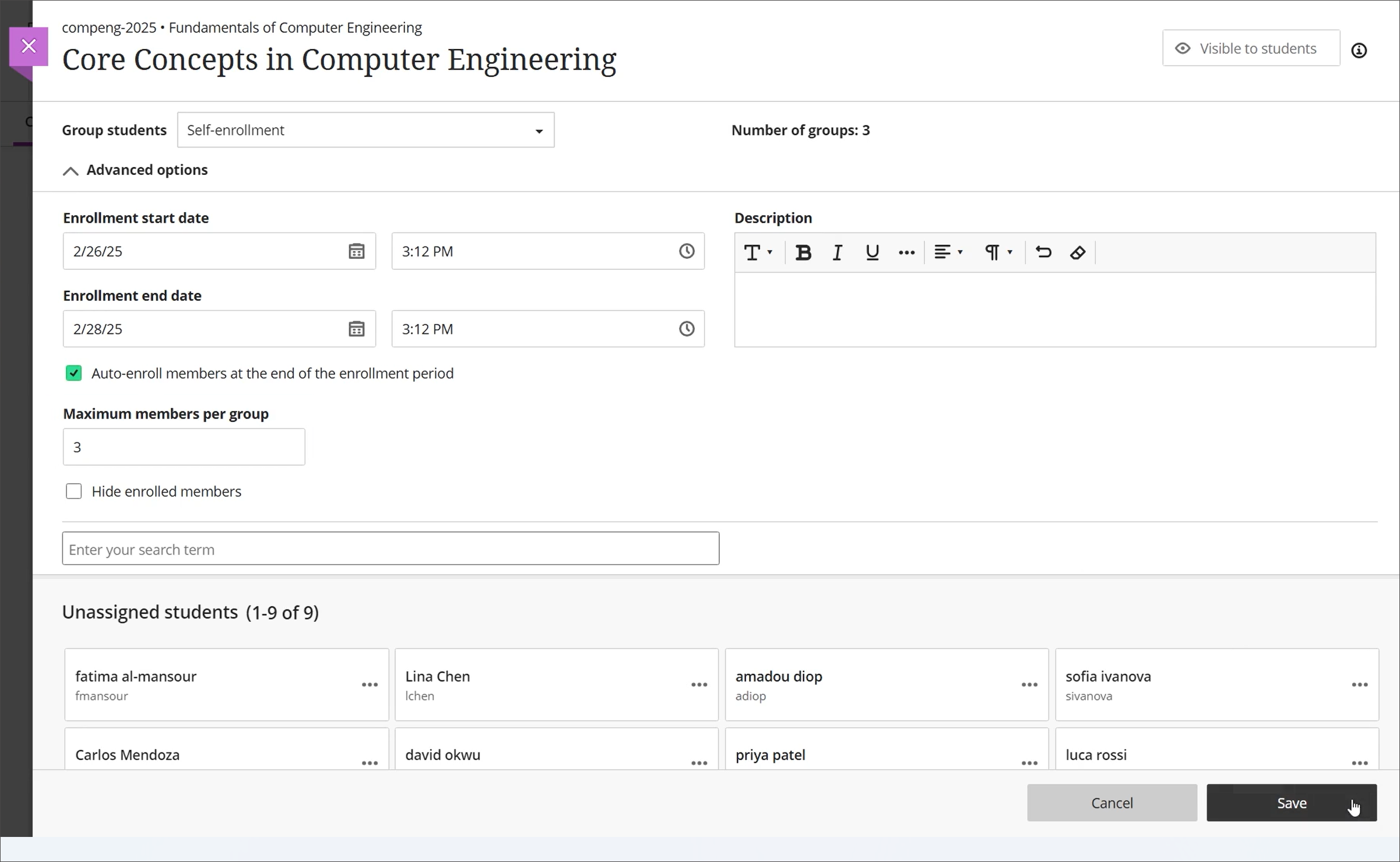
Select Assign groups, which sends you to a page to create a new group set or assign existing groups.
In the Group students menu, choose Custom, Randomly assign, Self-enrollment, or Reuse groups.