コースコンテンツページで重複する項目
Note
このドキュメントは、AIを活用した機械翻訳によって翻訳されました。翻訳内容は「現状のまま」提供されており、その正確性については一切保証いたしません。このコンテンツの英語版が公式かつ権威ある情報源となります。
講師は、「コースコンテンツ」ページ上のほとんどの項目をコピーすることができます。複製された項目には、元の項目のすべてのコンテンツと設定が引き継がれ、元の項目のすぐ下に表示されます。
アイテムを複製する
「その他のオプション」メニューを使用して、「コースコンテンツ」ページ上の対応する項目のコピーを作成できます。
コースを開き、[コースコンテンツ]ページに移動します。
複製したい項目の その他のオプション (…) メニューを開きます。
「複製」 を選択します。
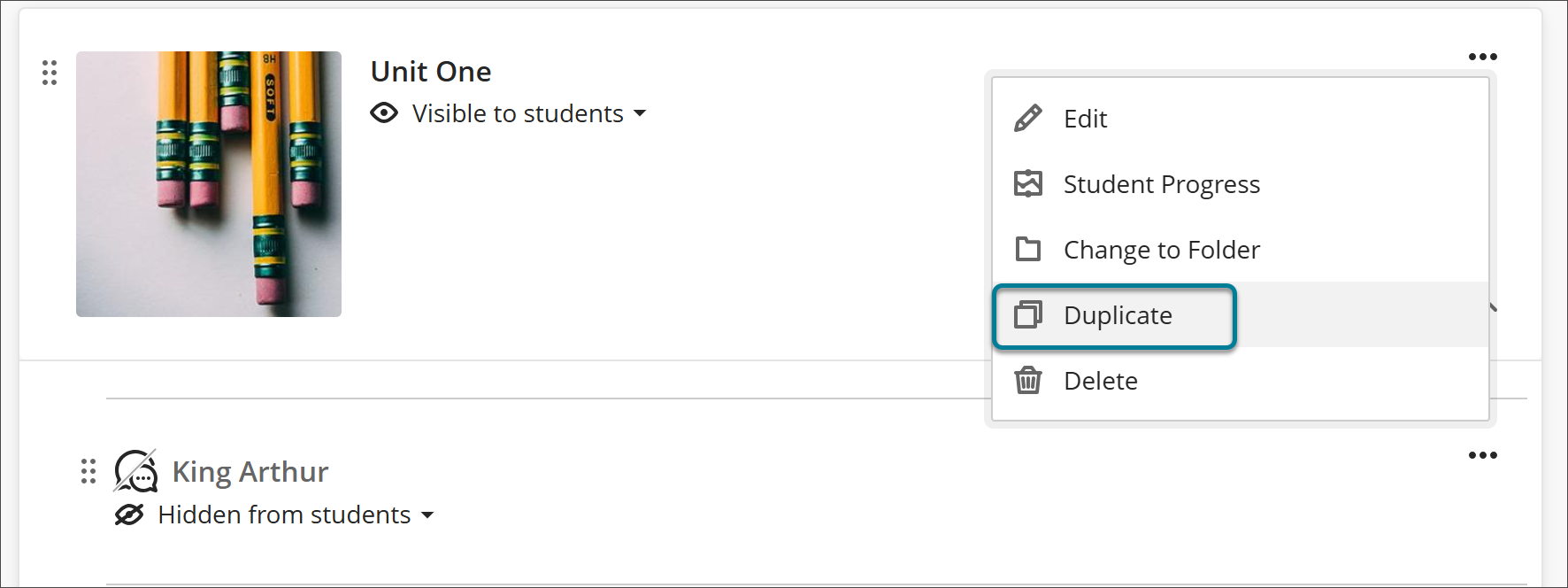
複製は元の下に表示されます。項目名には「コピー」が追加され、デフォルトではそのコピーは学生には表示されません。
複製したら、コピーに新しい名前を付け、必要な編集を行った上で、学生に公開してください。
注記
LTIアイテムはコピーに対応していません。複製オプションがLTIアイテムのその他のオプションメニューに表示されません。