学生の成績を表示する
Note
このドキュメントは、AIを活用した機械翻訳によって翻訳されました。翻訳内容は「現状のまま」提供されており、その正確性については一切保証いたしません。このコンテンツの英語版が公式かつ権威ある情報源となります。
グリッド表示では、登録されているすべての学生が各行に表示され、総合成績と各項目の成績が各列に表示されるため、クラス全体の成績を一目で把握することができます。
グリッドの読み方
項目別列: 採点対象となる各項目について、学生の成績を表示します。項目ごとに1列ずつ表示されます。
名前列、ID列、総合評定列、または任意の項目列にある並べ替え矢印を選択して、昇順または降順で並べ替えます。名前の表示順序(名 姓 または 姓 名)および学生ID列を表示するかどうかは、「成績表の設定」で設定します。
紫色のバナーアイコンは、その学生に配慮措置が適用されていることを示しています。
![成績表のグリッドビューにある[学生]グリッドセクション](../../image/img-9c0044fca07c5cca9ad67940a351fd11.png)
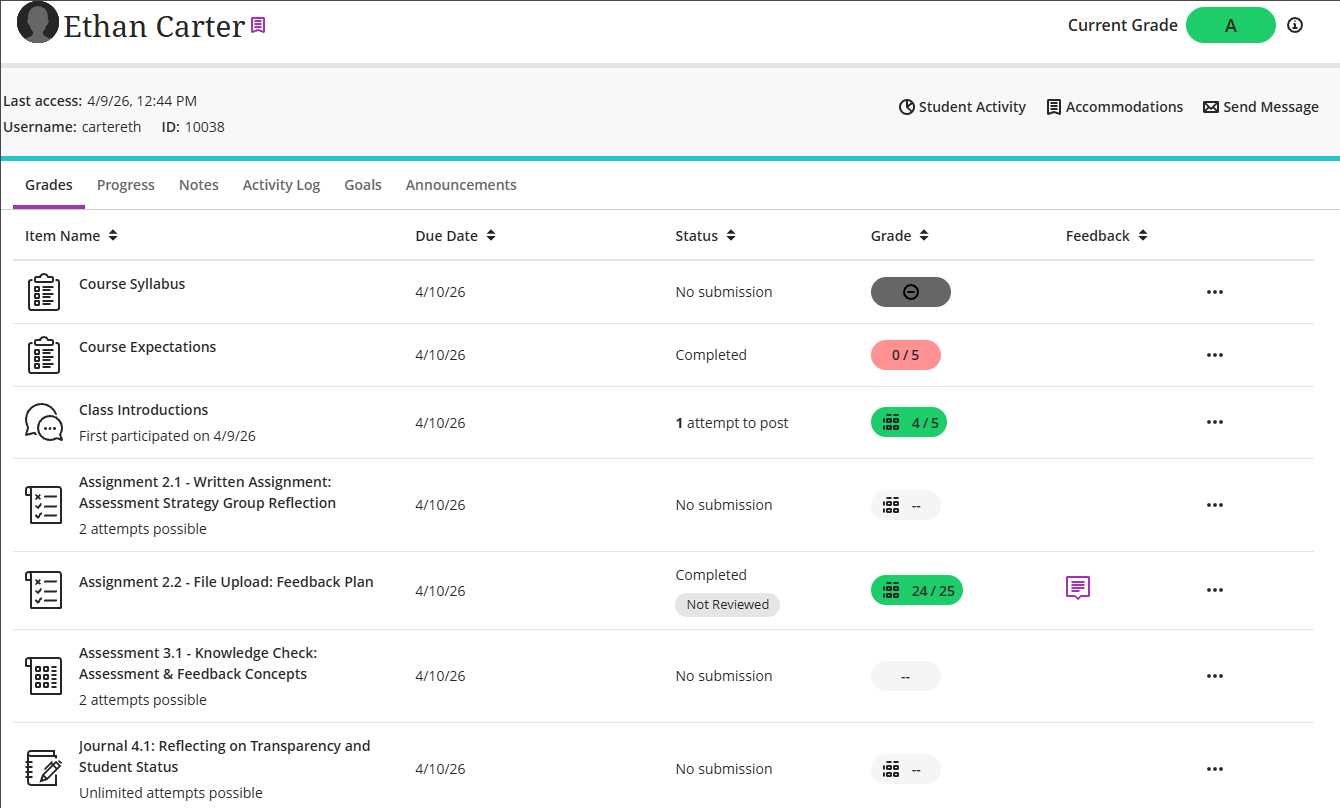
生徒の詳細を表示します
生徒の名前を選択すると、その生徒の詳細が表示されます。ここから、次の操作を実行できます:
その学生が最後にコースにアクセスした日付を特定します。
総合成績を確認してください。
その学生に直接メッセージを送信します。
「配慮措置」セクションに記載されている、学生の配慮措置を追加または管理します。
特別措置を受けている学生には、名前の右側にフラグが表示されます。匿名採点(学生の名前を非表示にして採点する場合)を使用すると、配慮措置、例外、および免除の表示も非表示になります。