新しいコンテンツエディタ (ベータ版)
Note
このドキュメントは、AIを活用した機械翻訳によって翻訳されました。翻訳内容は「現状のまま」提供されており、その正確性については一切保証いたしません。このコンテンツの英語版が公式かつ権威ある情報源となります。
所属機関がBlackboardドキュメントの新しいコンテンツエディタの早期アクセスプログラムに参加している場合、ドキュメントを作成するときや既存のドキュメントにコンテンツブロックを追加する際に、ベータ版のコンテンツエディタを使用できます。新しいエディタは、従来のエディタとほぼ同じように機能します。テキストの追加や書式設定、ファイルの添付、メディア、リンク、表の挿入などが可能です。
ベータ版のコンテンツエディタでは、従来のコンテンツエディタのすべての機能がまだサポートされていません。機能ごとの比較については、コンテンツエディターの比較表を参照してください。
ベータ版コンテンツエディタにアクセスする
新しいドキュメントを作成します:
「コースコンテンツ」ページで、プラス記号を選択して新しいコンテンツを作成し、[作成]を選択します。
表示されるパネルで、文書を選択してください。
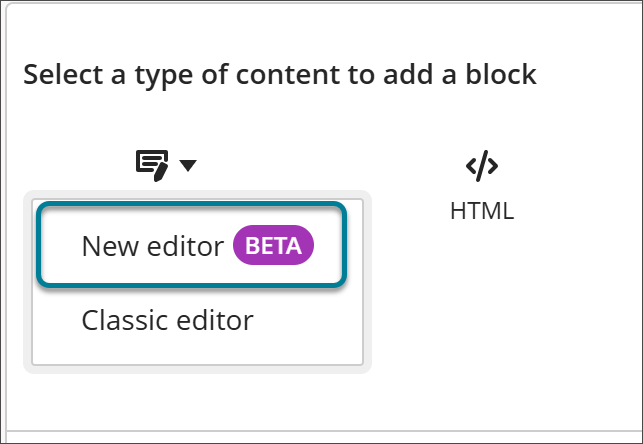
コンテンツ を選択し、新しいエディタ(ベータ版) を選択してください。
既存のドキュメントにコンテンツブロックを追加する:
コースコンテンツページで、 ドキュメントの その他のオプション (...) メニューから 編集 を選択します。
プラス記号を選択して、コンテンツブロックを追加します。
コンテンツ を選択し、新しいエディタ(ベータ版) を選択してください。
既存のコンテンツをベータ版のコンテンツエディタに変換する
従来のコンテンツエディタで作成されたコンテンツを、ベータ版のコンテンツエディタに変換できます。
従来のコンテンツエディタで作成されたコンテンツブロックを含むドキュメントを開きます。
エディタの下にある「新しいエディタを試す」リンクを選択してください。

コンテンツは、従来のコンテンツエディタからベータ版のコンテンツエディタに変換されます。コンテンツにベータ版のコンテンツエディタでサポートされていない機能が含まれている場合、変換の際にそれらの機能は削除されます。変更を保存すると、変換を元に戻すことはできなくなることを説明するポップアップウィンドウが表示されます。
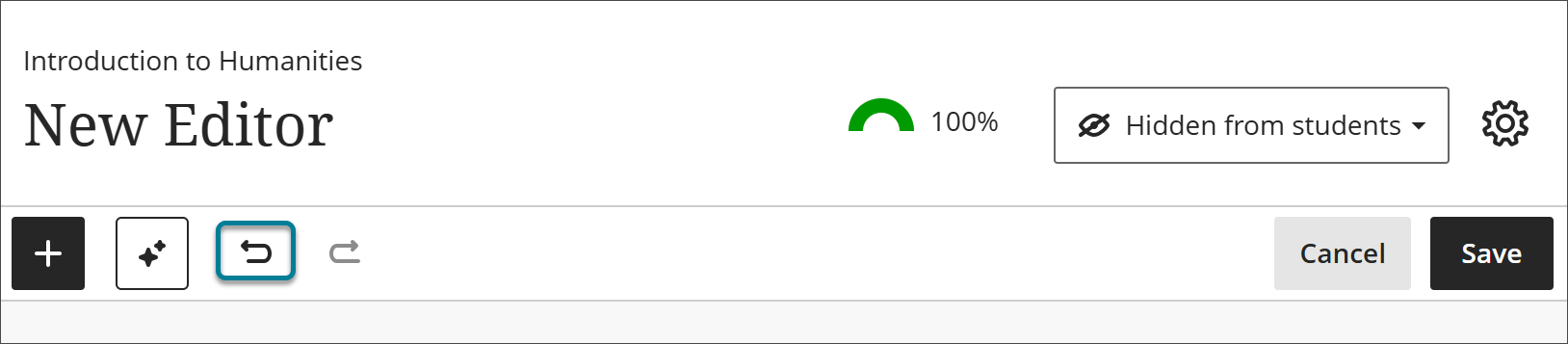
コンテンツを注意深く確認し、すべてが欠けるところなく残っていること、およびその変更内容を保持したいかどうかを確認してください。コンテンツが失われてしまい、その結果に満足できない場合は、ドキュメントレベルの 元に戻す ボタン(コンテンツエディタ上の 元に戻す ボタンではありません)を使用して、変換を元に戻すことができます。
初めてのユーザーエクスペリエンス
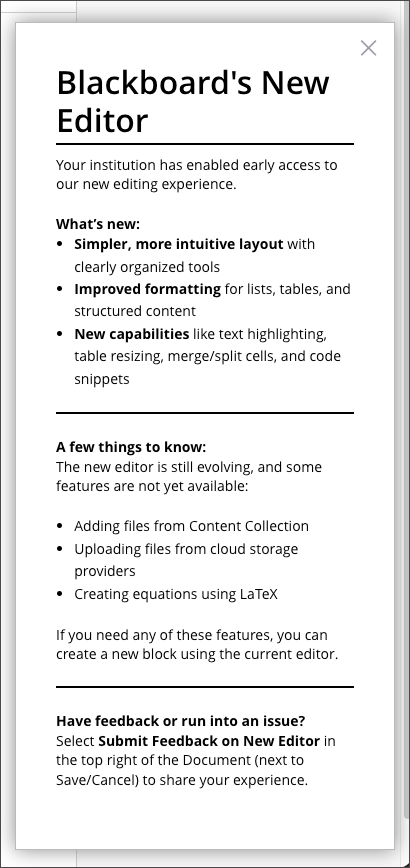
ベータ版のコンテンツエディタを初めて起動すると、エディタでの変更点の一部を紹介し、フィードバックの送信方法を説明するポップアップウィンドウが表示されます。
ベータ版コンテンツエディターの新機能
ツールバーとメニュー構成の更新
「編集」、「書式」、および「挿入」メニューには、エディタのすべてのオプションがテキスト形式で整理されて表示されます。これにより、特にモバイル端末では、必要なオプションを簡単に見つけることができます。
編集:元に戻す、やり直し、書式のクリア
書式:テキストスタイル、フォントの特性、段落スタイル、コード、および表
挿入:コンテンツエディタに挿入できるすべてのもの
アイコンベースのツールバーには、最もよく使われる編集、書式設定、および挿入のオプションが表示されます。
インラインツールバーには、選択した項目に関連するオプションが表示されます。たとえば、テーブルを選択すると、テーブルのオプションにすばやくアクセスできるようになります。表、ファイルのアップロード、画像、オーディオ、動画には、インラインツールバーが表示されます。
キーボード操作
キーボードを使って、メニューバー、ツールバー、インラインツールバーにアクセスできます。
領域
Windows OS
Mac OS
メニューバー
Alt + F10
Fn + Opt + F10
ツールバー
Alt + F11
Fn + Opt + F11
インラインツールバー
Alt + F9
Fn + Opt + F9
ツールバーの キーボードショートカット ボタンをクリックすると、メニューバー、ツールバー、インラインツールバー、エディタ間の移動や、キーボードを使った画像のサイズ変更などに関する一元的なリファレンスが表示されます。
編集メニューおよび挿入メニューでは、よく使われる操作の横にキーボードショートカットが表示されます。
テーブル機能の強化
行と列の選択機能とヘッダーオプションを組み合わせた、効率的なワークフローでテーブルを作成します。
Tabキーを押すと、表のセル間を素早く移動できます。
セル単位の書式設定を適用するには、1 つ以上のセルを選択します。
テーブルの編集では、「元に戻す」と「やり直し」が完全にサポートされています。
表のセルに、コードスニペットやコードブロックを直接挿入できます。
セルを結合または分割して、より複雑なレイアウトを作成し、表の内容を整理しましょう。
コンテンツに合わせて列の幅を調整し、読みやすさを向上させましょう。
コンテンツ領域よりも幅の広い表には、水平スクロールバーが表示されます。
リスト機能の改善
ネストされたリストでは、インデントを控えめにし、階層の深さに応じて箇条書きのスタイルを変えることで、リストの階層構造がよりわかりやすくなります。
番号付きリストでは、コンテンツを編集しても番号の順序が正しく保たれます。
同じリスト内で、番号付きリストと箇条書きリストの項目を混在させる。各レベルで使用する箇条書き記号または番号のスタイルを選択します。
ソフトリターン(WindowsではShift + Enter、MacではShift + Return)は既存のリスト項目を維持しますが、ハードリターンは新しいリスト項目を開始します。
ネストのレベルに制限はなく、深くネストされたリストには水平方向のスクロールバーが表示されます。
リンク機能の拡張
Ctrl + K(Windows)または Cmd + K(Mac)を押して、リンクのダイアログを開きます。
テキストを選択し、コンテンツエディタにURLを貼り付けると、選択したテキストがクリック可能なリンクになります。
単独の URL を入力または貼り付けると、自動的にクリック可能なリンクに変換されます。
注記
ベストプラクティス:WCAGに準拠したコンテンツを作成する際は、リンクには生のURLではなく、説明的なテキストを使用してください。リンクダイアログ(リンクアイコンを選択するか、Ctrl+K/Cmd+K を押す)を使用して、説明的なリンクテキストを追加します。
書式設定オプションの改善
コードのドキュメント作成において柔軟性を高めるため、完全なコードブロックに加えて、インラインのコードスニペットも活用しましょう。
画像を最小100ピクセルになるように縮小してください。
コンテンツエディタで画像のサイズを直接変更できます。
ツールバーの インデントを増やす オプション、または 書式 メニューを使用して段落をインデントします。カーソルの位置に応じて、段落の最初の行だけ、あるいは段落全体をインデントすることができます。
ベータ版のコンテンツ エディタに関するフィードバックを送信する
エディタに関するご意見・ご感想は、Blackboard に直接お送りいただけます。
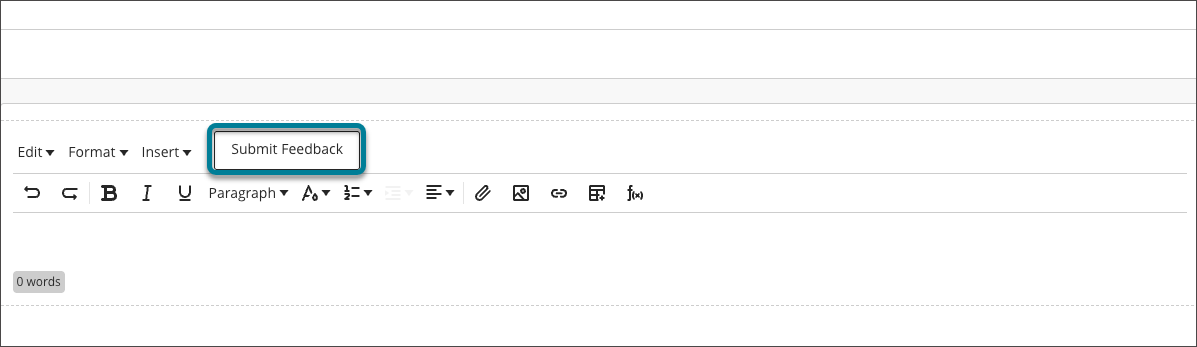
Insert メニューの隣にある Submit Feedback ボタンを選択して、 フィードバックフォームを開きます。このフォームは、送信時に申請手続きのどの段階にあるかに関する情報を自動的に収集します。
ご意見・ご感想をご記入ください。
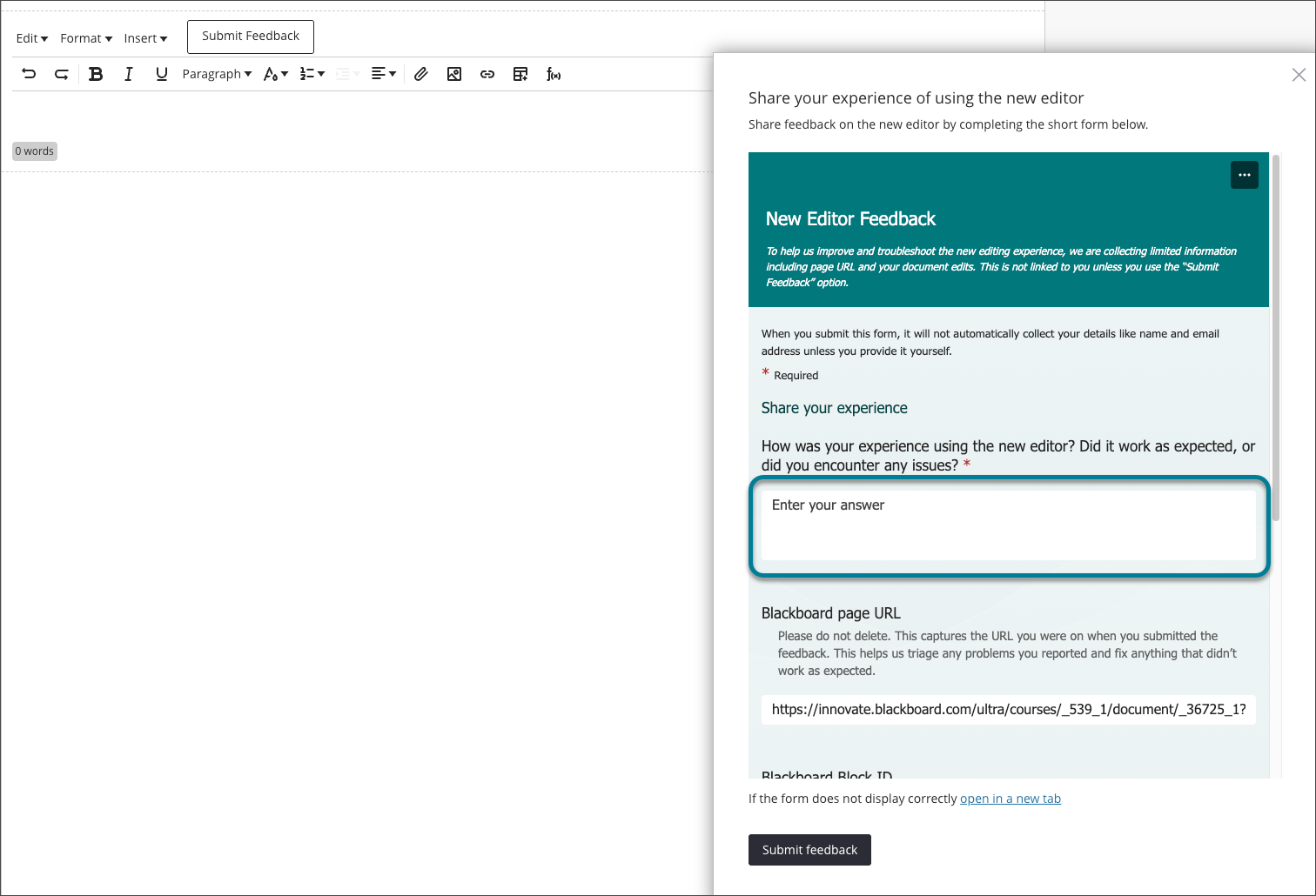
フォーム上の[フィードバックを送信]ボタンを選択してください。