数式エディタ
Note
このドキュメントは、AIを活用した機械翻訳によって翻訳されました。翻訳内容は「現状のまま」提供されており、その正確性については一切保証いたしません。このコンテンツの英語版が公式かつ権威ある情報源となります。
数式エディタを使用して、テスト、課題、掲示板、日誌に方程式や数式を挿入できます。オプションとして数式エディタがあるリッチテキストエディタには、LaTeX数式を入力することもできます。数式エディタは、スマートフォンやタブレットなど、ブラウザやオペレーティングシステムを問わず実行できます。MathJaxは有効にすると、コンテンツエディタに入力したLaTeXコードをBlackboardがサポートされている領域全体にレンダリングします。MathJaxがアクティブになっていない場合、Wirisは数式をレンダリングします。
The math editor and typing LaTeX code are two different ways to add math formulas in the rich text editor. The math editor is a visual, point-and-click tool that lets you build a formula without writing any code. When activated, MathJax renders LaTeX code that you type as plain text into the rich text editor across supported areas of Blackboard LMS. Both methods render using MathJax, so you can choose whichever fits your workflow, such as pasting LaTeX code copied directly from an exam bank, textbook, or other source material. If MathJax is not activated, Wiris will render formulas.
数式はPNG画像形式でレンダリングされるため、テキストよりもファイルサイズが大きくなります。数式は、画像が表示されるまでに数秒かかる場合があります。
インターネット接続速度とコンテンツのサイズは読み込み時間に影響します。学生によっては、多くの数式画像を含むコンテンツにアクセスするのが難しい場合があります。
数式の画像サイズを縮小し、読み込み時間を短縮するための推奨事項は次のとおりです。
各数式は、数式エディタまたはLaTeXのいずれかで個別に作成します。
数式エディタやLaTeXコード内に問題の説明や余分なテキストを含めないようにします。問題、指示、あるいはテキストによる説明などはリッチテキストエディタで記述し、数式エディタまたはLaTeXは数式の作成にのみ使用します。
たとえば、教員がテストの中に加速度の数学問題を作成するとします。コンテンツファイルのサイズを小さくするために、教員は問題の説明と変数値をプレーンテキストとしてリッチテキストエディタで直接記述します。次に、数式エディタを使用して加速度の公式を記述します。
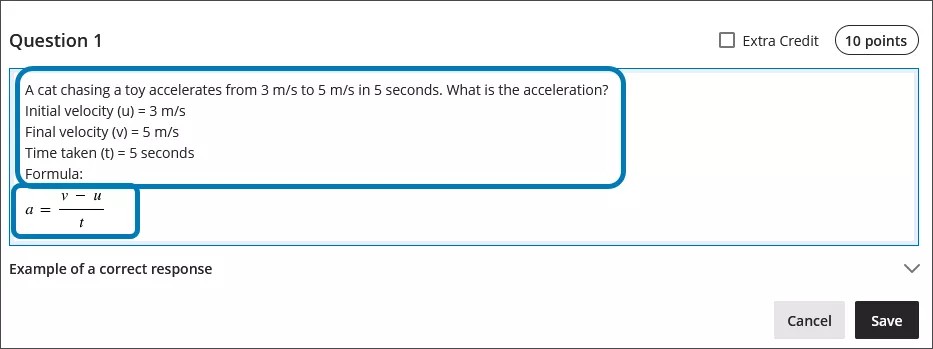
数式エディタの使用
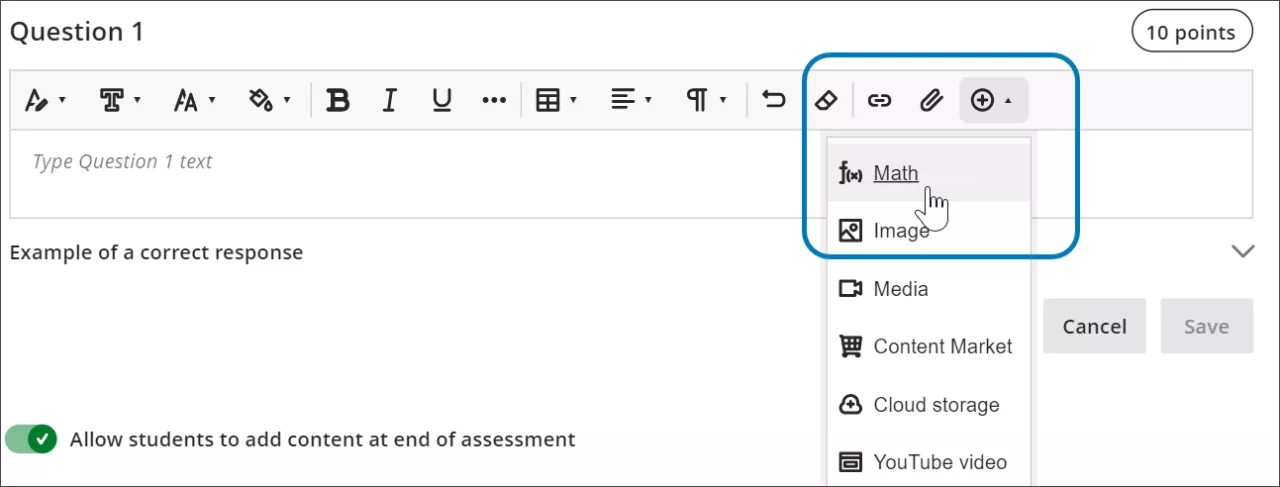
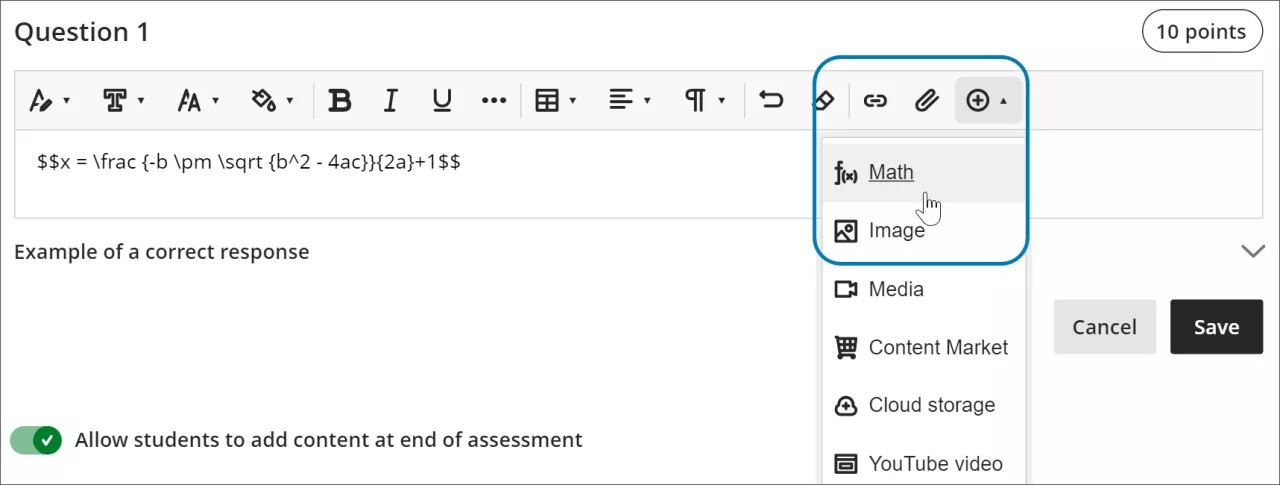
Access the math editor by selecting the + icon in the rich text editor. Select Math in the menu.
You can access many features in the math editor by selecting different tabs at the top.
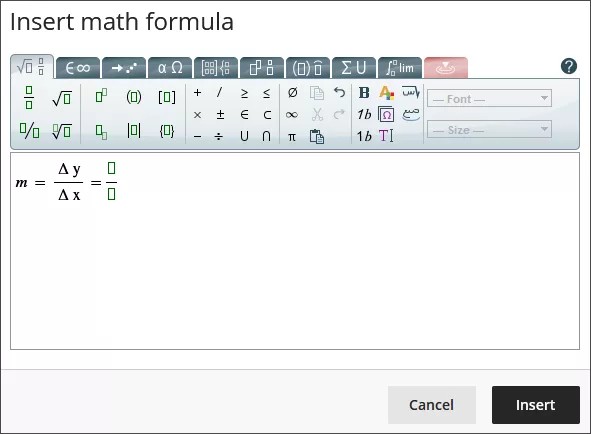
Use your keyboard to enter numbers, letters, and symbols. Select the appropriate icon in the math editor to create complex formulas, such as creating a square root.
If you are using an option that changes the level of the text for your formula, such as subscript or a fraction, use the arrow keys on your keyboard to return to the default level. We recommend using the keyboard to navigate within a formula.
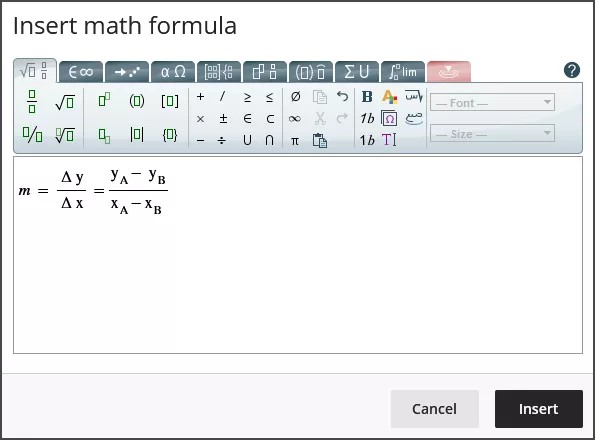
Some of the options for the building formulas in the math editor include:
基本演算 : 加算、減算、乗算、除算、平方根、指数、分数
ギリシャ語のアルファベット : アルファ、ベータ、ガンマ、その他 •
行列解析
積分、導関数、極限
三角関数 : サイン (sin)、コサイン (cos)、タンジェント (tan)
フォントのスタイルとサイズ
WIRISのWebサイトで、数式エディタのすべての機能に関する詳細情報を確認できます。
リッチテキストエディタでのLaTeXの使用
LaTeXは、プレーンテキストで記述されたコーディング規則に基づいて数式の画像を作成するために使用できるソフトウェアです。Learnのリッチテキストエディタは、LaTeXコーディングをレンダリングできます。
Enter a LaTeX formula by writing the specific code within delimiters in the rich text editor. MathJax supports the following delimiter options, depending on how you want the formula to display:
$$...$$or\[...\]for display equations, which appear centered on their own line, separated from the surrounding text. Display equations work well for complex expressions such as integrals, sums, and products.\(...\)for inline equations, which appear within a line of text alongside other content.
Using the delimiters that match your original source material makes it faster to copy LaTeX code from textbooks, exam banks, or other STEM materials into Blackboard LMS without needing to reformat the code.
Select Save to review how the formula displays as an image. You can go back into the rich text editor to edit the formula until it displays correctly. Some activities, such as tests and assignments, don’t allow students to save in the rich text editor and preview the rendered LaTeX formula. Students will have to check their submission afterwards to make sure that their formula rendered correctly.
太字にしたりフォントサイズを変更したりするなど、数式の外観の変更はリッチテキストエディタではできません。数式のフォントスタイルやサイズを変更するには、リッチテキストエディタで数式内の任意の場所を選択してから数式エディタを選択します。数式エディタで行ったすべての変更は、ユーザが保存してLaTeXコードに追加すると適用されます。
select anywhere within the formula in the rich text editor.
select the math editor
All changes made in the math editor are applied when you save and added to the LaTeX code.
Example of a formula formatted in LaTeX
注記
This example uses $$ delimiters for a display equation. You can also use \[...\] for a display equation or \(...\) for an inline equation instead, depending on how you want the formula to appear in your content.
二次方程式の解の公式はLaTeXで書式設定できます。
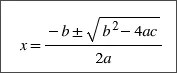
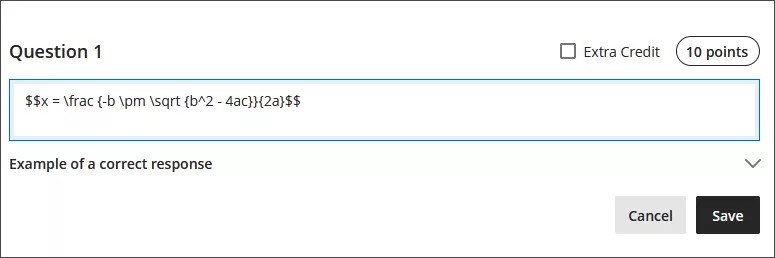
Enter $$ in the rich text editor.
$$
Next, enter the LaTeX code for the formula:
$$x = \frac {-b \pm \sqrt {b^2 - 4ac}}{2a}
Close your formula by entering $$ at the end.
$$x = \frac {-b \pm \sqrt {b^2 - 4ac}}{2a}$$
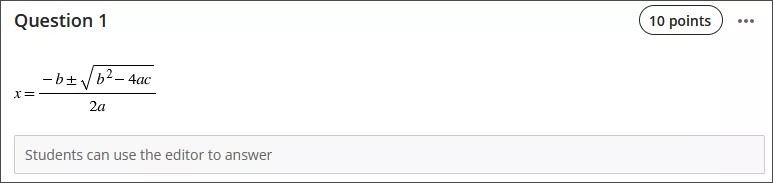
Select Save in the rich text editor. The math formula renders as a PNG image. Rendering the image may take a few seconds, depending on your internet connection and content size.
Select Edit in the rich text editor to go back to your LaTeX code.
![ドロップダウンに [編集] ボタンを示す問題の省略記号メニューの画像](../../../image/img-90602e3ed77138279290b87abd658e17.jpg)
Edit your formula to overwrite your LaTeX code as plain text inside the rich text editor. For example, add a +1 to the end of the quadratic formula.
$$x = \frac {-b \pm \sqrt {b^2 - 4ac}}{2a}+1$$
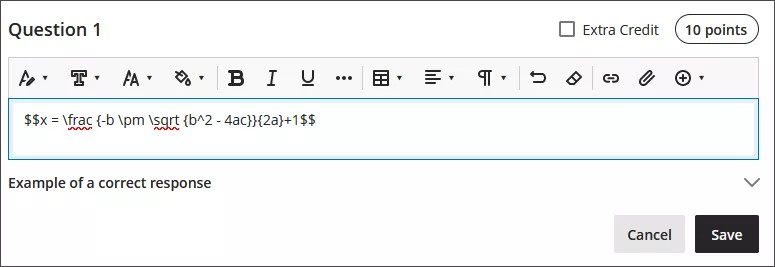
Select Save to render the formula as a new image.
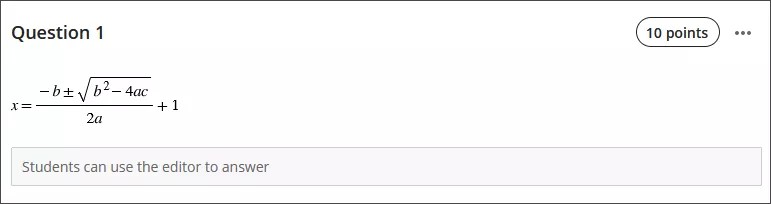
You can make further adjustments to the style of the formula. In the rich text editor, select anything inside the LaTeX code.
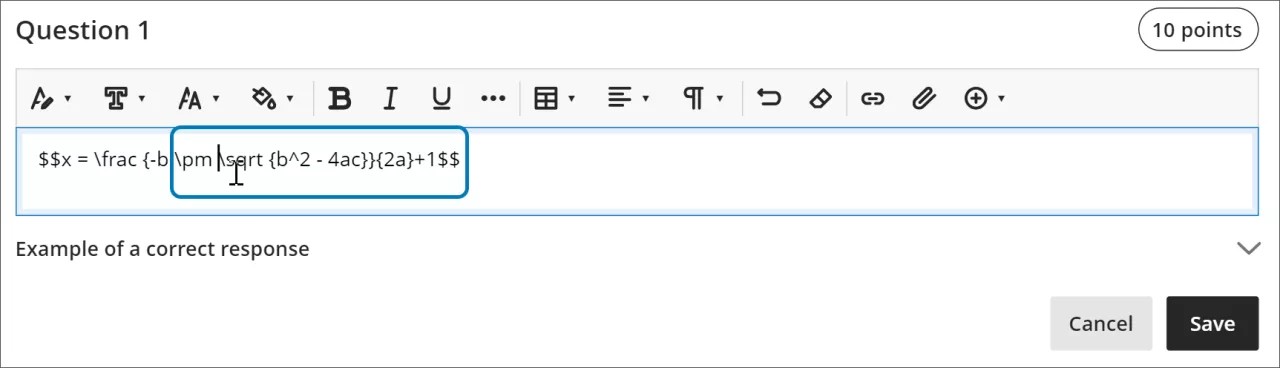
Open the math editor.
Apply the styles you want to the formula. For example, you can bold part of the formula and change the font size.
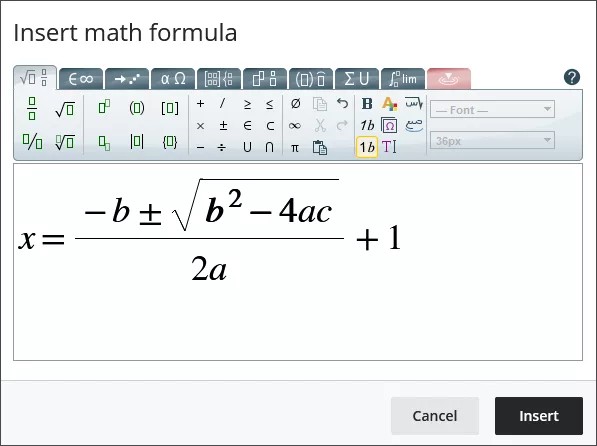
Select Save in the math editor. The LaTeX code for the quadratic formula with your style adjustments is now:
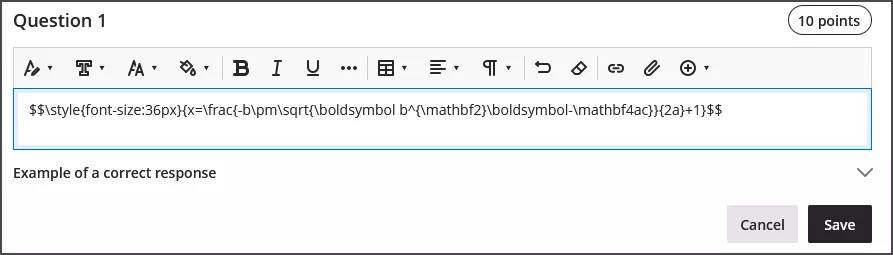
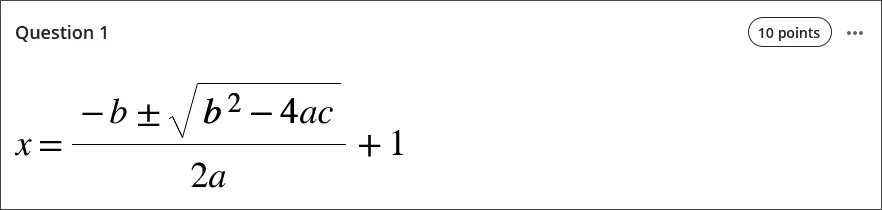
$$\style{font-size:36px}{x=\frac{-b\pm\sqrt{\boldsymbol b^{\mathbf2}\boldsymbol-\mathbf4ac}}{2a}+1}$$
Select Save in the rich text editor to render your adjusted formula as an image.
アクセシビリティ機能
数式の画像は高品質であるため、ズームインしても画像は鮮明です。支援が必要な学生のためにフォントサイズを変更することもできます。フォントサイズを大きくすると、小さい数字や記号を含む数式の詳細を確認できます。
数式を作成するときと画像としてレンダリングするときにはスクリーンリーダーを利用できます。
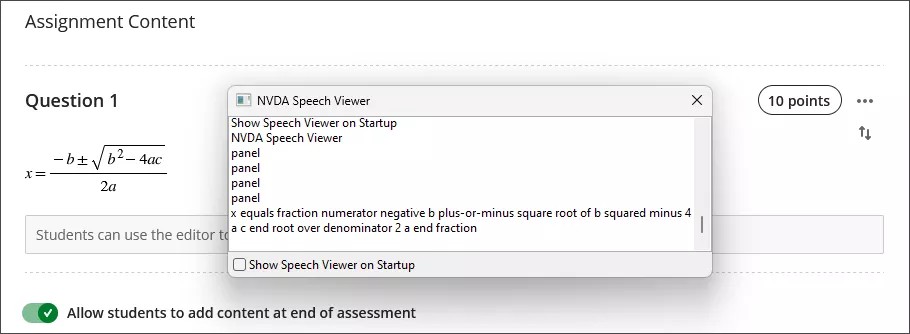
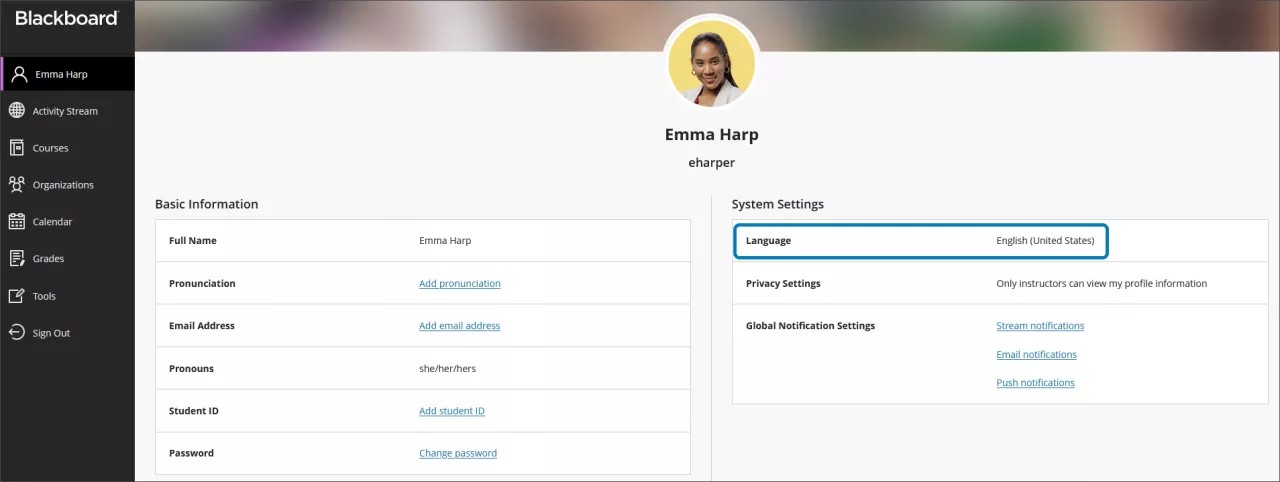
数式の代替テキストは、Learnのプロフィールの言語設定に基づいて自動的に生成されます。スクリーンリーダーの言語、速度、音声などは、ローカルデバイスの設定に従います。スクリーンリーダーと代替テキストを快適に使用できるよう、Learnの言語設定はローカルデバイスの設定と必ず一致させておいてください。
注記
言語が数式エディタまたはリッチテキストでサポートされていない場合、数式は英語で読み上げられます。