成績表の成績タブ
Note
このドキュメントは、AIを活用した機械翻訳によって翻訳されました。翻訳内容は「現状のまま」提供されており、その正確性については一切保証いたしません。このコンテンツの英語版が公式かつ権威ある情報源となります。
成績表の成績タブについて
成績ビューには、特定の課題に対する各学生の成績が、1行につき1名、1列につき1つの採点可能項目で表示されます。矢印ボタンを使用して、列を昇順または降順に並べ替えます。
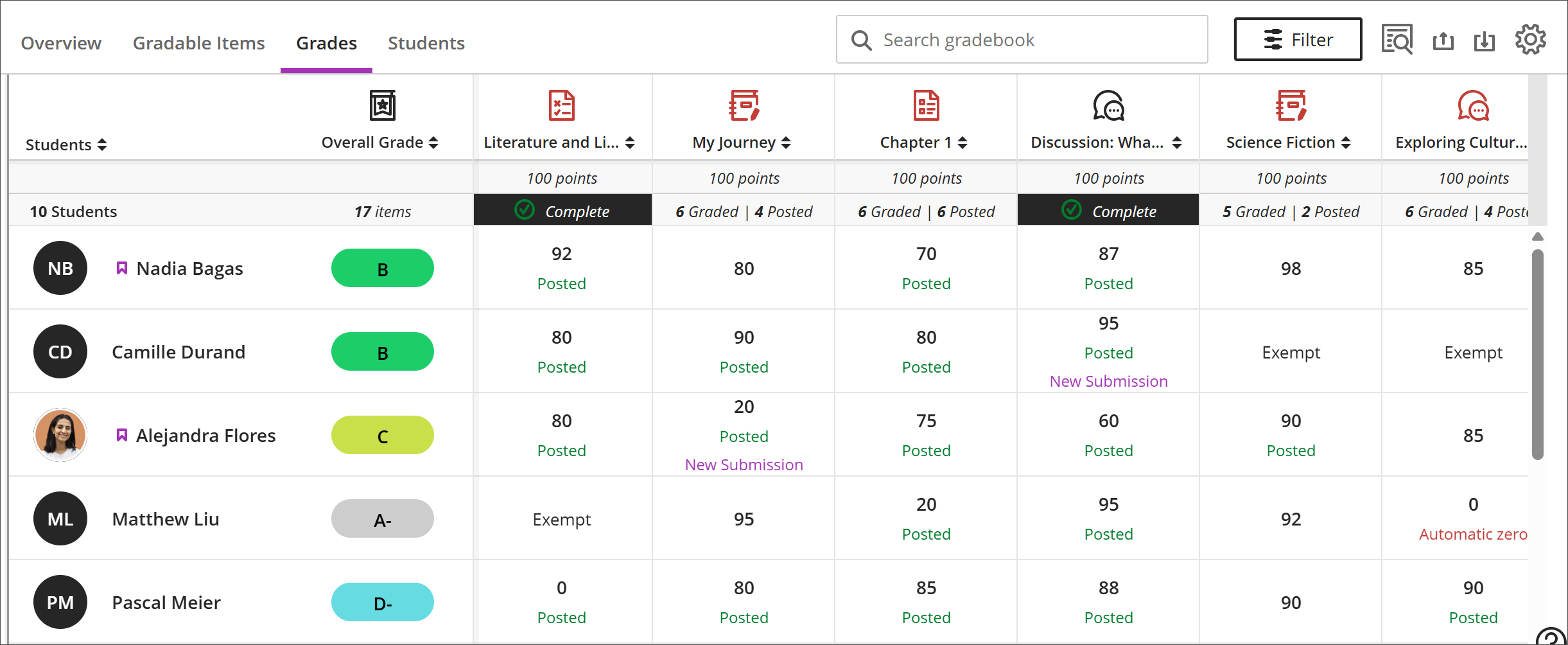
グリッドで学生の採点可能な項目を選択して、次のオプションを含むメニューを開くことができます。
表示 - 課題の提出に直接移動し、採点を開始します。
フィードバック - 上書きされたテスト/課題の成績と自動ゼロのフィードバックを入力します。
投稿 — 割り当てられているがまだ投稿されていない成績を投稿します。
例外を追加または編集 — 課題に時間制限がある場合や期日がある場合は、ここで除外を追加したり、複数の答案を許可したりできます。
除外を追加または編集 — 学生の総合評価のカウントから課題を削除できます。
学生のグリッドには、色分けされたテキストが含まれています。
緑 — 投稿済みの成績
赤 - 自動ゼロ
パープル — 新規提出物
グレードブックのアクション
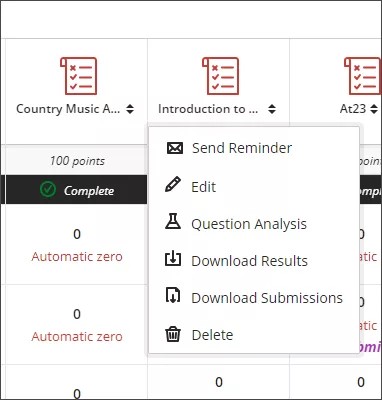
成績ビューの上部で採点可能項目を選択すると、アイテムを編集、削除、またはリマインダーを送信するオプションが表示されるメニューが開きます。追加のオプションとして、質問分析、結果のダウンロード、統計、および提出物のダウンロードが、採点可能項目の種類や学生が提出を行ったかどうかに基づいて利用可能です。
成績表の並べ替えと絞り込み
より効率的な採点を行うために、成績ビューを次のようにカスタマイズできます。
各採点可能項目の列にある並べ替えオプションを使用して、情報を昇順または降順で表示できます。
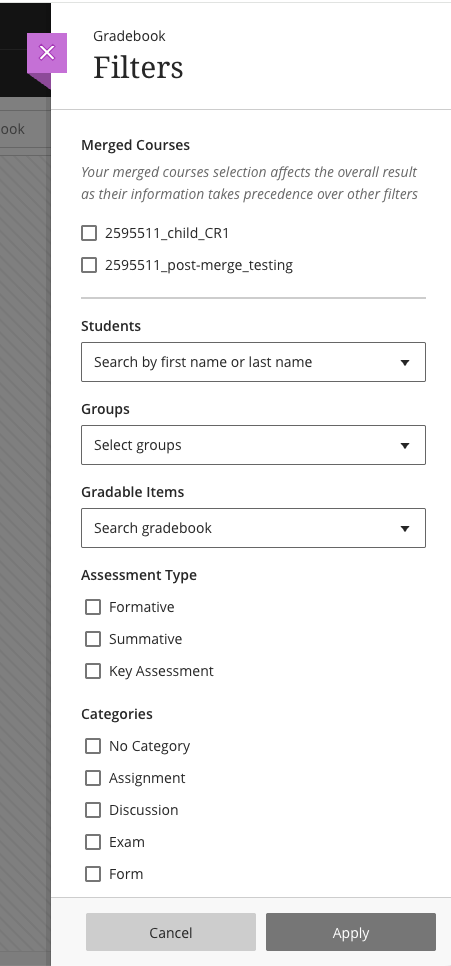
フィルターボタンをご利用いただくと、グリッドに表示される情報を、必要な内容(学生、グループ、採点対象項目、評価タイプ、またはカテゴリ)に絞り込むことが可能です。
コースのマージフィルター
コースがマージされた場合、成績管理は自動的に各子コースのチェックボックスを含むマージされたコースフィルタを作成します。このフィルタはフィルタパネルの一番上、学生、グループ、その他のフィルタオプションの上に表示されます。
注記
マージされたコースのフィルタは、適用した他のフィルタよりも優先されるため、マージされたコースの選択は全体の結果に影響します。
成績タブでフィルタを選択します。
結合されたコース セクションを探します。マージされたコース内の各子コースはチェックボックスオプションとして表示されます。
1つまたは複数の子コースを選択して絞り込みます。
[適用]を選択します。
成績表は、選択した子コースまたはコースに関連する学生と評点のみが表示されるように更新されます。
フィルタを削除するには、フィルタパネルを開いて子コースの選択を解除するか、すべてクリアを選択します。