成績表の[採点可能な項目]タブ
Note
このドキュメントは、AIを活用した機械翻訳によって翻訳されました。翻訳内容は「現状のまま」提供されており、その正確性については一切保証いたしません。このコンテンツの英語版が公式かつ権威ある情報源となります。
[採点可能項目]ビューには、コース内のすべての採点可能項目が表示されます。期限日、採点ステータス、および項目カテゴリを表示できます。また、成績を投稿したり、コースの総合評価計算を調整したりすることもできます。
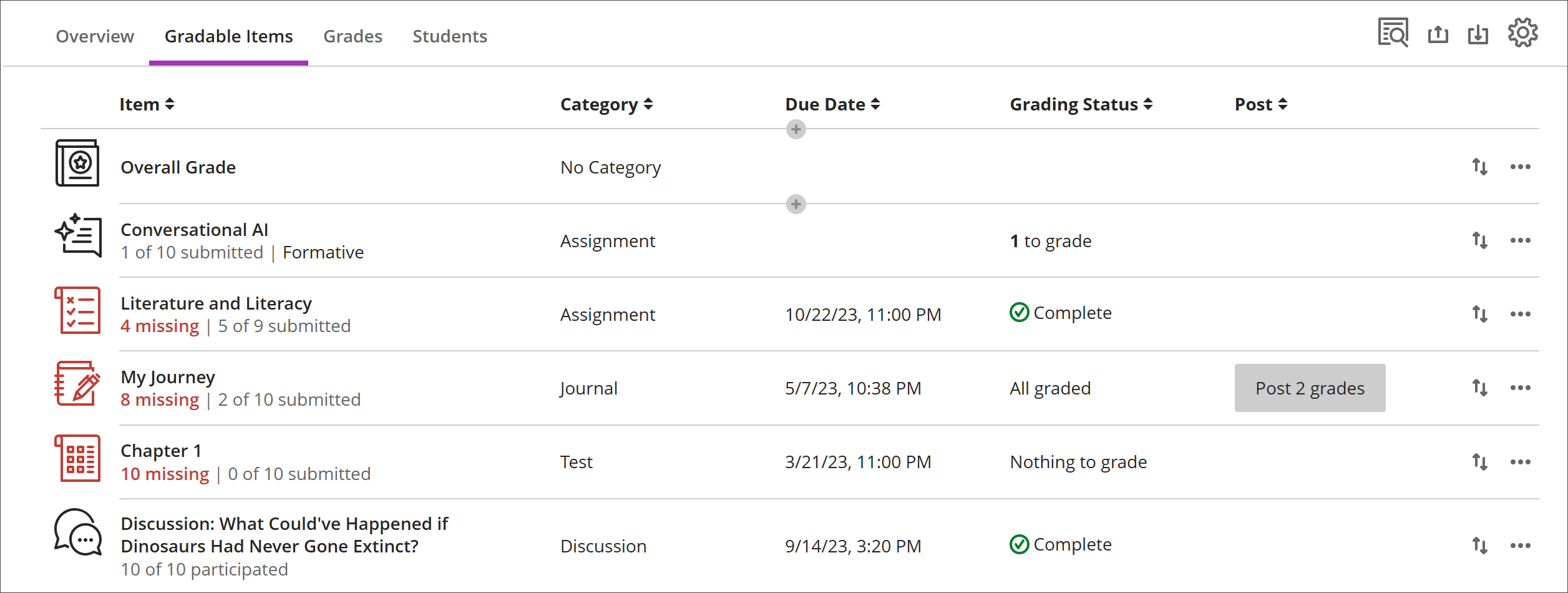
期限日を過ぎても提出されていない項目は赤で表示されます。
移動ボタンを使用して、アイテムを新しい順番にドラッグアンドドロップします。
アイテムの名前を選択して、その提出物または成績と参加ページに移動します。
Xを選択して採点するをクリックすると、評価の提出物ページに直接移動し、採点を開始できます。
カスタムのテキストベースの列
カスタムのテキストベースの列を作成するには、(+)追加を選択し、次にテキストアイテムを追加」を選択して、タグを挿入します。各列には、列名と説明を入力でき、列の学生への表示可否を制御できます。行には、最大32文字まで入力できます。
成績表の[採点可能項目]タブの操作
「採点対象項目」タブでは、キーボードやスクリーンリーダーでの操作性を高めるため、表形式のレイアウトを採用しています。
キーボードによる採点可能項目の操作
Tabキーを押して成績表に移動します。
矢印キーを使って[採点対象項目]タブに移動してください。
「Tab」キーを押し続け、採点対象項目テーブルが表示されるまで進みます。
矢印キーを使用して表を操作します。
Tabキーを押すと、表から抜け出し、Blackboard ヘルプボタンに移動します。[Shift]+[Tab]キーで[設定]ボタンに戻ります。
スクリーンリーダーでの採点可能項目の操作
スクリーンリーダーをご利用の方は、キーボード操作の手順に従って「採点対象の項目」タブに移動できます。また、スクリーンリーダー専用のキーボードの組み合わせを使用して、直接表に移動することもできます。
JAWS: Insert キー + Ctrl キー + T キーを押します
NVDA: Tキーを押した後、Ctrlキーと下矢印キーを同時に押して表に移動します。
VoiceOver: Ctrl + Option + 右矢印キーを押して、テーブルのオプションを選択します
テーブル内では、スクリーンリーダーのテーブルナビゲーション機能(Ctrl + Alt + 矢印キー)を使用して、テーブル内を移動できます。
コンテンツを追加する場合は、下矢印を使用して行の末尾にある その他のオプション (...) ボタンに移動します。その下の矢印の先には、[コンテンツを追加]ボタンが表示されます。
JAWSユーザへの注意
JAWSユーザは、表の操作キーを使用して、任意の行を左右に移動できます。
割り当て行を上下に移動するには、まず項目列に移動してください。