管理评分量规
Note
本文档采用 AI 辅助机器翻译。译文仅供参考,不保证准确性;此内容的英文版为官方权威版本。
Access the Course Rubrics page
The Course Rubrics page displays all rubrics in your course in a sortable, searchable table. From this page, you can create, generate, copy, edit, delete, import, and export rubrics.
You can access the Course Rubrics page in two ways:
From Gradebook Settings, select Manage Course Rubrics in the Course Rubrics section.
From Assignment Settings, select Add Rubric in the Grading & Submissions section.
复制评分量规
On the Course Rubrics page, select the ellipsis, then select Duplicate.
Edit the rubric as needed, including the titles.
Select Save.
将评分量规用于评分后,您不能对其进行编辑,但是您可以创建一个副本(可以编辑和重命名该副本)。
注意
注意:如果您复制现有的基于百分比的评分量规,并将其更改为百分比范围评分量规,则所有描述都将被清除。
如果您已使用某个评分量规对项目评分,则您也可以复制该评分量规并编辑复制的版本。从项目的设置面板,打开评分量规。选择屏幕底部的创建副本。当您创建用于对测试或作业评分的评分量规的副本时,新评分量规将与项目关联。使用原始评分量规计算的所有成绩都会保留,但是这些成绩会转换为覆盖成绩。您可以使用新评分量规对这些提交重新评分。
When you create a copy of a rubric you used to grade a test or assignment, the new rubric is associated with the item. Any grades calculated with the original rubric are preserved, but these grades are converted to overrides. You can regrade these submissions with the new rubric.
重要
您无法在小型设备上复制评分量规。
在课程之间复制评分量规
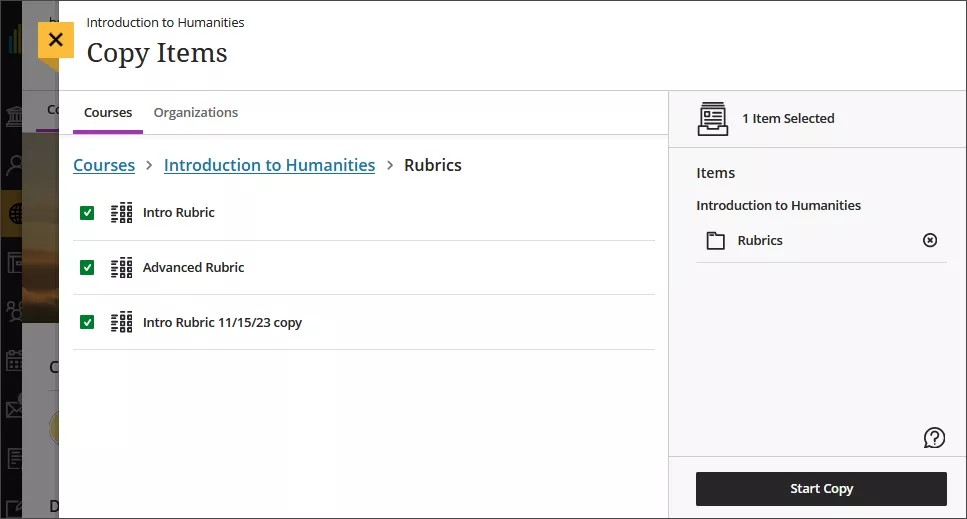
On the Course Content page, select the plus sign to open the menu and select Copy Content. Or, open the More options menu above the content list. Select Copy Items.
The Copy Items panel opens.
From the Copy Items panel, you can browse all the courses that you teach.
Select the Rubrics folder for the course you want to copy rubrics from and select the rubrics you’d like to copy.
When you’re done, select Start copy.
删除评分量规
您可以从课程中永久删除评分量规(即使已用其进行评分),成绩将会保留。成绩不再与评分量规关联,但现在显示为您手动添加的成绩。
To permanently delete a rubric, go to the Course Rubrics page. Select the ellipsis menu on the rubric, then select Delete.
Export a rubric
You can export a rubric from your course to reuse it in another course. The exported file is a zip file intended for importing into another course and is not a viewable document.
To export a rubric, select the ellipsis then select Export.
The rubric downloads automatically as a zip file named with the rubric name and course title. You can find it in your downloads folder.
Import a rubric
You can import a rubric that was previously exported from Blackboard LMS.
On the Course Rubrics page, select the import icon.
Select the zip file from your local. Only rubrics exported from Blackboard LMS can be imported.
After import, review your imported rubric,
The rubric imports automatically. If the same rubric already exists in the course, an error message appears to prevent duplicate rubrics from being created.