提交操作确认
Note
本文档采用 AI 辅助机器翻译。译文仅供参考,不保证准确性;此内容的英文版为官方权威版本。
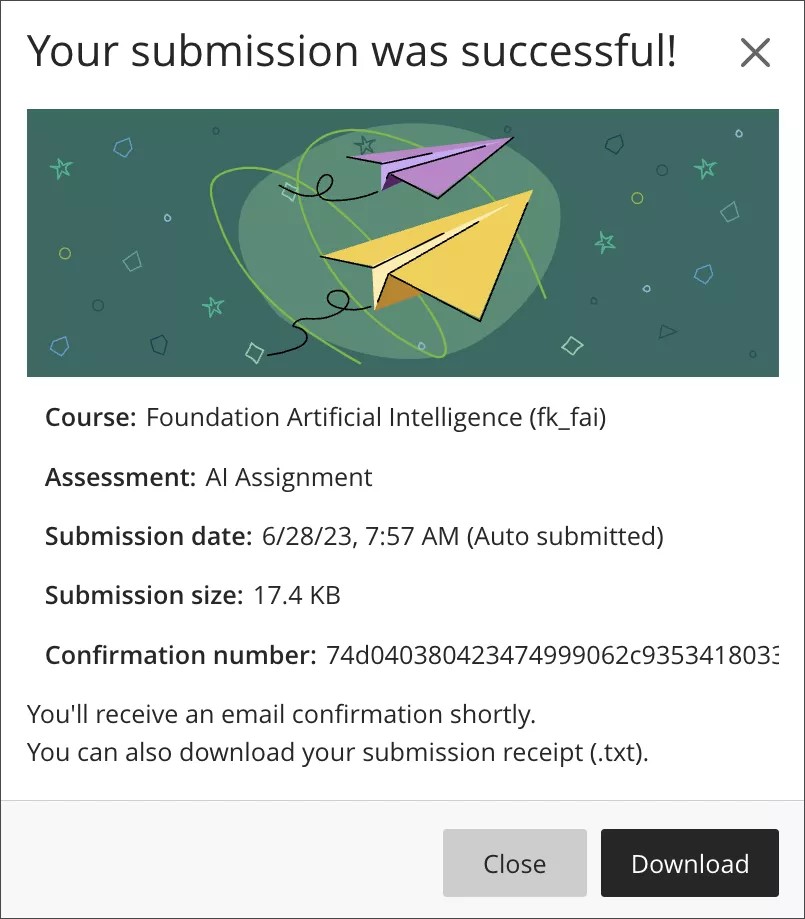
学生提交作业或测试时,将显示一个窗口,显示有提交确认编号。学生可以直接从窗口下载提交确认的副本。他们还会通过自动电子邮件确认收到提交确认的副本。鼓励学生保存提交确认以证实他们已提交作业。
您可以查找并查看学生每次尝试的提交确认编号。
提交确认会显示以下信息:
课程名称和 ID
评估名称
评估成绩
评估的尝试次数
提交评估的学生
提交内容中包含的任何文件的大小,让您了解学生附加的内容
提交日期和时间戳。如果评估提交延迟,在此处提示。
当 Blackboard LMS 自动提交评估作为定时评估的一部分或设置阻止逾期提交评估时会出现自动提交指示器
To find a submission with the receipt number, enter the receipt number in the gradebook search bar. A matching result appears in a dropdown. Select the result to open the grading page for the submission.
如果找到提交,请选择该提交以打开该提交的评分页面。确认编号还会显示在评分页面上。
如果未找到提交,则会看到消息“很抱歉!未找到该编号的提交操作确认。请检查操作确认编号,然后重试。”
Anonymous submissions
For anonymously graded assignments, submission receipt information is not displayed in the Grade Details panel before grades are posted. To locate an anonymous submission by receipt number, enter the receipt number in the gradebook search bar. A matching result appears in a dropdown. Select the result to open the Anonymous File Submission Receipt dialog, which shows the assessment name, receipt number, attempts, file size, and submitted date. Select Grade to open the submission in Flexible Grading.