成绩讨论
Note
本文档采用 AI 辅助机器翻译。译文仅供参考,不保证准确性;此内容的英文版为官方权威版本。
为了激励学生发布有见解的贡献内容,您可以将讨论纳入成绩评定范围。
开启评分以便进行讨论
当你启用讨论评分功能时,成绩册会自动生成一栏。
在讨论区中,选择设置图标以打开“讨论设置”面板。
在详情与信息部分,选择成绩讨论。
配置评分选项:
请先在“详情与信息”部分发帖:在学生回复讨论前隐藏讨论活动。如果你想先创建帖子和群组,请先选择创建,然后再分配群组。
参与截止日期:截止日期后隐藏讨论内容,以便学生无法再添加回复或编辑之前的帖子。时间限制的便利不适用于讨论。
评分方式:分数、百分比、完成/未完成或字母。指定尽可能高的分数。
添加评分标准(可选): 选择评分讨论后,您可以创建或添加已有评分标准,让学生查看评分作业的要求。评分标准可以帮助您根据您定义的关键标准评估学生的提交情况。您只能为每个讨论关联一个评分标准。
将目的与讨论对齐。您和您的机构可以使用目标来衡量学生在方案和课程中取得的成就。创建讨论时,您可以对齐一个或多个目标。选择与目的对齐以搜索可用目的。讨论可见后,学生可以查看目标,以便了解您的期望。
使用小组。您可以创建讨论小组以及对贡献评分。
完成后选择保存。你可以在开始评分之前编辑成绩设置。
当你准备与学生分享时,确保可见性设置为对学生可见。
对讨论评分
在已评分讨论中,成绩基于每位学生的总贡献,而不是每个单独的帖子。
在“讨论”页面上,转至“成绩与参与”标签。
选择学生姓名以打开其贡献页面。学生的回复和反馈将会在提交页面上突出显示。
注意
所有响应和回复都会计入讨论的参与者列表中。但是,只有到期日期之前提交的讨论贡献才会计入“成绩和参与”页面。
查看讨论分析,以深入了解每个学生的讨论参与、语句复杂度和批判性思维级别方面的详细信息。根据这些基于表现的数据观点,可以了解哪些人参与度低或可能需要帮助。您不应将讨论分析指标用作唯一的评分标准。讨论分析算法旨在告知您的决策,但不能取代阅读学生回复。有关更多详细信息,请转到查看讨论绩效和分析。
必须至少对一个讨论评分才能生成讨论分析。
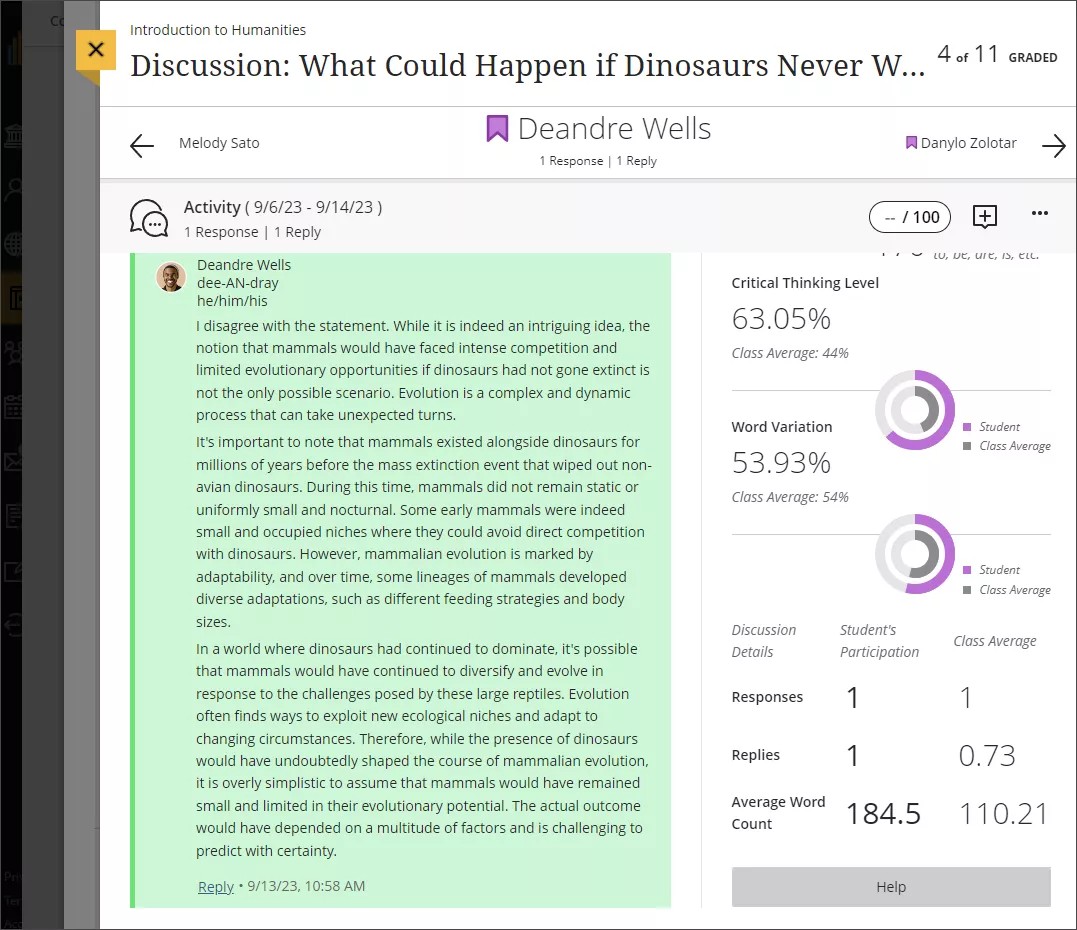
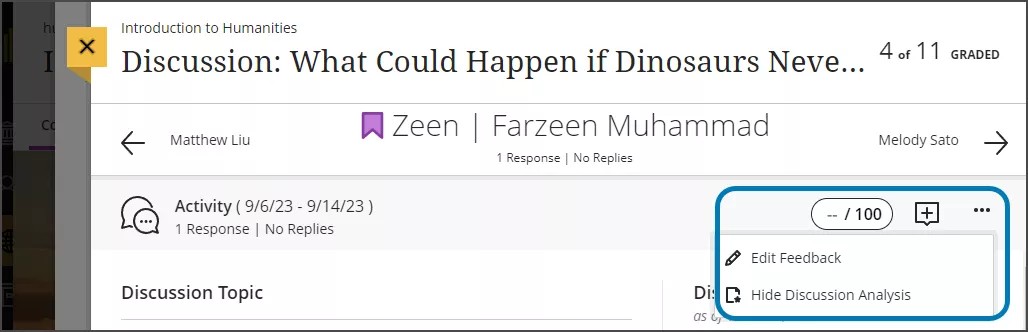
如果您不想查看讨论分析,请转至更多选项菜单,然后选择隐藏讨论分析。
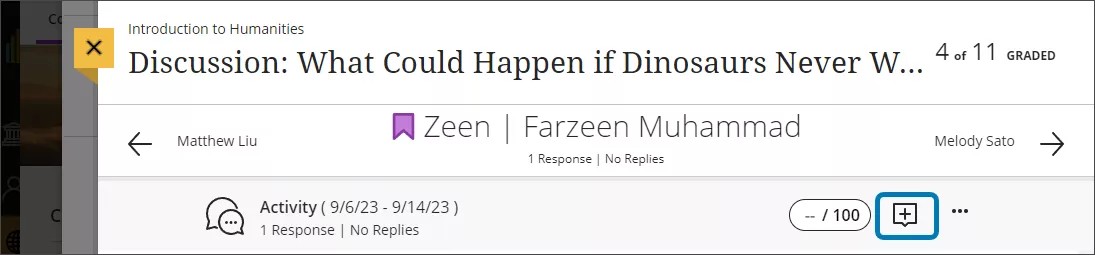
在页面的顶部键入该学生的成绩并为其提供的反馈。您可以添加位数不超过五位且包含两位小数的数值。选择成绩药丸旁边的反馈图标(显示为加号)可打开反馈面板。
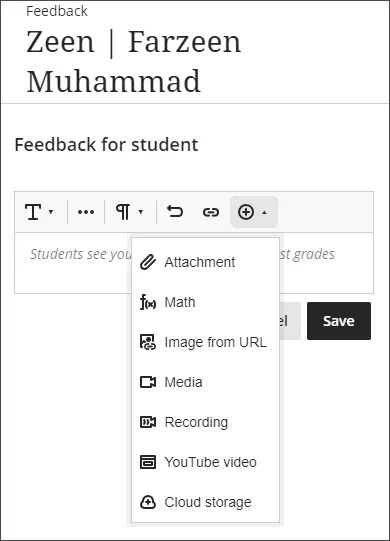
反馈面板会保留在屏幕的一侧,以便您可以滚动浏览页面并添加整体反馈。此外,您可以将反馈的音频/视频记录嵌入到编辑器中,作为您的成绩。学生可以观看或听取反馈以及查看您添加的任何文本。
如果您已为讨论指定了评分量规,请选择带有评分量规图标的成绩药丸来打开评分量规面板。您可以直接输入成绩,也可以从评分量规中选择要添加为成绩的值。
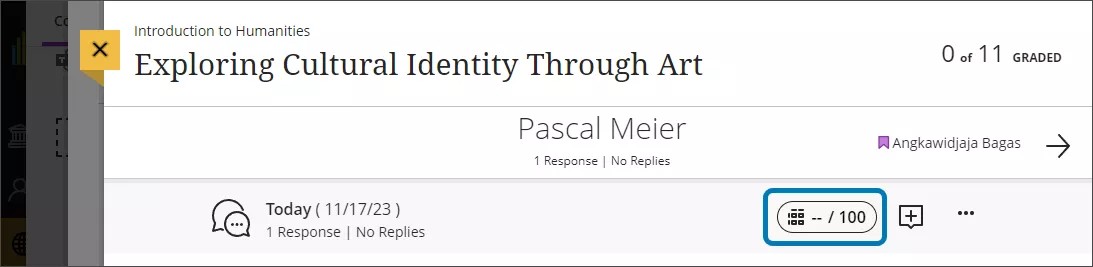
当您准备好向学生公布成绩时,打开更多选项菜单,选择发布。您还可以从“成绩和参与”页面或成绩簿中发布成绩。
观看关于如何对讨论评分的视频
以下解说视频以视觉和听觉的方式介绍了本页中包含的部分信息。如需视频中的详细描述,请在 Vimeo 上打开视频,导航至更多操作,然后选择打开文字转录。