创建和分配小组作业
Note
本文档采用 AI 辅助机器翻译。译文仅供参考,不保证准确性;此内容的英文版为官方权威版本。
创建和分配小组作业
在新作业页面上,选择设置图标以打开作业设置面板。
提供到期日期,然后选择您要应用到小组作业的设置:
您可以针对小组作业允许课堂对话。学生可以选择是全班作为一个整体展开对话还是只有小组成员间展开对话。
您也可以选择离线收集提交,而无需小组上传提交。您可以添加说明、文件、评分量规和目的,以便小组准备离线工作。您也可以为离线工作启用对话。
您可以发布访问代码以控制小组何时可以提交小组作业。目前,系统会随机生成访问代码。您不能自定义访问代码。
重要
目前,您无法创建具有多次尝试、时间限制、隐藏名称或具有并行评分的小组作业。
选择指定给小组。
How you assign groups is based on which version of Groups your institution has configured. Read more in next section.
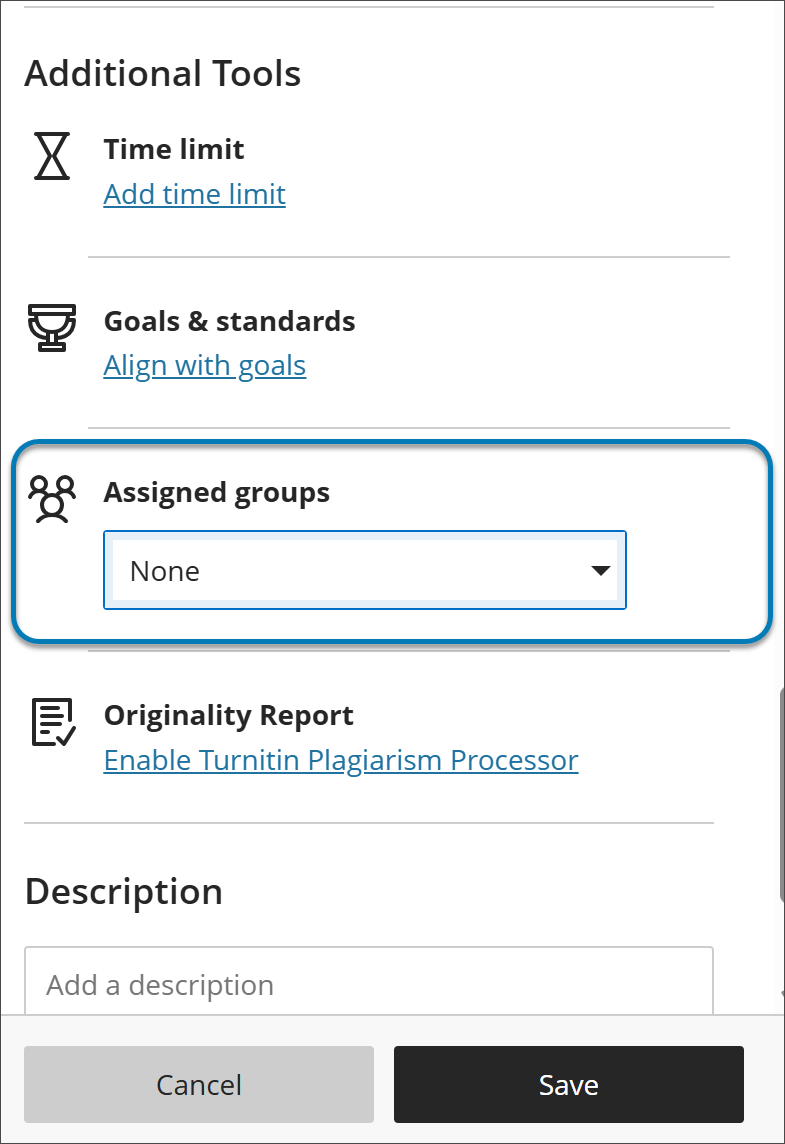
Assign groups to an assignment
重要
The reimagined Groups experience is available if your institution's Blackboard LMS administrators have turned it on. It becomes the default experience for all courses in January 2027. Until then, what you see after you select Assign to groups depends on which experience your course uses.
Assign groups in the new Groups experience
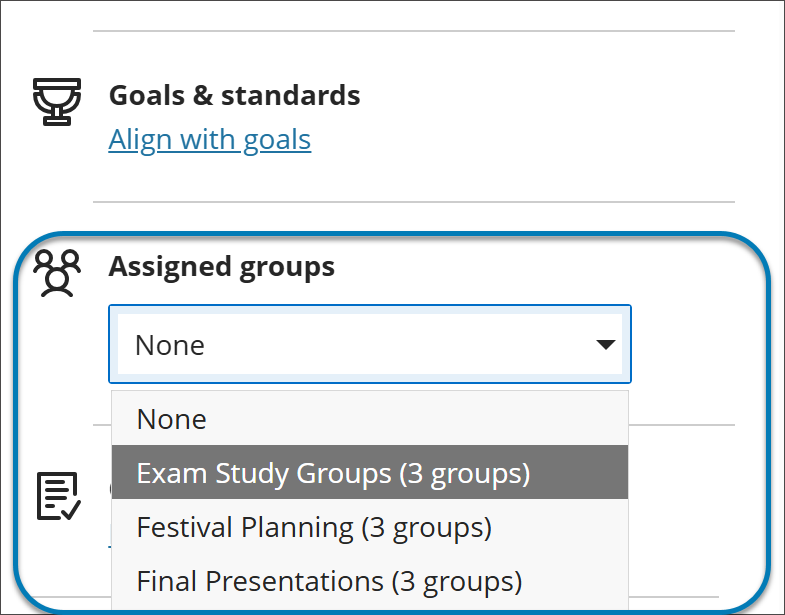
Select a group set that already exists in your course. You can't create groups from the assignment settings.
To use a new group set, create it first on the Groups tab of the Course Content page, then return to the assignment and select it.
Assign groups in the previous Groups experience
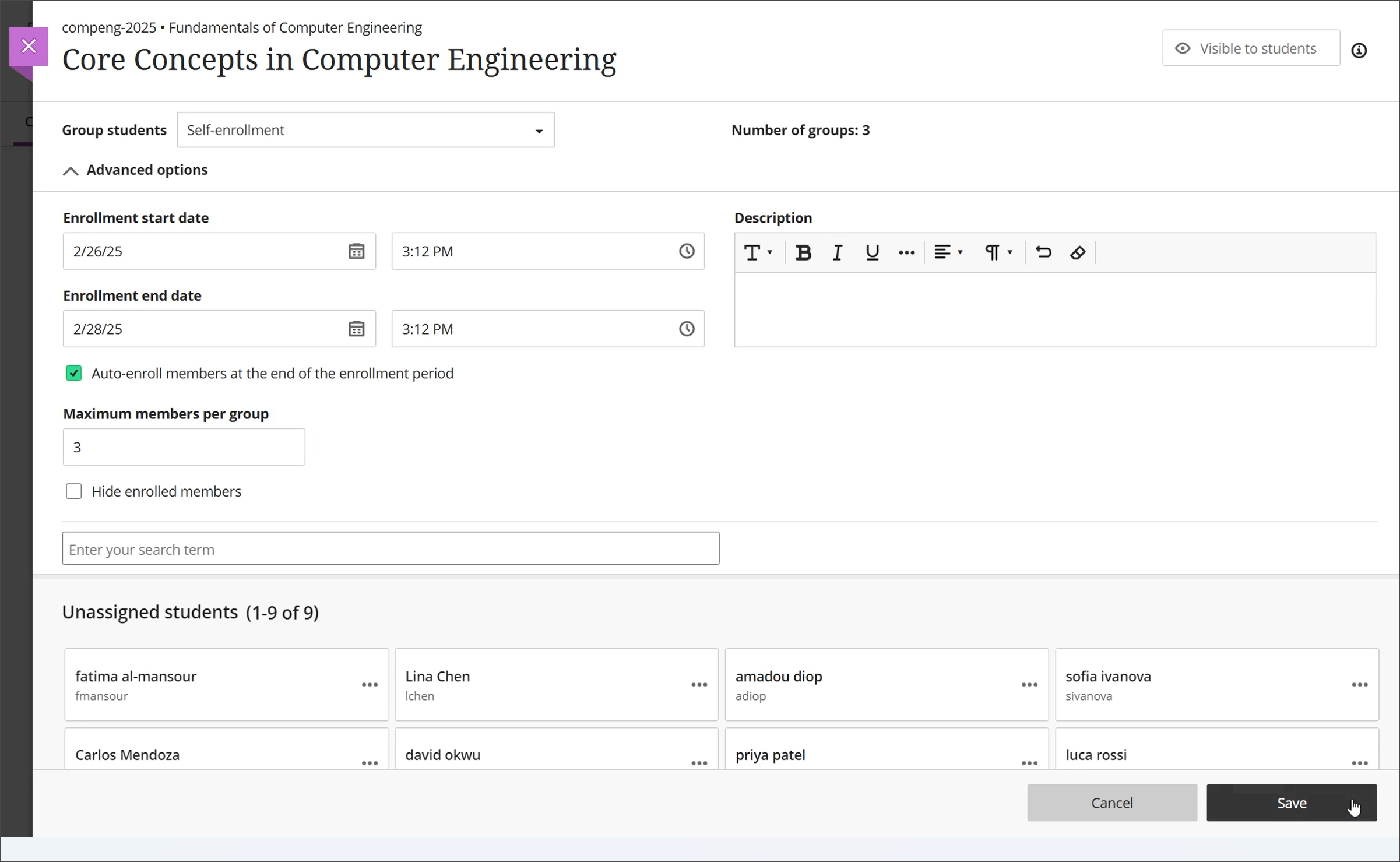
Select Assign groups, which sends you to a page to create a new group set or assign existing groups.
In the Group students menu, choose Custom, Randomly assign, Self-enrollment, or Reuse groups.