Editor de matemática
Note
Esta documentação foi traduzida utilizando tradução automática assistida por IA. As traduções são fornecidas "no estado em que se encontram", sem qualquer garantia quanto à sua precisão. A versão em inglês deste conteúdo é a fonte oficial e de referência.
Você pode digitar equações e fórmulas matemáticas em testes, exercícios, discussões e diários com o editor de matemática. Você também pode digitar as fórmulas do LaTeX em qualquer editor de rich text em que o editor de matemática for uma opção. O editor de matemática funciona em qualquer navegador ou sistema operacional, incluindo smartphones e tablets. Quando ativado, o MathJax exibe o código LaTeX digitado no Editor de conteúdo em áreas compatíveis do Blackboard. Se o MathJax não estiver ativo, o Wiris irá gerar as fórmulas.
The math editor and typing LaTeX code are two different ways to add math formulas in the rich text editor. The math editor is a visual, point-and-click tool that lets you build a formula without writing any code. When activated, MathJax renders LaTeX code that you type as plain text into the rich text editor across supported areas of Blackboard LMS. Both methods render using MathJax, so you can choose whichever fits your workflow, such as pasting LaTeX code copied directly from an exam bank, textbook, or other source material. If MathJax is not activated, Wiris will render formulas.
Fórmulas matemáticas são exibidas no formato de imagem PNG, cujos arquivos são maiores do que os de texto. As fórmulas matemáticas podem levar alguns segundos para serem exibidas antes da imagem ser exibida.
A velocidade de conexão com a Internet e o tamanho do conteúdo afetam o tempo de carregamento. Alguns alunos podem ter dificuldade para acessar o conteúdo com muitas imagens de fórmulas.
Algumas recomendações para reduzir o tamanho da imagem da fórmula e o tempo de carregamento são:
Elabore cada fórmula separadamente com o editor de matemática ou com o LaTeX.
Evite incluir descrições de perguntas ou texto extra no editor de matemática ou no código LaTeX. Use o editor de rich text para digitar as perguntas, instruções ou descrições de texto e use apenas o editor de matemática ou o LaTeX para elaborar as fórmulas de matemática.
Por exemplo, um instrutor digita um problema de matemática de aceleração em um teste. Para reduzir o tamanho do arquivo de conteúdo, o instrutor digita a descrição do problema e dos valores das variáveis diretamente no editor de rich text como texto simples. Em seguida, o instrutor escreve a fórmula de aceleração usando o editor de matemática.
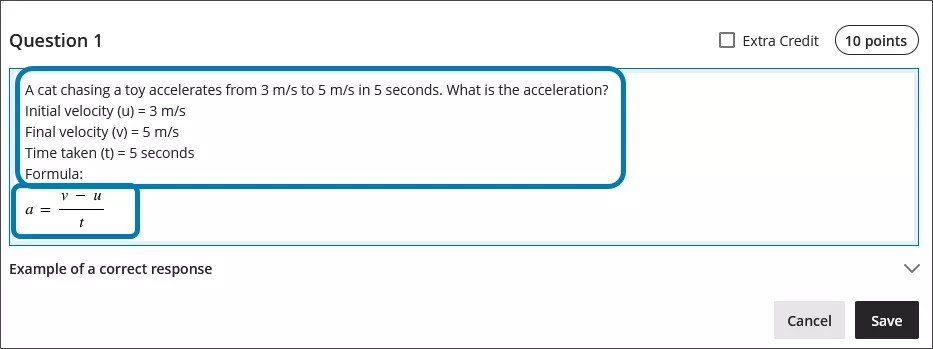
Uso do editor de matemática
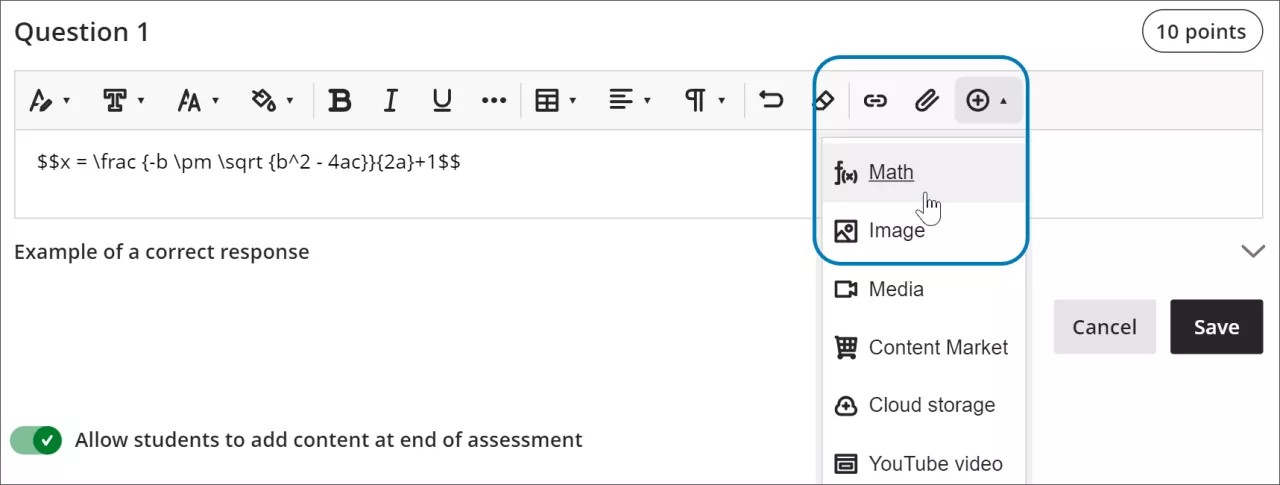
Access the math editor by selecting the + icon in the rich text editor. Select Math in the menu.
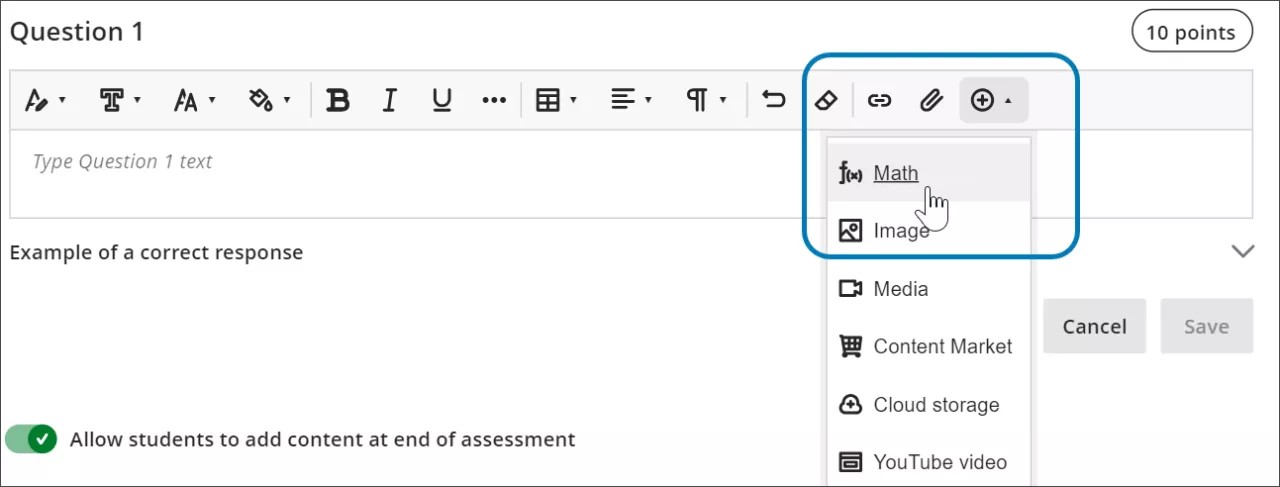
You can access many features in the math editor by selecting different tabs at the top.
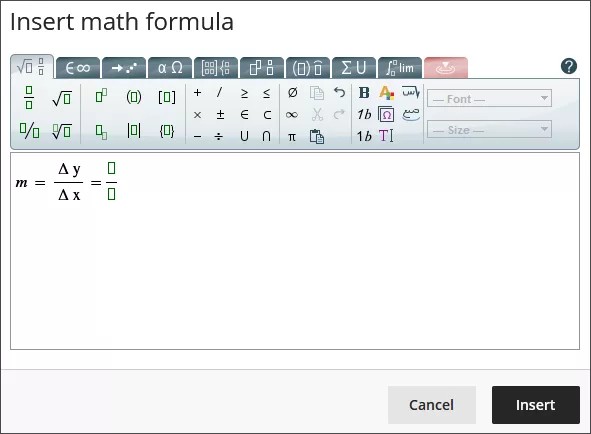
Use your keyboard to enter numbers, letters, and symbols. Select the appropriate icon in the math editor to create complex formulas, such as creating a square root.
If you are using an option that changes the level of the text for your formula, such as subscript or a fraction, use the arrow keys on your keyboard to return to the default level. We recommend using the keyboard to navigate within a formula.
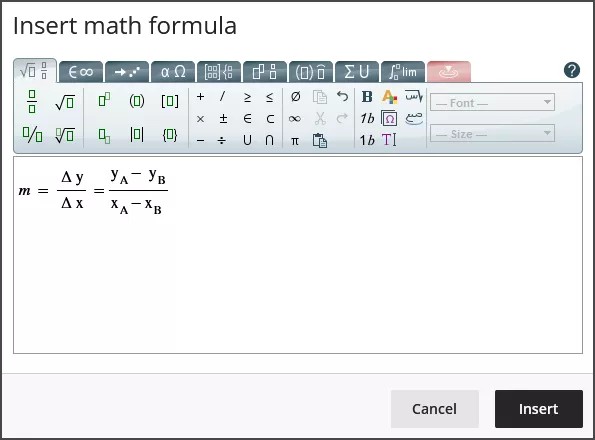
Some of the options for the building formulas in the math editor include:
Operações básicas: adição, subtração, multiplicação, divisão, raiz quadrada, expoentes, frações
Alfabeto grego: alfa, beta, gama e outros
Cálculo de matrizes
Integrais, derivadas e limites
Funções trigonométricas: seno (sen), cosseno (cos), tangente (tan)
Estilos e tamanhos de fonte
O site WIRIS contém informações detalhadas sobre todas as funções do editor de matemática.
Como usar o LaTeX no editor de rich text
O LaTeX é um software que pode ser utilizado para criar a imagem de uma fórmula com base em convenções de codificação, escritas com texto simples. O editor de rich text do Learn dispõe de meios para exibir a codificação LaTeX.
Enter a LaTeX formula by writing the specific code within delimiters in the rich text editor. MathJax supports the following delimiter options, depending on how you want the formula to display:
$$...$$or\[...\]for display equations, which appear centered on their own line, separated from the surrounding text. Display equations work well for complex expressions such as integrals, sums, and products.\(...\)for inline equations, which appear within a line of text alongside other content.
Using the delimiters that match your original source material makes it faster to copy LaTeX code from textbooks, exam banks, or other STEM materials into Blackboard LMS without needing to reformat the code.
Select Save to review how the formula displays as an image. You can go back into the rich text editor to edit the formula until it displays correctly. Some activities, such as tests and assignments, don’t allow students to save in the rich text editor and preview the rendered LaTeX formula. Students will have to check their submission afterwards to make sure that their formula rendered correctly.
Não é possível alterar a aparência das fórmulas, com negrito ou fontes de tamanhos diferentes utilizando o editor de rich text. Para alterar os estilos ou tamanhos de fontes da fórmula, você pode clicar em qualquer lugar da fórmula no editor de rich text e em seguida abrir o editor de matemática. Todas as alterações feitas no editor de matemática se aplicam quando você as salva e as adiciona ao código LaTeX.
select anywhere within the formula in the rich text editor.
select the math editor
All changes made in the math editor are applied when you save and added to the LaTeX code.
Example of a formula formatted in LaTeX
Nota
This example uses $$ delimiters for a display equation. You can also use \[...\] for a display equation or \(...\) for an inline equation instead, depending on how you want the formula to appear in your content.
A fórmula quadrática pode ser formatada no LaTeX.
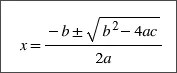
Enter $$ in the rich text editor.
$$
Next, enter the LaTeX code for the formula:
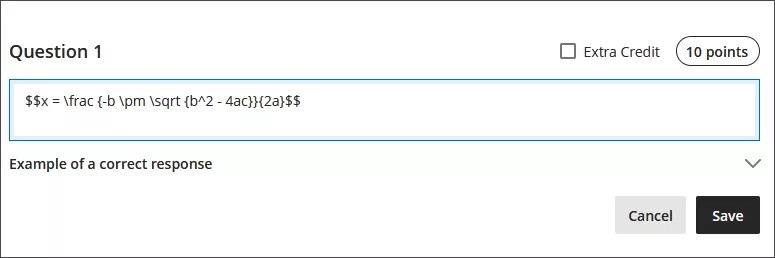
$$x = \frac {-b \pm \sqrt {b^2 - 4ac}}{2a}
Close your formula by entering $$ at the end.
$$x = \frac {-b \pm \sqrt {b^2 - 4ac}}{2a}$$
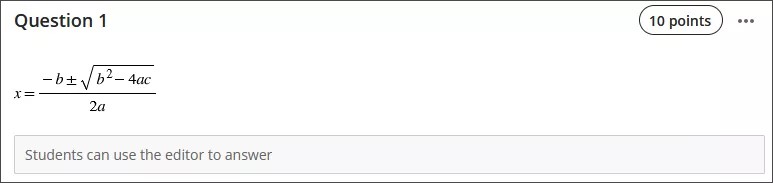
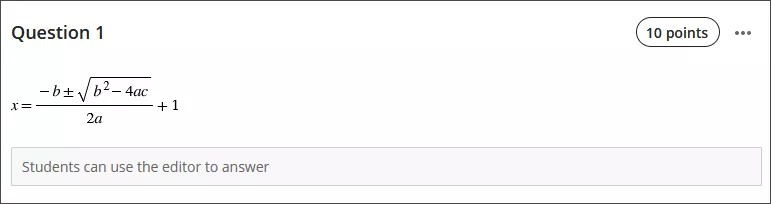
Select Save in the rich text editor. The math formula renders as a PNG image. Rendering the image may take a few seconds, depending on your internet connection and content size.
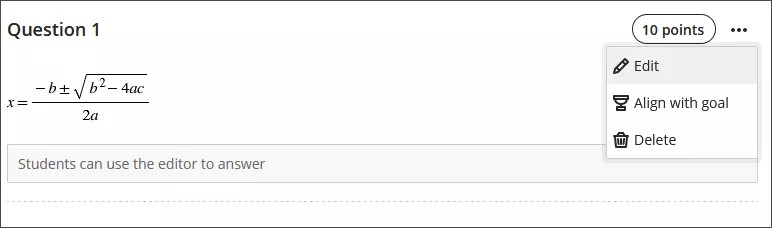
Select Edit in the rich text editor to go back to your LaTeX code.
Edit your formula to overwrite your LaTeX code as plain text inside the rich text editor. For example, add a +1 to the end of the quadratic formula.
$$x = \frac {-b \pm \sqrt {b^2 - 4ac}}{2a}+1$$
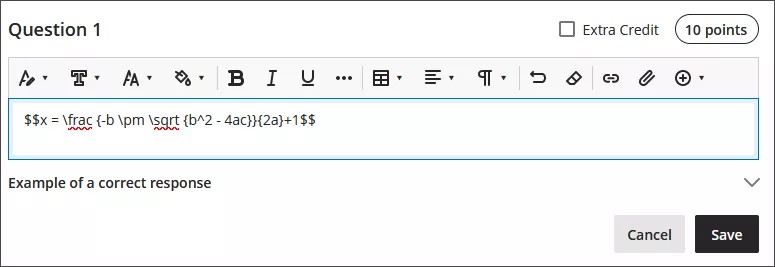
Select Save to render the formula as a new image.
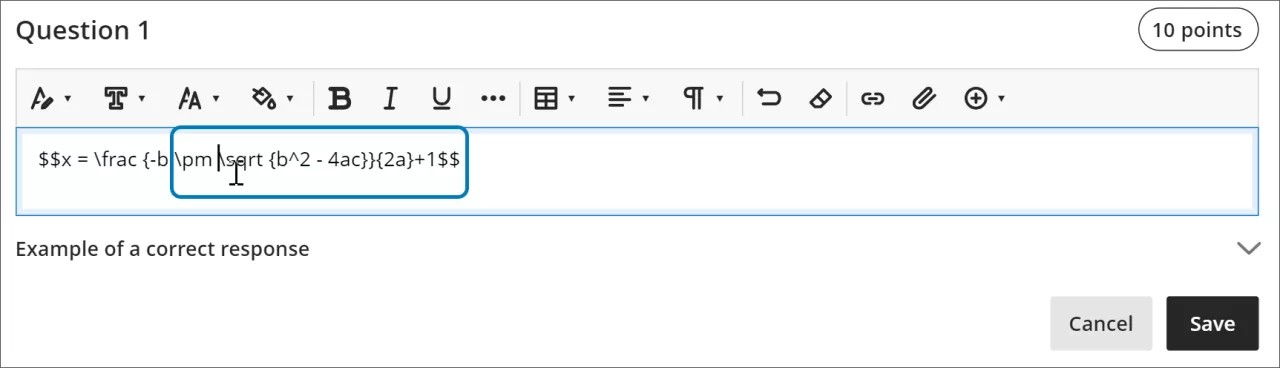
You can make further adjustments to the style of the formula. In the rich text editor, select anything inside the LaTeX code.
Open the math editor.
Apply the styles you want to the formula. For example, you can bold part of the formula and change the font size.
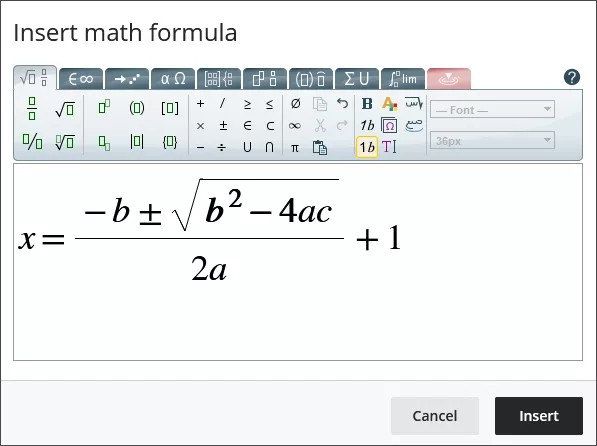
Select Save in the math editor. The LaTeX code for the quadratic formula with your style adjustments is now:
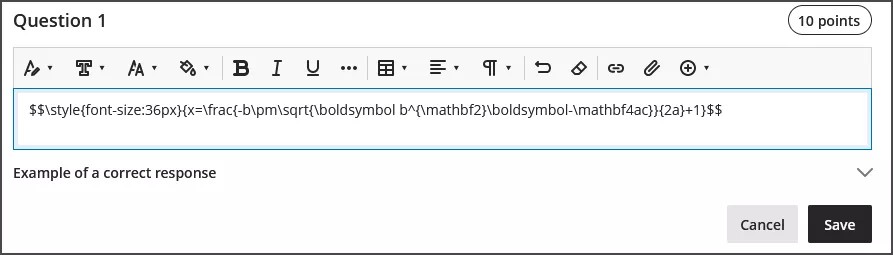
$$\style{font-size:36px}{x=\frac{-b\pm\sqrt{\boldsymbol b^{\mathbf2}\boldsymbol-\mathbf4ac}}{2a}+1}$$
Select Save in the rich text editor to render your adjusted formula as an image.
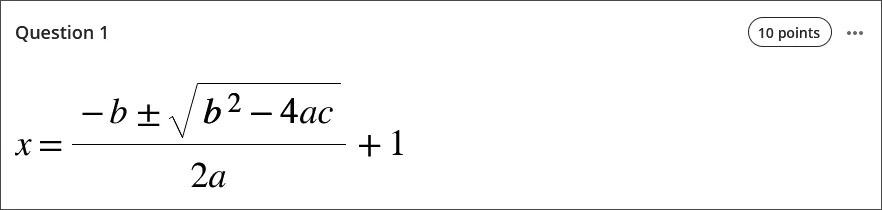
Recursos de acessibilidade
As imagens da fórmula matemática são de alta qualidade. Assim, os usuários podem ampliar a imagem sem prejudicar sua clareza. Você também pode alterar o tamanho da fonte para ajudar seus alunos. Tamanhos de fontes maiores podem ajudar seus alunos a ver os detalhes de uma fórmula com números e símbolos pequenos.
As fórmulas são acessíveis aos leitores de tela quando você às cria e quando são exibidas como imagens.
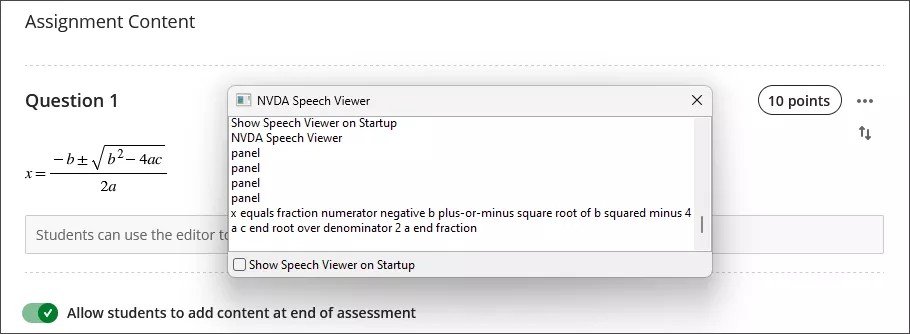
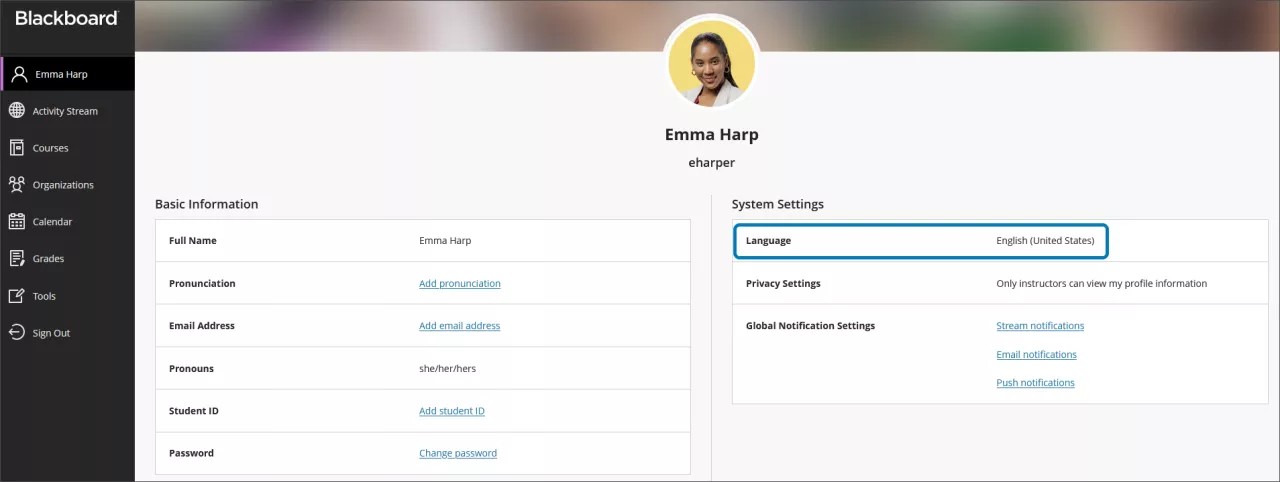
O texto alternativo para fórmulas matemáticas é gerado automaticamente com base na sua configuração de idioma no seu perfil no Learn. Leitores de tela seguem as configurações do dispositivo local, incluindo idioma, velocidade e voz. Para ter uma experiência melhor com o leitor de tela e texto alternativo, certifique-se de que sua configuração de idioma no Learn corresponde às configurações do seu dispositivo local.
Nota
Se um idioma não for compatível com o editor de matemática ou rich text, as fórmulas serão lidas em inglês.