
Guia de Itens classificáveis no Boletim de Notas

A visualização de Itens avaliáveis exibe todos os itens avaliáveis do curso. É possível ver as datas de entrega, o status de avaliação e as categorias de itens. Também pode publicar notas e ajustar o cálculo da nota geral para o curso.
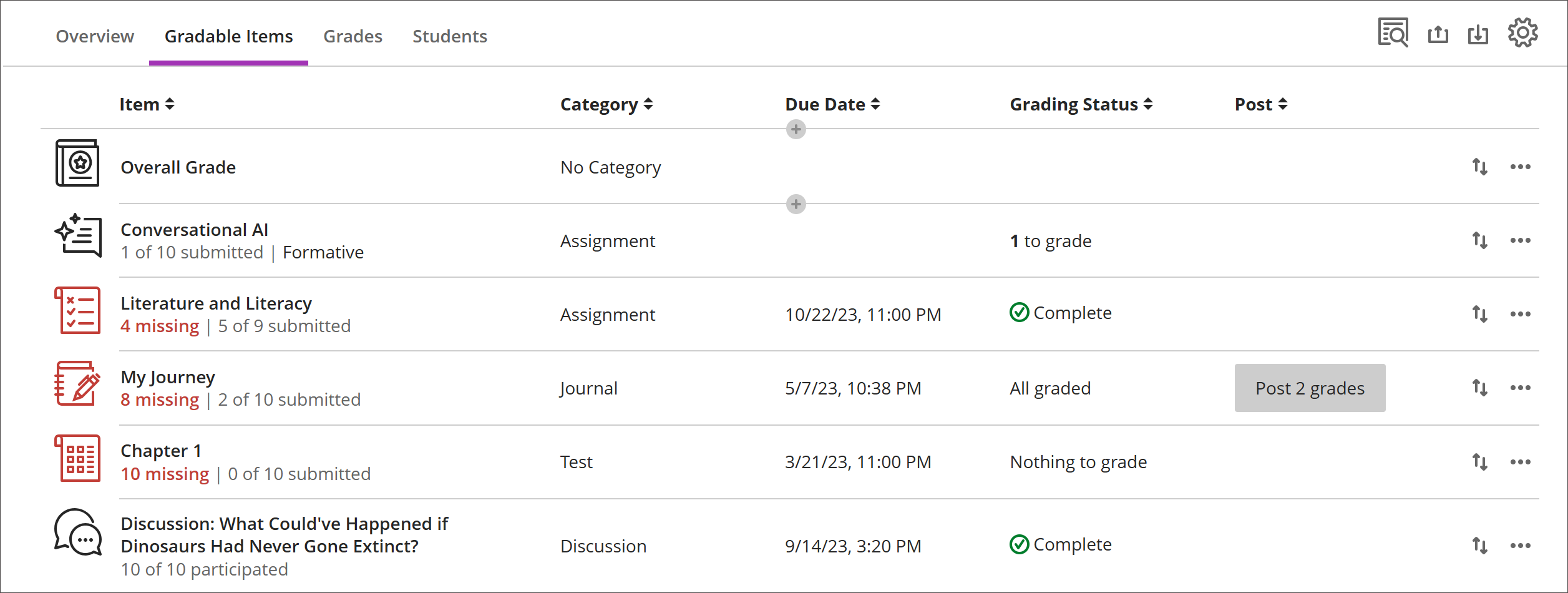
Visualização de itens avaliáveis do Boletim de Notas
  • Os itens com envios ausentes após a data de entrega são exibidos em vermelho.

  • Use o botão mover para arrastar e soltar itens em uma nova ordem.

  • Clique no nome de um item para abrir a página de Envios ou de Notas e participação.

  • Clique em X a avaliar para abrir diretamente a página de Envios da avaliação e começar a avaliar.

Colunas personalizadas baseadas em texto

Para criar uma coluna personalizada baseada em texto, clique em (+) adicionar e em seguida, clique em Adicionar Item de Texto. Em cada coluna, você pode digitar um nome e uma descrição da coluna e controlar a visibilidade que o aluno terá da coluna. Em cada linha, você pode digitar até 32 caracteres.

Navigate the Gradable Items tab in the Gradebook

The Gradable Items tab uses a table-based layout to enhance usability for keyboards and screen readers.

Navigate Gradable Items by keyboard

  1. Use the Tab key to go to the Gradebook.

  2. Use the arrow keys to go to the Gradable Items tab.

  3. Select Tab until you enter the Gradable Items table.

  4. Use the arrow keys to navigate the table.

  5. The Tab key will take you out of the table and to the Blackboard Help button. Shift + Tab returns you to the Settings button.

Navigate Gradable Items with screen readers

Screen reader users can navigate to the Gradable Items tab using the keyboard instructions. You can also use the specialized keyboard combination for your screen reader to go directly to the table.

  • JAWS: Use Insert + Ctrl + T

  • NVDA: Use T, then Ctrl + down arrow key to enter the table

  • VoiceOver: Use Ctrl + Option + right arrow key to choose the table option

  1. Once in the table, screen readers can use table navigation (Ctrl + Alt + arrow keys) to navigate the table.

  2. If you want to add content, use the down arrow to go the More Options (...) button at the end of the row. The next down arrow will be the Add Content button.

Note for JAWS users

  • JAWS users can move left or right in any row by using table navigation keys.

  • To move up and down between assignment rows, navigate to the item column first.