Administrer vurderingsmatriser
Note
Denne dokumentasjonen er oversatt ved hjelp av AI-støttet maskinoversettelse. Oversettelsene leveres «som de er», uten garanti for nøyaktighet. Den engelske versjonen av dette innholdet er den offisielle og gyldige kilden.
Access the Course Rubrics page
The Course Rubrics page displays all rubrics in your course in a sortable, searchable table. From this page, you can create, generate, copy, edit, delete, import, and export rubrics.
You can access the Course Rubrics page in two ways:
From Gradebook Settings, select Manage Course Rubrics in the Course Rubrics section.
From Assignment Settings, select Add Rubric in the Grading & Submissions section.
Kopier vurderingsmatrise
On the Course Rubrics page, select the ellipsis, then select Duplicate.
Edit the rubric as needed, including the titles.
Select Save.
Når du har brukt en vurderingsmatrise til å vurdere, kan du ikke redigere den, men du kan lage en kopi, som du kan redigere og gi et annet navn.
Notat
Merk: Alle beskrivelsene fjernes hvis du kopierer en eksisterende prosentbasert vurderingsmatrise, og endrer den til en prosentområdebasert vurderingsmatrise.
Hvis du allerede har brukt en vurderingsmatrise til å vurdere et element, kan du også kopiere vurderingsmatrisen og redigere den dupliserte versjonen. Åpne vurderingsmatrisen fra Innstillinger-panelet for et element. Velg Opprett en kopinederst på skjermen. Når du lager en kopi av en vurderingsmatrise du har brukt til å vurdere en prøve eller oppgave, knyttes den nye vurderingsmatrisen til elementet. Eventuelle vurderinger som beregnes med den opprinnelige vurderingsmatrisen, beholdes, men disse vurderingene konverteres til overstyringer. Du kan vurdere disse innsendingene på nytt med den nye vurderingsmatrisen.
When you create a copy of a rubric you used to grade a test or assignment, the new rubric is associated with the item. Any grades calculated with the original rubric are preserved, but these grades are converted to overrides. You can regrade these submissions with the new rubric.
Viktig
Du kan ikke kopiere vurderingsmatriser på små enheter.
Kopier vurderingsmatriser mellom emner
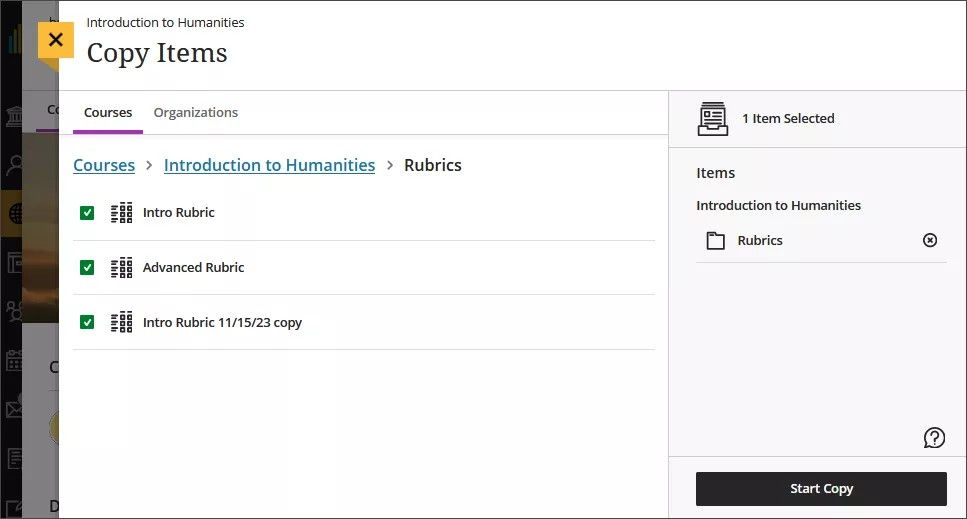
On the Course Content page, select the plus sign to open the menu and select Copy Content. Or, open the More options menu above the content list. Select Copy Items.
The Copy Items panel opens.
From the Copy Items panel, you can browse all the courses that you teach.
Select the Rubrics folder for the course you want to copy rubrics from and select the rubrics you’d like to copy.
When you’re done, select Start copy.
Slett vurderingsmatriser
Du kan slette vurderingsmatriser fra emnet ditt permanent – til og med hvis du har brukt dem til å vurdere – uten at vurderingene slettes. Vurderingene er ikke lenger tilknyttet vurderingsmatrisen. I stedet ser det ut som om du la dem til manuelt.
To permanently delete a rubric, go to the Course Rubrics page. Select the ellipsis menu on the rubric, then select Delete.
Export a rubric
You can export a rubric from your course to reuse it in another course. The exported file is a zip file intended for importing into another course and is not a viewable document.
To export a rubric, select the ellipsis then select Export.
The rubric downloads automatically as a zip file named with the rubric name and course title. You can find it in your downloads folder.
Import a rubric
You can import a rubric that was previously exported from Blackboard LMS.
On the Course Rubrics page, select the import icon.
Select the zip file from your local. Only rubrics exported from Blackboard LMS can be imported.
After import, review your imported rubric,
The rubric imports automatically. If the same rubric already exists in the course, an error message appears to prevent duplicate rubrics from being created.