Administrer elementer i karakterboken
Note
Denne dokumentasjonen er oversatt ved hjelp av AI-støttet maskinoversettelse. Oversettelsene leveres «som de er», uten garanti for nøyaktighet. Den engelske versjonen av dette innholdet er den offisielle og gyldige kilden.
Når en oppgave er lagt inn i vurderingsregisteret ditt, kan du sende en påminnelse, redigere den, se statistikk, slette den eller endre rekkefølgen på den.
Send en påminnelse
Send en påminnelse til studenter eller grupper som ennå ikke har levert noe. Elementet må være synlig uten visningsbetingelser, og dette kan ikke brukes på kolonner som er opprettet manuelt.
Påminnelser sendes som en kursmelding med blindkopi (BCC), og du mottar også en kopi. Hvis kursmeldinger er slått av, sendes påminnelser via e-post. Ved anonym vurdering sendes påminnelser alltid via e-post for å ivareta anonymiteten.
I rutenettvisningen velger du elementtittelen (kolonneoverskriften).
I panelet «Vurderingsdetaljer» velger du klokkeikonet. Klokkeikonet vises ikke hvis det ikke er noen studenter som må levere inn en oppgave.
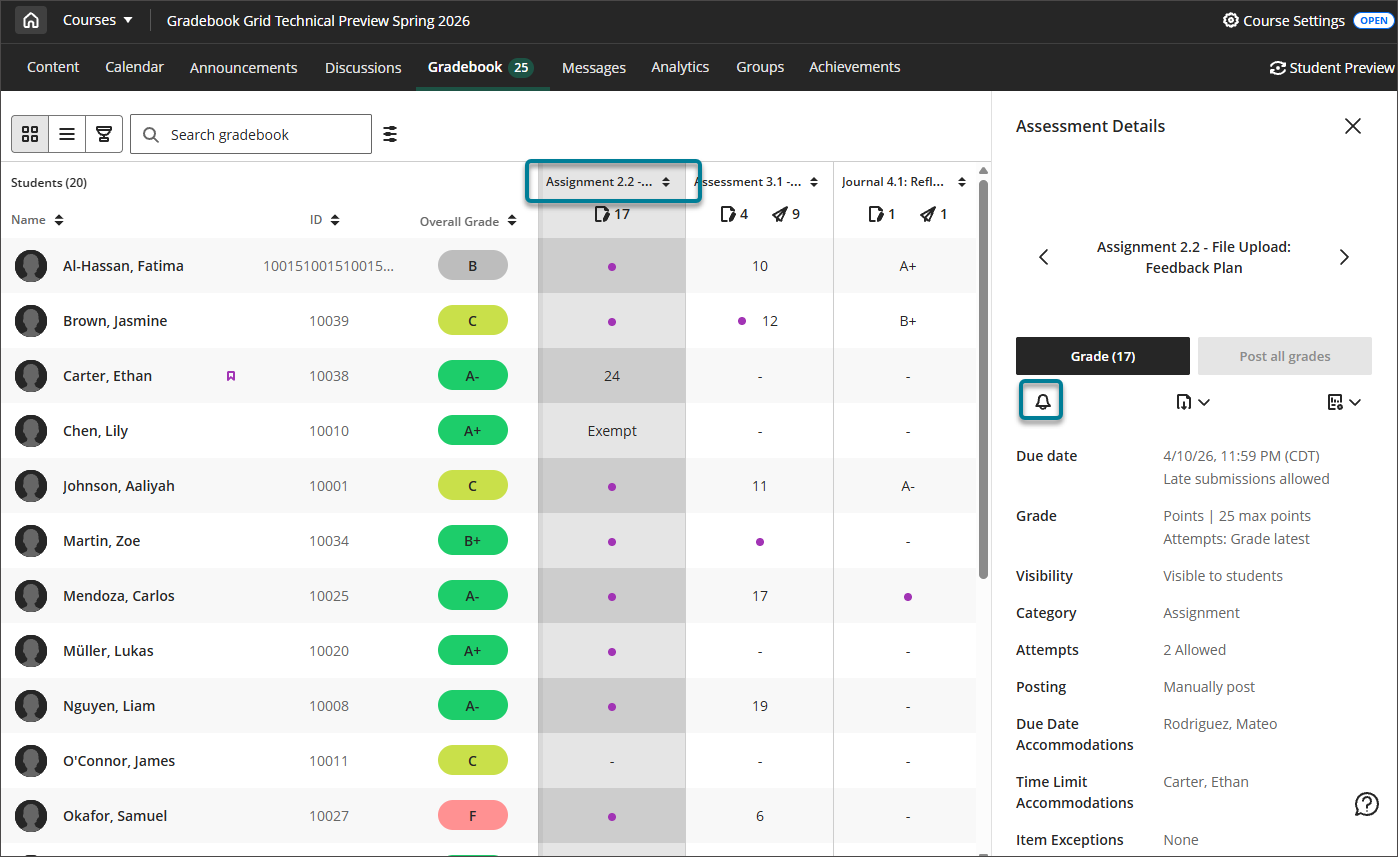
I bekreftelsesdialogboksen velger du Send.
Vis statistikk og oppgaveanalyse
I rutenettvisningen velger du elementtittelen (kolonneoverskriften).
I panelet «Vurderingsdetaljer» velger du statistikkikonet. Statistikkikonet vises ikke hvis det ikke finnes statistikk- og spørsmålsanalyse for det aktuelle elementet.
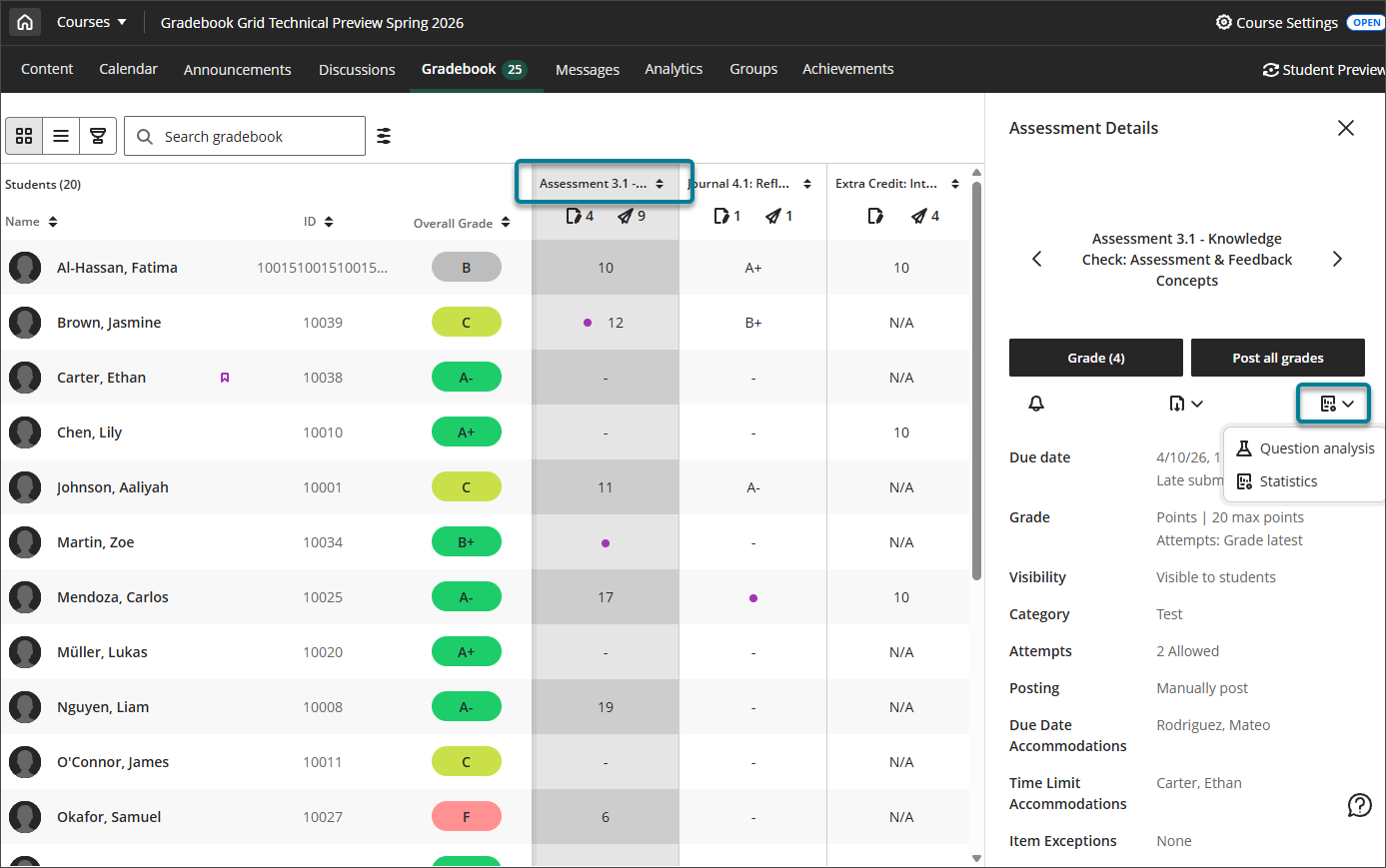
Velg Statistikk for å se oppsummerende statistikk for elementet: minimums- og maksimumsverdier, spenn, gjennomsnitt, median, standardavvik og varians.
Velg Spørsmålsanalyse for å se detaljer og data for hvert spørsmål i vurderingen.
Bestill varer på nytt
Når du endrer rekkefølgen på elementene i listevisningen, gjenspeiles denne rekkefølgen i rutenettvisningen.
I listevisningen kan du bestemme i hvilken rekkefølge du vil at elementene skal vises.
Velg ett element om gangen, klikk på ikonet for å endre rekkefølgen, og dra og slipp raden mellom de eksisterende radene.