
成绩簿中的可评分项目选项卡

“可评分项目”视图显示课程中的所有可评分项目。您可以查看到期日期、评分状态和项目类别。您还可以发布成绩,并调整课程的总成绩计算。
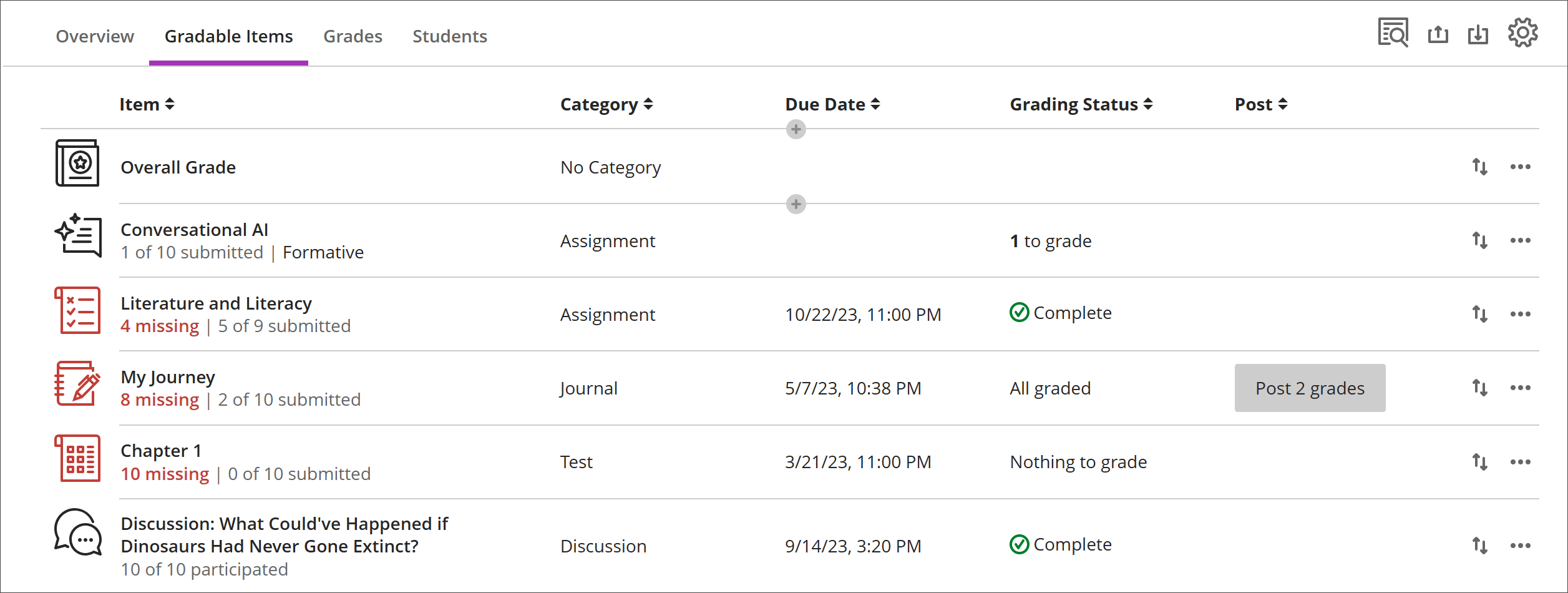
成绩簿的可评分项目视图
  • 在到期日期之后错过提交的项目会以红色显示。

  • 使用移动按钮以新的顺序拖放项目。

  • 选择一个项目的名称可转到其“提交”或“成绩和参与”页面。

  • 选择 X 进行评分可直接转到评估的提交页面并开始评分。

自定义文本列

要创建自定义文本列,请选择(+)添加,然后选择添加文本项。您可以为每一列输入列名和说明,还可以控制学生对该列的可见性。每行最多可输入 32 个字符。

Navigate the Gradable Items tab in the Gradebook

The Gradable Items tab uses a table-based layout to enhance usability for keyboards and screen readers.

Navigate Gradable Items by keyboard

  1. Use the Tab key to go to the Gradebook.

  2. Use the arrow keys to go to the Gradable Items tab.

  3. Select Tab until you enter the Gradable Items table.

  4. Use the arrow keys to navigate the table.

  5. The Tab key will take you out of the table and to the Blackboard Help button. Shift + Tab returns you to the Settings button.

Navigate Gradable Items with screen readers

Screen reader users can navigate to the Gradable Items tab using the keyboard instructions. You can also use the specialized keyboard combination for your screen reader to go directly to the table.

  • JAWS: Use Insert + Ctrl + T

  • NVDA: Use T, then Ctrl + down arrow key to enter the table

  • VoiceOver: Use Ctrl + Option + right arrow key to choose the table option

  1. Once in the table, screen readers can use table navigation (Ctrl + Alt + arrow keys) to navigate the table.

  2. If you want to add content, use the down arrow to go the More Options (...) button at the end of the row. The next down arrow will be the Add Content button.

Note for JAWS users

  • JAWS users can move left or right in any row by using table navigation keys.

  • To move up and down between assignment rows, navigate to the item column first.