Notas de la versión de enero de 2026 (4000.6)
Información de la versión
Sugerencia
Para consultar los números de compilación de las versiones de mantenimiento y las correcciones de errores, visite Maintenance Releases.
Para conocer el estado y los retrasos de la publicación, visite Estado de Blackboard.
Diseño didáctico
Mejoras de usabilidad en el diseño de bloques de documentos
Para mejorar la usabilidad y accesibilidad, se ha reestructurado el menú para el diseño de bloques de documentos. Antes, todas las opciones para cambiar la fila, el tamaño o la posición de un bloque estaban en una única lista desplegable. Ahora, estas opciones están organizadas por tipo de cambio (fila, tamaño y posición).
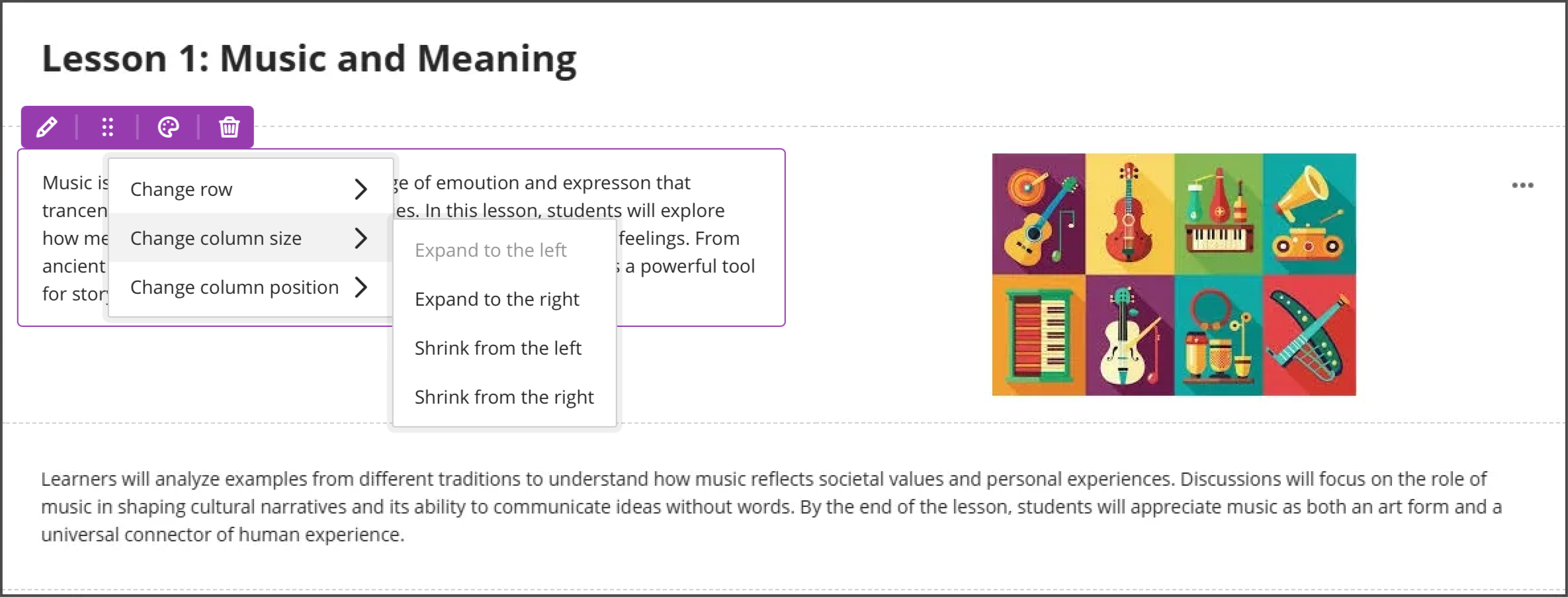
Al seleccionar el icono de edición de un bloque, se abrirá un menú con tres opciones: Cambiar fila, Cambiar tamaño [bloque/columna] y Cambiar posición [bloque/columna]. Cada una de estas opciones tiene un submenú, con las acciones relacionadas.
Modificar fila
Mover a la fila superior
Mover a la fila inferior
Nueva fila encima
Cambiar el tamaño del [bloque/columna]
Expandir hacia la izquierda
Expandir hacia la derecha
Reducir desde la izquierda
Reducir desde la derecha
Cambiar la posición del bloque o la columna
Mover a la izquierda
Mover a la derecha
Imagen 1: Cómo se mostraban las opciones de estilo de los bloques de documento antes
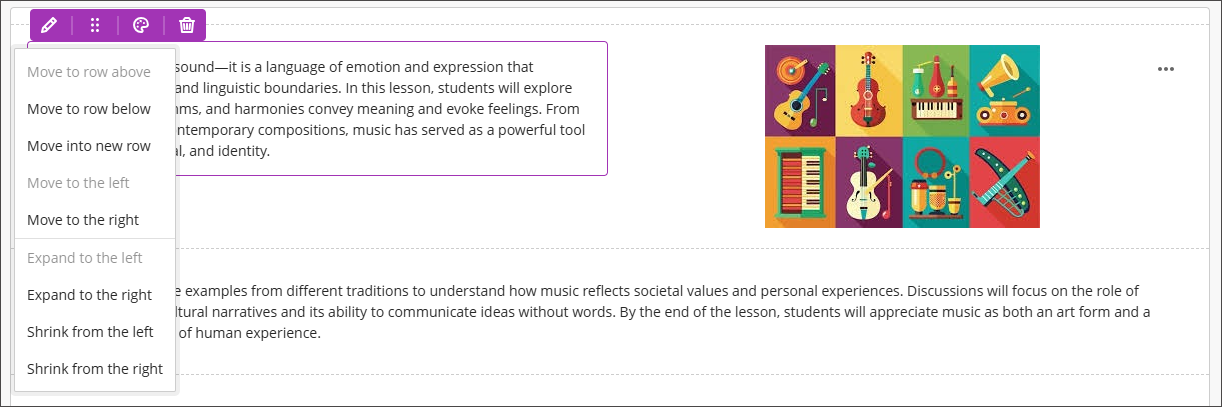
Imagen 2: Cómo se muestran ahora las opciones de estilo de los bloques de documento
Administradores
Disponibilidad: Disponible para todos los cursos Ultra.
Activación: No es necesaria.
Configuración: No es necesaria.
Exámenes y actividades
Opciones ampliadas de preguntas de verdadero/falso
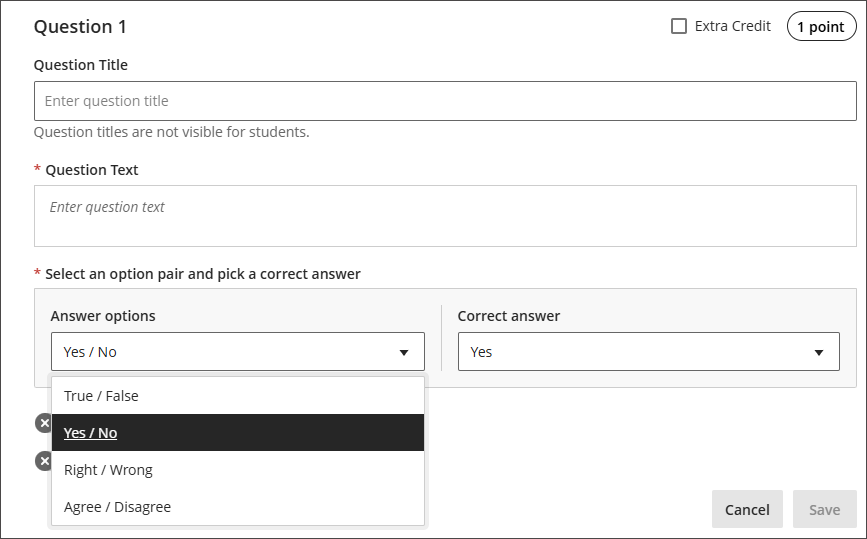
Hemos ampliado las opciones de visualización para las preguntas de verdadero/falso para incluir:
Verdadero o falso
Sí/No
Correcto/Incorrecto
De acuerdo/En desacuerdo
Estas opciones de respuesta adicionales se muestran cuando:
Los profesores crean o editan este tipo de pregunta al crear un examen o en un banco de preguntas.
Los estudiantes responden a la pregunta
Los profesores califican la pregunta
Los estudiantes revisan su entrega o la pregunta calificada
Imagen 1: Las preguntas de verdadero/falso ahora incluyen opciones adicionales.
Al convertir cursos, exámenes o grupos de Original a Ultra, las preguntas con estas opciones de pantalla se convierten en Ultra con la opción de visualización correspondiente. Además, esta mejora incluye una navegación con teclado optimizada al crear preguntas de verdadero/falso. Hemos actualizado el estilo de selección de respuestas para las preguntas de verdadero/falso a botones de opción.
Administradores
Disponibilidad: Disponible para todos los cursos Ultra.
Activación: No es necesaria.
Configuración: No es necesaria.
Flujo de trabajo mejorado para preguntas de opción múltiple y respuesta múltiple
Hemos actualizado la configuración de las preguntas para ofrecer una experiencia más intuitiva, incluida la actualización de las opciones de respuesta predeterminadas de tres a cuatro y la mejora de los controles sobre cómo los estudiantes interactúan con las preguntas. Estos cambios favorecen una mayor flexibilidad en el diseño de las evaluaciones y una mejor experiencia para los estudiantes.
Profesores
Para reducir el tiempo de preparación al crear una Pregunta de opción múltiple, hemos cambiado el número predeterminado de opciones de respuesta de tres a cuatro. Los profesores pueden añadir o eliminar opciones de respuesta.
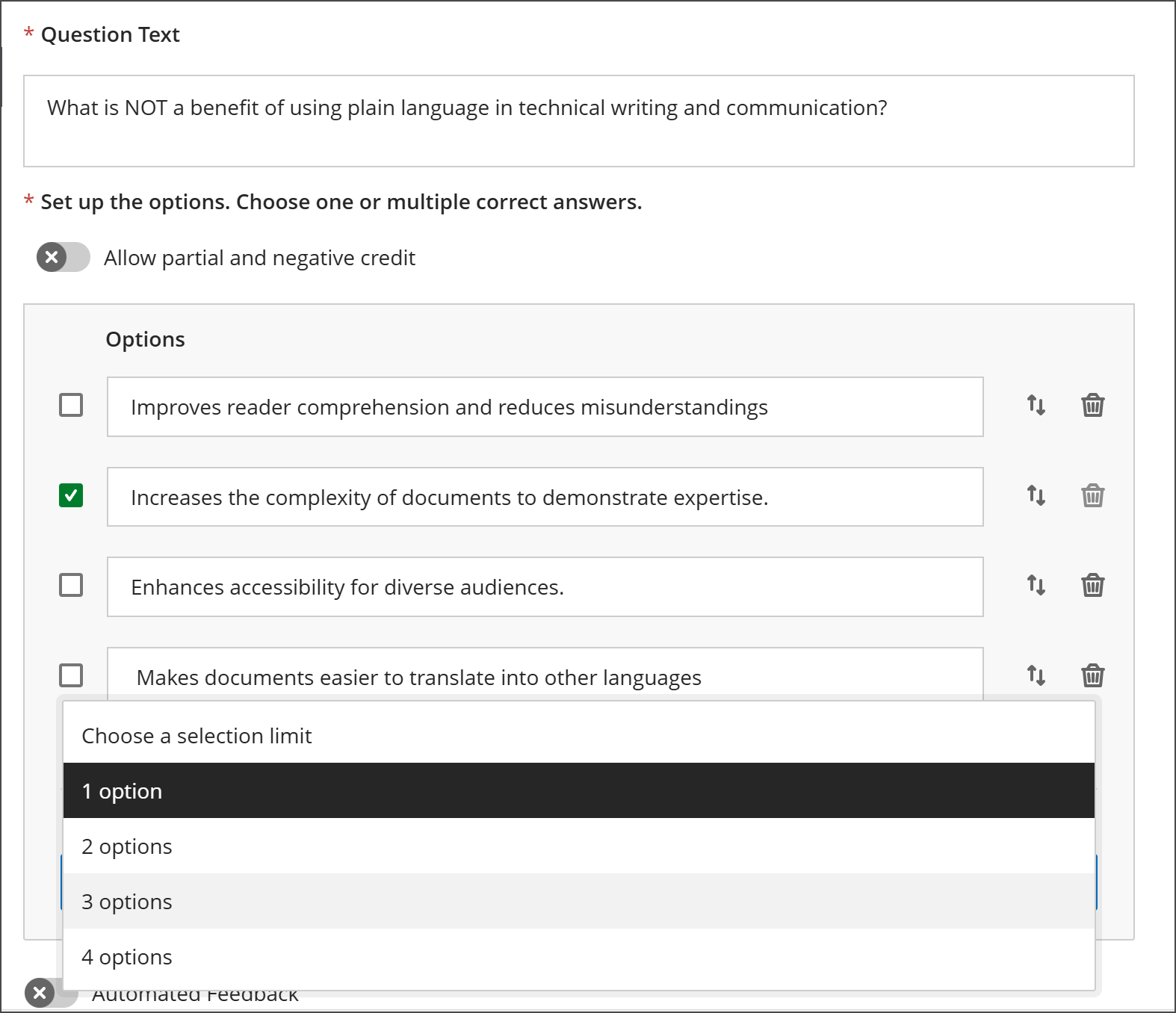
Ahora los profesores pueden definir cuántas respuestas puede seleccionar un estudiante en cada pregunta de opción múltiple. Cuando el estudiante realice la evaluación, el sistema aplicará el límite de selección definido por el profesor.
El valor predeterminado es:
4 opciones de respuesta
El crédito parcial/negativo está desactivado (no se han realizado cambios adicionales en el crédito parcial/negativo para esta versión)
Los estudiantes pueden elegir hasta cuatro respuestas
Si se añaden respuestas adicionales, el límite de selección se mantiene en 4
Si se eliminan respuestas, el profesor debe volver a definir el límite de selección
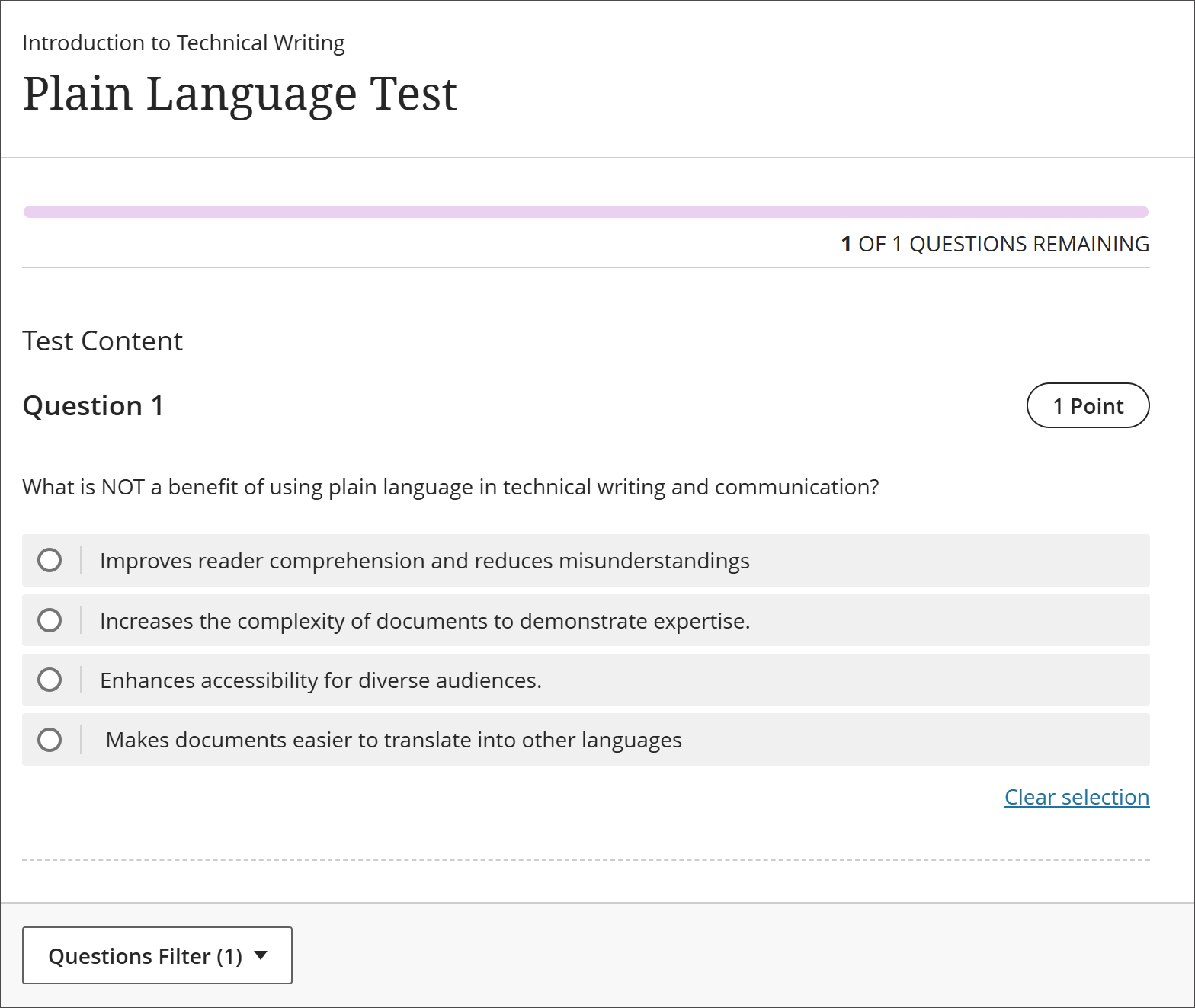
Imagen 1: Los profesores pueden definir el número de respuestas seleccionadas para cada Pregunta de opción múltiple.
Estudiantes
Para las preguntas en las que solo se puede seleccionar una respuesta, el mecanismo de selección son botones de opción. Para las preguntas en las que se pueden seleccionar más de una respuesta, el mecanismo de selección son casillas de verificación.
Imagen 2: El mecanismo de selección del estudiante (casillas de verificación o botones de opción) depende del número de respuestas que puede seleccionar.
Administradores
Disponibilidad: Disponible para todos los cursos Ultra.
Activación: No es necesaria.
Configuración: No es necesaria.
Mejora del rendimiento en exámenes grandes de opción múltiple o respuesta múltiple
Se ha optimizado el renderizado de preguntas de elección múltiple y verdadero/falso, mejorando significativamente los tiempos de carga para exámenes grandes. Por ejemplo, un examen de 200 preguntas ahora se carga en ~5 segundos, desde ~25 segundos, lo que equivale a una mejora del 80%.
Administradores
Disponibilidad: Disponible para todos los cursos Ultra.
Activación: No es necesaria.
Configuración: No es necesaria.
Libro de calificaciones
Opción mejorada para la descarga del libro de calificaciones
En una versión anterior, se introdujo una opción para incluir o excluir elementos ocultos en la descarga del libro de calificaciones. En esta versión, hemos mejorado esta funcionalidad haciendo que esta opción solo esté disponible si el libro de calificaciones tiene elementos ocultos.
Administradores
Disponibilidad: Disponible para todos los cursos Ultra.
Activación: No es necesaria.
Configuración: No es necesaria.
Evolución del alumno y experiencia personalizada
Consulte el registro de actividad para Automatizaciones.
Nota
Esta función estará disponible en entornos de prueba/escenario el martes 23 de diciembre de 2025.
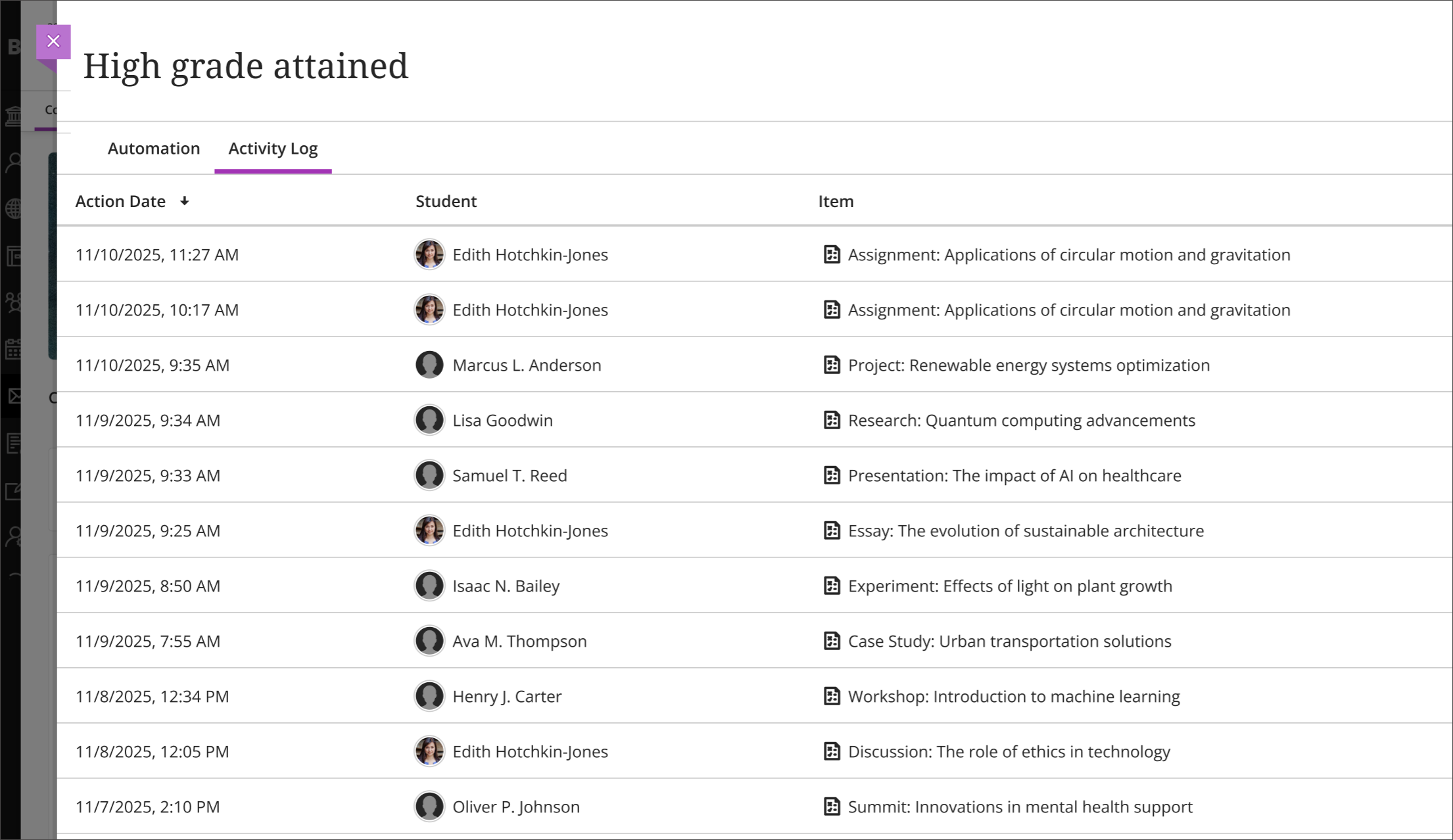
Ahora los profesores pueden acceder a un registro de actividades para cada automatización en sus cursos. El registro de actividades indica la fecha y la hora en que se activó la automatización e identifica al estudiante y al elemento que la activó. Esta función ofrece a todos los profesores del curso una visión sobre cuándo ocurren las automatizaciones y qué estudiantes reciben mensajes automáticos.
Profesores
Para ver el registro de actividades de una automatización, seleccione Ver Automatizaciones desde Asistentes del curso en la página de Contenido del Curso, y luego seleccione una automatización. Luego seleccione la pestaña Registro de actividad.
Imagen 1: El registro de actividad muestra cuándo se activó una automatización, por qué estudiante y por qué elemento.
Administradores
Disponibilidad: Disponible para todos los cursos Ultra.
Activación: No es necesaria.
Configuración: Las automatizaciones se encuentran desactivadas por defecto. Los administradores pueden activarlos yendo al Panel de Administración. Selecciona Configurar en ¡La experiencia Ultra ya está aquí! módulo. Selecciona Automatizaciones para activar o desactivar las automatizaciones.
Los usuarios necesitan los siguientes privilegios para trabajar con automatizaciones:
Panel de control de curso/organización > Automatizaciones > Agregar permite a los usuarios crear nuevas automatizaciones.
Panel de control de curso/organización > Automatizaciones > Eliminar permite a los usuarios eliminar automatizaciones.
Panel de control de curso/organización > Automatizaciones > Editar permite a los usuarios editar las automatizaciones existentes.
Panel de control de curso/organización > Automatizaciones > Ver permite a los usuarios ver las automatizaciones de curso existentes.
Mejora en la ubicación de las automatizaciones en la página de contenido del curso
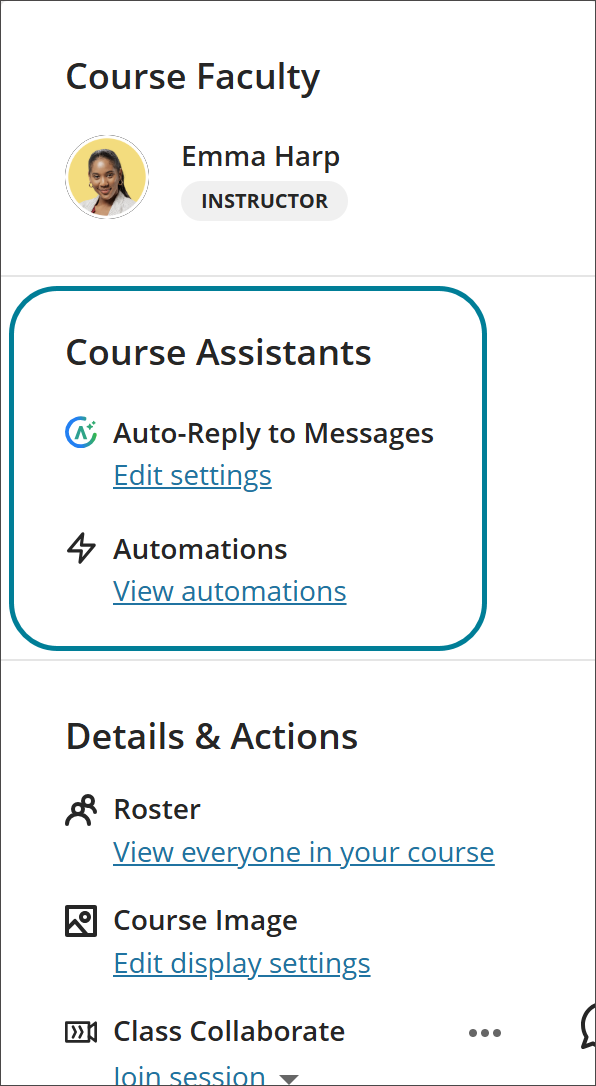
El encabezado de la sección en la página de Contenidos del Curso que incluye automatizaciones ahora es Asistentes de Curso en lugar de Asistente Virtual, y se ha eliminado el logotipo de AVA. Este cambio aclara que las automatizaciones no requieren licencia AVA y ayuda a evitar confusiones entre administradores y profesores.
Imagen1: Las automatizaciones aparecen en la sección Asistentes de Curso en la página de Contenidos del Curso.
Administradores
Disponibilidad: Disponible para todos los cursos Ultra.
Activación: No es necesaria.
Configuración: No es necesaria.
Blackboard Core
Navegue por cursos y herramientas más rápido con una interfaz de usuario renovada.
Presentamos una interfaz de Blackboard renovada diseñada para hacer que la enseñanza y el aprendizaje sean más intuitivos y eficientes. Estas actualizaciones le ayudan a encontrar información más rápido, reducir clics y simplificar tareas como gestionar los cursos, calificar y configurar configuraciones.
Los cambios reflejan una amplia retroalimentación de profesores, administradores y estudiantes y tienen como objetivo:
Utilice el espacio en pantalla de forma más eficaz.
Reduzca errores de navegación, como salidas accidentales.
Mejore el rendimiento y los tiempos de carga de las páginas.
Proporcione un contexto y una orientación más claros.
Minimice el movimiento para una navegación más fluida.
Los cambios incluyen:
La Navegación Base ha sido actualizada.
Diseño más limpio que facilita el acceso a las pestañas principales de navegación y reduce el desorden visual.
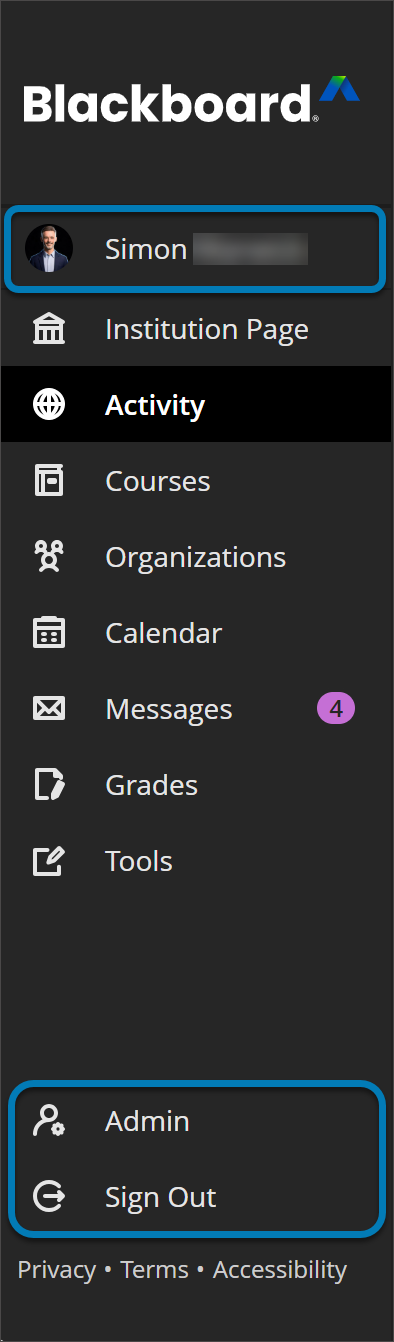
El perfil de usuario aparece ahora en la parte superior de la navegación, con imagen de perfil para facilitar la personalización.
Admin y Desconectar se han movido al fondo del panel, separándolas de otras acciones para mayor claridad.
Los administradores ahora pueden acceder directamente a la navegación de la base desde el panel de administración, lo que agiliza las transiciones de flujo de trabajo.
Imagen 1: El menú de navegación base actualizado ha movido Perfil a la parte superior del menú. Admin y Cerrar sesión se han movido al final del panel. El diseño más limpio mejora la claridad para los usuarios.
Los paneles del curso se convierten en páginas de curso a pantalla completa.
Los cursos ahora se abren en modo pantalla completa para maximizar el espacio horizontal y reducir el desorden. Esta actualización se aplica a paneles de primer nivel como la Página de Inicio de Contenidos del Curso, Calendario, Anuncios, Debates, Libro de Calificaciones, Analítica, Grupos y Logros. Los paneles secundarios se actualizarán en futuras versiones.
Imagen 2: La interfaz de usuario actualizada en los cursos incluye páginas de curso a pantalla completa y mejoras para aumentar el espacio de pantalla para que los usuarios interactúen con su curso.
El botón Inicio sustituye a la opción Salir
La "X" para salir de un curso se reemplaza por un botón de inicio que le devuelve a la página de inicio de su institución (Flujo de actividades, página de Institución o página de Cursos). La "X" sigue siendo para paneles de nivel inferior como módulos de aprendizaje por ahora.
ID y título del curso en la barra de cabecera
El encabezado ahora muestra el ID y el título del curso para ofrecer un mejor contexto. Se añadirán migas de pan en una futura actualización para mejorar aún más la navegación.
Los cambios en la navegación del sistema afectan cómo aparece el ID y el título del curso dentro de la experiencia del curso. Configure y actualice estas opciones de visualización como parte del flujo de trabajo de la marca, eligiendo cómo se muestran el título y el ID del curso.
Imagen 3: El menú del Curso se ha desplazado hacia la parte superior de la pantalla para optimizar el uso del espacio de pantalla para los usuarios. Además, el menú refleja la imagen de la institución, utilizando colores y estilos de los ajustes temáticos.
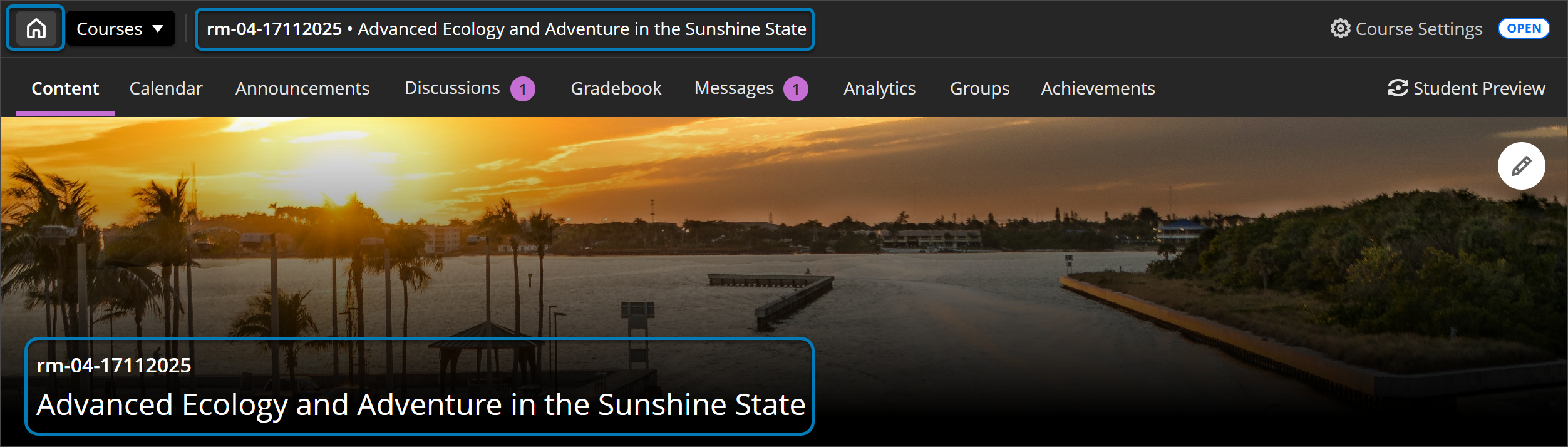
Banner de ancho completo
El banner del curso abarca todo el ancho de la pantalla y muestra el ID y el título del curso sobre un fondo más oscuro para mejorar la claridad y la accesibilidad. Para mejorar la accesibilidad, recomendamos que la imagen del banner no incluya texto.
Si un campo no tiene un banner seleccionado, aparecerá una imagen provisional en la parte superior. Al usar marcas, esta imagen adoptará un matiz del color de marca que seleccione, garantizando la coherencia visual en todos los cursos.
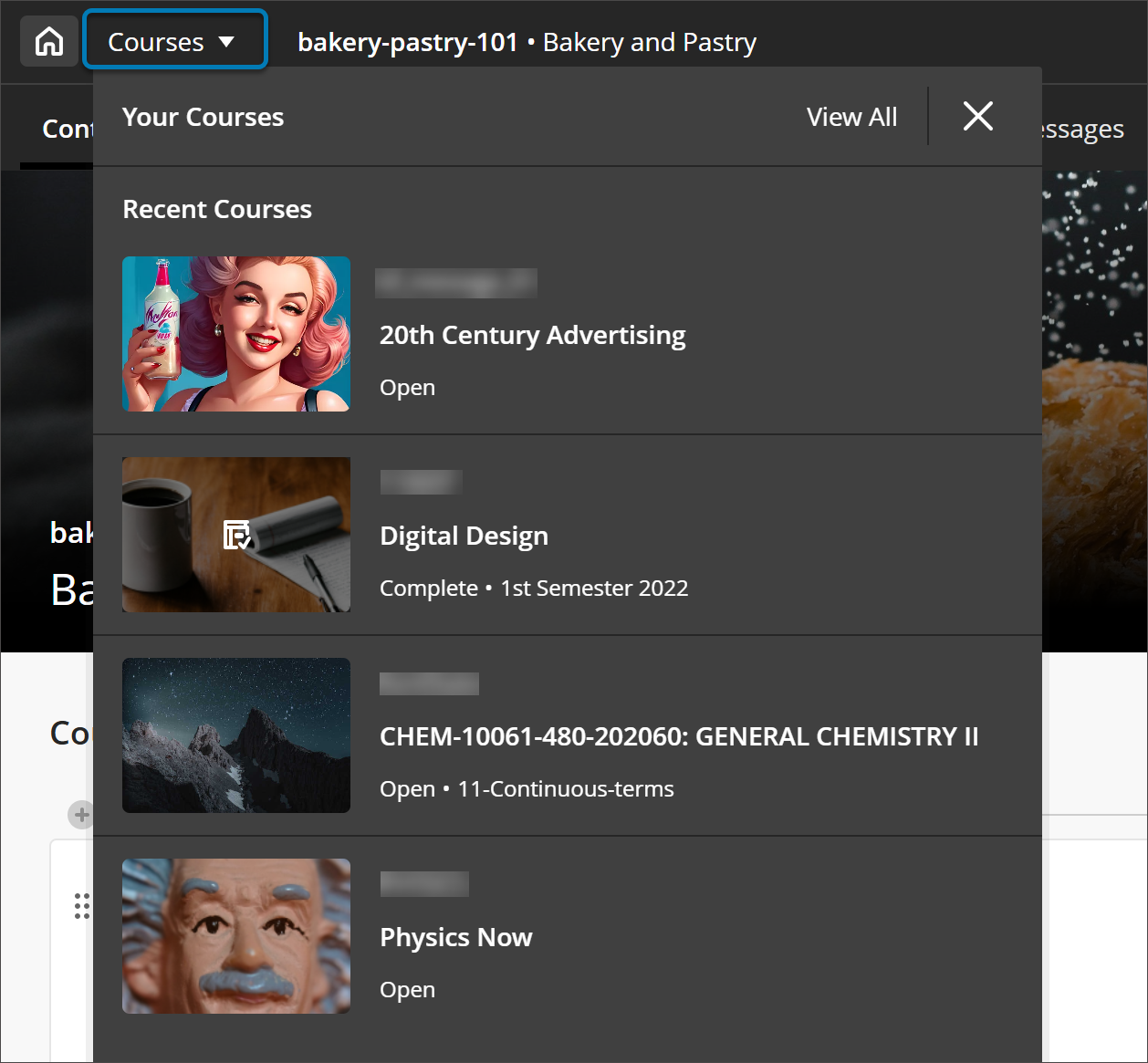
Selector de cursos
Los usuarios pueden saltar rápidamente entre sus cuatro cursos más recientes o ir a la página completa de Cursos. Se están planificando más mejoras basadas en los comentarios continuos.
Imagen 4: El nuevo cambiador de curso permite a los usuarios moverse entre los cuatro cursos más recientes.
En el siguiente vídeo, podrá ver una representación visual y auditiva de la información que se presenta en esta página. Para obtener una descripción detallada de lo que se muestra en el video, abra el video en Vimeo.
Administradores
Disponibilidad: Disponible para todos los cursos Ultra.
Activación: No es necesaria.
Configuración: No es necesaria.
Integraciones
Control granular de Logros para Ultra mediante la Jerarquía Institucional
Los administradores pueden ahora gestionar la función de Logros en los Cursos Ultra en niveles específicos de la Jerarquía Institucional. Anteriormente, el acceso a las características solo se controlaba mediante Feature Flags a nivel de sistema, que se aplicaban a nivel global y ofrecían una flexibilidad limitada para instituciones con necesidades de gobernanza complejas. Esta actualización proporciona más control y flexibilidad para gestionar los Logros dentro de su institución. Lea sobre la creación y gestión de nodos en Jerarquía Institucional en el Centro de Ayuda de Blackboard.
Los logros de Ultra se tratan ahora como una herramienta configurable que los administradores pueden gestionar a nivel de nodo de la Jerarquía Institucional utilizando la conocida interfaz de Gestionar Herramientas. El Feature Flag existente permanecerá temporalmente, creando un modelo de control compartido:
Cuando el Feature Flag está activado ON, la funcionalidad es visible en la herramienta de administración y en la Jerarquía Institucional, con opciones de interruptor y bloqueo ON/OFF para alternar y bloquear. Los administradores pueden ajustar la disponibilidad para nodos IH específicos.
Cuando el Feature Flag está OFF, la característica no aparecerá en la Herramienta de Administración ni en la Jerarquía Institucional.
Si el Feature Flag se elimina posteriormente, la función seguirá siendo totalmente gestionable a través de la Jerarquía institucional, lo que garantiza una gobernanza a largo plazo sin depender de indicadores globales.
Este modelo de control compartido permite realizar pruebas seguras y un despliegue gradual durante la transición de Feature Flags a una gobernanza basada en Jerarquía Institucional.
Administradores
Disponibilidad: Disponible para todos los cursos Ultra.
Activación: No es necesaria.
Configuración: No es necesaria.
Grades Journey: Validar las calificaciones antes del envío, la aprobación o la extracción
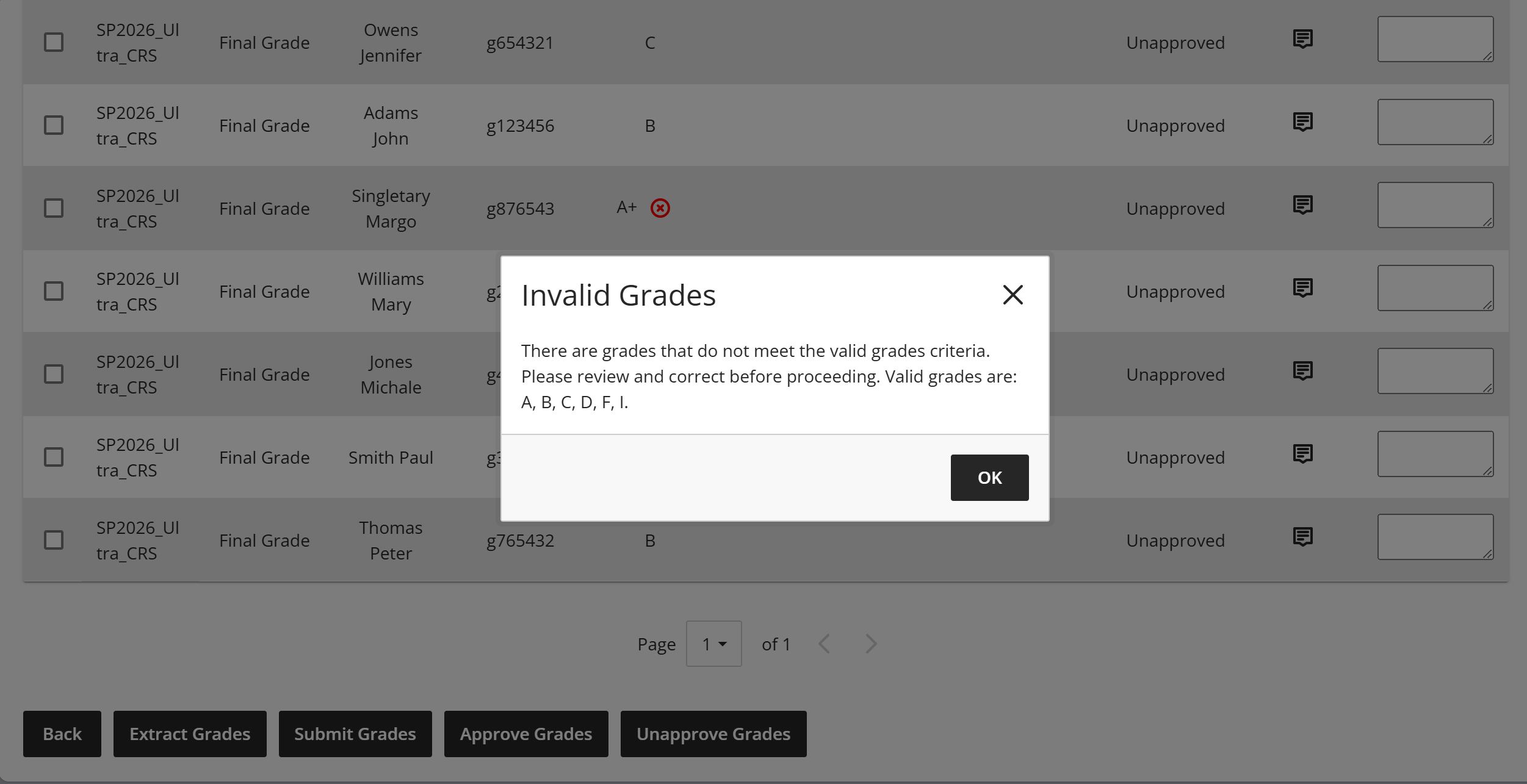
Los evaluadores ahora ven una X roja en la columna Calificación Actual cuando una calificación es inválida. Si intenta enviar, aprobar o extraer calificaciones inválidas, aparecerá un mensaje explicando que algunas calificaciones son inválidas y listando las opciones válidas. Esta actualización aclara a los evaluadores cuándo se introducen calificaciones inválidas para los estudiantes y evita que se envíen, aprueben o extraigan calificaciones inválidas.
Profesores
Imagen 1: Ahora aparece una X roja cuando la calificación actual sea inválida.
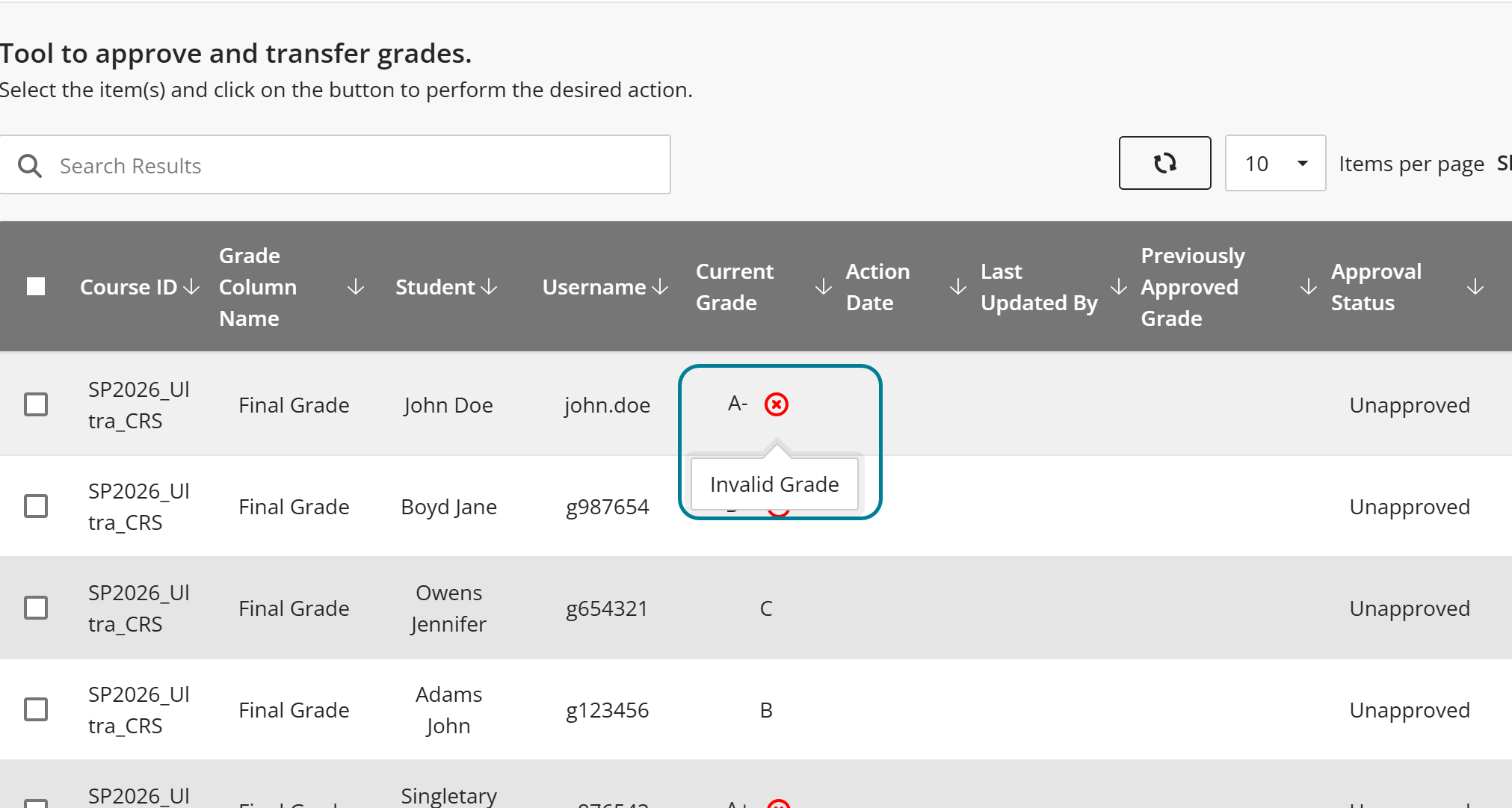
Imagen 2: Aparece una ventana si intenta enviar, aprobar o extraer calificaciones inválidas que lista los valores válidos de calificación.
Administradores
Disponibilidad: Disponible para todos los cursos Original y Ultra.
Activación: Esta función requiere una licencia de Grades Journey.
Configuración: Esta función está desactivada por defecto. Desde el Panel de Administración, elija Extensiones de plataforma y edite la configuración de Grade Export v2. Seleccione Configurar para el flujo de trabajo de aprobación. Seleccione Validar calificaciones en la sección Configuración de aprobación y transferencia de calificaciones.
Proceso de calificaciones: Evite la extracción manual de calificaciones no aprobadas
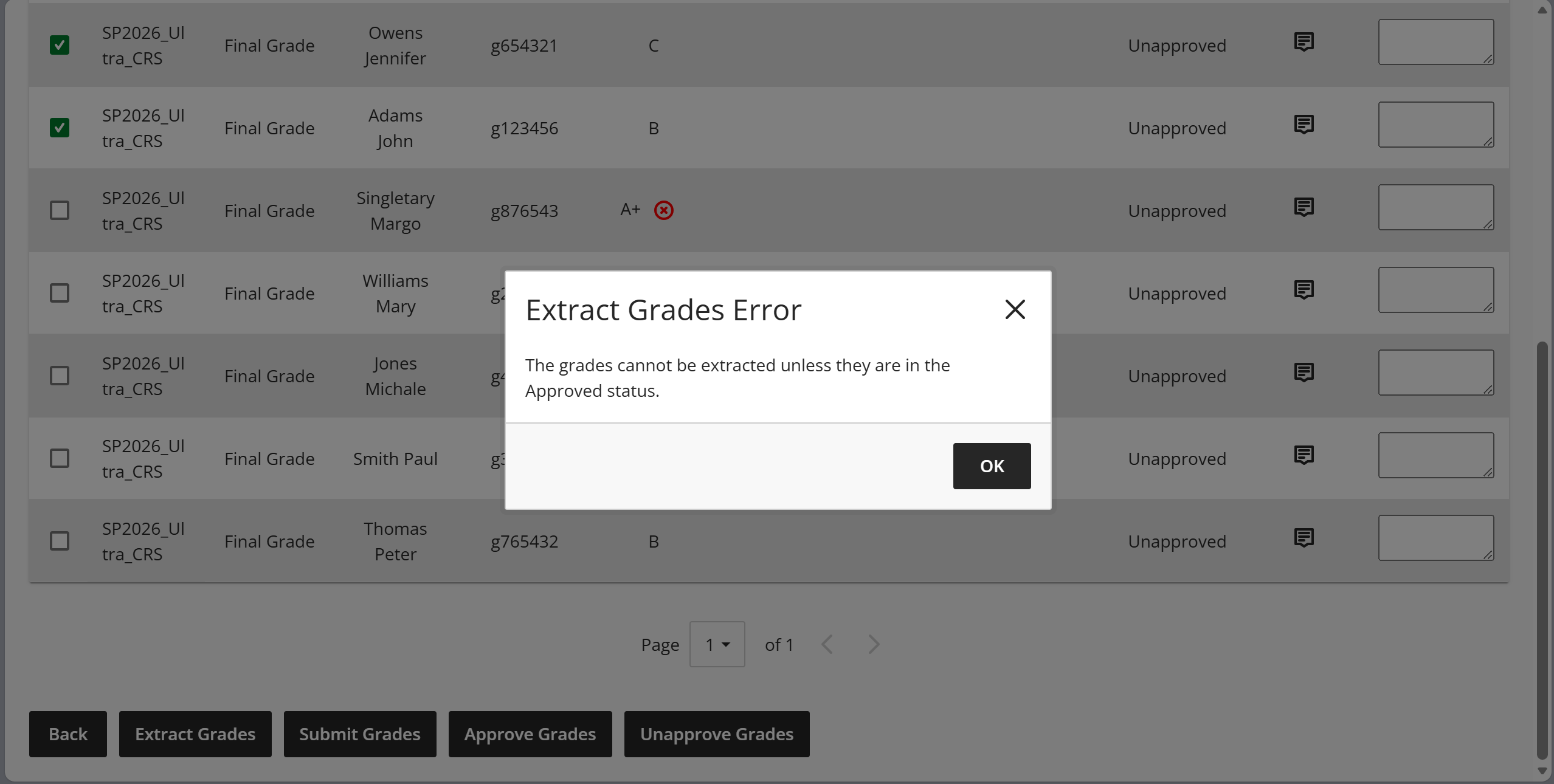
Ahora los evaluadores reciben un mensaje de error cuando intentan extraer manualmente las calificaciones que no se encuentran en estado de Aprobado. Esta función impide que los evaluadores envíen calificaciones no aprobadas al sistema de información estudiantil.
Profesores
Imagen 1: Aparece un mensaje de error cuando se intenta extraer las calificaciones que no han sido aprobadas.
Administradores
Disponibilidad: Disponible para todos los cursos Original y Ultra.
Activación: Esta función requiere una licencia de Grades Journey.
Configuración: Esta función está desactivada por defecto. Desde el Panel de Administración, elija Extensiones de plataforma y edite la configuración de Grade Export v2. Seleccione Configurar para el flujo de trabajo de aprobación. Seleccione ¿Solo permitir extracto para calificaciones aprobadas? en la sección Aprobación de Calificaciones y Ajustes de Transferencia.
Exportación de calificaciones: enviar por correo electrónico una lista resumen de extracción de calificaciones
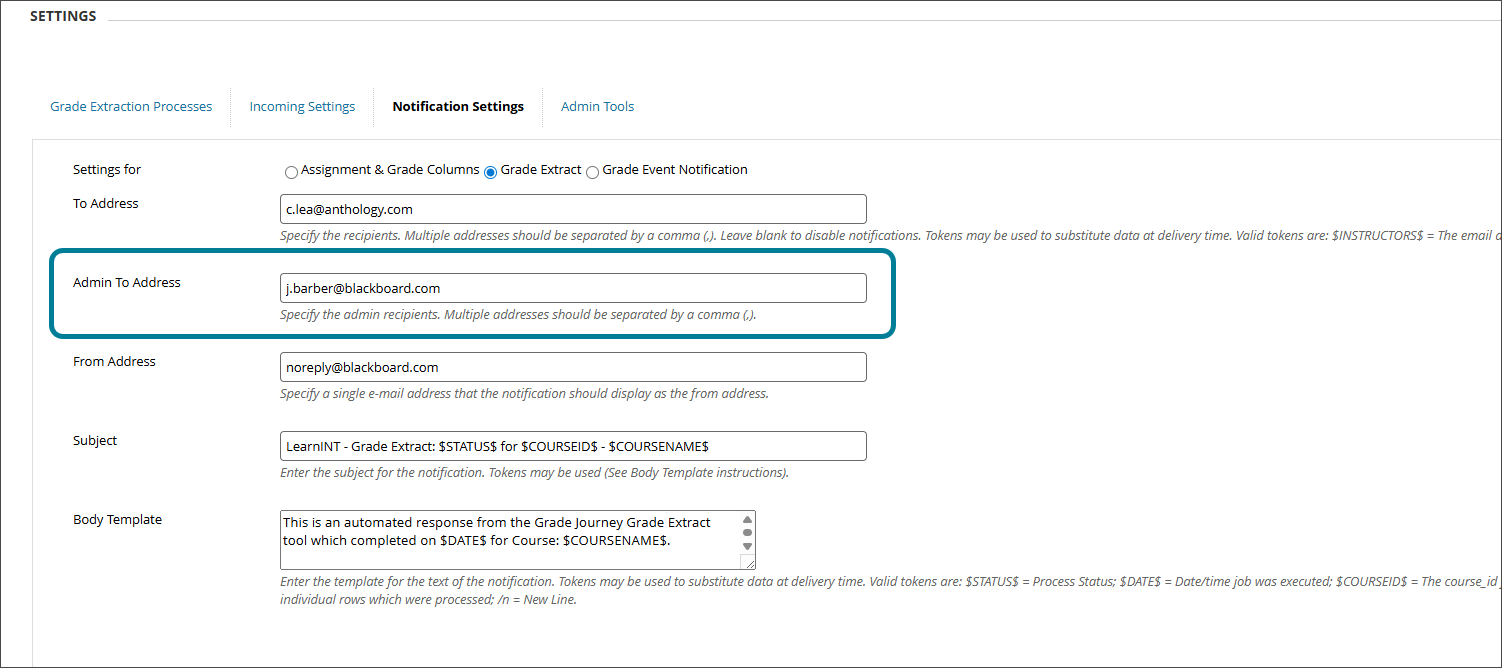
Los administradores ahora pueden enviar un único correo electrónico con un archivo de texto que lista todos los cursos incluidos en un extracto de calificaciones a los destinatarios administrativos seleccionados. El archivo contiene los identificadores de los cursos y se envía después de cualquier extracto que transfiera calificaciones, incluyendo extractos programados y manuales. Esta función ofrece a los destinatarios administrativos la opción de recibir un solo correo electrónico por extracto en lugar de un correo electrónico por cada curso individual, lo que puede resultar más eficiente.
Imagen 1: Los administradores introducen el correo electrónico del destinatario en la pantalla de Configuración de notificaciones dentro de la configuración de Grade Export v2.
Administradores
Disponibilidad: Disponible para todos los cursos Original y Ultra.
Activación: No es necesaria.
Configuración: No es necesaria.
Premium
Video Studio: Utilice comprobaciones de conocimiento para vídeos.
Ahora los profesores pueden incrustar preguntas de revisión de conocimientos sin calificación directamente en vídeos en Video Studio. El vídeo se pausa en puntos designados e invita a los estudiantes a responder a una pregunta relacionada con el contenido que acaban de ver. Después de responder correctamente, el vídeo se reanudará.
Esta función ayuda a los profesores a confirmar que los estudiantes comprenden los conceptos clave y mantiene a los estudiantes interesados durante todo el vídeo.
Profesores
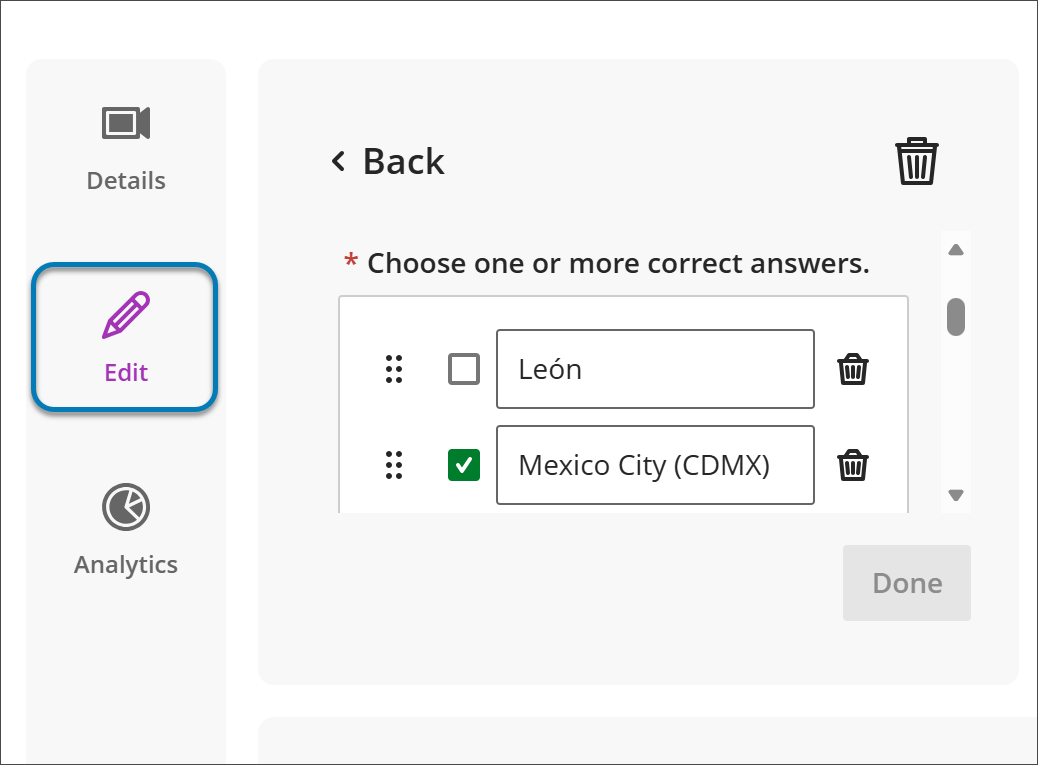
Los profesores pueden añadir comprobaciones de conocimiento desde la pantalla de Edición para una grabación. La página muestra el número de comprobaciones de conocimiento en uso. Los profesores pueden añadir o editar preguntas, establecer opciones de opción múltiple con una o más respuestas correctas y elegir la marca de tiempo donde aparecerá la pregunta. Las preguntas no están calificadas y están diseñadas para validar la comprensión, no para evaluar el rendimiento. Los profesores también tienen acceso a análisis generales sobre las respuestas de los estudiantes.
Imagen 1: Ahora puede incrustar comprobaciones de conocimiento dentro de una grabación de estudio de vídeo.
Estudiantes
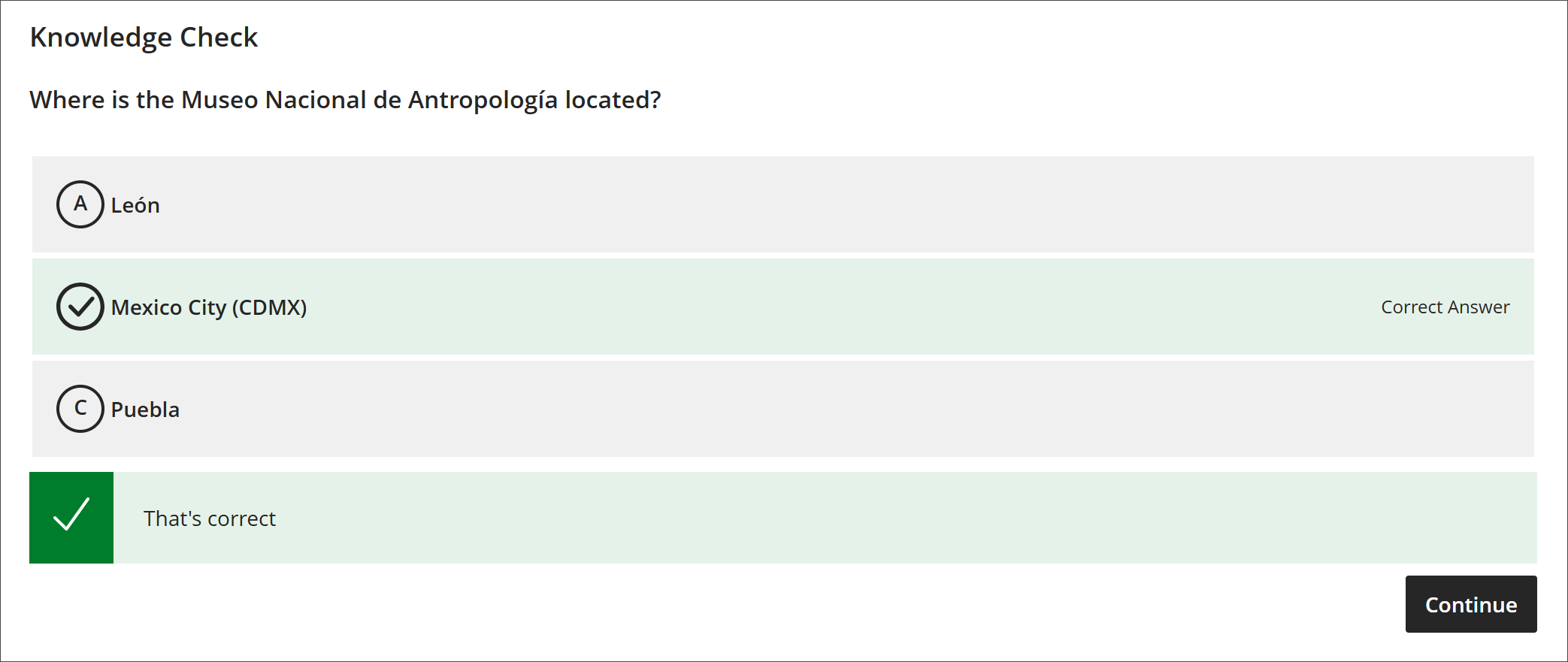
Cuando los estudiantes ven un vídeo con comprobaciones de conocimientos, el vídeo se detiene en la marca de tiempo especificada y muestra una pregunta. Los estudiantes deben responder correctamente para continuar y pueden intentarlo tantas veces como necesiten. Las comprobaciones de conocimiento crean una experiencia interactiva que fomenta la participación activa y una comprensión más profunda.
Imagen 2: Los estudiantes reciben una pregunta de comprobación de conocimientos que está incrustada en la grabación del estudio de vídeo donde el profesor ha elegido dirigirla.
Administradores
Disponibilidad: Disponible para todos los cursos Ultra.
Activación: No es necesaria.
Configuración: No es necesaria.
Estudio de vídeo: Descargue vídeo para uso offline.
Nota
Esta función estará disponible en entornos de examen/etapas el martes 16 de diciembre de 2025.
Ahora puede descargar grabaciones de Video Studio directamente en su dispositivo local para acceder sin conexión. Esta actualización ofrece a los profesores y a los estudiantes más flexibilidad para acceder al contenido del curso sin conexión a internet.
Profesores
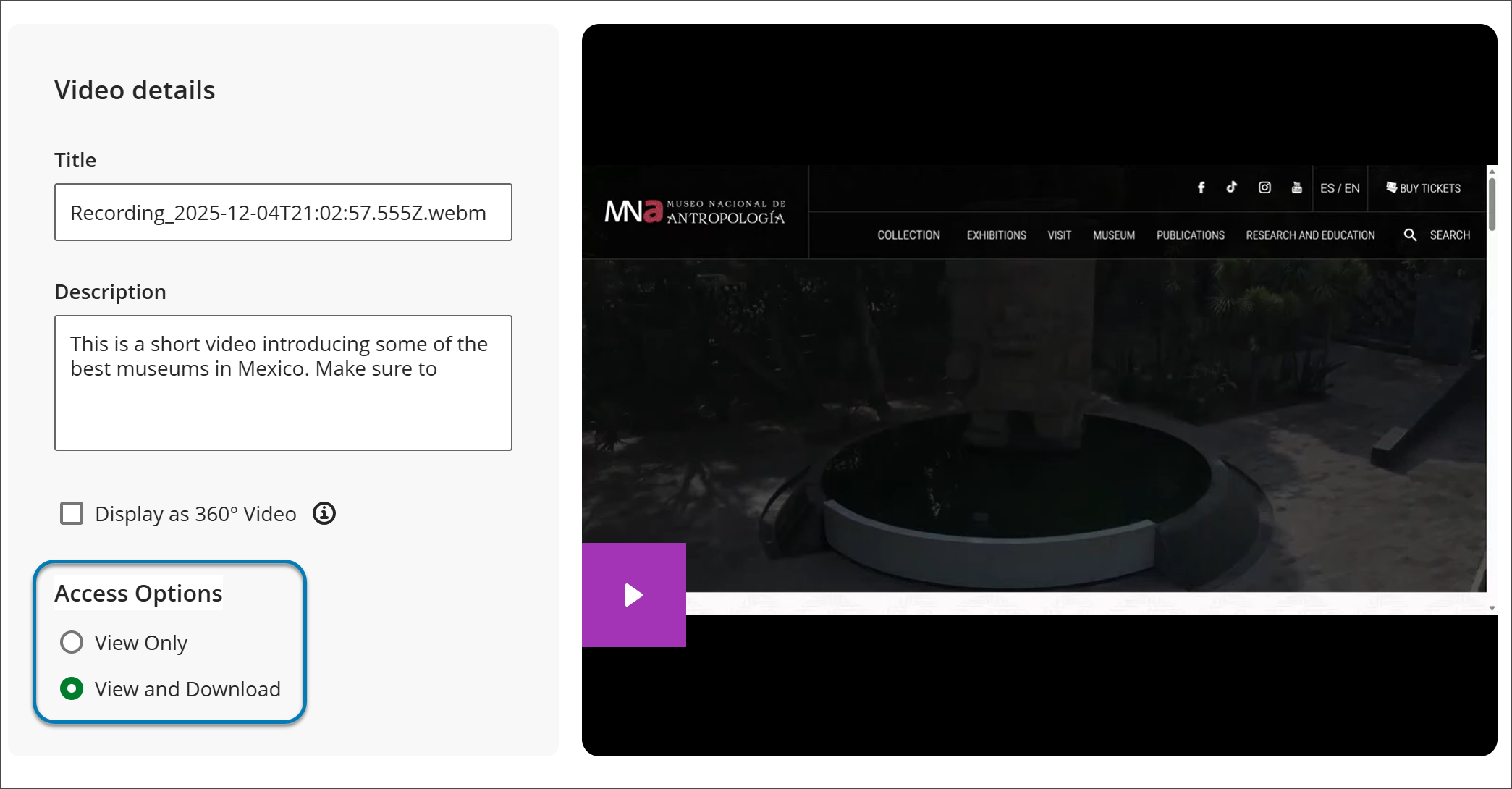
Los profesores pueden elegir qué grabaciones descargarán los estudiantes activando o desactivando la opción de descarga para cada grabación. Esto permite controlar cómo se comparte el material del curso.
Imagen 1: Ahora los profesores pueden elegir si permiten o no a los estudiantes descargar una grabación de Video Studio para uso fuera de línea.
Estudiantes
Cuando los estudiantes abran una grabación con la descarga activada, podrán seleccionar la opción de descarga para guardar el archivo en su dispositivo. Esto facilita el aprendizaje sobre la marcha, como durante los desplazamientos o en zonas con conectividad limitada.
No existe una opción directa para descargar al almacenamiento en la nube, pero puede mover archivos a servicios en la nube manualmente.
Nuestra versión de febrero de 2026 (versión 4000.8) permitirá a los estudiantes descargar las grabaciones que ellos mismos creen.
Administradores
Disponibilidad: Disponible para todos los cursos Ultra.
Activación: No es necesaria.
Configuración: No es necesaria.
Estudio de vídeo: Edite la descripción
Los profesores y estudiantes pueden añadir o editar descripciones para grabaciones en Estudio de Vídeo. Utilice el campo de descripción para dar contexto, resumir el contenido, resaltar temas clave o incluir orientación para los espectadores antes de ver.
Profesores y estudiantes
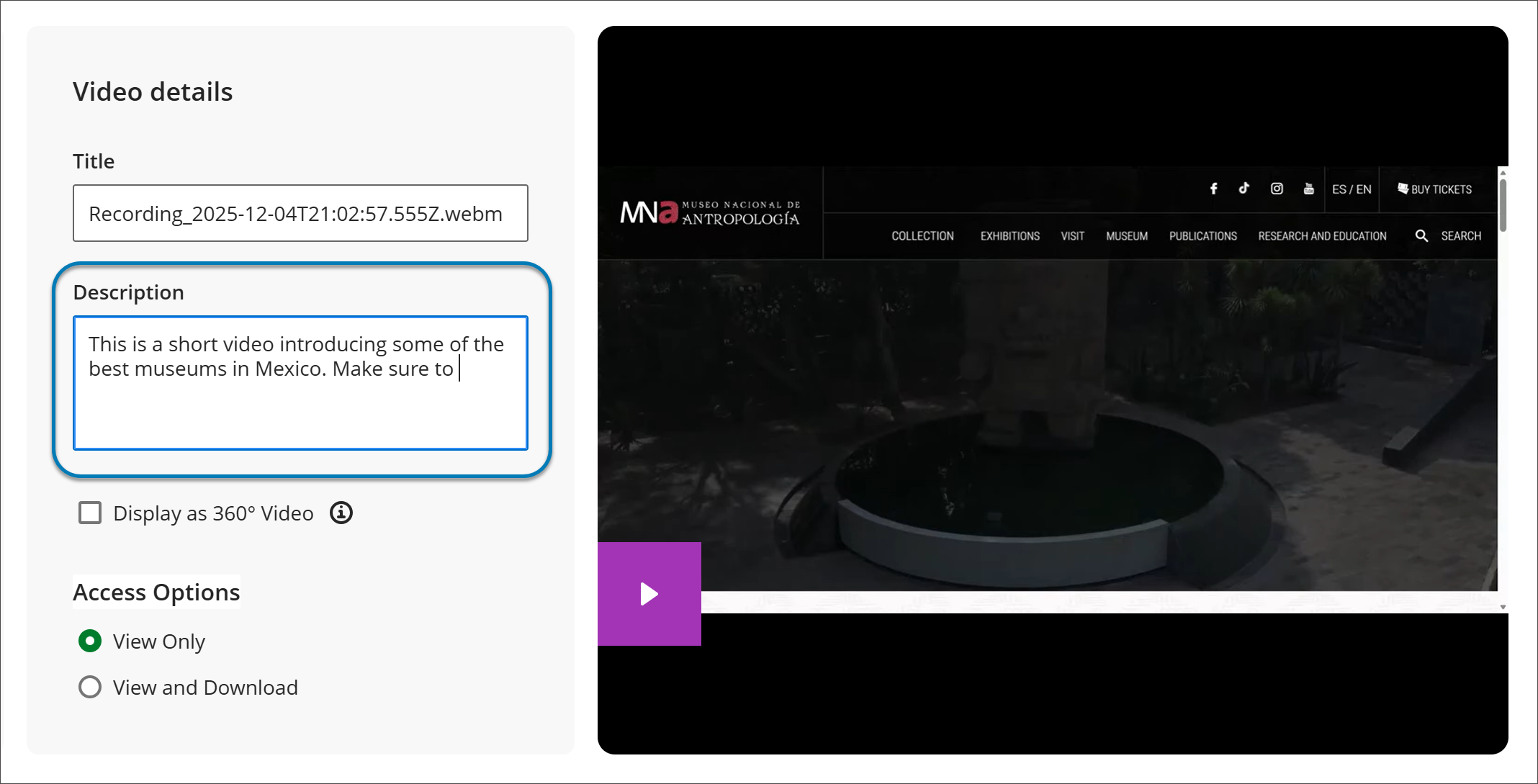
Los profesores y estudiantes pueden añadir o actualizar el título y la descripción de cualquier grabación de Video Studio. Utilice el campo de descripción para resumir el vídeo, resaltar temas clave o proporcionar instrucciones para los estudiantes.
Imagen 1: Ahora puede editar la descripción de su grabación después de crearla en Video Studio.
Administradores
Disponibilidad: Disponible para todos los cursos Ultra.
Activación: No es necesaria.
Configuración: No es necesaria.
Estudio de vídeo: Edición masiva de nombres de ponentes en transcripciones de vídeo
Nota
Esta función estará disponible en entornos de examen/etapas el martes 16 de diciembre de 2025.
Profesores y estudiantes pueden actualizar ahora todas las instancias del nombre de un ponente en una transcripción de vídeo en un solo paso. Esta actualización acelera la edición y mantiene los nombres consistentes a lo largo de toda la transcripción.
Profesores y estudiantes
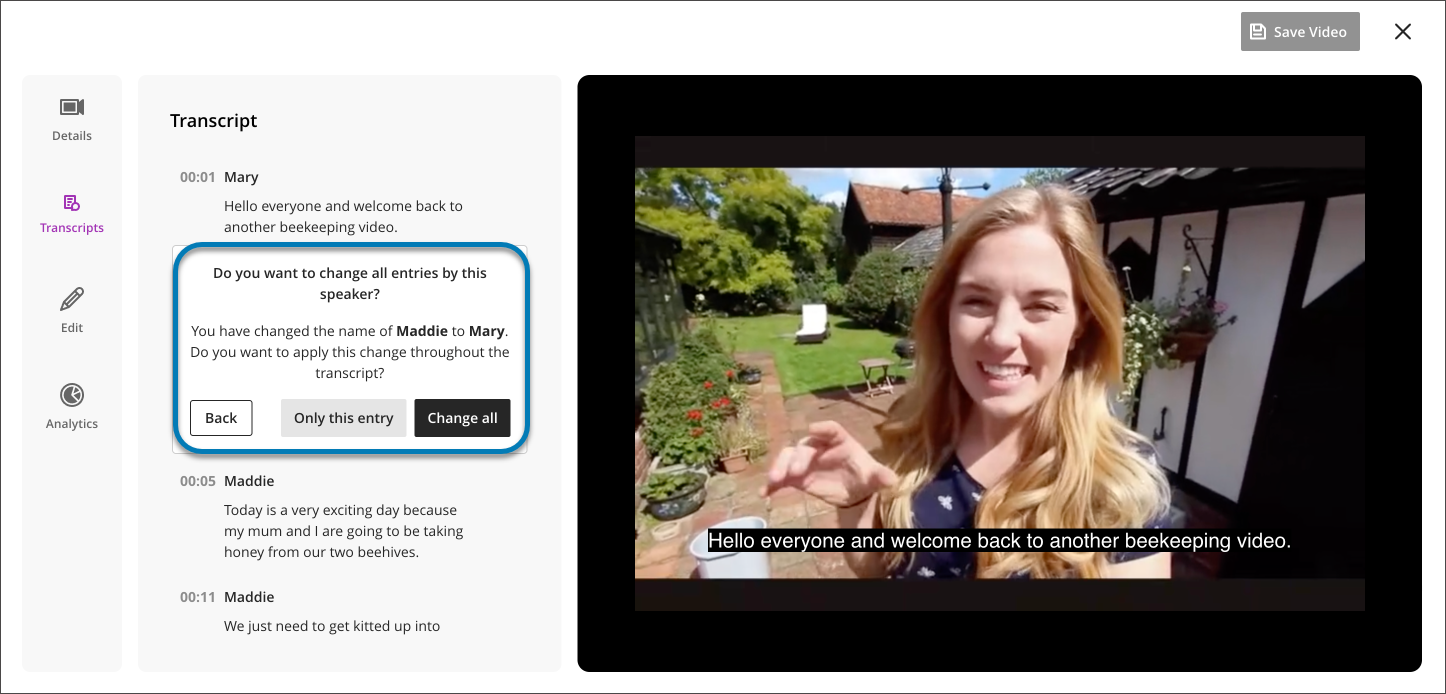
Para editar el nombre de un ponente, abra el Editor de Transcripciones de su vídeo. Seleccione el nombre que desee cambiar y aplique la actualización. Todas las apariciones de ese nombre se actualizan automáticamente.
Imagen 1: Ahora puede editar en masa el nombre de un hablante dentro de una transcripción de grabación.
Administradores
Disponibilidad: Disponible para todos los cursos Ultra.
Activación: No es necesaria.
Configuración: No es necesaria.