Notas de la versión de febrero de 2026 (4000.8)
Información de la versión
Sugerencia
Para consultar los números de compilación de las versiones de mantenimiento y las correcciones de errores, visite Las versiones de mantenimiento.
Para consultar el estado del servicio y los retrasos, visite Estado de Blackboard.
Diseño instruccional
Apilar bloques en vertical en Documentos
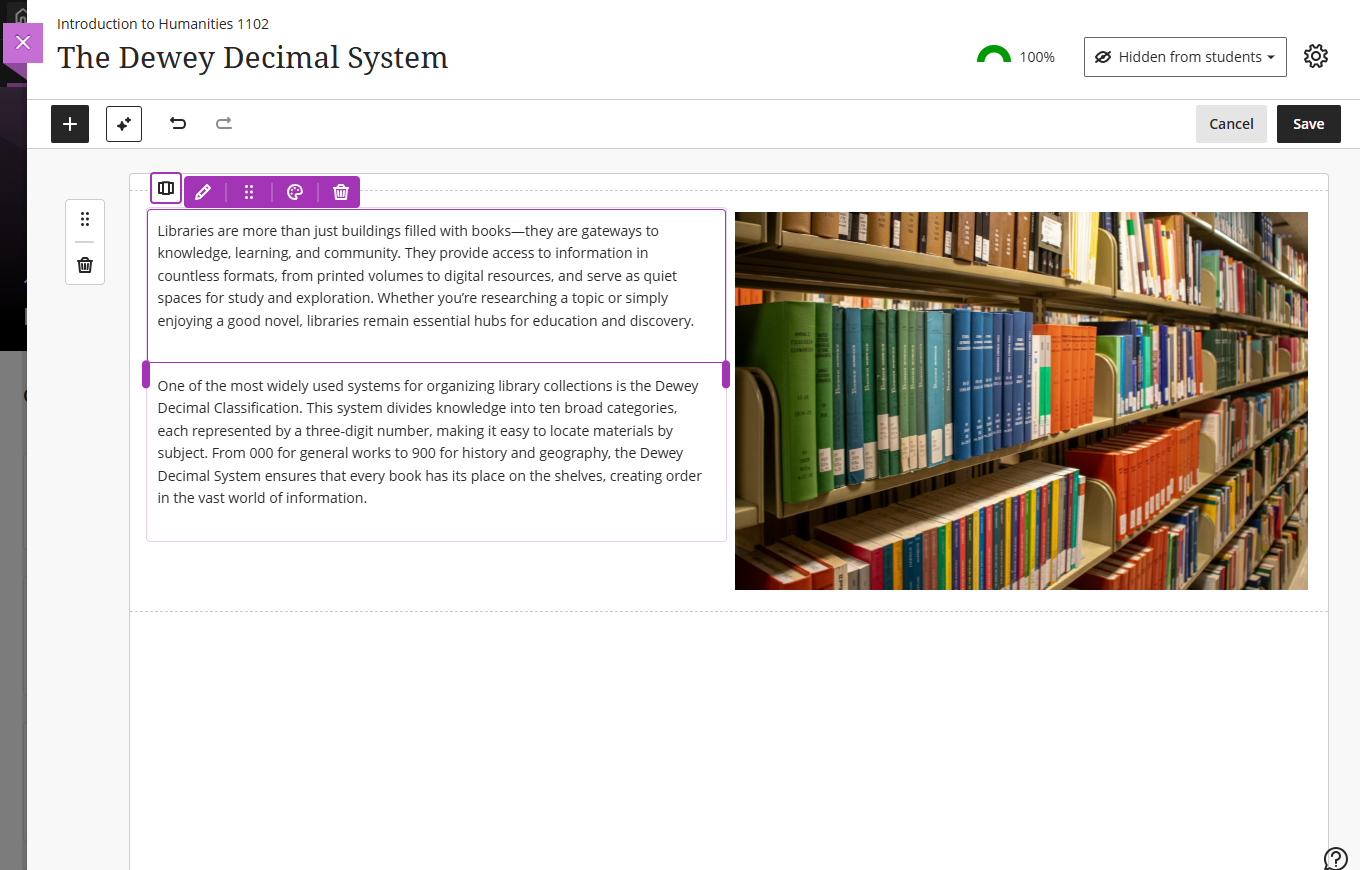
Los profesores pueden apilar bloques en una sola columna en Documentos para crear diseños más claros y reducir los espacios en blanco. Una nueva opción en la barra de herramientas del bloque le permite alternar entre la edición a nivel de columna y a nivel de bloque. En el modo columnas, las acciones se aplican a toda la columna. En el modo bloques, los profesores pueden cambiar el tamaño, mover o eliminar bloques de forma individual.
También puede colocar columnas dentro del área de otro bloque para crear una disposición más flexible. Estos cambios funcionan con las funciones actuales, como deshacer/rehacer, imprimir y generar diseños con AI. Esta actualización también incluye mejoras de accesibilidad para usuarios de lectores de pantalla.
Imagen 1: Los profesores pueden apilar bloques en una sola columna, por ejemplo, junto a una imagen en una columna.
Administradores
Disponibilidad: Disponible en todos los cursos Ultra.
Activación: No es necesaria.
Configuración: No se requiere ninguna configuración.
Aprendizaje basado en el dominio e itinerarios de aprendizaje
Organizar períodos con relaciones entre padres e hijos
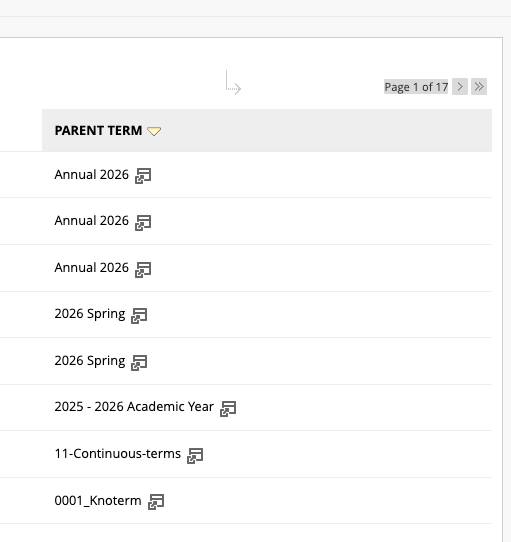
Las instituciones pueden crear un período académico anual principal y, dentro de él, períodos académicos secundarios, como semestres, trimestres o cuatrimestres. Una nueva columna muestra el tipo de período en la página de períodos.
Los administradores pueden clasificar los cursos por asignaturas y los períodos por tipo para mejorar los informes y el análisis. Estas actualizaciones ayudan a los administradores, directores de programa y diseñadores pedagógicos a organizar los datos y analizar las tendencias.
Imagen 1: Las instituciones pueden crear un período anual principal con períodos secundarios.
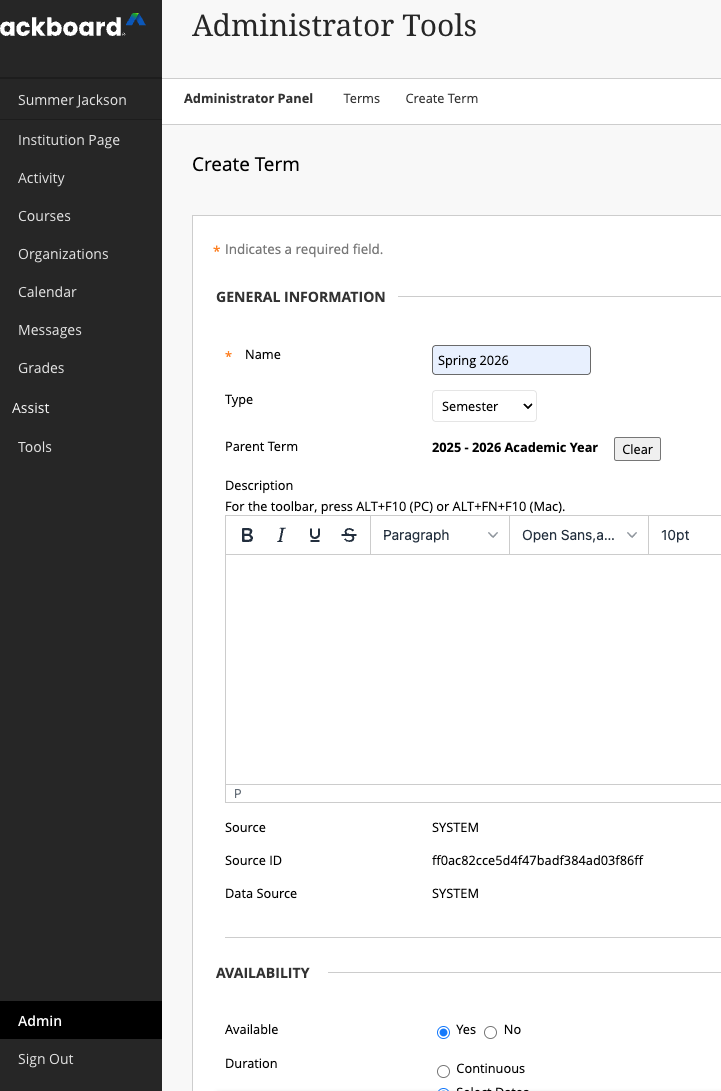
Imagen 2: Los períodos principales aparecen en la columna Período principal de la página Período.
Administradores
Disponibilidad: Disponible en todos los cursos Ultra.
Activación: No es necesaria.
Configuración: No se requiere ninguna configuración.
Mayor facilidad de uso de los logros
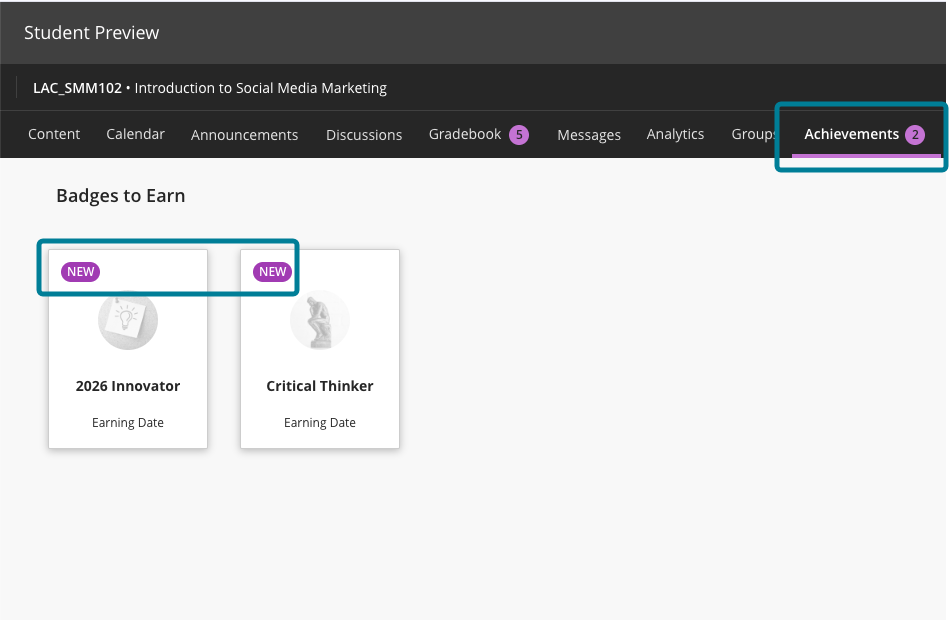
Para los estudiantes, la pestaña Logros muestra cuántas insignias no se han leído. La etiqueta Nuevo siempre aparece en las secciones Ganado y Para ganar. El cuadro de diálogo Borrar Insignia utiliza un texto más claro. Los profesores y los estudiantes pueden diferenciar más fácilmente las Insignias de curso de las Insignias abiertas gracias a etiquetas, iconos y descripciones mejorados.
Las actualizaciones de accesibilidad incluyen mejoras en las etiquetas aria y el texto alternativo. Se ha actualizado el estilo de las imágenes de OpenBadge para eliminar los bordes redondeados forzados.
Imagen 1: En la vista del estudiante, la pestaña Logros muestra el número de insignias no leídas y las insignias nuevas incluyen una etiqueta Nuevo.
Administradores
Disponibilidad: Disponible en todos los cursos Ultra.
Activación: No es necesaria.
Configuración: No se requiere ninguna configuración.
Mejorar la accesibilidad de las opciones de insignias personalizadas
Las mejoras de accesibilidad optimizan los flujos de trabajo de profesores y estudiantes. Los lectores de pantalla ahora ofrecen descripciones más claras de los botones y de las vistas previas de imágenes. Las etiquetas aria y el texto alternativo son consistentes en todas las vistas.
Se ha añadido información sobre herramientas a los botones para ofrecer más contexto. Las imágenes decorativas están marcadas correctamente y las imágenes personalizadas incluyen texto alternativo. Estos cambios hacen que la creación y la visualización de insignias sean más inclusivas y fáciles de usar.
Administradores
Disponibilidad: Disponible en todos los cursos Ultra.
Activación: No es necesaria.
Configuración: No se requiere ninguna configuración.
Progreso del alumno y experiencia personalizada
Usar automatizaciones para recordar a los estudiantes que revisen sus comentarios
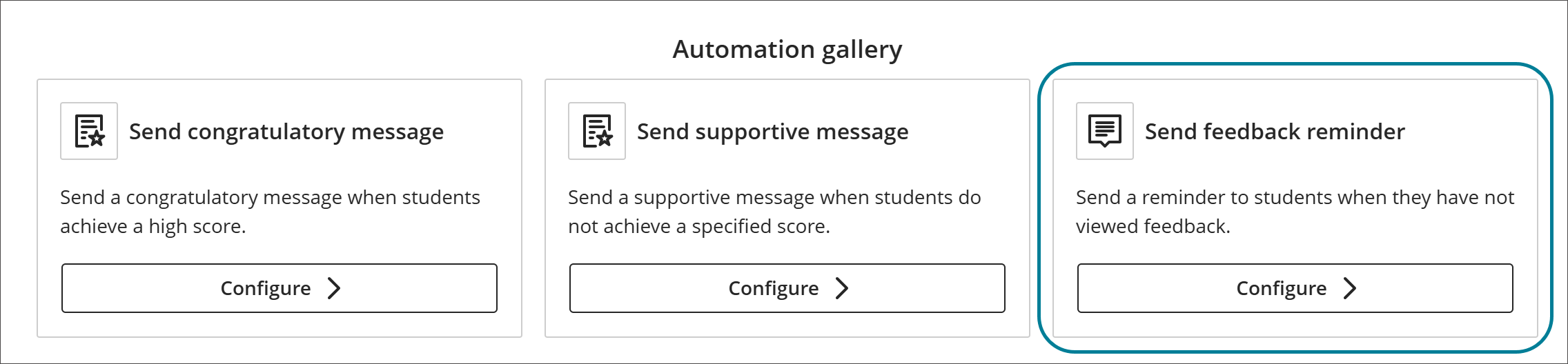
Los profesores pueden crear automatizaciones para enviar un mensaje a los estudiantes que tengan comentarios sin leer después del número de días que defina el profesor. Esta función le ahorra tiempo, ya que anima automáticamente a los estudiantes a revisar sus comentarios y fomenta su participación.
Profesores
Esta versión añade la opción Enviar recordatorio de comentarios a la galería de Automatización.
Imagen 1: La galería de Automatización ahora incluye Enviar recordatorio de comentarios.
En el activador de automatización, los profesores seleccionan cuántos días deben pasar sin que se lean los comentarios antes de que se envíe el mensaje.
Imagen 2: El activador de automatización incluye un menú desplegable para seleccionar el número de días sin leer.
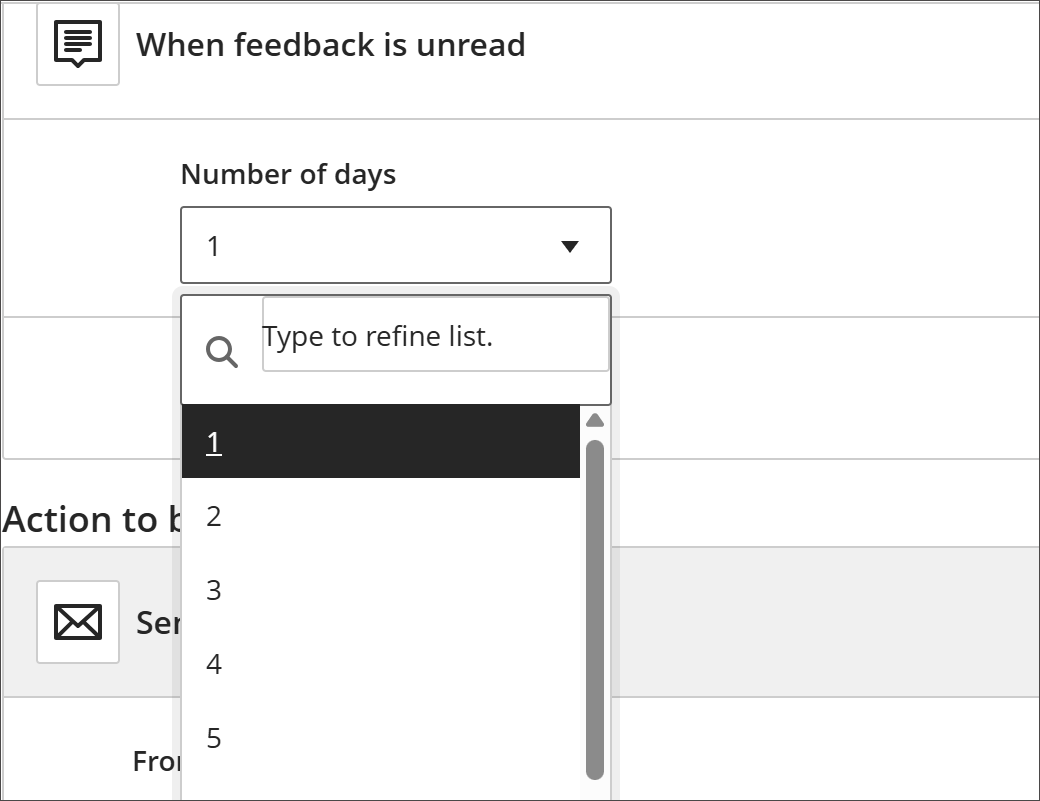
Se incluye un mensaje de recordatorio predeterminado, y los profesores pueden personalizarlo por completo en esta etapa. El mensaje se envía al estudiante cuando se activa la regla.
Administradores
Disponibilidad: Disponible en todos los cursos Ultra.
Activación: No es necesaria.
Configuración: La función Automatizaciones está desactivada de forma predeterminada. Los administradores pueden activarlo o desactivarlo desde el Panel del administrador. Seleccione Configurar en ¡La experiencia Ultra ya está aquí! del módulo. Seleccione Automatizaciones para activar o desactivar las automatizaciones.
Para trabajar con automatizaciones, los usuarios necesitan los siguientes privilegios:
Curso/Organización > Automatizaciones > Añadir permite a los usuarios crear nuevas automatizaciones.
Curso/Organización > Automatizaciones > Eliminar permite a los usuarios eliminar automatizaciones.
Curso/Organización > Automatizaciones > Editar permite a los usuarios editar las automatizaciones existentes.
Curso/Organización > Automatizaciones > Ver permite a los usuarios ver las automatizaciones existentes del curso.
Integraciones
Visualizar datos de LTI en Anthology Adopt
Ahora, las instituciones pueden hacer un seguimiento y segmentar el uso de la herramienta LTI en Anthology Adopt, lo que permite obtener información más detallada y ofrecer experiencias de usuario más específicas. Adopt puede identificar lanzamientos LTI individuales, lo que permite a los administradores supervisar la adopción, analizar los patrones de uso y ofrecer orientación contextual.
Las principales mejoras incluyen
Identificadores únicos para los lanzamientos de LTI. Cada herramienta LTI ahora incluye un identificador único (GUID) que se añade como atributo DOM (por ejemplo, data-launch-handle). Adopt usa este identificador para:
Reconocer y etiquetar eventos específicos en la herramienta LTI
Segmentar a los usuarios según el uso de una herramienta LTI específica
Asignar identificadores con nombres descriptivos para informes y análisis
Seguimiento contextual. Los atributos adicionales registran desde dónde se inició el LTI (por ejemplo, el programa del curso o el libro de calificaciones), lo que permite comprender mejor los patrones de uso.
Esta mejora le permite hacer un seguimiento del uso de las herramientas LTI desde la sección Herramientas del panel de navegación.
Esto permite a los usuarios
Identificar la participación de los profesores con LTI específicas
Ofrecer guías contextuales dentro de la aplicación para mejorar la experiencia de los usuarios
Tomar decisiones basadas en datos sobre el uso de la tecnología en el ámbito educativo
Administradores
Disponibilidad: Disponible para todos los cursos Ultra mediante la integración Adopt
Activación: No es necesaria.
Configuración: Los atributos DOM para los lanzamientos LTI se incluyen automáticamente. Los administradores configuran el seguimiento y la segmentación en Adopt.
Exportación de calificaciones: Inicie la herramienta para aprobar y transferir calificaciones directamente desde el nivel de columna
Los administradores pueden configurar la Herramienta de Aprobación y Transferencia de Calificaciones para que se abra directamente en el nivel de columna y omita el nivel del curso. Esta configuración evita que los profesores aprueben las calificaciones de un curso completo sin revisar antes las calificaciones por columna o por calificación. Así se garantiza que no se aprueben columnas por error al realizar una aprobación de todo el curso.
Imagen 1: La opción Iniciar directamente al nivel de columna ahora aparece en la configuración de Aprobación y transferencia de calificaciones.

Administradores
Disponibilidad: Disponible en todos los cursos Original y Ultra.
Activación: No es necesaria.
Configuración: No se requiere ninguna configuración.
Jerarquía institucional: restringir la búsqueda de copias de contenido para administradores de nodo
Hemos reforzado la gobernanza y la seguridad de las instituciones que usan la jerarquía institucional (IH) al restringir las búsquedas de copias de contenido para los administradores de nodos. Anteriormente, los administradores de nodo podían buscar y ver todos los cursos del sistema al usar las herramientas Copiar elemento de curso o Copiar elemento de organización, incluso fuera del ámbito de IH asignado. Este comportamiento generaba problemas de privacidad y obligaba a recurrir a soluciones alternativas, como la autoinscripción.
Las mejoras incluyen lo siguiente:
Ahora, los administradores de nodo pueden buscar y copiar contenido únicamente de los cursos que estén dentro de su nodo IH asignado o para los que tengan permisos concedidos directamente.
Esta actualización refuerza los límites institucionales sin eliminar las funciones de copiar o archivar.
Elimine la necesidad de gestionar manualmente la inscripción o de otorgar permisos elevados. Así reducirá la carga administrativa y mantendrá las listas de usuarios organizadas.
Este cambio garantiza el cumplimiento de los modelos de gobernanza institucional y, al mismo tiempo, mantiene la funcionalidad administrativa esencial.
Administradores
Disponibilidad: Disponible en todos los cursos Ultra y Original.
Activación: No es necesaria.
Configuración: Asegúrese de que los administradores de nodo tengan asignados, a través de sus roles en el sistema, los privilegios adecuados para copiar y archivar.
Administrador de Blackboard
Exclusión de las próximas funcionalidades
Ahora los administradores pueden activar o desactivar funciones específicas del producto directamente desde el panel de administración, tanto antes como después de un lanzamiento oficial. Esta actualización ofrece a los administradores más control sobre cuándo se habilitan las nuevas funciones, para que los equipos puedan adoptarlas a su propio ritmo y con mayor confianza.
Imagen 1: El área de Próximas funciones permite a los administradores aceptar o rechazar las funciones antes de su lanzamiento.
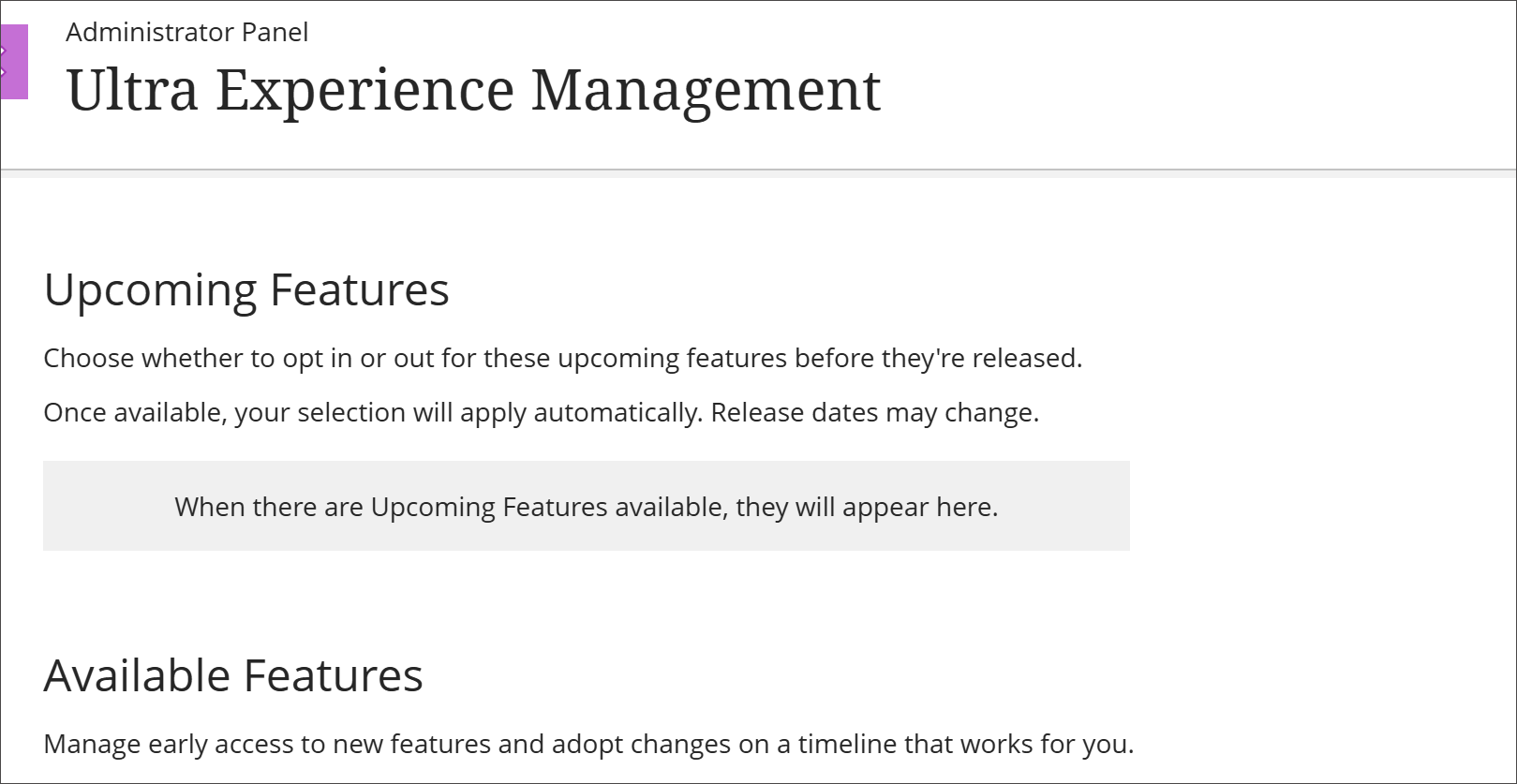
Tenga en cuenta que no todas las funciones tendrán una bandera de función.
Los administradores pueden:
Más control: Decida qué funciones quiere activar o desactivar, sin tener que esperar a las ventanas de activación.
Menos supervisión: No necesita estar pendiente durante los días de lanzamiento para comprobar cuándo están disponibles las funciones.
Visibilidad clara: Identifique rápidamente qué funciones están activas en el entorno de producción.
Pruebas más seguras: Pruebe y prepare la nueva funcionalidad antes de habilitarla para todos.
Las próximas funciones se actualizarán con cada versión de producción. Esta mejora facilita la adopción de nuevas funciones, reduce la carga administrativa y ofrece a las instituciones la flexibilidad necesaria para gestionar los cambios.
Administradores
Disponibilidad: Disponible en todos los cursos Ultra.
Activación: No es necesaria.
Configuración: No se requiere ninguna configuración.
Premium
Video Studio: Los estudiantes pueden descargar los vídeos que crean para verlos sin conexión.
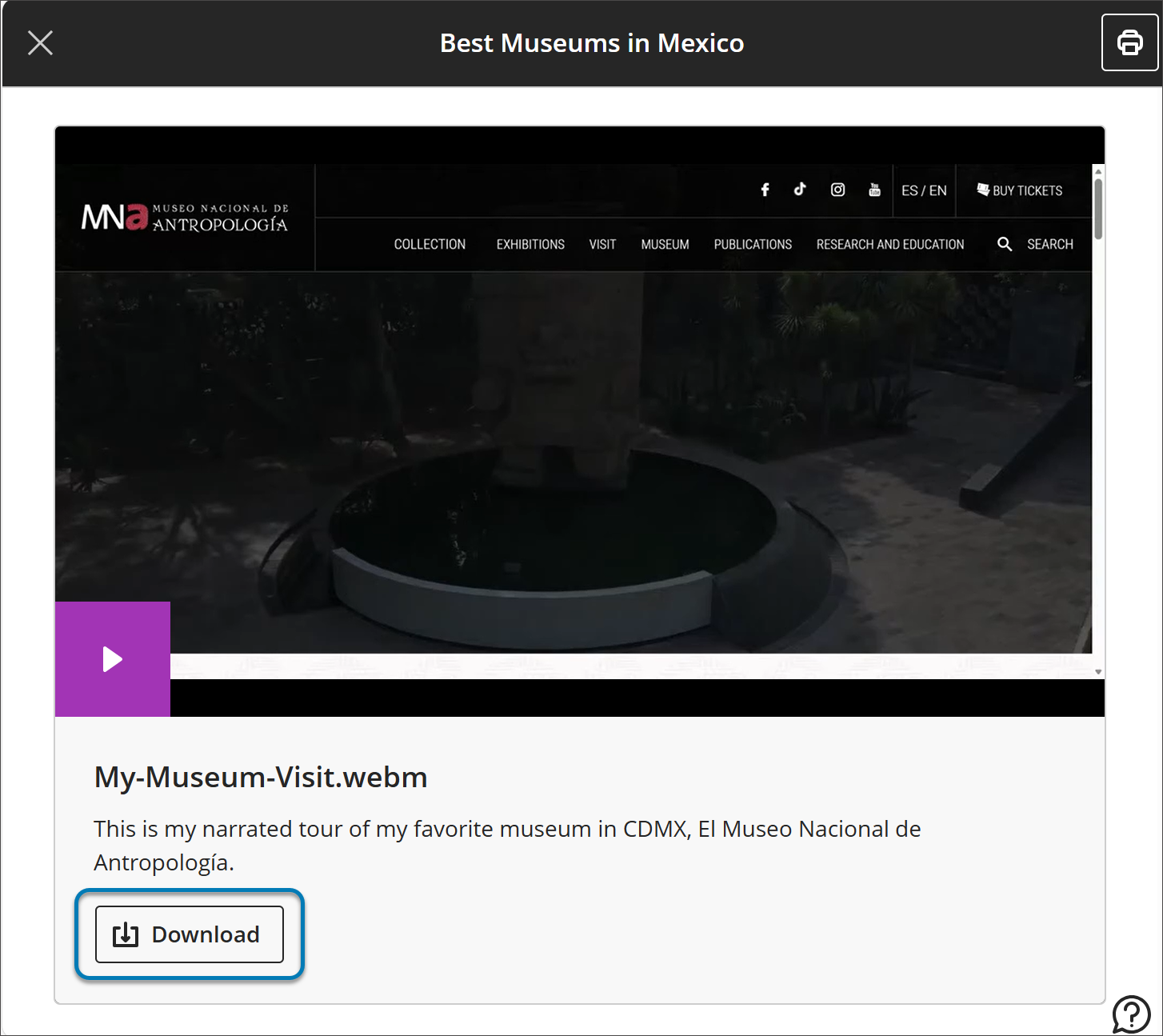
Ahora los estudiantes pueden descargar directamente en sus dispositivos las grabaciones de Video Studio que crean para acceder a ellas sin conexión. Esta actualización se basa en la función reciente que permite a los usuarios descargar las grabaciones de los profesores para acceder a ellas sin conexión. Ahora los alumnos tienen más flexibilidad para acceder a su contenido y compartirlo sin conexión a Internet.
Estudiantes
Cuando los estudiantes crean una grabación, pueden seleccionar la opción de descarga para guardar el archivo en su dispositivo. Esto le permite consultar sus propias grabaciones sobre la marcha, por ejemplo, durante los desplazamientos, en zonas con conectividad limitada o para conservar una copia y reutilizarla más adelante.
Imagen 1: Ahora, los estudiantes pueden descargar sus propias grabaciones de Video Studio para verlas sin conexión.
Administradores
Disponibilidad: Disponible en todos los cursos Ultra.
Activación: No es necesaria.
Configuración: No se requiere ninguna configuración.