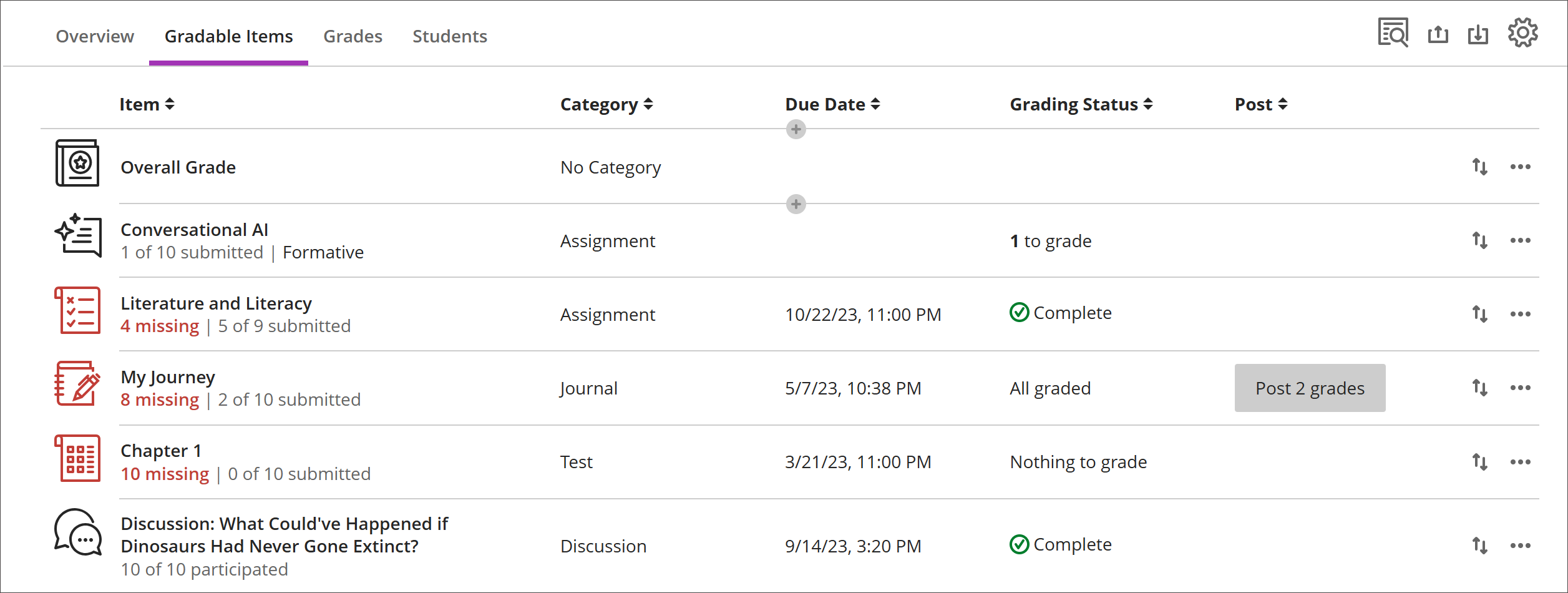
Tabblad ‘Beoordeelbare items’ in de cijferlijst
Note
Deze documentatie is vertaald met behulp van AI-ondersteunde machinevertaling. Vertalingen worden geleverd 'zoals ze zijn', zonder garantie van de juistheid ervan. De Engelse versie van deze inhoud is de officiële en leidende versie.
Het tabblad Beoordeelbare items bevat alle beoordeelbare items in de cursus. Je kunt einddatums, de status van cijfers en itemcategorieën bekijken. Je kunt ook cijfers publiceren en de berekening van het totaalcijfer voor de cursus aanpassen.
Items met ontbrekende inzendingen na de einddatum worden rood weergegeven.
Gebruik de verplaatsknop om items in een nieuwe volgorde te slepen en neer te zetten.
Selecteer de naam van een item om naar de pagina Inzendingen of Cijfers en Deelname te gaan.
Selecteer X om te beoordelen om rechtstreeks naar de pagina Inzendingen van de beoordeling te gaan en te beginnen met beoordelen.
Aangepaste, op tekst gebaseerde kolommen
Als je een aangepaste, op tekst gebaseerde kolom wilt maken, selecteer je (+) toevoegen en selecteer je vervolgens Tekstitem toevoegen. Voor elke kolom kan je een kolomnaam en beschrijving invoeren, en je kan bepalen of de kolom zichtbaar is voor studenten. Voor elke rij kun je maximaal 32 tekens invoeren.
Navigeren door het tabblad Te beoordelen items in de cijferlijst
Het tabblad ‘Beoordeelbare items’ heeft een op tabellen gebaseerde lay-out om de gebruiksvriendelijkheid voor toetsenborden en schermlezers te verbeteren.
Navigeer door Te beoordelen items met het toetsenbord
Gebruik de Tab-toets om naar het cijferoverzicht te gaan.
Gebruik de pijltjestoetsen om naar het tabblad ‘Beoordeelbare items’ te gaan.
Druk op Tab totdat je in de tabel ‘Beoordeelbare items’ komt.
Gebruik de pijltoetsen om door de tabel te navigeren.
Met de Tab-toets ga je uit de tabel naar de knop Blackboard Help. Shift + Tab brengt je terug naar de knop Instellingen.
Navigeren door Te beoordelen items met schermlezers
Gebruikers van een schermlezer kunnen met behulp van de toetsenbordcommando’s naar het tabblad ‘Beoordeelbare items’ gaan. Je kunt ook de speciale toetsencombinatie van je schermlezer gebruiken om direct naar de tabel te gaan.
JAWS: Gebruik Insert + Ctrl + T
NVDA: Druk op T en vervolgens op Ctrl + pijl-omlaag om de tabel te openen
VoiceOver: Gebruik Ctrl + Option + Pijl-rechts om de tabeloptie te selecteren
Zodra je in de tabel bent, kun je met schermlezers de tabelnavigatie (Ctrl + Alt + pijltjestoetsen) gebruiken om door de tabel te navigeren.
Als je inhoud wilt toevoegen, gebruik dan de pijl omlaag om naar de knop Meer opties (...) aan het einde van de rij te gaan. De pijl omlaag is de knop Inhoud toevoegen.
Opmerking voor JAWS-gebruikers
JAWS-gebruikers kunnen in elke rij naar links of rechts gaan met behulp van tabelnavigatietoetsen.
Om tussen de toewijzingsrijen te schakelen, ga je eerst naar de itemkolom.