Wiskundige editor
Note
Deze documentatie is vertaald met behulp van AI-ondersteunde machinevertaling. Vertalingen worden geleverd 'zoals ze zijn', zonder garantie van de juistheid ervan. De Engelse versie van deze inhoud is de officiële en leidende versie.
Je kunt wiskundige vergelijkingen en formules invoegen in toetsen, opdrachten, discussies en dagboeken met de wiskundige editor. Je kunt ook LaTeX-formules typen in elke editor voor tekst met opmaak waar de wiskundige editor mogelijk is. De wiskundige editor werkt op iedere browser en ieder besturingssysteem, ook op smartphones en tablets. Indien geactiveerd, rendert MathJax de LaTeX-code die is ingevoerd in de inhoudseditor in ondersteunde gebieden van Blackboard. Als MathJax niet is geactiveerd, zal Wiris formules renderen.
The math editor and typing LaTeX code are two different ways to add math formulas in the rich text editor. The math editor is a visual, point-and-click tool that lets you build a formula without writing any code. When activated, MathJax renders LaTeX code that you type as plain text into the rich text editor across supported areas of Blackboard LMS. Both methods render using MathJax, so you can choose whichever fits your workflow, such as pasting LaTeX code copied directly from an exam bank, textbook, or other source material. If MathJax is not activated, Wiris will render formulas.
Wiskundige formules worden weergegeven in de PNG-afbeeldingsindeling, wat een grotere bestandsgrootte heeft dan tekst. Het kan een paar seconden duren voordat de afbeelding met de wiskundige formule wordt weergegeven.
De snelheden van internetverbindingen en de inhoudsgrootte hebben invloed op de laadtijd. Het is mogelijk dat sommige studenten moeite hebben met het openen van inhoud met veel formuleafbeeldingen.
Enkele aanbevelingen om de afbeeldingsgrootte van formules en de laadtijd te beperken:
Maak elke formule afzonderlijk met de wiskundige editor of LaTeX.
Voeg geen vraagbeschrijvingen of extra tekst toe in de wiskundige editor of LaTeX-code. Gebruik de editor voor tekst met opmaak om vragen, instructies of tekstbeschrijvingen te schrijven, en gebruik alleen de wiskundige editor of LaTeX om de wiskundige formules te maken.
Een cursusleider schrijft bijvoorbeeld een wiskundeprobleem over versnelling in een toets. Om het inhoudsbestand kleiner te maken, schrijft de cursusleider de beschrijving van het probleem en de variabelenwaarden rechtstreeks in de editor voor tekst met opmaak als tekst zonder opmaak. Vervolgens schrijft de cursusleider de versnellingsformule met behulp van de wiskundige editor.
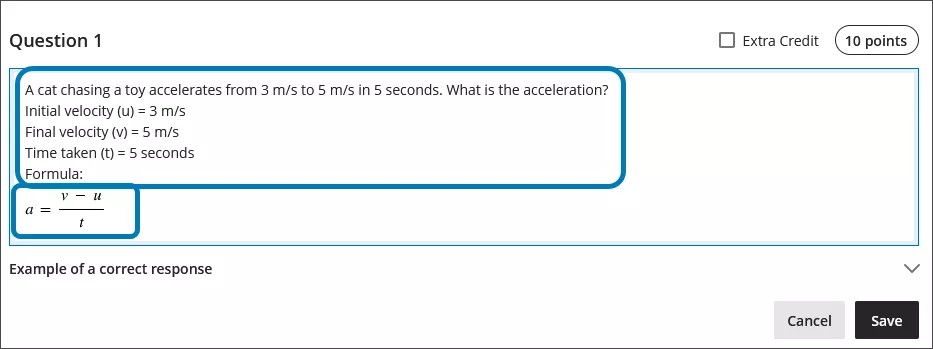
Informatie over de wiskundige editor
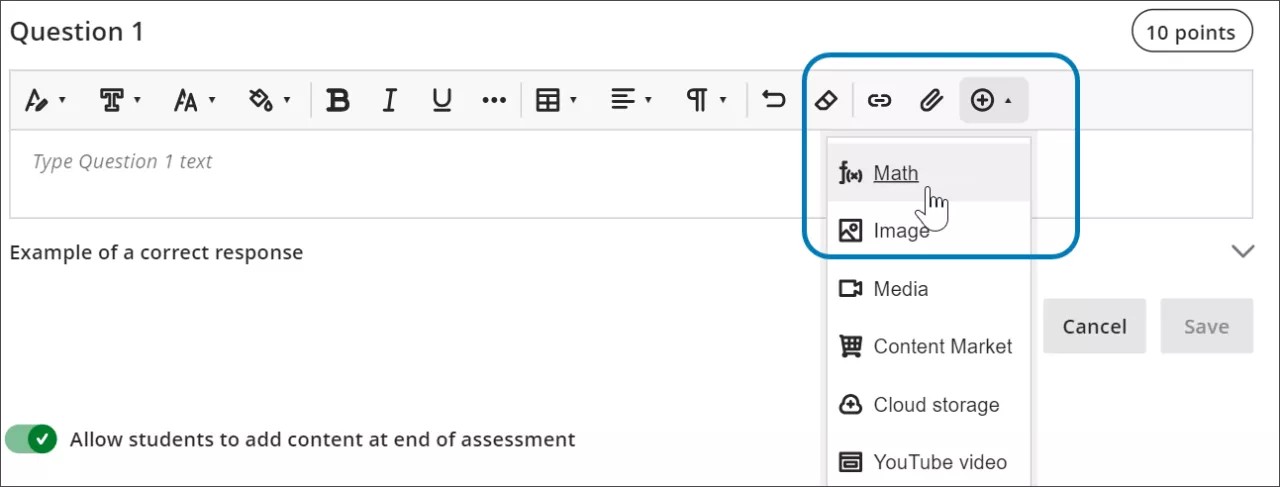
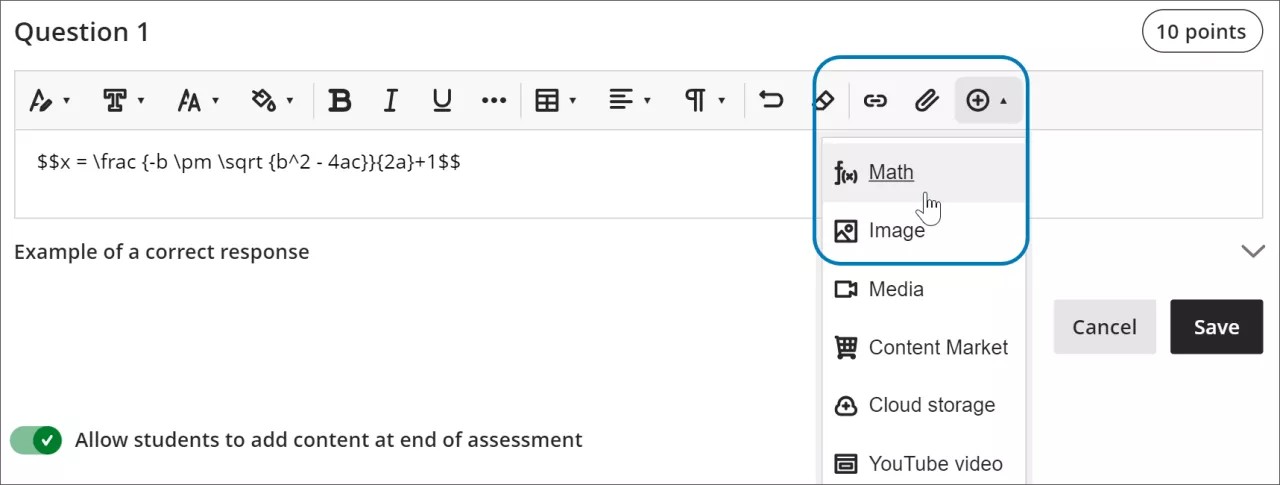
Access the math editor by selecting the + icon in the rich text editor. Select Math in the menu.
You can access many features in the math editor by selecting different tabs at the top.
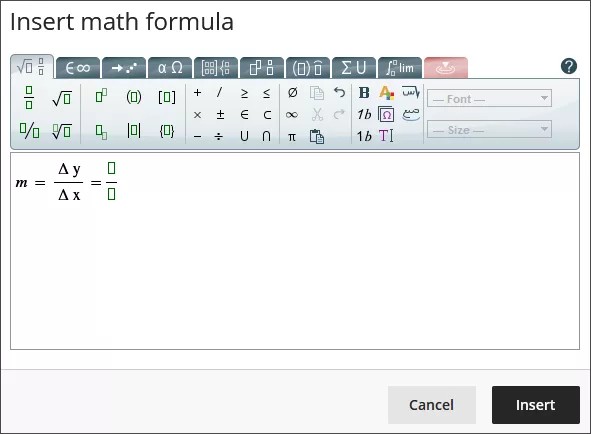
Use your keyboard to enter numbers, letters, and symbols. Select the appropriate icon in the math editor to create complex formulas, such as creating a square root.
If you are using an option that changes the level of the text for your formula, such as subscript or a fraction, use the arrow keys on your keyboard to return to the default level. We recommend using the keyboard to navigate within a formula.
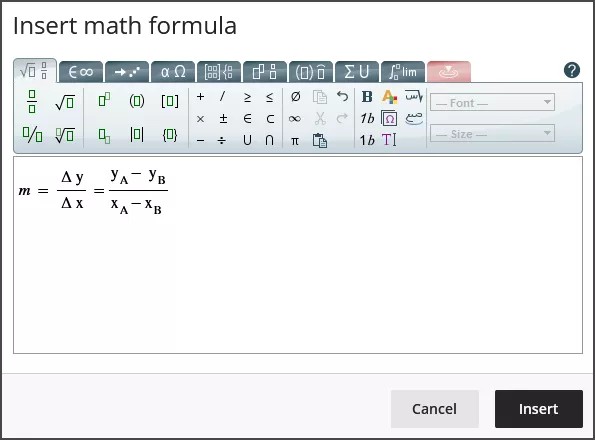
Some of the options for the building formulas in the math editor include:
Basisbewerkingen: optellen, aftrekken, vermenigvuldigen, delen, vierkantswortels, exponenten, breuken
Grieks alfabet: alfa, bèta, gamma en andere
Matrixwiskunde
Integralen, afgeleide functies en limieten
Trigonometrische functies: sinus (sinus), cosinus (cos), tangens (tan)
Tekenstijlen en -grootten
De WIRIS website bevat gedetailleerde informatie over alle functies van de wiskundige editor.
LaTeX gebruiken in de editor voor tekst met opmaak
LaTeX is een software die kan worden gebruikt om een afbeelding van een formule te maken op basis van codeerconventies die zijn geschreven met tekst zonder opmaak. In de editor voor tekst met opmaak van Learn kan LaTeX-codering weergegeven worden.
Enter a LaTeX formula by writing the specific code within delimiters in the rich text editor. MathJax supports the following delimiter options, depending on how you want the formula to display:
$$...$$or\[...\]for display equations, which appear centered on their own line, separated from the surrounding text. Display equations work well for complex expressions such as integrals, sums, and products.\(...\)for inline equations, which appear within a line of text alongside other content.
Using the delimiters that match your original source material makes it faster to copy LaTeX code from textbooks, exam banks, or other STEM materials into Blackboard LMS without needing to reformat the code.
Select Save to review how the formula displays as an image. You can go back into the rich text editor to edit the formula until it displays correctly. Some activities, such as tests and assignments, don’t allow students to save in the rich text editor and preview the rendered LaTeX formula. Students will have to check their submission afterwards to make sure that their formula rendered correctly.
Het is niet mogelijk de editor voor tekst met opmaak te gebruiken om de weergave van de formules te wijzigen, zoals vetgedrukt maken of de tekengrootte veranderen. Als je tekenstijlen of -grootten van de formule wilt wijzigen, kun je in de formule in de editor voor tekst met opmaak klikken en vervolgens de wiskundige editor selecteren. Alle wijzigingen die je in de wiskundige editor aanbrengt, worden doorgevoerd wanneer je de code opslaat en toevoegt aan de LaTeX-code.
select anywhere within the formula in the rich text editor.
select the math editor
All changes made in the math editor are applied when you save and added to the LaTeX code.
Example of a formula formatted in LaTeX
Opmerking
This example uses $$ delimiters for a display equation. You can also use \[...\] for a display equation or \(...\) for an inline equation instead, depending on how you want the formula to appear in your content.
De kwadratische formule kan opgemaakt worden in LaTeX.
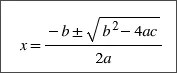
Enter $$ in the rich text editor.
$$
Next, enter the LaTeX code for the formula:
$$x = \frac {-b \pm \sqrt {b^2 - 4ac}}{2a}
Close your formula by entering $$ at the end.
$$x = \frac {-b \pm \sqrt {b^2 - 4ac}}{2a}$$
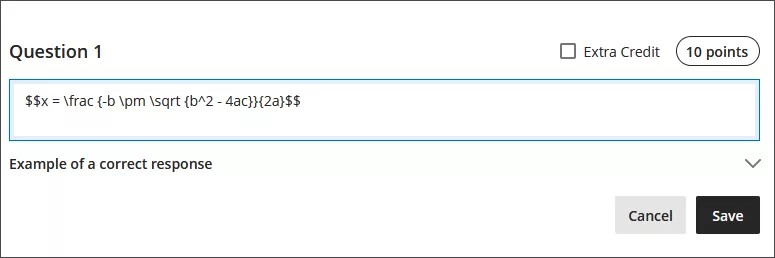
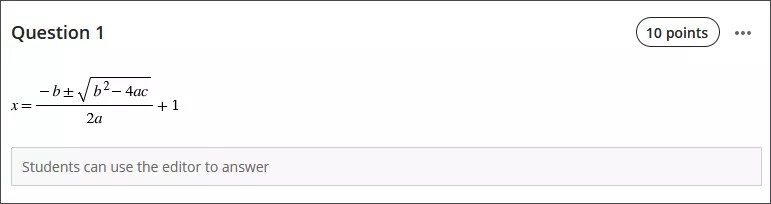
Select Save in the rich text editor. The math formula renders as a PNG image. Rendering the image may take a few seconds, depending on your internet connection and content size.
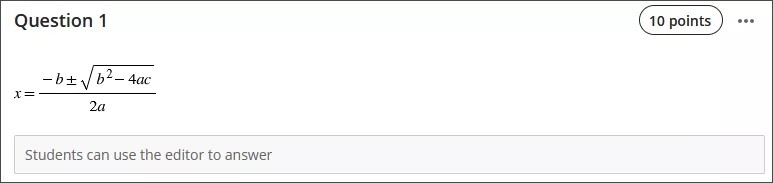
Select Edit in the rich text editor to go back to your LaTeX code.
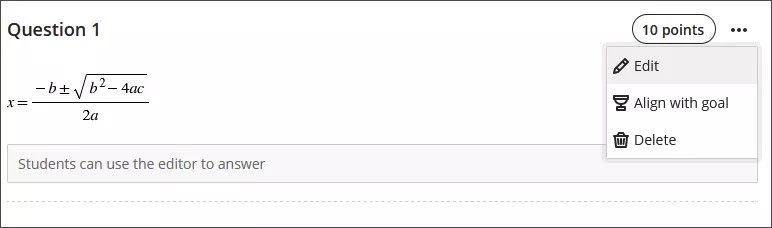
Edit your formula to overwrite your LaTeX code as plain text inside the rich text editor. For example, add a +1 to the end of the quadratic formula.
$$x = \frac {-b \pm \sqrt {b^2 - 4ac}}{2a}+1$$
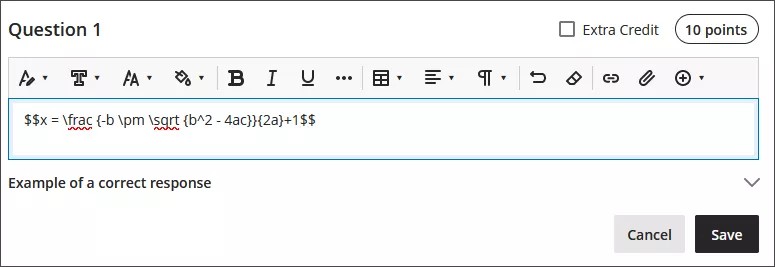
Select Save to render the formula as a new image.
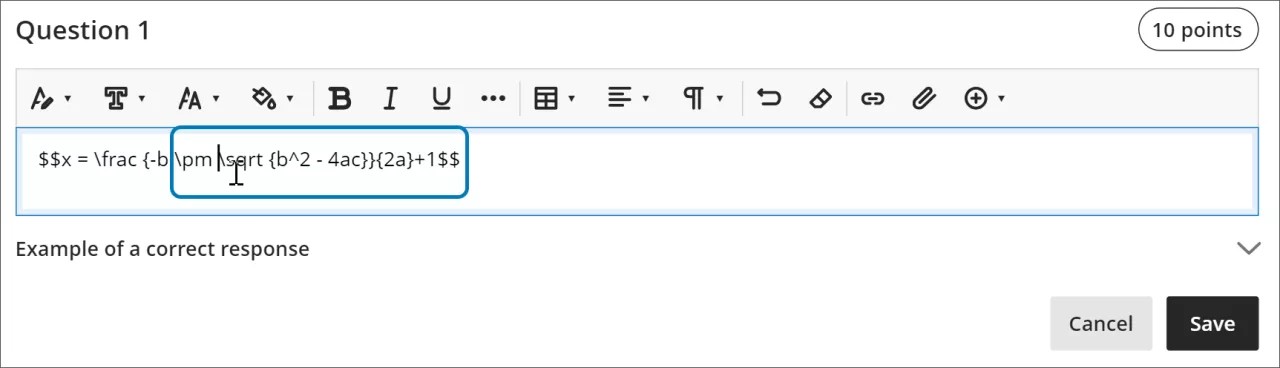
You can make further adjustments to the style of the formula. In the rich text editor, select anything inside the LaTeX code.
Open the math editor.
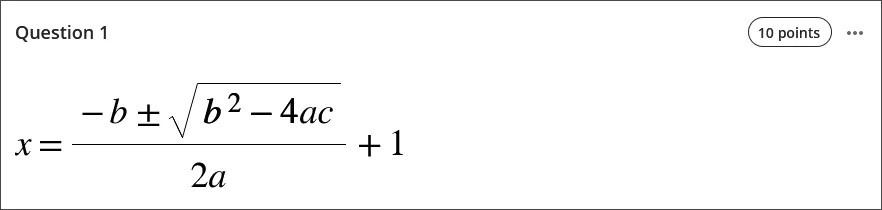
Apply the styles you want to the formula. For example, you can bold part of the formula and change the font size.
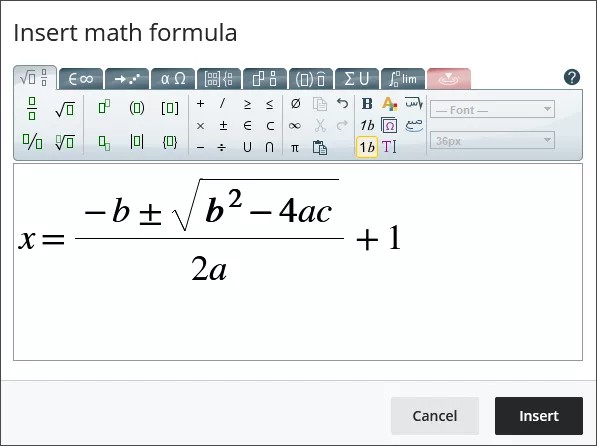
Select Save in the math editor. The LaTeX code for the quadratic formula with your style adjustments is now:
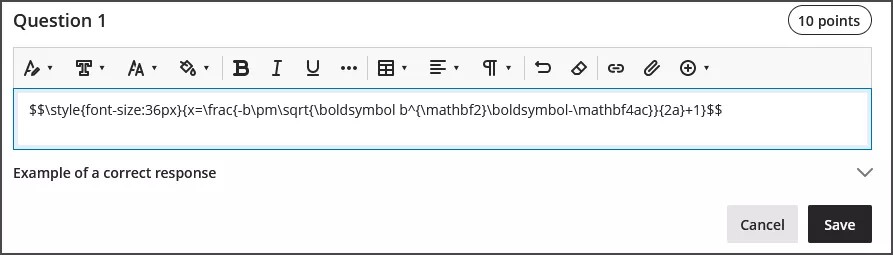
$$\style{font-size:36px}{x=\frac{-b\pm\sqrt{\boldsymbol b^{\mathbf2}\boldsymbol-\mathbf4ac}}{2a}+1}$$
Select Save in the rich text editor to render your adjusted formula as an image.
Toegankelijkheidsfuncties
Afbeeldingen van wiskundige formules zijn van hoge kwaliteit, zodat gebruikers kunnen inzoomen en de afbeelding nog steeds duidelijk is. Je kunt ook de tekengrootte aanpassen om je studenten te helpen. Bij grotere tekengrootten kunnen studenten de details van een formule met kleine letters en symbolen beter zien.
Formules zijn toegankelijk voor schermlezers als je ze maakt en wanneer ze als afbeeldingen worden weergegeven.
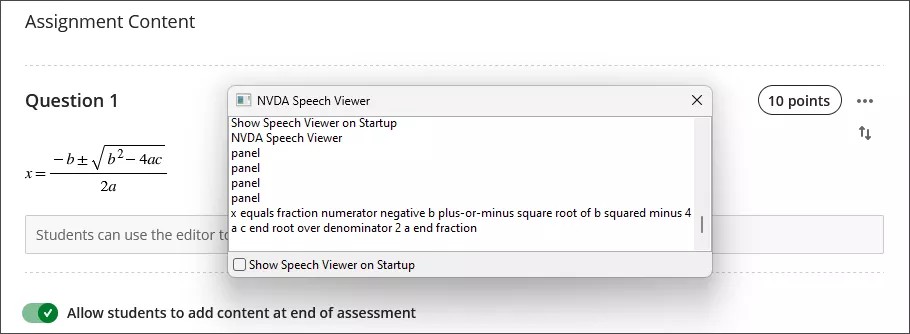
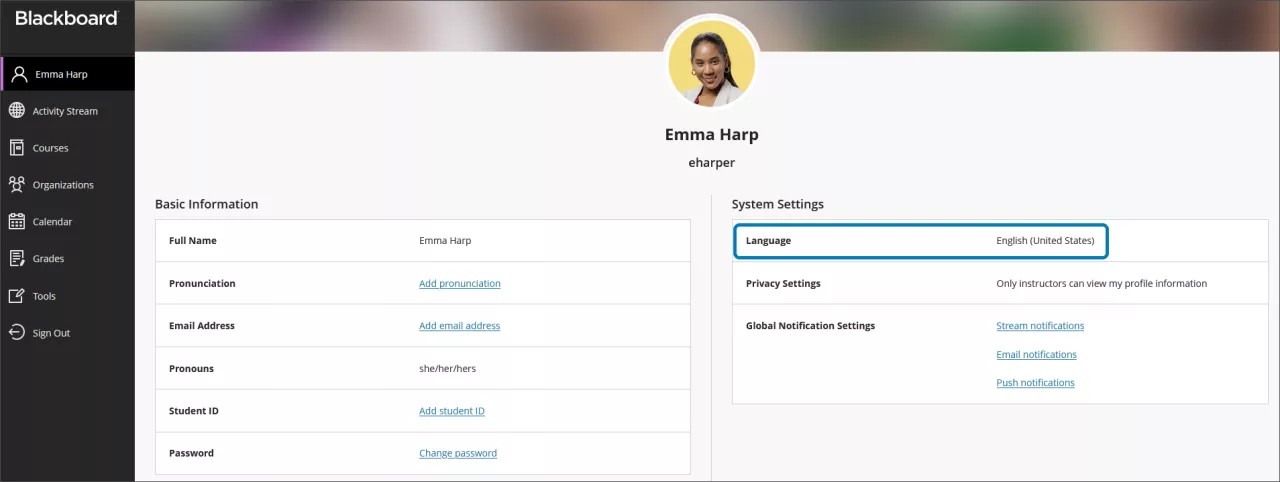
Er wordt automatisch alternatieve tekst voor wiskundige formules gegenereerd op basis van de taalinstelling in je profiel in Learn. Schermlezers volgen de lokale apparaatinstellingen, waaronder de taal, snelheid en spraak. Voor een betere ervaring met je schermlezer en alternatieve tekst moet je ervoor zorgen dat de taalinstelling in Learn overeenkomt met de instellingen op je lokale apparaat.
Opmerking
Als een taal niet wordt ondersteund door de wiskundige editor of editor voor tekst met opmaak, worden formules in het Engels gelezen.