Hantera kriterium
Note
Denna dokumentation har översatts med hjälp av AI-stödd maskinöversättning. Översättningarna tillhandahålls ”i befintligt skick” utan någon garanti för deras riktighet. Den engelska versionen av detta innehåll är den officiella och giltiga källan.
Access the Course Rubrics page
The Course Rubrics page displays all rubrics in your course in a sortable, searchable table. From this page, you can create, generate, copy, edit, delete, import, and export rubrics.
You can access the Course Rubrics page in two ways:
From Gradebook Settings, select Manage Course Rubrics in the Course Rubrics section.
From Assignment Settings, select Add Rubric in the Grading & Submissions section.
Kopiera kriterier
On the Course Rubrics page, select the ellipsis, then select Duplicate.
Edit the rubric as needed, including the titles.
Select Save.
När du har använt kriterier för bedömning kan kriterierna inte längre ändras, men du kan göra en kopia som du kan ändra och ge ett nytt namn.
Notera
Om du kopierar ett befintligt procentbaserat kriterium och ändrar det till ett kriterium med procentintervall rensas alla beskrivningar.
Om du redan har använt ett kriterium för att bedöma ett objekt kan du även kopiera kriteriet och redigera dubblettversionen. Öppna kriterium via objektets inställningar. Välj Skapa en kopia längst ner på skärmen. När du skapar en kopia av ett kriterium som du använde för att bedöma ett test eller en uppgift, kopplas det nya kriteriet till objektet. Alla resultat som har beräknats med originalkriteriet bevaras men dessa resultat konverteras till överskrivningsresultat. Du kan omvärdera dessa inlämningar med det nya kriteriet.
When you create a copy of a rubric you used to grade a test or assignment, the new rubric is associated with the item. Any grades calculated with the original rubric are preserved, but these grades are converted to overrides. You can regrade these submissions with the new rubric.
Viktigt
Du kan inte kopiera kriterier på små enheter.
Kopiera kriterier mellan kurser
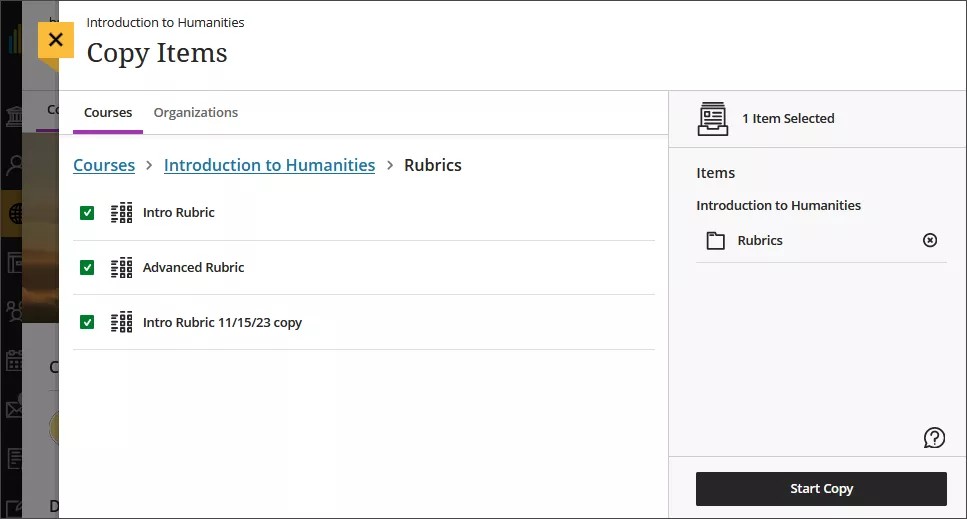
On the Course Content page, select the plus sign to open the menu and select Copy Content. Or, open the More options menu above the content list. Select Copy Items.
The Copy Items panel opens.
From the Copy Items panel, you can browse all the courses that you teach.
Select the Rubrics folder for the course you want to copy rubrics from and select the rubrics you’d like to copy.
When you’re done, select Start copy.
Ta bort kriterier
Du kan ta bort kriterier från din kurs permanent, även om du har använt dem vid bedömning. Resultaten finns kvar. Resultaten är inte längre kopplade till kriterierna, utan visas nu i stället som resultat du har lagt till manuellt.
To permanently delete a rubric, go to the Course Rubrics page. Select the ellipsis menu on the rubric, then select Delete.
Export a rubric
You can export a rubric from your course to reuse it in another course. The exported file is a zip file intended for importing into another course and is not a viewable document.
To export a rubric, select the ellipsis then select Export.
The rubric downloads automatically as a zip file named with the rubric name and course title. You can find it in your downloads folder.
Import a rubric
You can import a rubric that was previously exported from Blackboard LMS.
On the Course Rubrics page, select the import icon.
Select the zip file from your local. Only rubrics exported from Blackboard LMS can be imported.
After import, review your imported rubric,
The rubric imports automatically. If the same rubric already exists in the course, an error message appears to prevent duplicate rubrics from being created.