Dereceli Puanlama Anahtarlarını Yönetme
Note
Bu belge, yapay zeka destekli makine çevirisi kullanılarak çevrilmiştir. Çeviriler, doğruluğu konusunda herhangi bir garanti olmaksızın “olduğu gibi” sunulmaktadır. Bu içeriğin İngilizce sürümü resmi ve geçerli kaynaktır.
Access the Course Rubrics page
The Course Rubrics page displays all rubrics in your course in a sortable, searchable table. From this page, you can create, generate, copy, edit, delete, import, and export rubrics.
You can access the Course Rubrics page in two ways:
From Gradebook Settings, select Manage Course Rubrics in the Course Rubrics section.
From Assignment Settings, select Add Rubric in the Grading & Submissions section.
Dereceli puanlama anahtarını kopyalama
On the Course Rubrics page, select the ellipsis, then select Duplicate.
Edit the rubric as needed, including the titles.
Select Save.
Not vermek için bir dereceli puanlama anahtarını kullandıktan sonra onu düzenleyemezsiniz, ancak düzenleyip adını değiştirebileceğiniz bir kopyasını oluşturabilirsiniz.
Not
Not: Yüzdeye dayalı mevcut bir dereceli puanlama anahtarını seçip yüzde aralığı dereceli puanlama anahtarına dönüştürürseniz tüm açıklamalar silinir.
Bir ögeye not vermek için dereceli puanlama anahtarı kullandıysanız o dereceli puanlama anahtarını kopyalayabilir ve kopya olan sürümü düzenleyebilirsiniz. Bir öğenin Ayarlar panelinden dereceli puanlama anahtarını açın. Ekranın altındaki Kopya Oluştur'u seçin. Test veya ödeve not vermek için kullanıldığınız bir dereceli puanlama anahtarının kopyasını oluşturduğunuzda, yeni dereceli puanlama anahtarı söz konusu ögeyle ilişkilendirilir. Orijinal dereceli puanlama anahtarıyla hesaplanan notlar korunur ancak bu notlar geçersiz kılma notlarına dönüştürülür. Bu gönderimlere yeni dereceli puanlama anahtarını kullanarak tekrar not verebilirsiniz.
When you create a copy of a rubric you used to grade a test or assignment, the new rubric is associated with the item. Any grades calculated with the original rubric are preserved, but these grades are converted to overrides. You can regrade these submissions with the new rubric.
Önemli
Küçük cihazlarda dereceli puanlama anahtarlarını kopyalayamazsınız.
Dereceli puanlama anahtarlarını kurslar arasında kopyalama
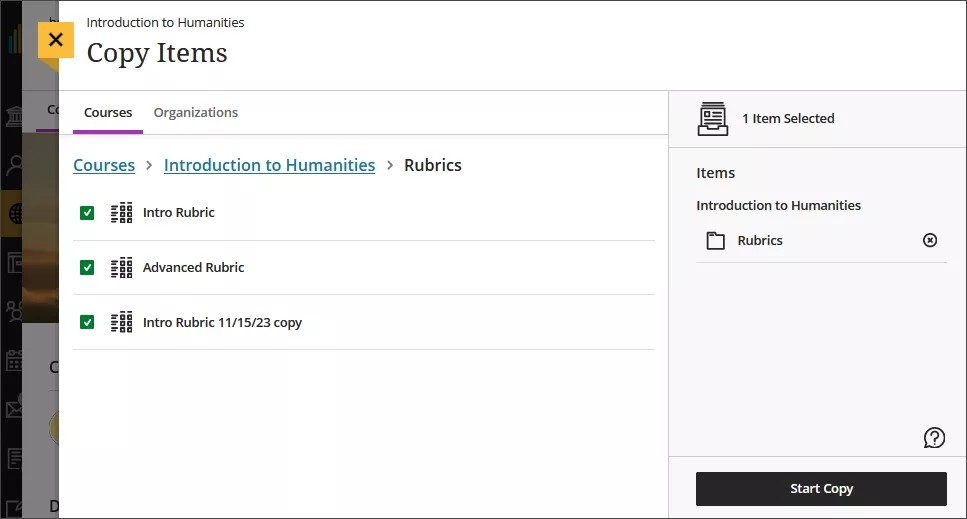
On the Course Content page, select the plus sign to open the menu and select Copy Content. Or, open the More options menu above the content list. Select Copy Items.
The Copy Items panel opens.
From the Copy Items panel, you can browse all the courses that you teach.
Select the Rubrics folder for the course you want to copy rubrics from and select the rubrics you’d like to copy.
When you’re done, select Start copy.
Dereceli puanlama anahtarlarını silme
Not verirken kullanmış olduğunuz bir dereceli puanlama anahtarını kurstan kalıcı olarak silebilirsiniz, notlar ise olduğu gibi kalmaya devam eder. Notlar artık dereceli puanlama anahtarıyla ilişkilendirilmez, artık manuel olarak eklediğiniz notlar olarak görünür.
To permanently delete a rubric, go to the Course Rubrics page. Select the ellipsis menu on the rubric, then select Delete.
Export a rubric
You can export a rubric from your course to reuse it in another course. The exported file is a zip file intended for importing into another course and is not a viewable document.
To export a rubric, select the ellipsis then select Export.
The rubric downloads automatically as a zip file named with the rubric name and course title. You can find it in your downloads folder.
Import a rubric
You can import a rubric that was previously exported from Blackboard LMS.
On the Course Rubrics page, select the import icon.
Select the zip file from your local. Only rubrics exported from Blackboard LMS can be imported.
After import, review your imported rubric,
The rubric imports automatically. If the same rubric already exists in the course, an error message appears to prevent duplicate rubrics from being created.