Kurs İçeriği sayfasındaki yinelenen öğeler
Note
Bu belge, yapay zeka destekli makine çevirisi kullanılarak çevrilmiştir. Çeviriler, doğruluğu konusunda herhangi bir garanti olmaksızın “olduğu gibi” sunulmaktadır. Bu içeriğin İngilizce sürümü resmi ve geçerli kaynaktır.
Öğretim görevlileri, Ders İçeriği sayfasındaki öğelerin çoğunu kopyalayabilir. Kopyalanan öğe, orijinal öğenin tüm içeriğini ve ayarlarını korur ve kaynak öğenin hemen altında görünür.
Bir öğeyi kopyalama
“Diğer seçenekler” menüsünü kullanarak Kurs İçeriği sayfasındaki desteklenen herhangi bir öğenin kopyasını oluşturabilirsiniz.
Kursunuzu açın ve Kurs İçeriği sayfasına gidin.
Kopyalamak istediğiniz öğenin Diğer seçenekler (...) menüsünü açın.
Kopyala öğesini seçin.
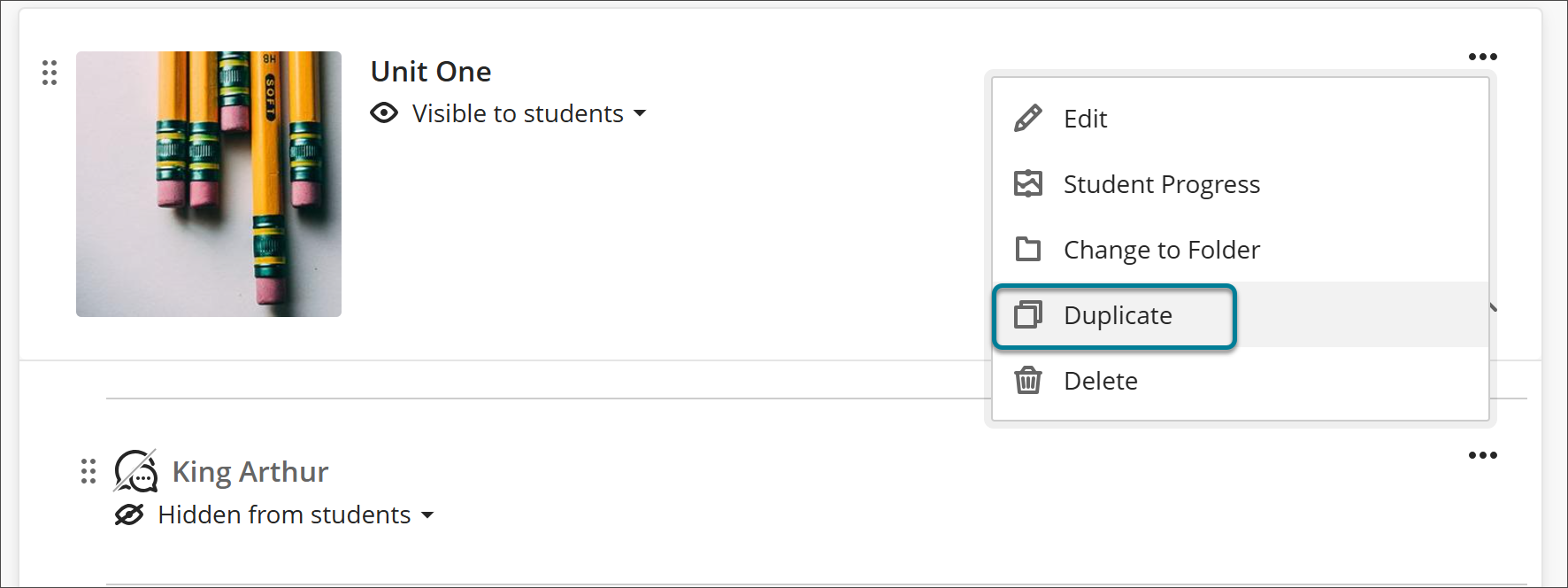
Kopya, orijinalin altında yer almaktadır. Öğe adının sonuna "Kopyası" eklenir ve bu kopya varsayılan olarak öğrencilerden gizlenir.
Kopyalama işlemini tamamladıktan sonra kopyanın adını değiştirin ve öğrencilerin görebilmesini sağlamadan önce gerekli düzenlemeleri yapın.
Not
LTI öğeleri kopyalanamaz. LTI öğeleri için Diğer seçenekler menüsünde Çoğalt seçeneği görünmüyor.