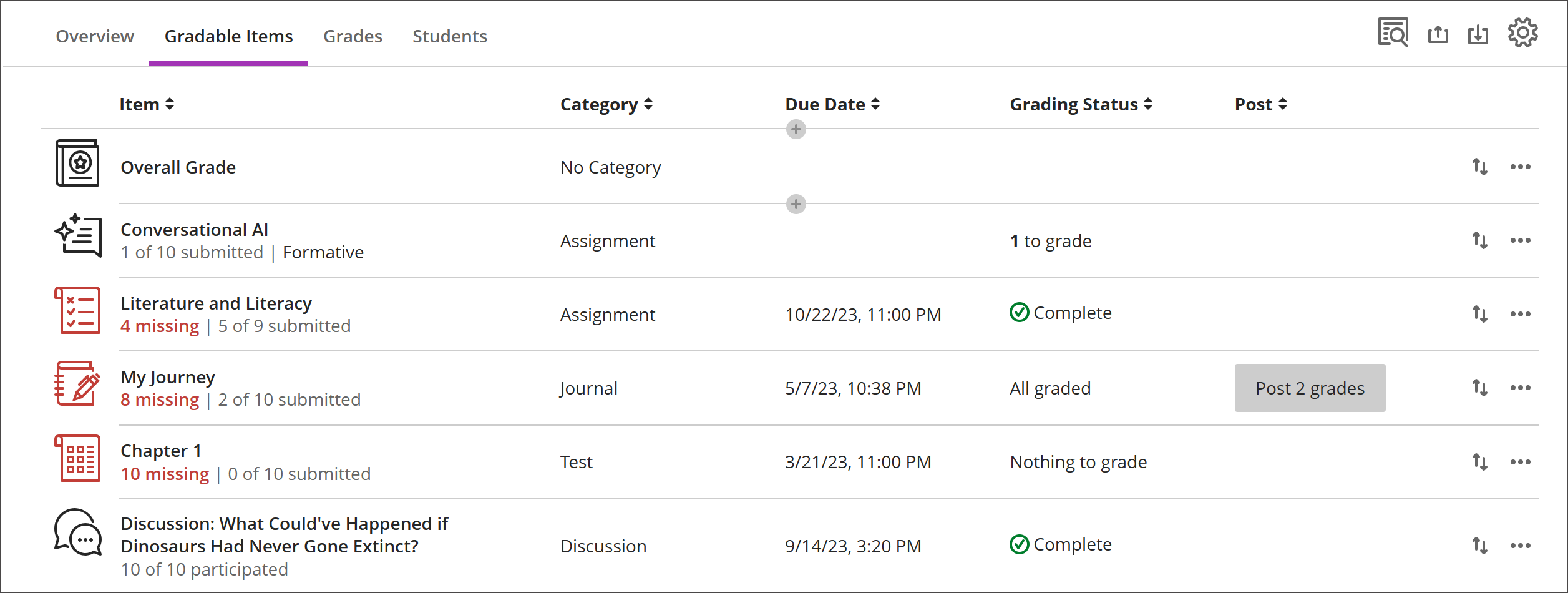
Fliken Bedömningsbara objekt i Kursadministration och resultat
Note
Denna dokumentation har översatts med hjälp av AI-stödd maskinöversättning. Översättningarna tillhandahålls "i befintligt skick" utan någon garanti för deras korrekthet. Den engelska versionen av detta innehåll är den officiella och giltiga källan.
Vyn Bedömningsbara objekt visar alla objekt i din kurs som kan bedömas. Du kan se förfallodagar, bedömningsstatus och objektkategorier. Du kan även publicera resultat och justera beräkningen av övergripande resultat för kursen.
Objekt där inlämningar saknas efter förfallodagen visas i rött.
Använd flyttknappen för att dra-och-släppa objekt i en ny ordning.
Välj ett objekts namn för att gå till dess sida för Inlämningar eller Resultat och engagemang.
Välj X för bedömning för att gå direkt till utvärderingens sida för Inlämningar och börja bedöma.
Anpassade, textbaserade kolumner
Om du vill skapa en anpassad, textbaserad kolumn väljer du (+) lägg till och sedan Lägg till textobjekt. För varje kolumn kan du ange ett kolumnnamn och en beskrivning, och du kan styra hur deltagarna syns i kolumnen. För varje rad kan du ange upp till 32 tecken.
Navigera till fliken Bedömningsbara objekt i Kursadministration och resultat
Fliken "Bedömningsbara objekt" har en tabellbaserad layout för att underlätta användningen för tangentbord och skärmläsare.
Navigera bland bedömningsbara objekt med tangentbordet
Använd tabbtangenten för att gå till betygsregistret.
Använd piltangenterna för att gå till fliken "Bedömningsbara uppgifter".
Tryck på tabbtangenten tills du kommer till tabellen "Bedömda objekt".
Använd piltangenterna för att navigera i tabellen.
Med tabbtangenten hoppar du ut ur tabellen och vidare till knappen Blackboard Help. Skift + Tabb tar dig tillbaka till knappen Inställningar.
Navigera bland bedömningsbara objekt med skärmläsare
Användare av skärmläsare kan navigera till fliken "Bedömningsbara uppgifter" med hjälp av tangentbordsanvisningarna. Du kan också använda den specialiserade tangentbordskombinationen för att skärmläsaren ska gå direkt till tabellen.
JAWS: Använd Insert + Ctrl + T
NVDA: Tryck på T och sedan på Ctrl + nedpilen för att gå till tabellen.
VoiceOver: Använd Ctrl + Option + högerpil för att välja tabellalternativet
När du väl befinner dig i tabellen kan skärmläsare använda tabellnavigering (Ctrl + Alt + piltangenterna) för att navigera i tabellen.
Om du vill lägga till innehåll använder du nedåtpilen för att gå till knappen Fler alternativ (...) i slutet av raden. Nästa nedåtpil är knappen Lägg till innehåll.
Anmärkning för JAWS-användare
JAWS-användare kan flytta åt vänster eller höger i vilken rad som helst genom att använda tabellnavigeringstangenter.
Om du vill bläddra uppåt och nedåt mellan raderna i rutnätet går du först till objektkolumnen.