September 2026 Release Notes (4001.0)
Release Information
Nota
For maintenance release build numbers and bug fixes, visit Maintenance Releases.
For release status and delays, visit Blackboard Status.
Instructional Design
Move folders in the Learning Object Repository
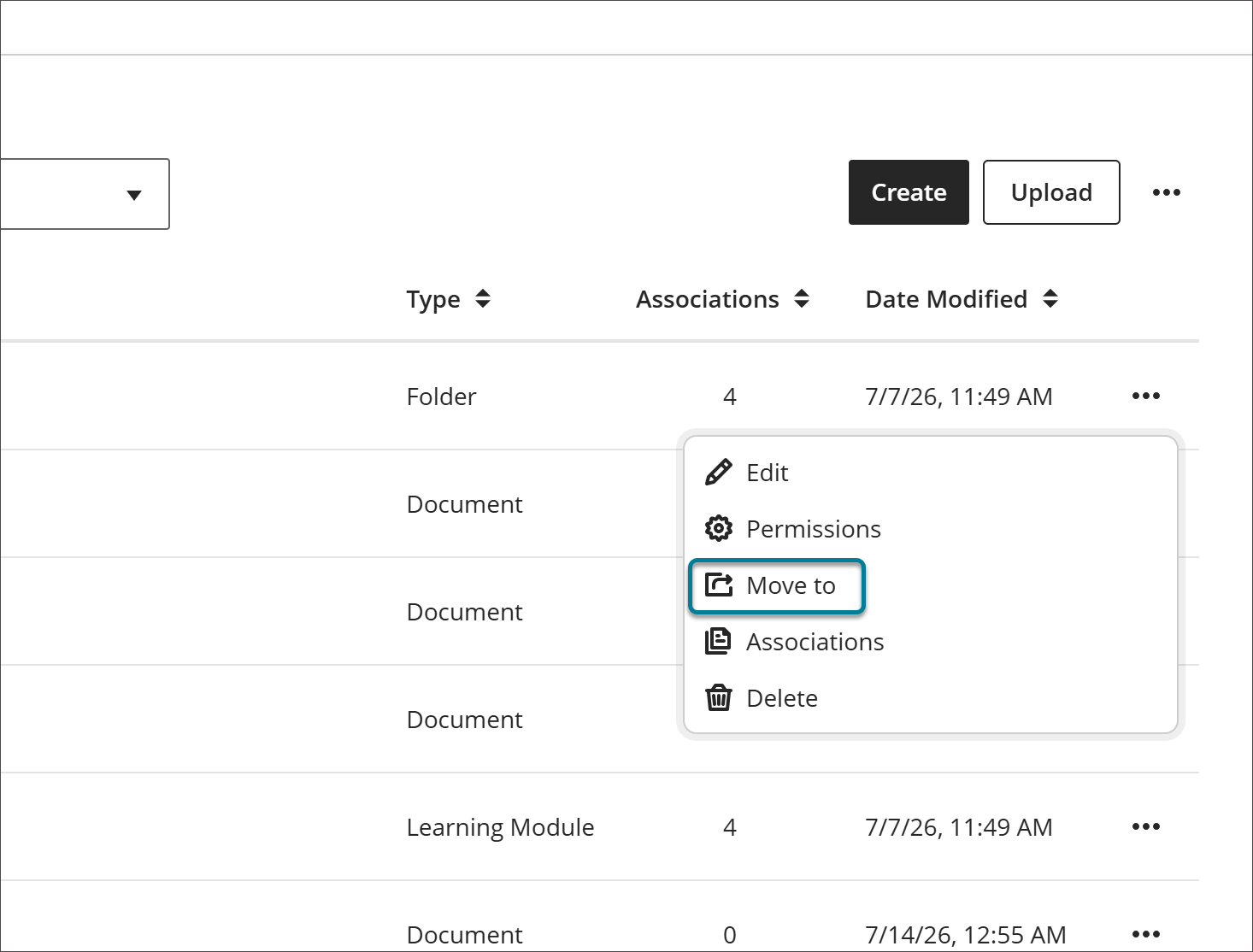
Administrators can now move folders within the Learning Object Repository (LOR), in addition to documents and files. This gives administrators more flexibility to reorganize how content is grouped and nested within the repository.
Because folders can contain nested objects, the system evaluates both the contents of the folder being moved and the destination location before completing the move. This check ensures the resulting folder structure doesn't exceed depth restrictions, preventing invalid placements and preserving the integrity of the repository's organization.
Image 1: A folder shows the Move to option in its menu in the LOR management view.
Administrators
Availability: Available to all Ultra courses.
Activation: None needed.
Configuration: None needed.
Reorder Learning Object Repository objects with new Move controls
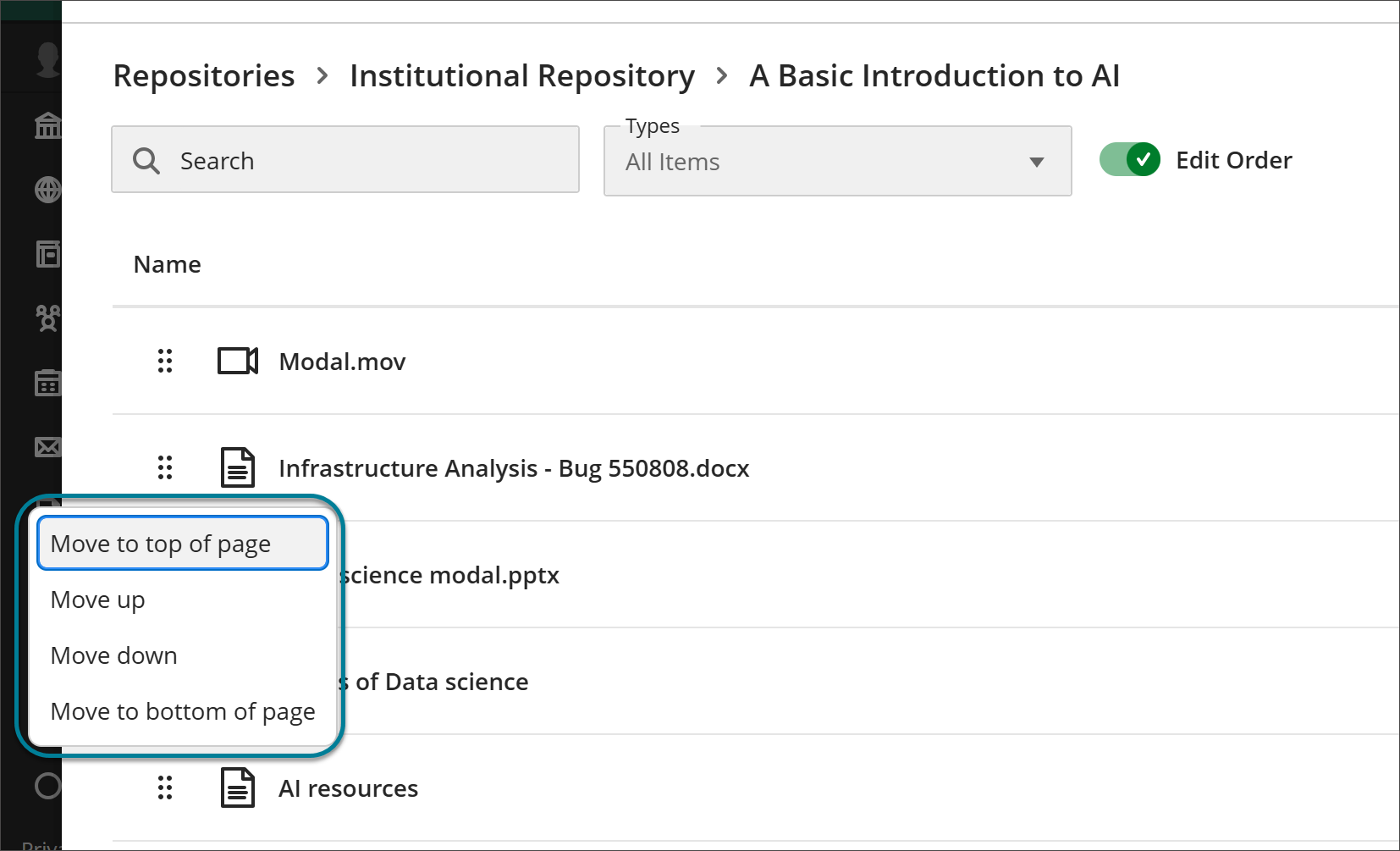
Administrators can now reorder objects in folders and learning modules within the Learning Object Repository (LOR) using new Move to top of page, Move up, Move down, and Move to bottom of page controls. These options provide an alternative to drag-and-drop, so administrators can reorganize content using a keyboard, touchscreen, or any other input method. This makes reordering content in the LOR accessible to more users, regardless of how they navigate.
Image 1: Administrators select one of the new controls to move an object in a folder.
Administrators
Availability: Available to all Ultra courses.
Activation: None needed.
Configuration: None needed.
Improvements to the beta Content Editor in Blackboard Documents
As part of the Early Access program for the new Content Editor, we've added a set of usability, accessibility, and functionality improvements based on early feedback. These updates refine paragraph formatting, streamline the toolbar for smaller screens, and surface keyboard shortcuts throughout the interface. They also change how images inserted from a URL are handled. The changes give instructors a more polished and reliable authoring experience.
Instructors
Paragraph indentation
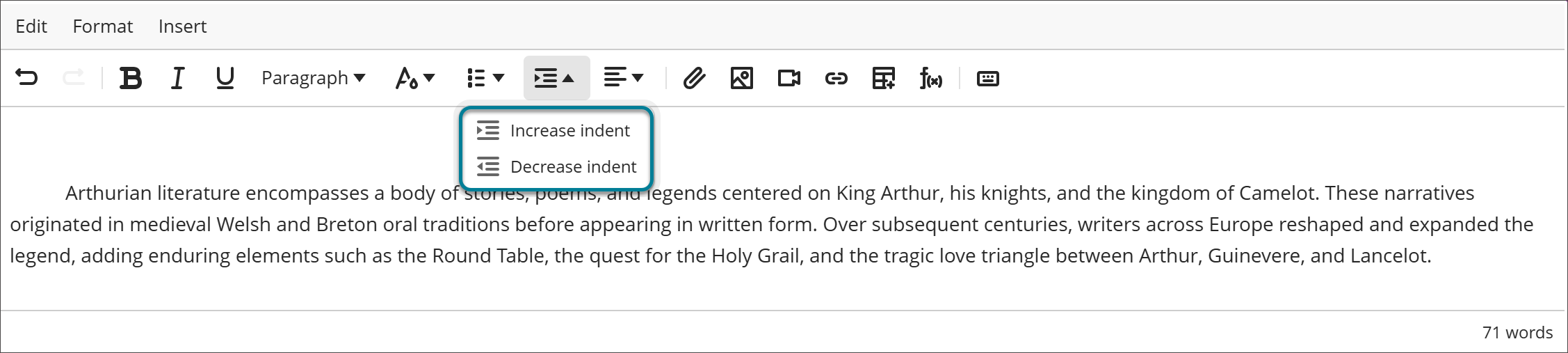
Instructors can now apply a variety of indentation styles directly in the editor using the Increase indent and Decrease indent options in the toolbar or Format menu. The editor applies indentation based on cursor position: placing the cursor at the start of a paragraph applies a first-line indent on the first use, repeating the action indents the full paragraph while preserving that first-line offset, and positioning the cursor elsewhere in the paragraph indents the entire paragraph evenly.
Image 1: Instructors select Increase indent or Decrease indent.
Responsive toolbar
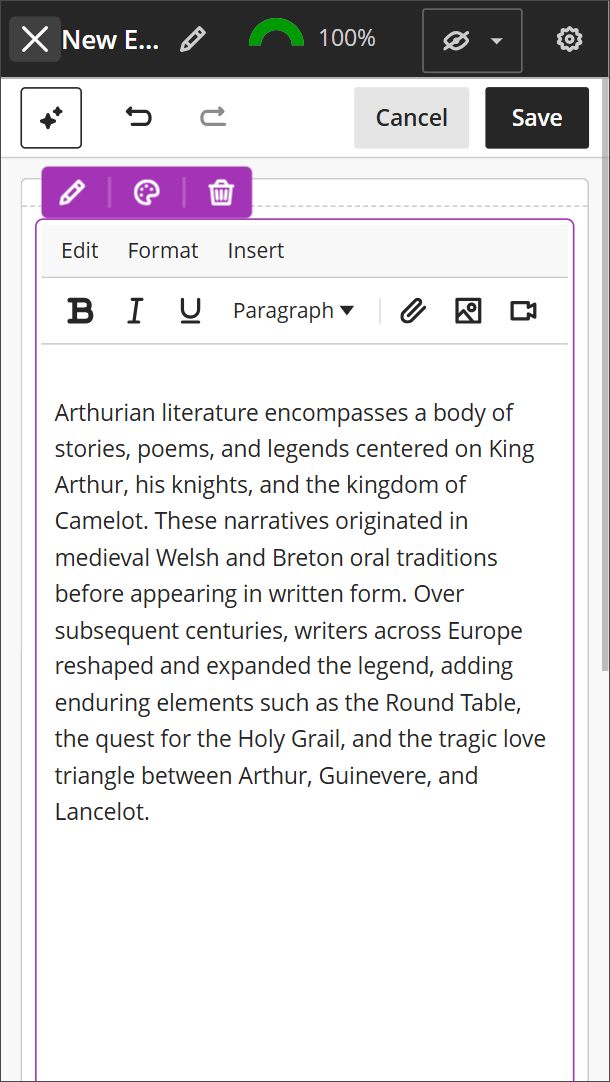
The editor toolbar now stays on a single row regardless of screen size or editing area width. As space narrows, the editor hides less frequently used toolbar buttons, though every action remains available from the Edit, Format, and Insert menus. This keeps the editor compact and consistent across devices without removing any functionality.
Image 2: On small screens, less frequently used toolbar buttons are hidden.
Keyboard shortcuts and navigation
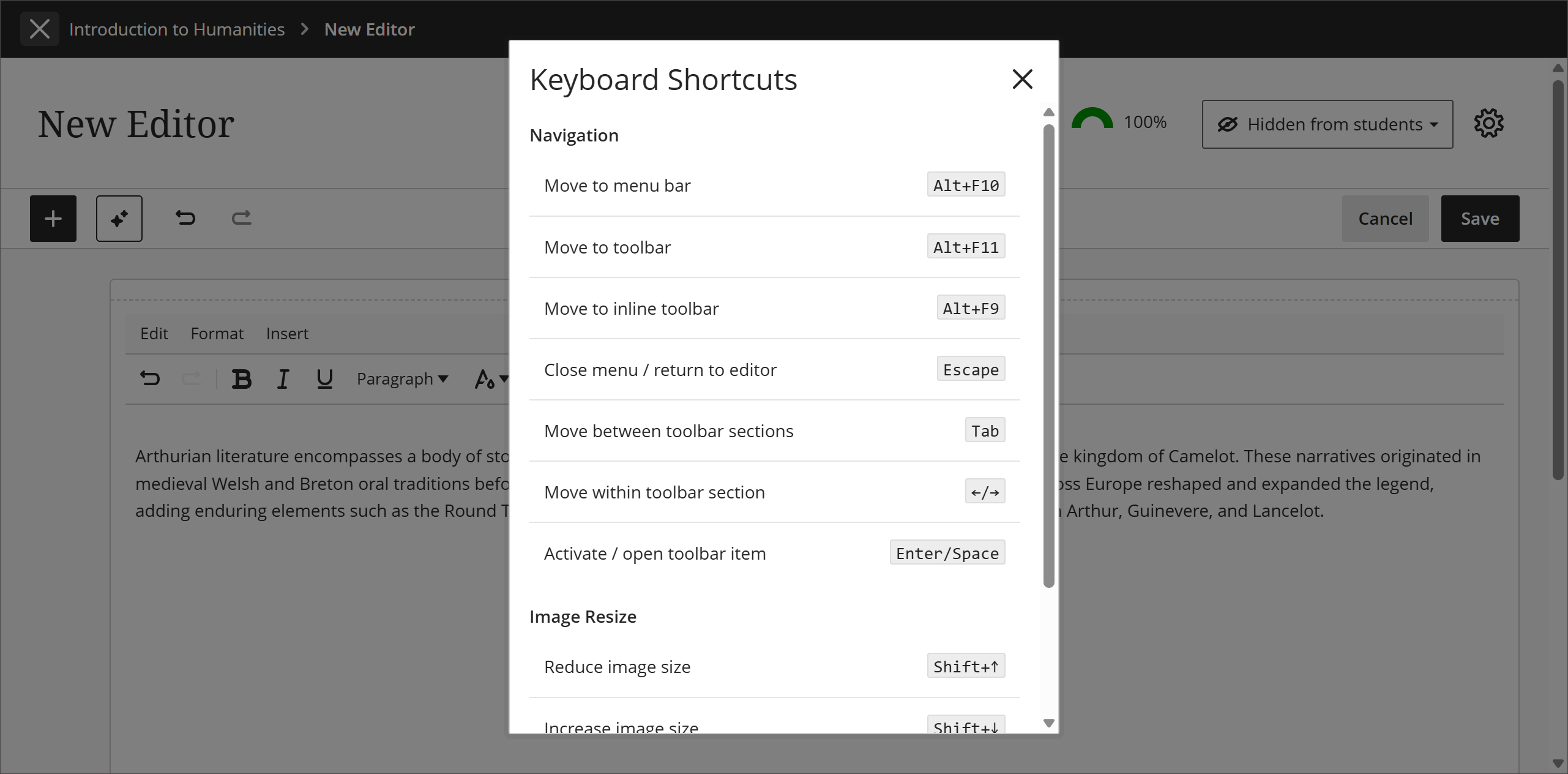
The Edit and Insert menus now display more keyboard shortcuts next to common actions, making them easier to discover for keyboard users and anyone learning the editor. A new Keyboard Shortcuts button, located at the end of the toolbar, opens a centralized reference covering navigation between the Menu Bar, Toolbar, Inline Toolbar, and editor, as well as keyboard-based image resizing. Together, these updates make the editor's full functionality easier to discover and use without a mouse.
Image 3: The Edit menu displays keyboard shortcuts next to actions.
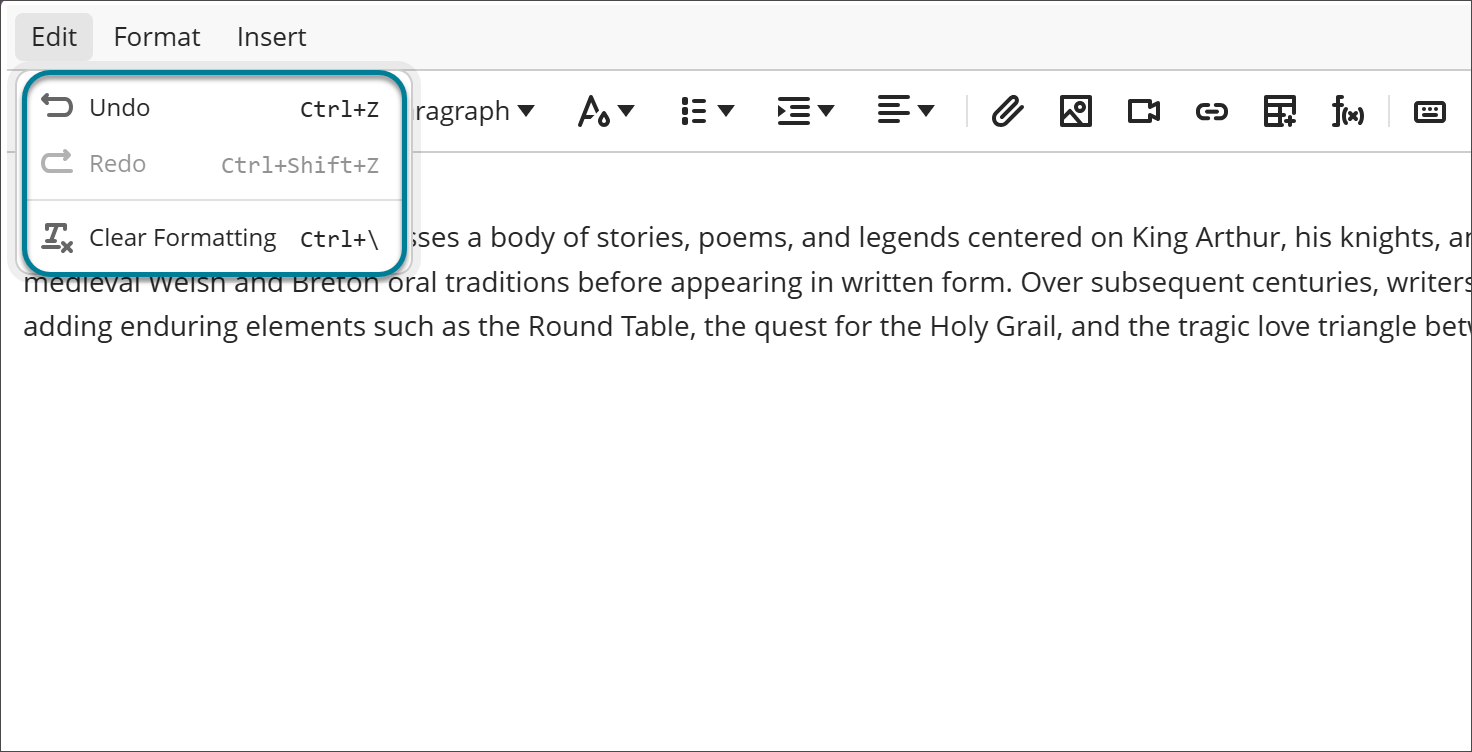
Image 4: A list of keyboard shortcuts appears when the keyboard shortcuts button on the toolbar is selected.
Toolbar tooltips
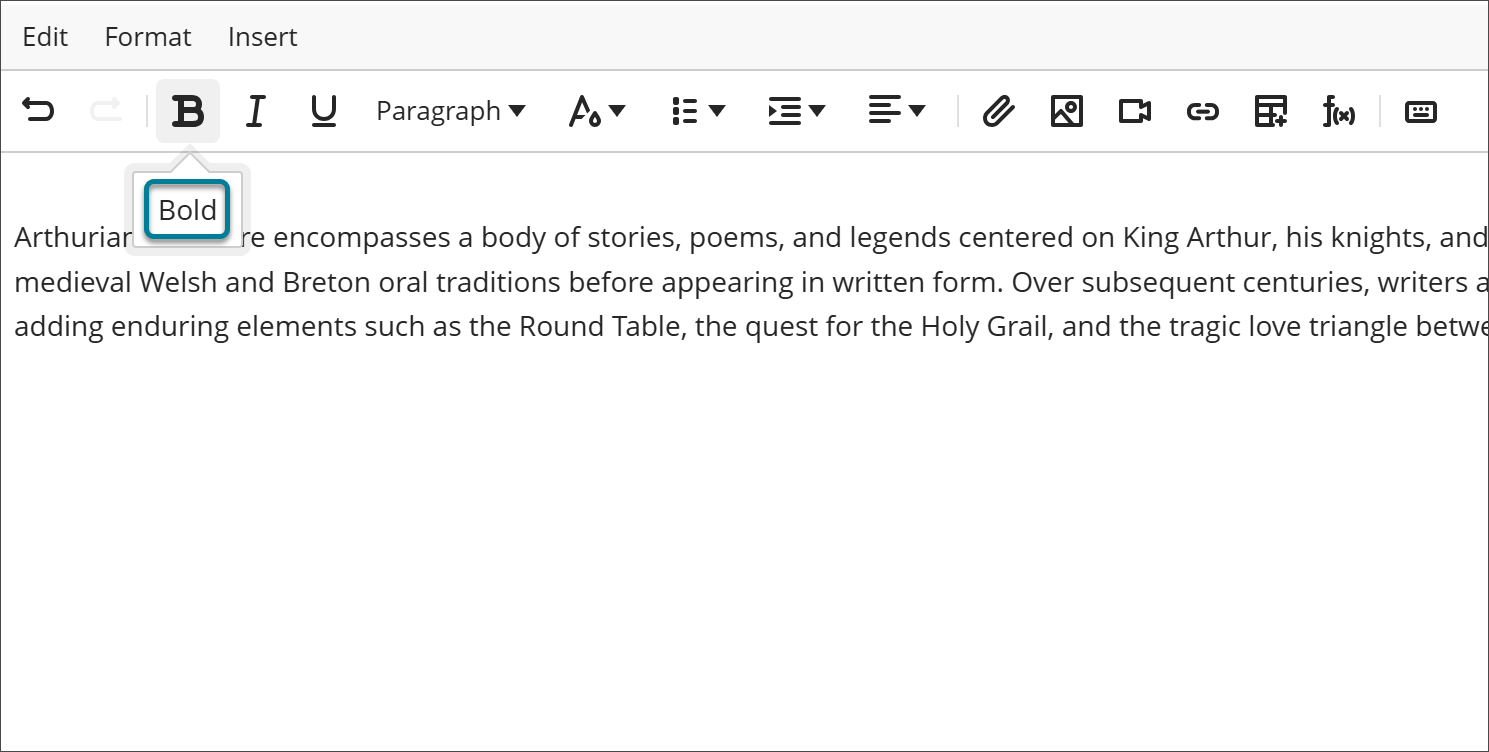
Toolbar tooltips now appear below each button instead of overlapping the Edit, Format, and Insert menus, keeping those menus fully accessible while still surfacing helpful action descriptions.
Image 5: The tooltip appears below the button.
Refreshed look and feel
The editor's icons and overall styling continue to align with Blackboard LMS's current design language, creating a cleaner, more consistent visual experience across the platform.
Image from URL
When instructors insert an image from a URL, Blackboard LMS now downloads the image and uploads it directly into the course rather than linking to the external source. Images inserted this way remain available even if the original source changes or is removed, and they support the same alternative text, display, and cropping options as uploaded images. Once a student submits an assessment, the image is fixed in place and can no longer be altered from its external source.
Importante
Institutions that use Image from URL to reference centrally managed images, such as Content Collection assets, can no longer rely on external linking for this workflow. Images are copied into the course instead.
Administrators
Availability: Available to all Ultra Courses
Activation: Off by default.
Configuration: In the Admin Panel, select Configure in the The Ultra Experience is Here module. Turn on the New Content Editor for Blackboard Documents (Beta) feature flag.
SafeAssign
Removal of SafeAssign DirectSubmit feature flag
We removed the feature flag for SafeAssign DirectSubmit. DirectSubmit is now enabled by default. Administrators can continue to configure the SafeAssignment DirectSubmit toggle in Administrator panel > Courses > Course Settings > Course Tools.
Administrators
Availability: Available to all Ultra courses.
Activation: None needed.
Configuration: None needed.
Assignments and Tests
Restrict accepted file types for assignment submissions
Instructors can now specify which file types they will accept for file submissions on assignments. Students are informed of any restrictions before submitting and receive an warning message if they attempt to upload a file type that is not permitted.
Instructors
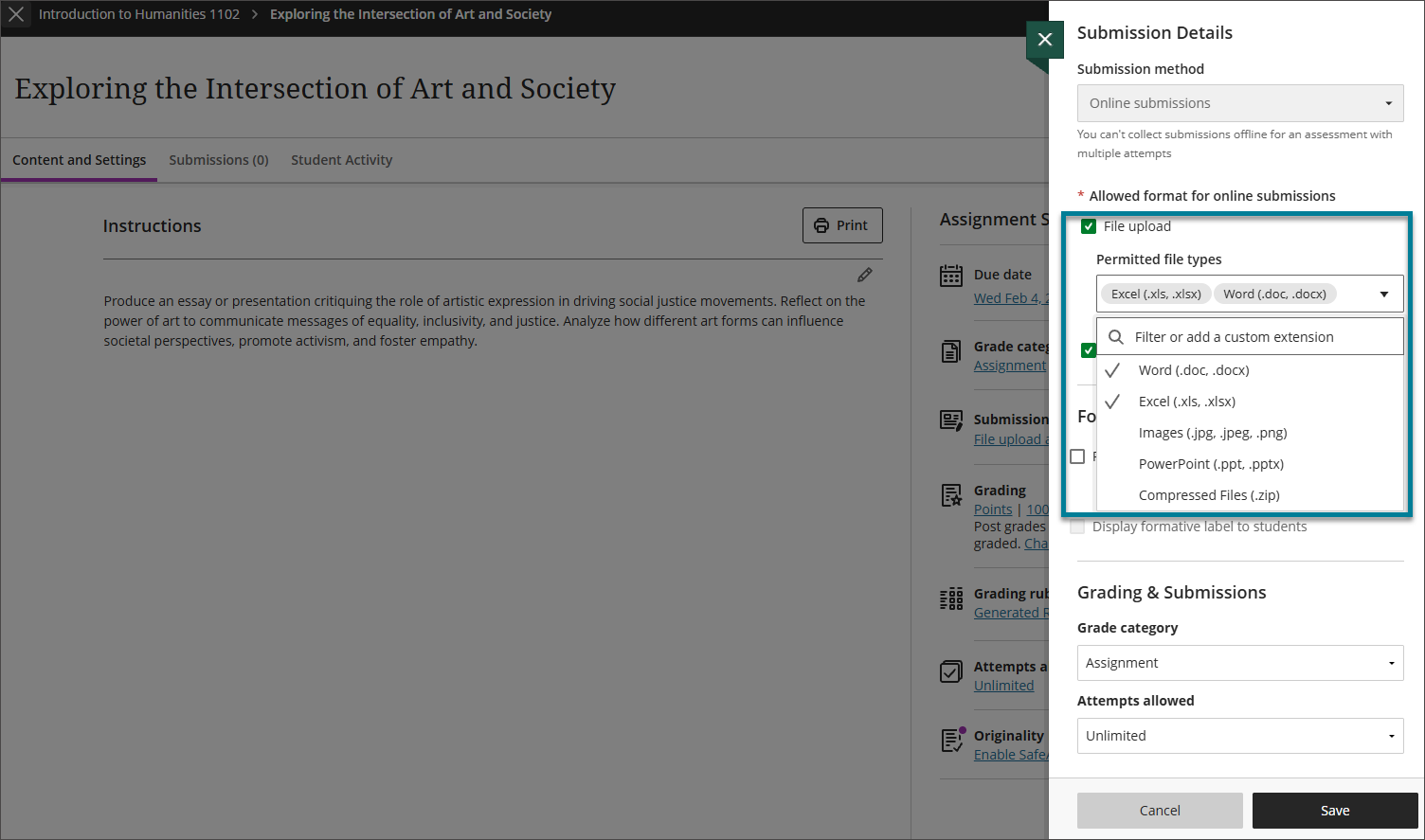
When configuring an assignment with file submission enabled, instructors can restrict accepted file types in two ways:
Select from a list of common permitted file types, including Word, Excel, PowerPoint, and ZIP formats.
Enter custom file extensions manually.
Custom file extensions are validated against system-level file upload restrictions set by the administrator. If a custom extension conflicts with a system-level restriction, an inline error message appears and the setting cannot be saved.
Instructors can modify file type restrictions after students have started submitting. Existing submissions remain gradable, and students with drafts in progress can still submit.
Image 1: In the Permitted file types dropdown list, instructors can specify one or more file types allowed.
Students
The expected file types for an assignment are displayed in the Details & Actions section before submission. If a student attempts to upload a file type that is not permitted, a warning message informs them that the file type is not accepted.
Administrators
Availability: Available to all Ultra courses.
Activation: None needed.
Configuration: None needed.
Mastery and Learning Pathways
View student outcomes mastery in the gradebook
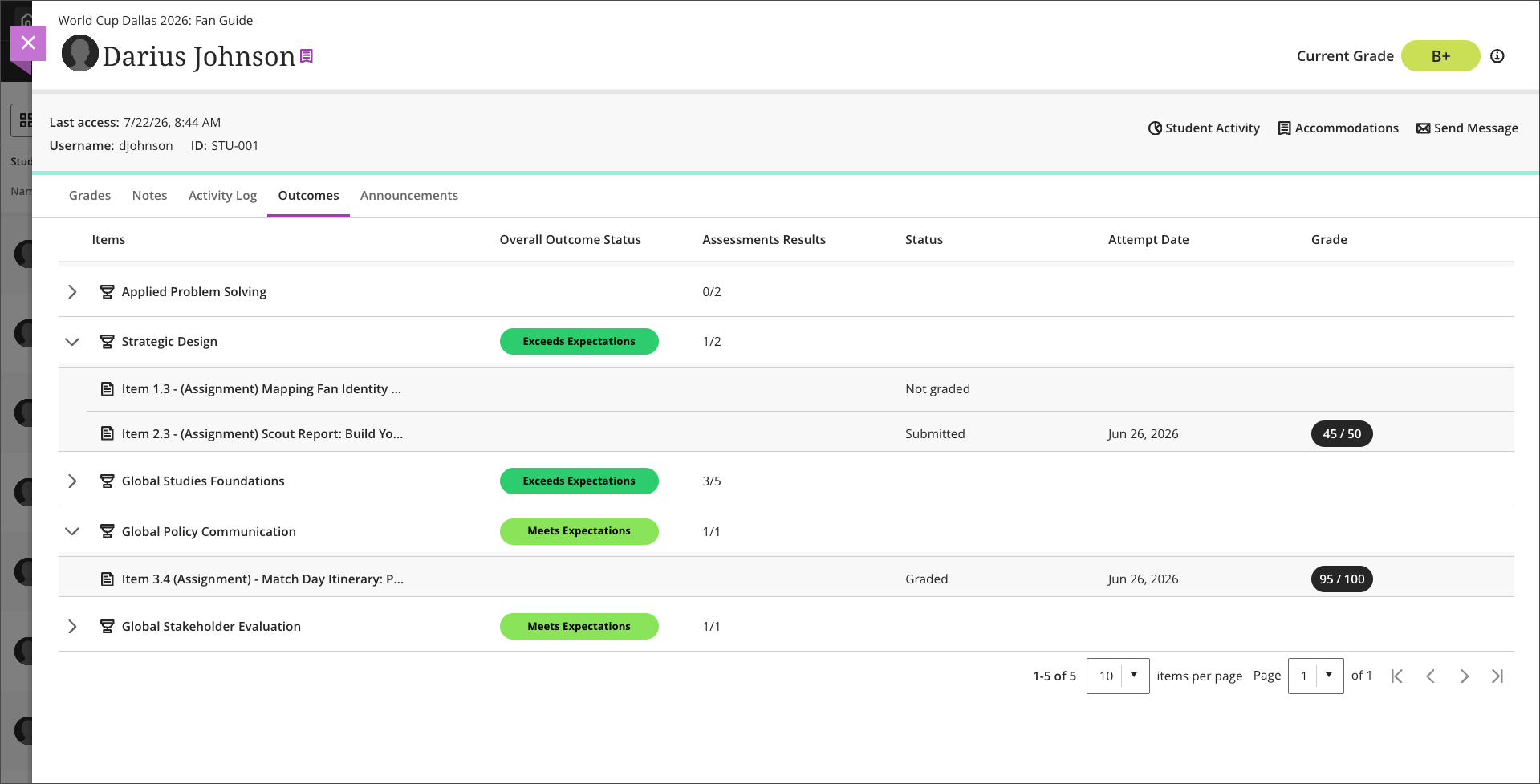
Instructors can now access outcomes achievement data directly in the gradebook. Data is populated by Outcomes. This native view replaces the previous LTI-based experience, delivering better performance, honoring course settings, and rendering in the user's preferred language without launching a separate tool.
Instructors
From the gradebook, instructors can view student mastery levels across outcomes, assignments, and competencies aligned to the course. The view displays achievement levels for each student across assessments, making it easier to monitor progress, identify learning gaps, and support student success as part of everyday teaching practices.
Image 1: Instructors can select the Mastery view in the gradebook for the overall view.
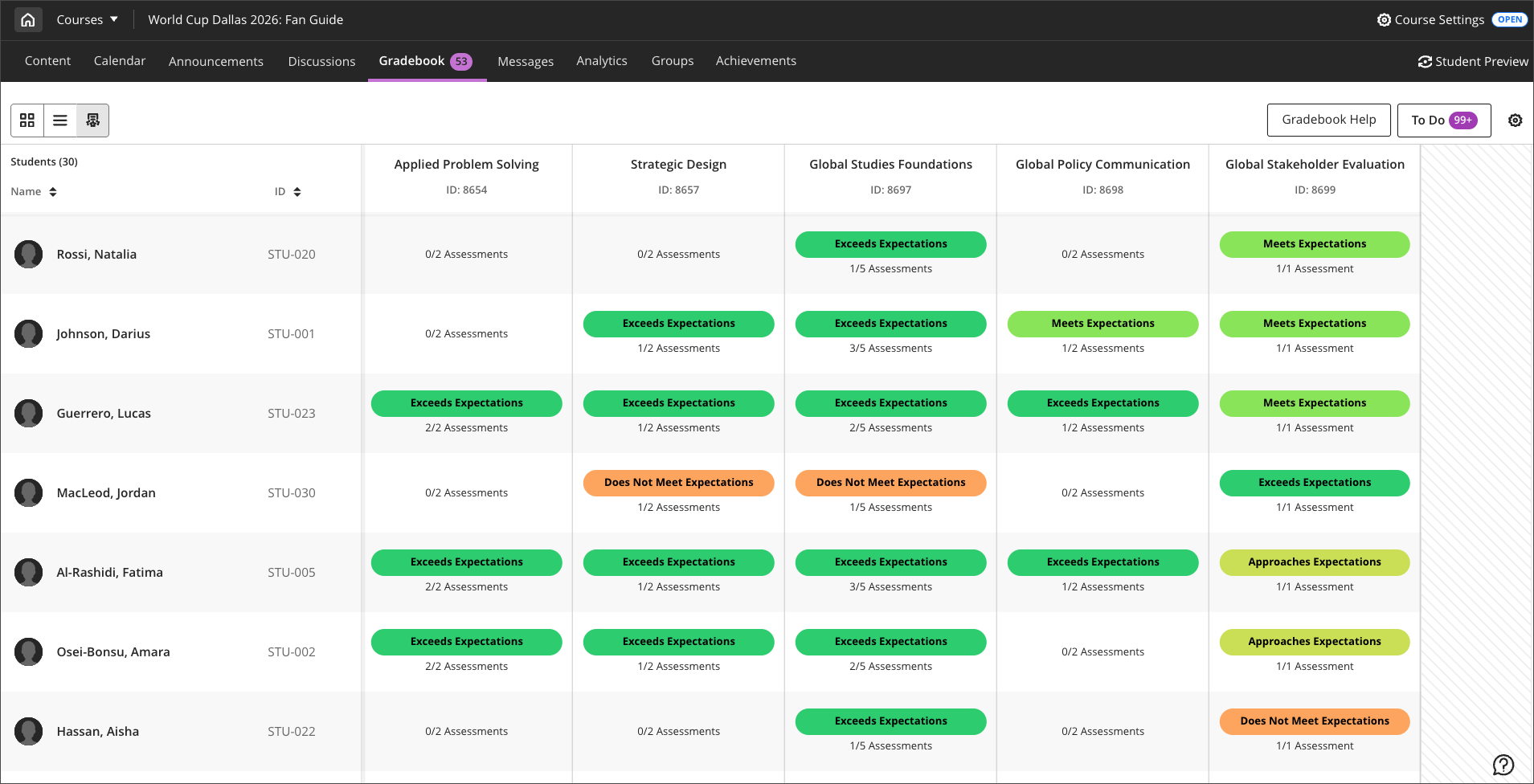
Image 2: Selecting a student from the Mastery view opens the student's profile, where instructors can view that student's outcomes in the Outcomes tab.
Administrators
Availability: Available for all Ultra courses using Mastery and provisioned Outcomes for Blackboard.
Activation: None needed.
Configuration: Permissions are managed through existing Mastery and Outcomes settings.
Blackboard Admin
Use built‑in guest access for course content in Ultra
Blackboard LMS now supports built‑in guest access for Ultra courses, allowing users to browse course content from the Course Catalog without being enrolled in the course. Guest is a course role that allows students to review available courses and understand course structure before enrolling. Use cases include:
Students in an institution who want to learn about a course before enrolling in it
New or prospective students at an institution who do not yet have Blackboard credentials
Courses must be open to be visible to guests; closed or future courses do not appear in the guest catalog.
This capability extends guest access functionality already available in Original courses to Ultra Course View courses and supports recruitment, onboarding, and transparency while maintaining appropriate privacy and participation boundaries.
Students
When guest access is enabled for an Ultra course, guests can:
View course content that is visible to students
Review items such as introductory materials, folders, documents, and assignment instructions
Within Blackboard LMS's core Course Catalog, hyperlinks appear on course names that a student can enter in the guest role. Courses that don't include hyperlinks can't be entered. Guest access provides a read‑only preview of course content that has been made visible to students. Guests can’t participate in the course. Activities that involve interaction or participation—such as submitting assignments, participating in discussions, or viewing journals—aren’t accessible. These items may appear in the course outline, but guests cannot open or engage with them.
Administrators
Availability: Available for all Ultra courses.
Activation: None needed.
Configuration: . Guest access is a course role that must be permitted at the course level for Ultra courses to appear in the Course Catalog. This is turned on at the Administrator level, either during or after a course is created. In the Administrator Panel:
Select Courses.
Find the course where Guest access is needed. Select Edit.
Under Guest Access, select Yes for Guests Permitted.
Learner Progression and Personalized Experiences
Centrally manage Automations availability across institutions
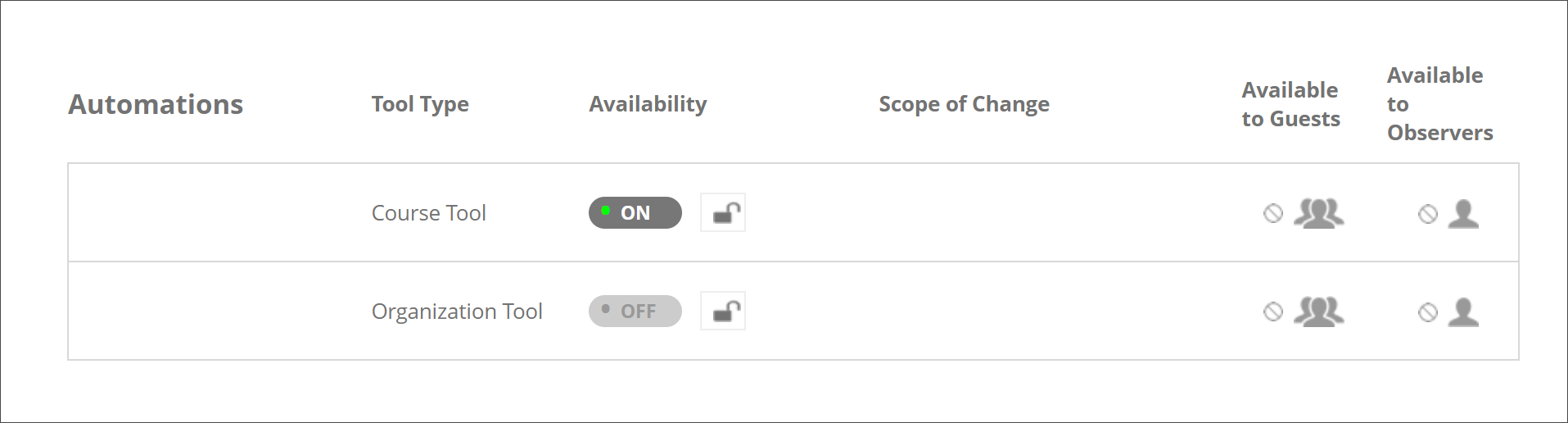
Administrators can now control Automations availability using the standard course tool toggle in the Admin Panel. Automations are turned off by default. When the Automations tool is off at any level in the institutional hierarchy, automations do not run in the affected courses. This gives administrators reliable, centralized control over automation behavior across their institution.
Image 1: Administrators turn Automations on or off as a course tool in the Admin Panel.
Administrators
Availability: Available to all Ultra courses.
Activation: None needed.
Configuration: None needed.
Integrations
Manage Learning Modules with new REST APIs
Blackboard LMS now includes REST APIs for managing Learning Modules. Administrators can create, retrieve, update, and delete Learning Modules programmatically and retrieve the content items a module contains. This gives institutions a way to build and maintain consistent course structures at scale without configuring each module by hand in every course.
Learning Modules organize course content into guided, sequenced paths for students. Manually managing Learning Modules during course set up and standardization is labor-intensive and not an ideal solution for institutions managing a large number of courses.
The Learning Modules APIs can:
Create, update, and delete Learning Modules. Administrators can set a module's name, description, and visibility through release conditions and specify whether students must move through the module as a forced sequence.
Retrieve a single Learning Module or a list of modules in a course. Institutions building custom course management tools can query which Learning Modules exist in a given course and read their current configuration.
Retrieve the content items within a Learning Module. Developers can access the list of items a module contains, making it possible to audit or report on how course content is organized.
The APIs govern the module itself while. Course items continue to be manage through the existing methods. Together, these capabilities let institutions automate course structure setup, enforce consistent content organization across programs, and extend Blackboard LMS with tools built around their own course design standards.
Administrators
Availability: Available for all Ultra courses.
Activation: None needed.
Configuration: None needed.
Support Respondus LockDown Browser with LTI 1.3 integrations
Blackboard LMS now supports the Respondus LockDown Browser proctoring integration over LTI 1.3. Institutions can install the Respondus LTI 1.3 Dashboard tool alongside their existing LTI 1.1 integration and migrate on their own timeline without interrupting proctored assessment delivery or requiring instructors to reconfigure their tests.
Respondus has transitioned to LTI 1.3, but the LockDown Browser integration in Blackboard LMS previously worked only with LTI 1.1. Institutions needed a migration path that wouldn't disrupt exams in progress or force a coordinated cutover.
This update includes the following changes:
Parallel support for both LTI versions. The LTI 1.1 and LTI 1.3 Respondus integrations can be installed at the same time. Blackboard LMS detects which integration is available and uses the LTI 1.3 tool when it's installed, falling back to LTI 1.1 when it isn't. Institutions can install and validate the LTI 1.3 tool before retiring the LTI 1.1 integration.
Automatic Institution ID resolution. When a student launches an assessment that requires LockDown Browser, Blackboard LMS retrieves the Institution ID from the LTI 1.3 tool registration first, then falls back to the LTI 1.1 integration if it isn't found there. This ensures proctoring sessions launch reliably throughout a migration. Because the Institution ID must be registered as a custom parameter on the LTI 1.3 tool, administrators need to confirm it's present when installing the tool — a missing value will prevent proctoring sessions from launching.
Automatic LockDown Browser download link. With LTI 1.3, the download link presented to students is generated from the Institution ID, so administrators no longer need to configure a separate download URL as they did with the LTI 1.1 integration.
Instructors continue to enable LockDown Browser in assessment settings exactly as before, and students see the same launch and download experience regardless of which LTI version the institution uses. Together, these changes let institutions adopt Respondus LTI 1.3 at their own pace while keeping proctored assessments available throughout the transition.
Administrators
Availability: Available for all courses.
Activation: Install the Respondus LTI 1.3 Dashboard tool. Institutions remaining on LTI 1.1 don't need to take any action; existing LockDown Browser functionality continues to work.
Configuration: When registering the Respondus LTI 1.3 tool under LTI Tool Providers, include the Institution ID as a custom parameter. Blackboard LMS uses this value to launch proctoring sessions and to generate the LockDown Browser download link, so the tool won't function correctly without it. No separate download URL configuration is needed with LTI 1.3.
SCORM security improvements
Blackboardcontinuously makes security improvements in its products, a crucial and ongoing activity to secure our clients’ environments and protect personal data. This release of Blackboard LMS includes library updates in the SCORM player feature. During the upgrade process for release 4001.0, the historic SCORM user interaction data must be restructured. SCORM content will continue to function without republishing or reconfiguring any packages.
While all other functionality of Blackboard LMS remains available during the upgrade process, SCORM playback will be temporarily unavailable during the upgrade. The SCORM feature update is expected to complete in less than 20 minutes, although the duration may vary depending on the volume of SCORM content. During the September 2026 release upgrade, SCORM content cannot be launched and will become available again automatically once the upgrade is complete. Institutions expected to require a longer SCORM upgrade window will be notified in advance.
Nota
Institutions with significant reliance on SCORM content may wish to communicate to users about a brief and temporary disruption to SCORM playback on the upgrade date.
Administrators
Availability: Available for all courses.
Activation: None needed.
Configuration: None needed.
Blackboard Core
Use new Catalan language pack in Blackboard LMS
Blackboard LMS now includes Catalan as a supported interface language. Once an institution enables it, Catalan-speaking instructors and students can work entirely in their own language across the platform, from course view to system menus, making their experience more familiar and accessible.
Interface languages are provided through language packs, which supply the user interface text that Blackboard LMS displays. Catalan joins the set of languages with full UI translation.
Administrators
Availability: Available for all Blackboard LMS courses.
Activation: Enable Catalan in the Language Packs section of system settings.
Configuration: Once Catalan is enabled, users can select it as their language in their user profile.