Comentários e suporte para Blackboard
Note
Esta documentação foi traduzida utilizando tradução automática assistida por IA. As traduções são fornecidas "no estado em que se encontram", sem qualquer garantia quanto à sua precisão. A versão em inglês deste conteúdo é a fonte oficial e de referência.
Você pode usar os recursos de autoatendimento do Blackboard LMS para encontrar respostas ou entrar em contato diretamente com o suporte técnico. O painel de Suporte do Blackboard LMS se conecta à Central de Suporte do Blackboard LMS e ao nosso site de documentação, Blackboard Help.
Clique no botão de ajuda para abrir o painel de Suporte do Blackboard LMS.
Nota
Somente a função de administrador do sistema pode acessar o painel de suporte. O botão de ajuda abre o site de ajuda para todas as demais funções.
Se sua instituição tiver um site personalizado e externo para documentação, o botão de ajuda contém um menu. Você pode optar entre o painel de suporte ou o site externo.
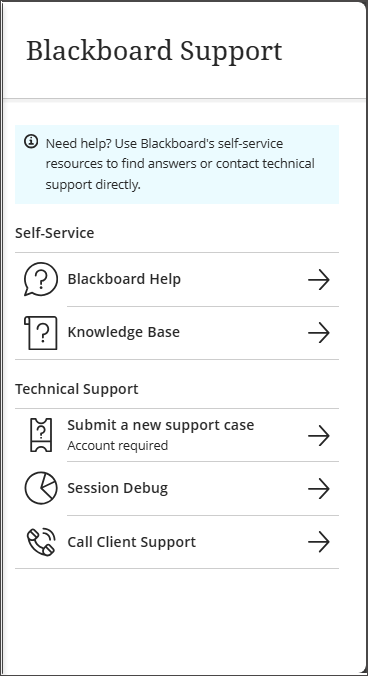
Na seção Autoatendimento, você pode acessar:
Blackboard Ajuda: Acesse ajuda contextual no produto.
Base de conhecimentos: Acesse a página de Pesquisa de Suporte do Blackboard.
Na seção Suporte Técnico, você pode acessar:
Enviar uma nova abertura de chamado: Registre um abertura de chamado diretamente no produto. Uma conta de Suporte no Blackboard é necessária para acessar.
Depuração da sessão: Gerar logs de sessão que representa as últimas 30 ações realizadas durante uma sessão. Esse código ajuda o Suporte do Blackboard ou a equipe de TI da sua instituição a diagnosticar problemas sem exigir registros manuais completos.
Ligue para o Suporte ao Cliente: Veja os números de telefone de suporte ao cliente de cada país. O logon não é exigido.
Privilégio do painel de suporte
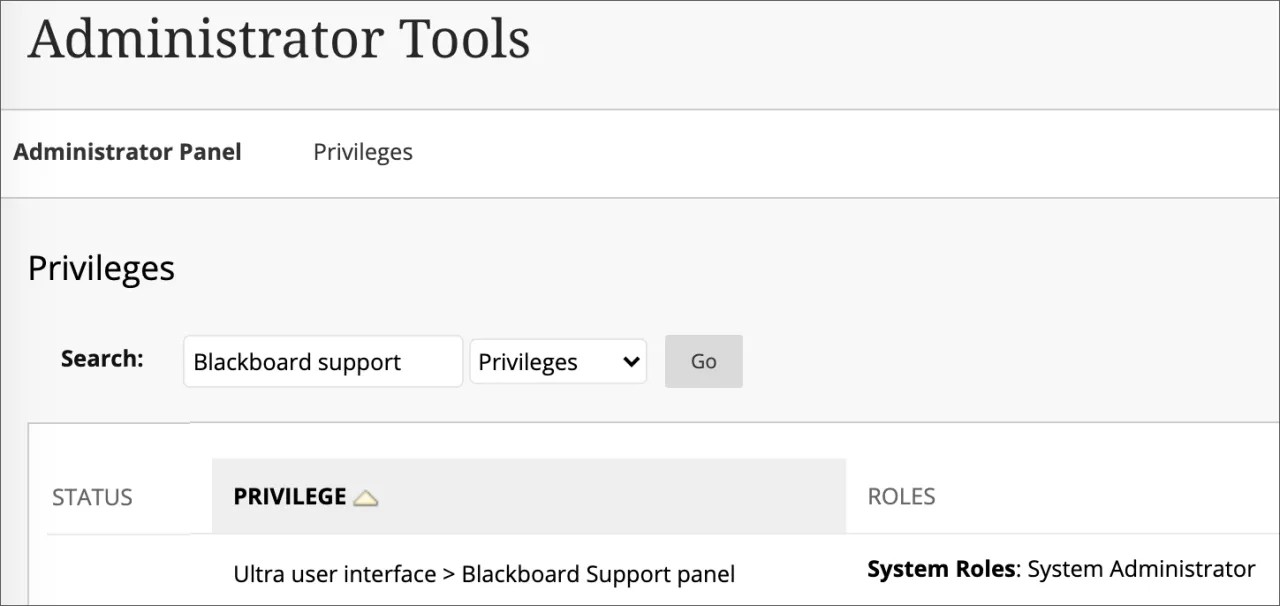
No momento, apenas administradores do sistema completo podem acessar o painel de Suporte do Blackboard LMS. Você pode adicionar o privilégio do painel de Suporte do Blackboard LMSa outras funções de administrador. Visite Funções e privilégios para mais informações sobre este assunto.
Visite o site da comunidade do Blackboard
Interaja e colabore!
Entre para participar da discussão no site da Comunidade do Blackboard. Aprenda estratégias para ajudar sua organização a enfrentar os desafios de desenvolvimento acadêmico e profissional da comunidade educacional global em constante evolução. Você pode fazer e responder perguntas, compartilhar experiências e melhores práticas e enviar feedback sobre produtos.
Gerar logs de sessão
Se um instrutor ou aluno tiver um problema ao trabalhar com o Blackboard LMS, ele poderá gerar seus próprios códigos de depuração da sessão para compartilhar com o Suporte do Blackboard ou com a equipe de TI da sua instituição.
Selecione o botão de ajuda e depois selecione Depuração de Sessão.
No painel de Suporte do Blackboard, selecione o botão Solicitar código de log e use o botão Copiar para copiar o código fornecido.
Quando o código é copiado para a área de transferência, o ícone do botão muda para um selo verde, e o código da sessão pode ser compartilhado com o suporte técnico para mais diagnósticos.
Administradores podem acessar o registro de sessões usando o código fornecido por um aluno ou instrutor.
No painel de Administrador, em Ferramentas e Utilidades selecione Logs.
Selecione Logs de Depuração de Sessão.
No campo Código de Log, cole o código de log fornecido pelo usuário e selecione Recuperar Log.