Configuração do AI Design Assistant e do Unsplash
Note
Esta documentação foi traduzida utilizando tradução automática assistida por IA. As traduções são fornecidas "no estado em que se encontram", sem qualquer garantia quanto à sua precisão. A versão em inglês deste conteúdo é a fonte oficial e de referência.
Configuração do AI Design Assistant e do Unsplash
O AI desenvolvimento Assistant auxilia os instrutores na criação e desenvolvimento de novos cursos. Destina-se a inspirar os instrutores e tornar a criação de cursos mais eficiente. A Anthology fez uma parceria com a Microsoft para fornecer essa funcionalidade.
O AI desenvolvimento Assistant fornece as seguintes funcionalidades generativas facilitadas por IA no Ultra:
Gere palavras-chave para o serviço de imagens isentas de royalties no Ultra desenvolvido pela Unsplash – Sugere palavras-chave para a pesquisa do Unsplash para eficiência.
Gerar módulos de aprendizagem – Auxilia os instrutores sugerindo uma estrutura do curso.
Gerar imagens do módulo de aprendizagem – Cria e sugere imagens para cada módulo de aprendizagem.
Gerar perguntas de teste e bancos de perguntas – Inspira os instrutores sugerindo uma série de perguntas em um teste ou criando um banco de perguntas a partir de um documento do Learn.
Gerar exercícios – Auxilia na geração de exercícios que incentivam o pensamento de ordem superior.
Gerar um critério de avaliação – Sugere um critério de avaliação com estrutura e critérios em relação a uma determinada avaliação, o que cria eficiência do instrutor e fornece transparência de avaliação aos alunos.
Gerar uma conversa de IA – Cria uma conversa entre um Aluno e uma persona de IA em um exercício de questionamento socrático ou cenário de dramatização.
Gerar imagens de documentos – Gera imagens para usar em um documento, tornando os documentos mais atraentes visualmente para os Alunos.
Sugerir layout de documento – Cria layouts atraentes para documentos, incluindo imagens, verificações de conhecimento e títulos.
Importante
Essas funcionalidades estão sujeitas às limitações e à disponibilidade do serviço OpenAI do Azure, bem como estão sujeitas a alterações. Verifique as notas de lançamento relevantes para saber mais.
Habilitar o AI Design Assistant e os recursos do Unsplash
Acesse o Painel do administrador. Na seção Integrações na categoria Building Blocks, selecione Ferramentas instaladas. Clique em AI desenvolvimento Assistant e Unsplash. Agora você tem acesso a todas as opções na página Configuração de IA.
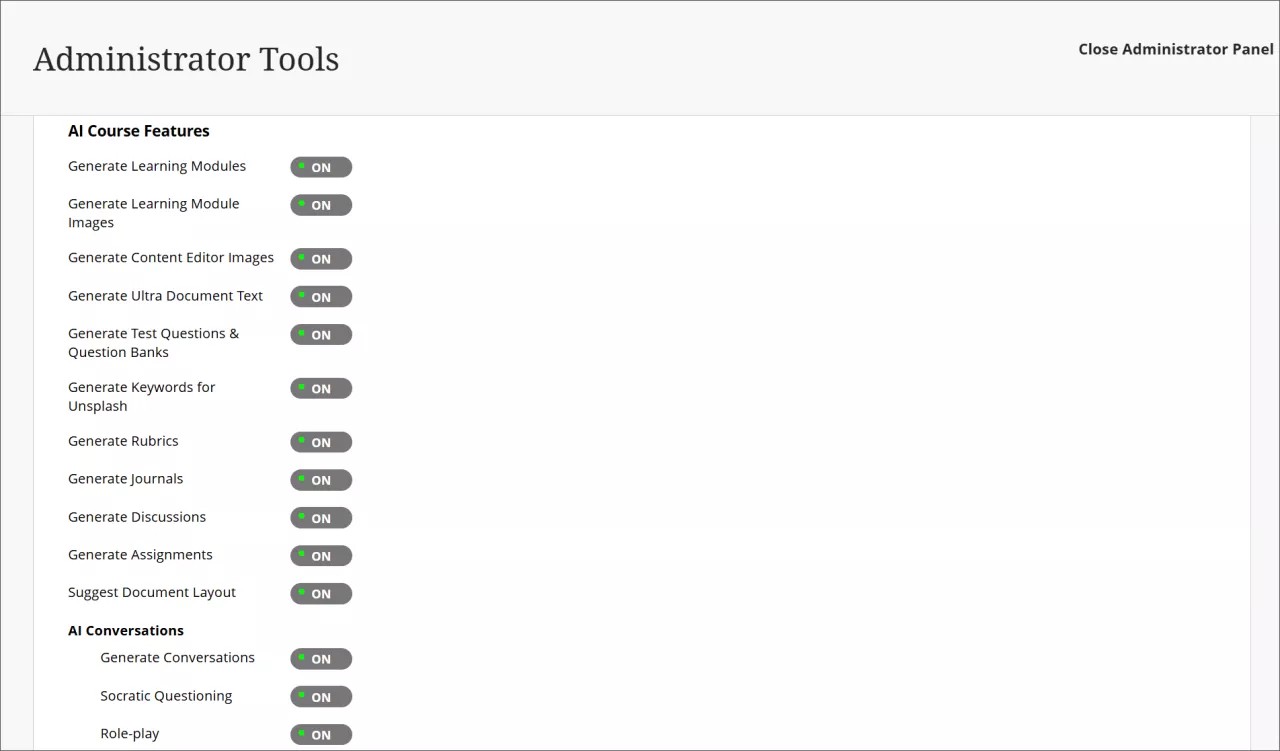
Você pode controlar a disponibilidade de todos os recursos do AI Design Assistant. Você pode selecionar ativar todos, alguns ou nenhum dos recursos a qualquer momento.
O Unsplash é um recurso separado que também pode ser acessado na página do AI Design Assistant. Se você habilitar o Unsplash, os instrutores poderão acessar a galeria de fotos do Unsplash para usar como imagens em módulos de aprendizagem e banners do curso.
Você também deve ativar privilégios. Atribua o privilégio Usar AI Design Assistant às Funções de curso apropriadas (por exemplo, Instrutor). Visite o tópico "Funções do curso e da organização" para obter mais informações sobre como atribuir e gerenciar privilégios.
AVA – AI Virtual Assistant Configuration
AVA – AI Virtual Assistant helps instructors and students by providing intelligent, AI-powered features within Blackboard LMS. Blackboardhas partnered with Microsoft and AWS to provide this functionality.
Visit our Blackboard AVA – AI Virtual Assistant page to learn more about AVA's AI-facilitated functionalities, key facts, and Trustworthy AI principles.
AVA provides the following generative AI-facilitated functionalities in Blackboard LMS:
AI Playground – AVA AI Playground provides a dedicated, institutionally managed space within Blackboard LMS, allowing instructors and students to experiment and innovate with teaching and learning.
Responses to Student Messages – AVA scans the course from the student's perspective to provide automated, relevant replies to common student questions sent to instructors.
Generate Attempt Feedback Summaries from Rubrics – Generates high-quality overall feedback for student submissions evaluated using a rubric, based on rubric criteria, performance levels, and any criterion-level feedback.
Revise Submission Feedback – Rewrites instructor-authored comments into more polished, student-friendly language to help instructors deliver clearer, more impactful feedback.
Importante
These functionalities are subject to the limitations and availability of the Azure OpenAI Service and AWS Bedrock and subject to change. Please check the relevant release notes for details.
Availability and licensing
AVA features are included in your Blackboard LMSlicense until 30 June 2026. After that date, a specific AVA license will be required to continue using these features.
AVA and Existing AI Design Assistant Settings
AVA settings are managed within the same building block as the AI Design Assistant (AI Design Assistant and Unsplash). Turning on or off AVA features does not affect AI Design Assistant settings, and vice versa. Each feature can be controlled independently.
Turn on AVA features
To access AVA settings, go to the Administrator Panel. In the Integrations section, under the Building Blocks category, select Installed Tools. Find and select the AI Design Assistant and Unsplash building block, then select Settings. The AVA configuration options are located under the AVA section of this page.
You can control the availability of each AVA feature individually. You can select all, some, or none of the features to turn on at any time.
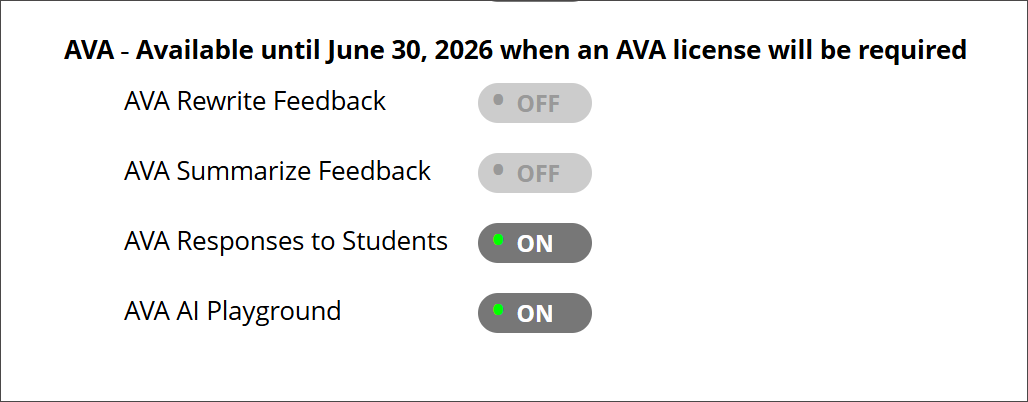
AI Playground
In the building block settings under AI Design Assistant and Unsplash, the option AVA AI Playground is available under the AVA heading. The default state is off.
Once AI Playground is enabled at system level, it is accessible through the Tools option in the Base Navigation menu for all Blackboard users.
Responses to Student Messages
To turn on this feature, navigate to the AVA section within the AI Design Assistant and Unsplash settings and select AVA Responses to Students. The default state is off.
Administrators can:
Turn the feature on globally for the entire institution, or
Enable it at the course level through Course Settings. Instructors can also turn it on or off with Course Settings.
When enabled at the administrator level, the feature is available to instructors but remains off by default. Instructors can turn on AVA autoreplies in their individual Course Settings at any time. For more information about the functionality, navigate to the Messages topic for instructors.
Generate Attempt Feedback Summaries from Rubrics
In the building block settings under AI Design Assistant and Unsplash, the option AI Summarization is available. The default state is off.
When this feature is turned on, the privilege must be assigned to course roles. The required privilege is:
Generate AI Feedback Changes in Course/Organization Control Panel
Assign this privilege to the appropriate course roles, such as Instructor, to allow access.
For more information about the functionality, navigate to the Grade Assignments with Flexible Grading topic for instructors.
Revise Submission Feedback
In the building block settings under AI Design Assistant and Unsplash, the option AI Summarization is available. The default state is off. The default state is off.
When this feature is turned on, the privilege must be assigned to course roles. The required privilege is:
Generate AI Feedback Changes in Course/Organization Control Panel
Assign this privilege to the appropriate course roles, such as Instructor, to allow access.
For more information about the functionality, navigate to the Grade Assignments with Flexible Grading topic for instructors.