Repositório de Objetos de Aprendizagem
Note
Esta documentação foi traduzida utilizando tradução automática assistida por IA. As traduções são fornecidas "no estado em que se encontram", sem qualquer garantia quanto à sua precisão. A versão em inglês deste conteúdo é a fonte oficial e de referência.
Use a visualização de gerenciamento do Repositório de Objetos de Aprendizagem (LOR) para organizar, editar, mover e excluir objetos do repositório. Você também pode acompanhar onde cada objeto é usado nos cursos e nas organizações.
O LOR oferece suporte aos seguintes tipos de objeto:
Documentos
Módulos de aprendizagem
Pastas
Arquivos
Gerenciamento de objetos e tipos de objetos compatíveis
Selecione Ferramentas e escolha Repositório de Objetos de Aprendizagem.
Selecione o botão de reticências (...) para a carta de recomendação.
Depois de abrir o menu, as seguintes opções estarão disponíveis:
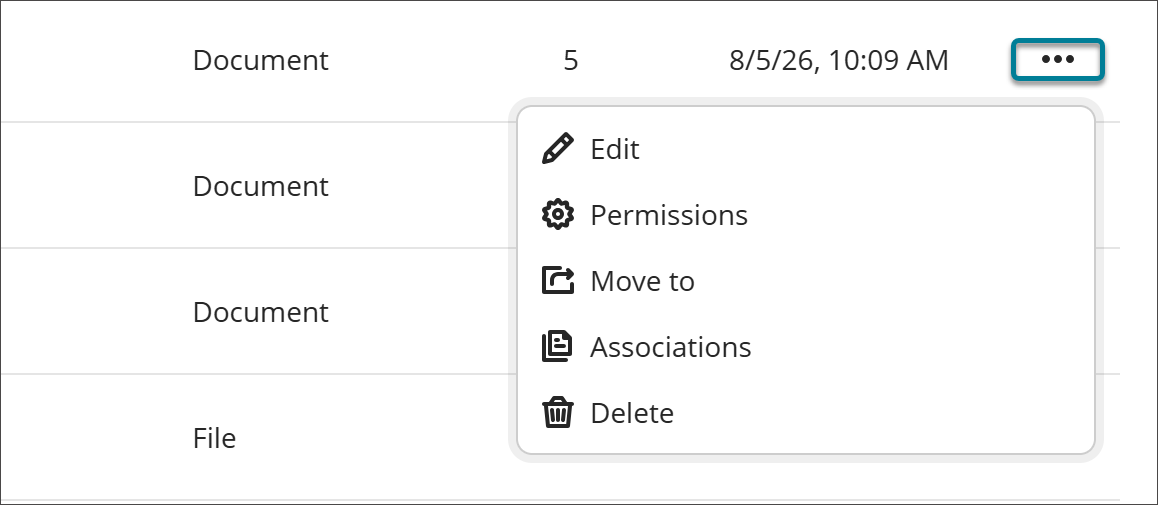
Editar
Selecione Editar para fazer alterações no objeto. As edições feitas nos objetos no LOR são aplicadas a todos os objetos associados em cursos e organizações.
Nota
As alterações não se aplicam se um curso estiver marcado como concluído ou se tiver uma data de término no passado.
Permissions
You can control which attribute of an object instructors can edit after it's added to a course or organization. When an attribute is open for editing, users with editing privileges can update it directly in the course or organization, and the change persists through future syncs.
Select Permissions.
Turn on the toggle for any attribute you want to allow editing for.
Select Save.
If you turn off the permission to edit an attribute after the object already has associations, any changes that users have made to individual objects will be reverted to the version that is in the LOR.
Ir para
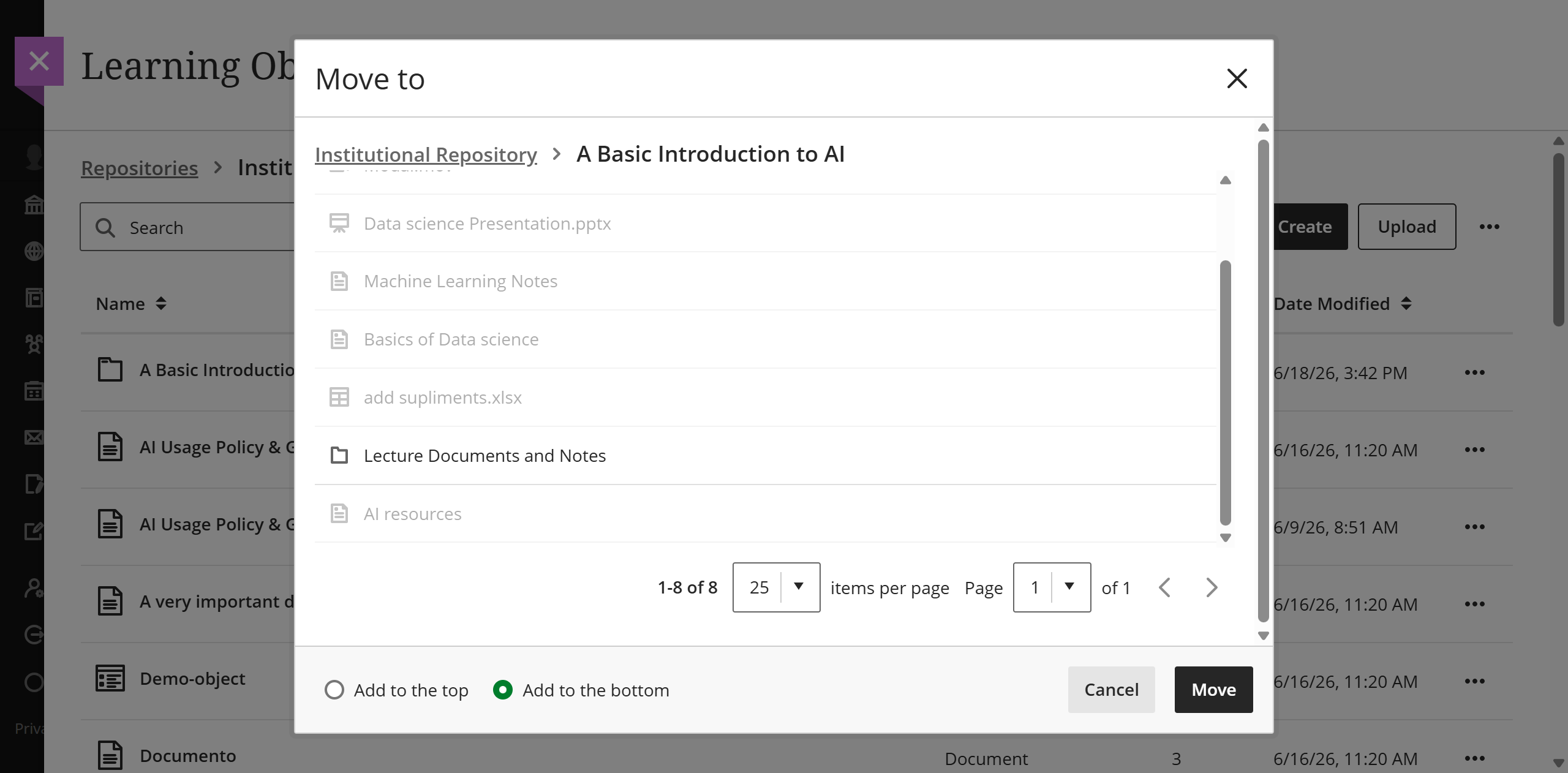
Você pode mover itens entre módulos de aprendizagem e pastas.
Selecione Mover.
Vá até o módulo de aprendizagem ou a pasta em que deseja colocar o objeto.
Selecione o botão de opção para colocar o item na parte superior ou inferior do módulo de aprendizagem ou da pasta de destino.
Selecione o botão Mover.
Nota
If moving a folder with nested items into another folder would violate the depth restrictions for courses and organizations, the folder can't be moved. In this case, a banner displays stating this is not possible in the LOR and the Move feature is disabled.
Associações
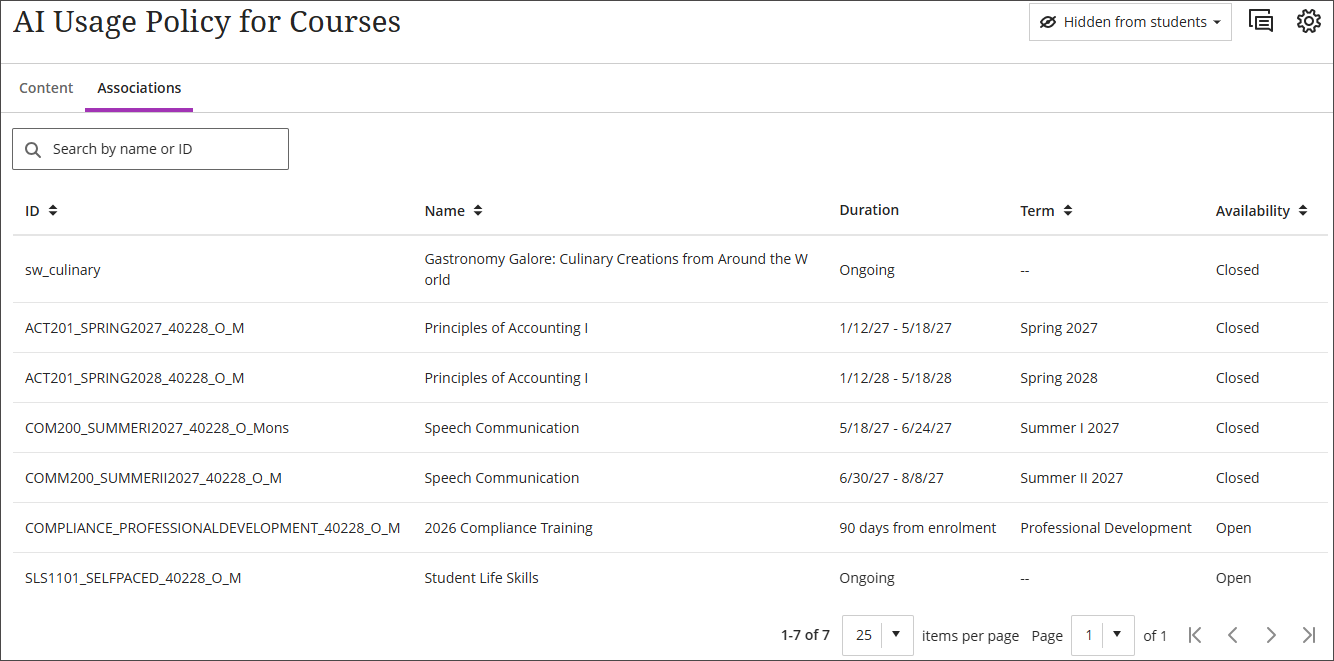
É possível acessar uma lista das associações de um objeto por meio do menu Mais opções. A página de associações tem opções de classificação e pode ser pesquisada pelo nome ou código do curso ou da organização.
Excluir
Ao selecionar Excluir, você tem duas opções.
Excluir este objeto: Selecione esta opção para excluir o objeto do LOR, mas ele permanecerá em todos os cursos e organizações associados. O objeto que permanecer no curso ou na organização perderá sua vinculação ao LOR e passará a ser totalmente editável.
Excluir este objeto e todos os objetos associados: Selecione esta opção para excluir o objeto do LOR e de todos os cursos e organizações ativos aos quais ele esteja associado. Os objetos não são excluídos de cursos marcados como concluídos ou cuja data de término já tenha passado.
View object source information
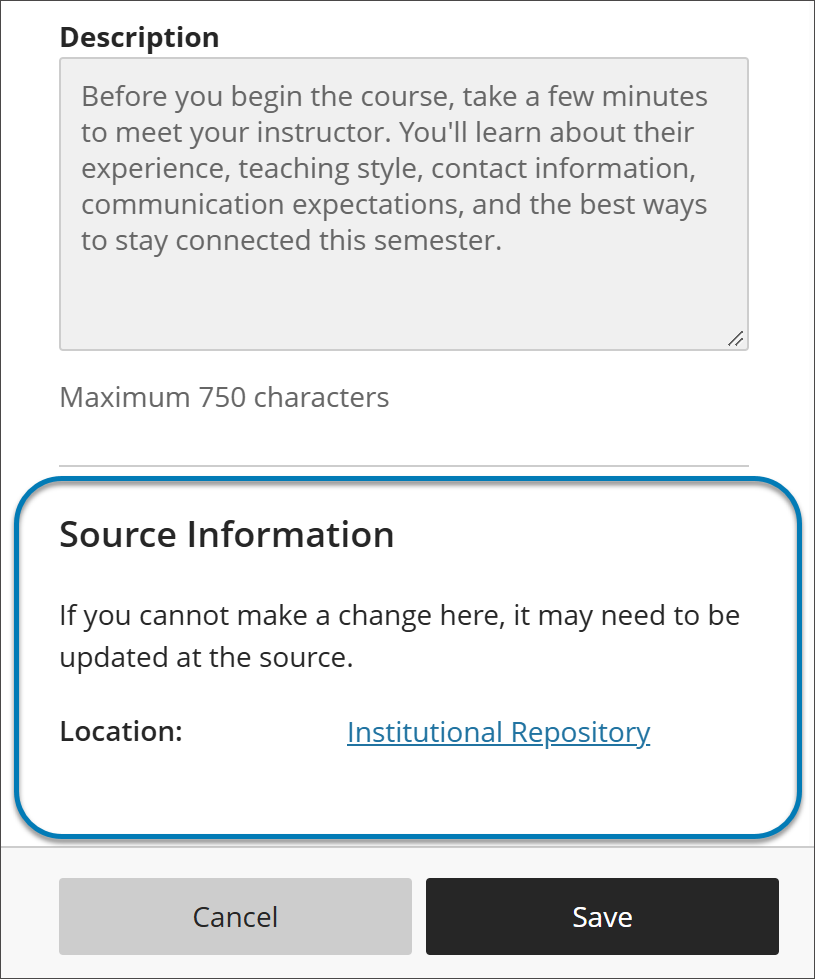
When an LOR object is used in a course or organization, its settings panel includes a Source Information section at the bottom. Use it to identify where the object is stored in the institutional hierarchy without leaving the course or organization.
Source Information lists the object’s location as a selectable link. It also notes that if you can’t change something about the object where you are, the change may need to be made at the source in the LOR.
Encontrar itens
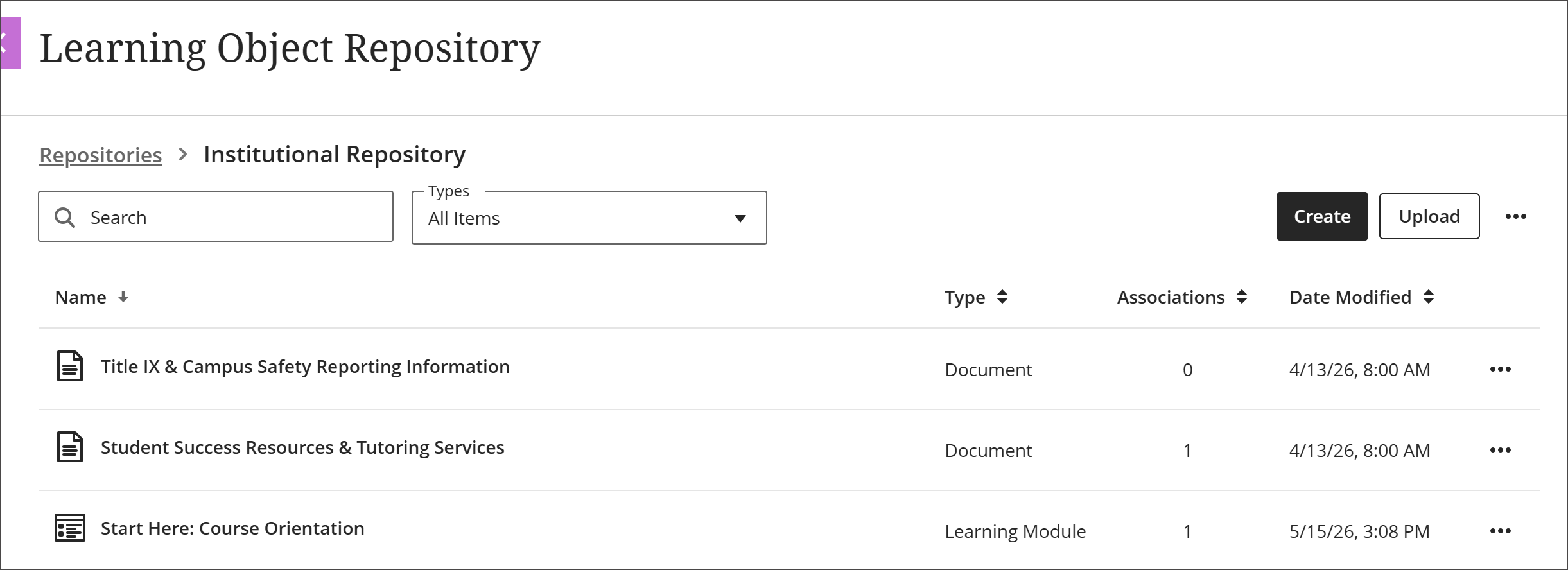
Na visualização de gerenciamento do LOR, é possível classificar os objetos por nome, tipo, número de associações ou data de modificação. Você também pode filtrar por tipo de objeto ou pesquisar pelo nome.
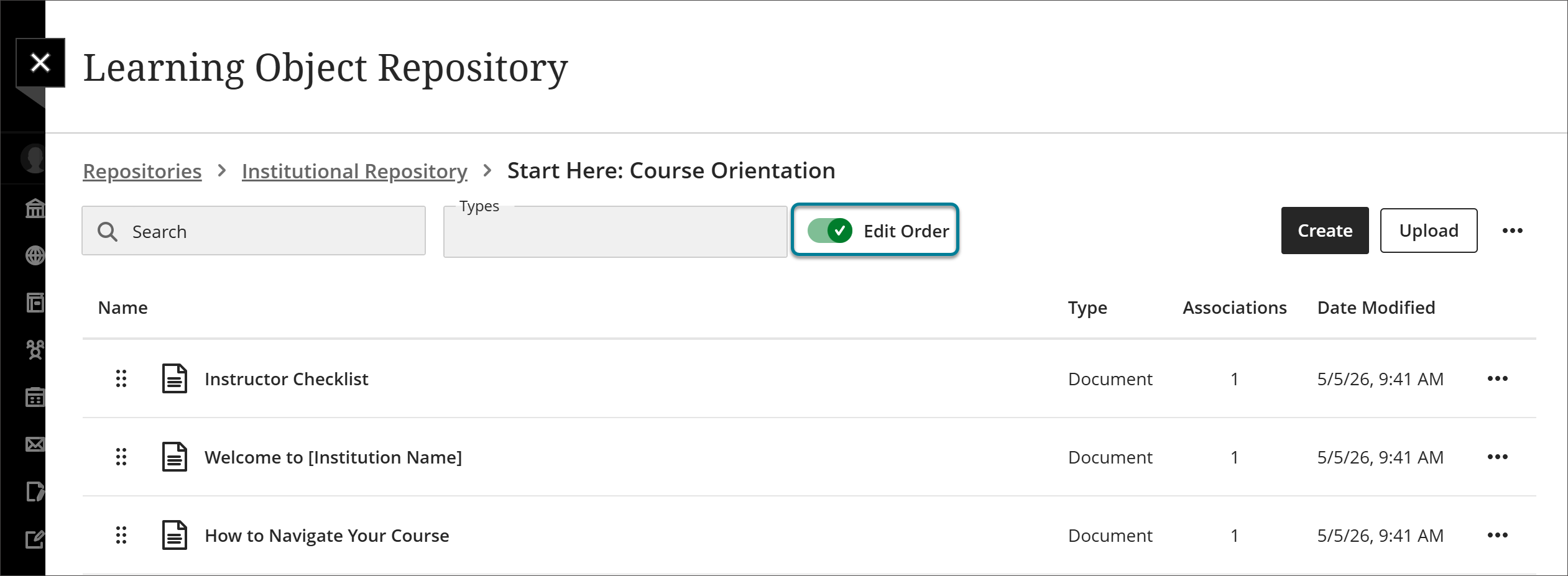
Editar a ordem dos objetos nos módulos de aprendizado e nas pastas
Ao acessar objetos na visualização de gerenciamento do LOR, você pode ordená-los, pesquisá-los e filtrá-los para personalizar sua visualização. No entanto, quando um módulo de aprendizagem ou uma pasta é inserido em um curso ou organização, é desejável que os itens nele contidos estejam em uma ordem específica.
Selecione Ferramentas e escolha Repositório de objetos de aprendizagem.
Acesse o módulo de aprendizado ou a pasta.
Ative a opção Editar a ordem.
Organize os objetos na ordem que desejar.
Use the reorder button to drag and drop objects.
Select the reorder button to open a menu with options to Move to top of page, Move up, Move down, or Move to bottom of page.
Desative a opção Editar ordem.
Os objetos agora estão bloqueados na ordem que você definiu. Quando o módulo de aprendizagem ou a pasta é inserido em um curso ou organização, os itens aparecem nessa ordem. Isso se aplica independentemente de como você os classifica, pesquisa ou filtra na visualização de gerenciamento.